


If you’ve ever tried designing a website, you probably know how tricky it can be to choose the perfect color. Trust me, I’ve been there—scrolling endlessly through palettes, only to end up with a shade that looks totally different on the screen. That’s where a color picker for HTML comes in.
👉 In this blog, I’ll walk you through how to create your own color picker tool using HTML, CSS, and JavaScript. And the best part? You don’t need to be a pro developer to pull this off. I’ll keep it simple, practical, and fun.
What is a Color Picker for HTML?
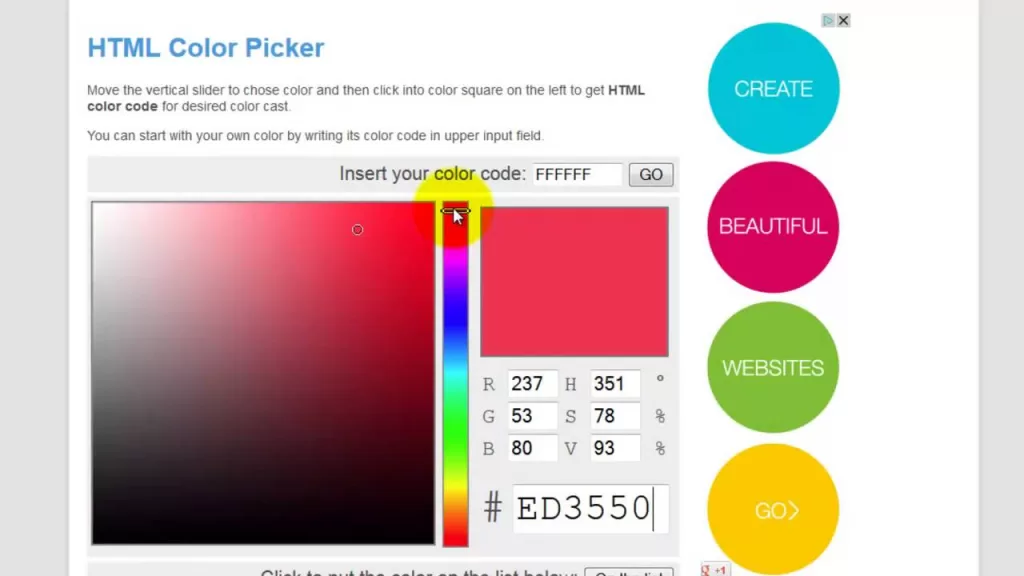
A color picker for HTML is basically a tool that lets users select a color value without typing it manually. Think of the color picker you see in Photoshop, Canva, or even when you’re choosing a theme color in Google Docs.
In HTML, we usually deal with colors in:
- HEX codes (#ffffff for white, #000000 for black)
- RGB values (like rgb(255, 0, 0) for red)
- HSL values (hue, saturation, lightness)
Now imagine asking a user to type #1f7a1f into a box 😅. That’s a disaster waiting to happen. A color picker tool makes it way easier—users just click and boom, they’ve got the color they want.
What is the Purpose of a Custom Color Picker?
Admittedly, HTML already provides an input type of color element. It is something nice, but to be fair, it is rather dull and does not always match your design aesthetic.
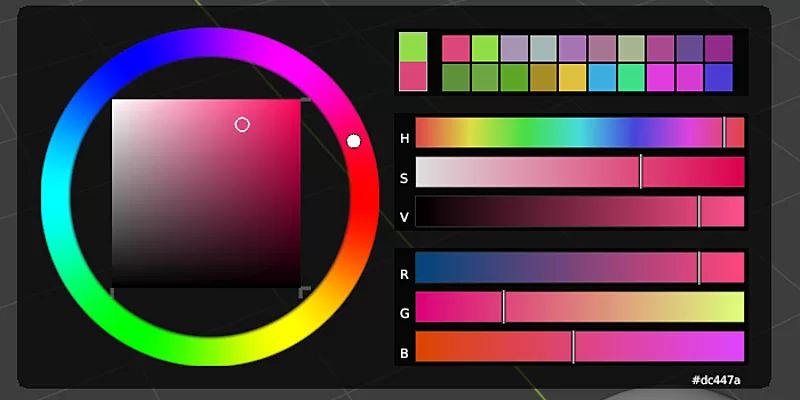
My initial color picker was created in an HTML portfolio project. I desired the background colors to be selected by the visitors. This little detail helped to make the site more interactive and earned me additional points on grade (not a joke!).
The reason why you may want your own custom version is as follows:
- More control over design 🎨
- Ability to show color codes live
- Cool user experience (people love clicking stuff!)
- Practice your HTML, CSS, and JavaScript skills
📌 Step 1: Basic HTML Structure
First, let’s set up a simple HTML skeleton. This is where we’ll place our color picker tool.
🎨 Step 2: Style It With CSS
Now, let’s give our color picker some personality.
I always like adding a preview box so the user immediately sees the color they’ve picked. It makes the tool feel alive.
Step 3: Add JavaScript Magic
Let’s make the color picker interactive.
Now every time you pick a color, the code updates the text and the preview box instantly. Smooth, right?
Step 4: Going Beyond Basics
When I first shared my color picker for HTML project, people kept asking:
“Can we copy the HEX code directly?”
Of course! Let’s add that feature.
Now you’ve got a pro-level color picker tool that lets users copy codes instantly.
Where Can You Use This Tool?
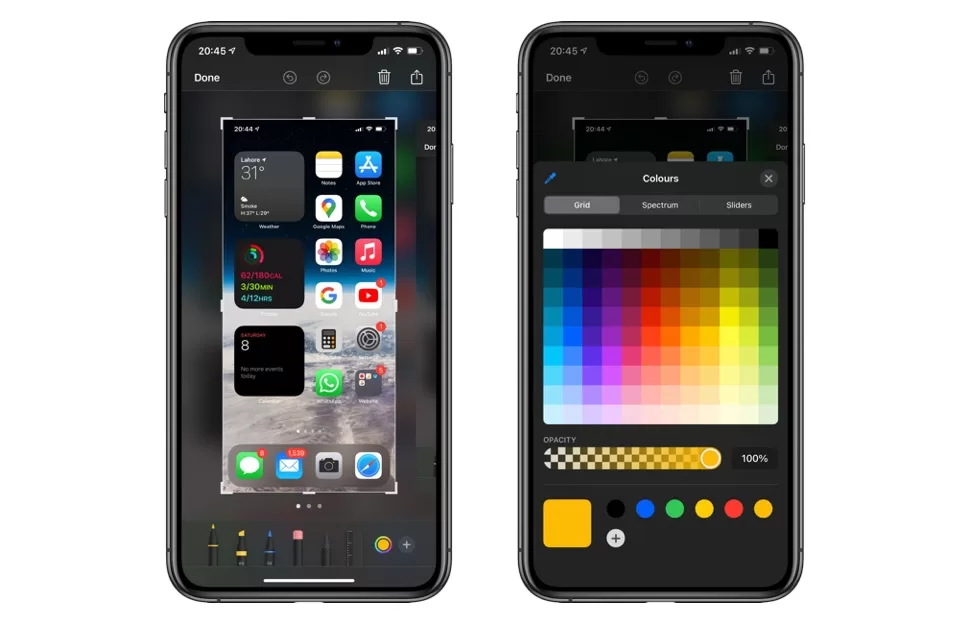
Here are some ideas where your custom color picker tool can fit in:
- Personal portfolio websites
- Online design tools
- Blogging platforms (like WordPress widgets)
- E-commerce websites for product customization
Final Thoughts
Creating an HTML color picker is not all about colors but it is all about creating an interactive and user friendly website. In the case of I adding the feature to my own site, people literally spent more time clicking
These little details should not be underestimated, then. They bring your projects to the fore.
This is a little mini-challenge, should you be learning HTML, CSS and JavaScript and need to sharpen your guns. And who knows? Perhaps your next customer will appreciate you to add cool color picker to their site.
Want to learn more about HTML, CSS, Javascript or Front End Development Course Visit Kaashiv Infotech Website www.kaashivinfotech.com.