
[Solved-4 Solutions] Adding VirtualHost fails: Access Forbidden Error 403 (XAMPP) (Windows 7)
Error Description:
Adding VirtualHost fails: Access Forbidden Error 403 (XAMPP) (Windows 7)
Solution 1:
- Access forbidden! New XAMPP security concept. Error 403
Access Forbidden 403 ( New XAMPP security concept )
click below button to copy the code. By - apache tutorial - team
- During development and seeing unforced/unwanted errors… after all a few mins R&D and research , we got a solution at two different websites … but individually they were bit incomplete and on combining both solutions , we got the issue resolved
- Open httpd-vhosts.conf file and in the bottom of the file change it
<VirtualHost *:80>
DocumentRoot “E:/xampp/htdocs/”
ServerName localhost
<Directory E:/xampp/htdocs/>.
Require all granted
</Directory>
</VirtualHost>
click below button to copy the code. By - apache tutorial - team
- Here E:/xampp is project workspace, we can change it as per our settings and Second Change is
- Now Open httpd-xampp.conf file and in the bottom of the file change it
- # New XAMPP security concept
<LocationMatch “^/(?i:(?:xampp|security|licenses|phpmyadmin|webalizer|server-status|server-info))”>
Order deny,allow
click below button to copy the code. By - apache tutorial - team
- Allow from all
Allow from ::1 127.0.0.0/8
ErrorDocument 403 /error/XAMPP_FORBIDDEN.html.var
</LocationMatch>
click below button to copy the code. By - apache tutorial - team
NOTE : Make sure we backup files ( httpd-xampp.conf ) and ( httpd-vhosts.conf ) , Both Files are located in Drive:\xampp\apache\conf\extra
Solution 2:
- We have to allow Apache to access the root folder of your LAMP files:
- Edit the conf file in /etc/apache2/sites-available/yourconffile.conf
- Enter following:
<VirtualHost localhost:80>
 DocumentRoot "/path/to/your/rootfolder"
        <Directory "/path/to/your/rootfolder">
            # AllowOverride All      # Deprecated
        # Order Allow,Deny       # Deprecated
        # Allow from all         # Deprecated
        # --New way of doing it
        Require all granted
    </Directory>
</VirtualHost>
click below button to copy the code. By - apache tutorial - team
Solution 3:
- This worked for us with Ubuntu 11.10 and version 1.7.7 in httpd.conf we’ve added the # in the directory to have it work with vhosts. vhosts were located outside of the root folder...
- And change user and group from nobody to our username:
User nobody
Group nobody
</IfModule>
</IfModule>

#
# Each directory to which Apache has access can be configured with respect
# to which services and features are allowed and/or disabled in that
# directory (and its subdirectories).
#
# First, we configure the "default" to be a very restrictive set of
# features.
#
<Directory />
# Options FollowSymLinks
# AllowOverride None
# Order deny,allow
# Deny from all
</Directory>
click below button to copy the code. By - apache tutorial - team
Solution 4:
- We are using XAMPP 1.6.7 on Windows 7.
- We added the following lines in the file
httpd-vhosts.confatC:/xampp/apache/conf/extra.
- we had also uncommented the line
# NameVirtualHost *:80
<VirtualHost mysite.dev:80>
    DocumentRoot "C:/xampp/htdocs/mysite"
    ServerName mysite.dev
    ServerAlias mysite.dev
    <Directory "C:/xampp/htdocs/mysite">
        Order allow,deny
        Allow from all
    </Directory>
</VirtualHost>
click below button to copy the code. By - apache tutorial - team
- After restarting the apache, it were still not working. Then we had to follow by editing the file
C:/Windows/System32/drivers/etc/hosts.
# localhost name resolution is handled within DNS itself.
     127.0.0.1       localhost
     ::1             localhost
     127.0.0.1       mysite.dev
click below button to copy the code. By - apache tutorial - team
Solution 5:
- For Http inside httpd-vhosts.conf
<Directory "D:/Projects">
AllowOverride All
Require all granted
</Directory>

##Letzgrow
<VirtualHost *:80>
DocumentRoot "D:/Projects/letzgrow"
ServerName letz.dev
ServerAlias letz.dev
</VirtualHost>
click below button to copy the code. By - apache tutorial - team
- For using Https (Open SSL) inside httpd-ssl.conf
<Directory "D:/Projects">
AllowOverride All
Require all granted
</Directory>

##Letzgrow
<VirtualHost *:443>
DocumentRoot "D:/Projects/letzgrow"
ServerName letz.dev
ServerAlias letz.dev
</VirtualHost>
click below button to copy the code. By - apache tutorial - team
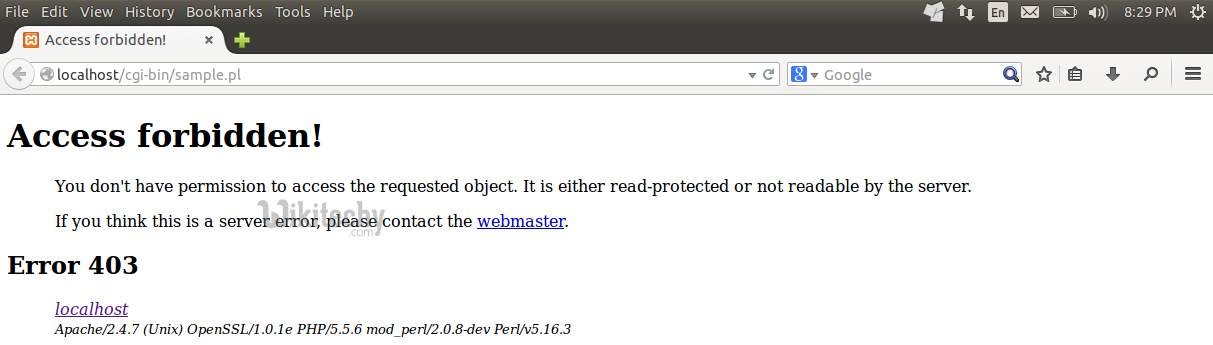
Learn apache - apache tutorial - apache adding virtual host - apache examples - apache programs