7 Easy Ways: How to Block Emails on Gmail (Stop Spam, Report & Unsubscribe Easily)
Are you overwhelmed by spam emails, unwanted subscriptions, or annoying promotions in your Gmail inbox? 😤 You’re not alone! In this guide, we’ll show you exactly how to block emails on Gmail (Stop Spam, Report & Unsubscribe Easily) — so you can enjoy a clutter-free inbox again.
Whether it’s persistent spam, marketing emails you never signed up for, or harassment from unknown senders, this guide provides easy, step-by-step solutions. Let’s dive right in and take control of your inbox. 💪
🔑 Key Highlights
- ✅ Step-by-step instructions to block emails on Gmail
- 🚫 Learn how to report spam and unsubscribe from mailing lists
- 🔒 Keep your inbox safe and clean with Gmail’s built-in features
- 🔄 Works for both desktop and mobile (Android & iOS)
- 🔗 Helpful links to Gmail support and related guides
- 🧠 Beginner-friendly and uses simple language
📌 Why You Should Learn How to Block Emails on Gmail (Stop Spam, Report & Unsubscribe Easily)
The amount of unwanted emails we receive daily is increasing — from promotional offers to phishing attempts. Knowing how to block emails on Gmail gives you control over your digital space, helping you:
- ✅ Protect your privacy
- ✅ Reduce distractions
- ✅ Avoid spam and scams
- ✅ Improve your email productivity
📥 1. How to Block Emails on Gmail (Step-by-Step on Desktop)
Here’s how to block unwanted emails in Gmail on your computer:
- Open Gmail.
- Open the email you want to block.
- Click the three dots (More) in the top right corner of the message.
- Select “Block [Sender Name]”.
- Confirm when prompted.
🔒 Once blocked, all future emails from this sender will go to your Spam folder.

✅ Pro Tip: Gmail’s spam filter is smart, but manually blocking is sometimes necessary for persistent senders.
📱 2. How to Block Emails on Gmail (Mobile App – Android & iOS)
If you use Gmail on your phone, here’s how to block an email sender:
- Open the Gmail app.
- Open the email you want to block.
- Tap the three-dot menu in the top right.
- Tap “Block [Sender]”.
🚀 That’s it! Gmail will now treat that sender as blocked.

🚫 3. How to Report Spam in Gmail
If an email looks suspicious or spammy, reporting it helps Gmail improve its spam filters. Here’s how:
- On Desktop:
- Open the email.
- Click the three dots > Click “Report Spam”.
- On Mobile:
- Tap the three dots inside the email.
- Select “Report Spam”.
📛 Emails marked as spam are moved automatically to the spam folder, and Gmail uses this data to protect other users.
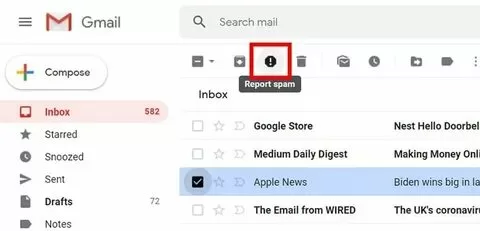
📤 4. How to Unsubscribe from Emails on Gmail
Tired of marketing newsletters? Gmail often shows an Unsubscribe link next to the sender’s name.
- Simply click or tap “Unsubscribe”
- Confirm your decision in the pop-up or redirected page
If the option doesn’t show up, scroll to the bottom of the email — you’ll usually find an unsubscribe link there too.

🔗 Also read: How to Submit Your Website to Search Engines in 2025
🛑 5. Use Filters to Automatically Block Emails in Gmail
Want to go a step further? Use Gmail Filters:
- Click the gear icon (⚙️) > See all settings
- Go to the Filters and Blocked Addresses tab
- Click “Create a new filter”
- Enter the email address or keywords
- Click “Create filter”, then choose “Delete it” or “Skip the inbox (Archive it)”
Filters help automate your inbox and avoid repetitive blocking.

💡 6. Marking Emails as Phishing (For Safety)
If an email asks for personal info or looks like a scam, you can report it as phishing:
- Click the three dots in the email
- Select “Report phishing”
- Confirm
📌 This alerts Gmail and protects others from potential scams.

⚙️ 7. Bonus Tip: Use Gmail Settings to Strengthen Spam Protection
Head to Gmail Settings > Filters and Blocked Addresses to:
- Review who you’ve blocked
- Manage filters
- Adjust spam handling behavior

🌐 External Tools to Help You Block Spam
- Unroll.Me – unsubscribe from bulk emails
- Clean Email – organize your inbox automatically
- Google Support – Gmail Help – official help center
🔄 Summary: Take Control of Your Gmail Inbox Today
Knowing how to block emails on Gmail (Stop Spam, Report & Unsubscribe Easily) is a must in 2025. With just a few clicks, you can:
- 🚫 Block annoying senders
- 📛 Report spam
- 📤 Unsubscribe from unwanted emails
- ⚙️ Set up smart filters
No more digging through junk mail or falling for scams. Your inbox should be a safe, clutter-free space. 🧹
📚 Recommended Reads:
- 🔗 How to Remove Tracking Cookies in Any Browser (Step-by-Step Guide)
- 🔗 How to Find and Secure Your WordPress Login URL
✅ Final Thoughts
Don’t let spam take over your day. Use this step-by-step guide on how to block emails on Gmail and say goodbye to inbox stress. Whether you’re blocking a sender, unsubscribing from emails, or reporting phishing, Gmail gives you the power to control your inbox with ease.
If you found this guide helpful, share it with someone who needs a cleaner inbox today! 💌