How to Build & Publish Your Chrome Extension in Minutes (Complete Guide)
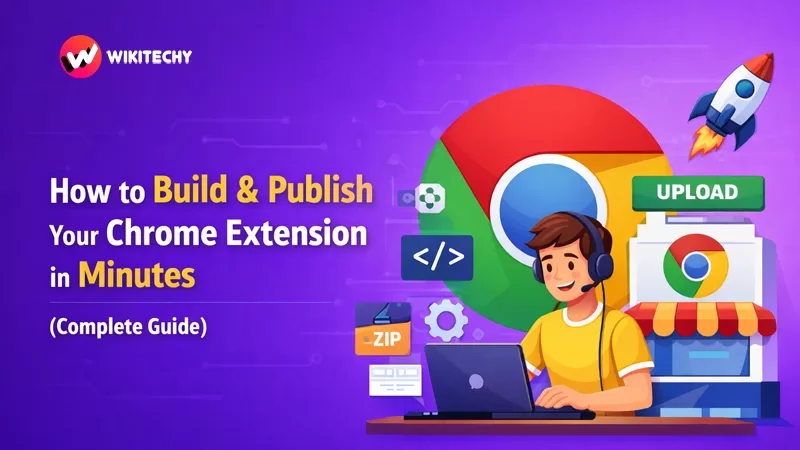
How to Build a Chrome Extension – Chrome extensions are small software add-ons that extend the functionality of the Google Chrome browser. They let you customize your browsing experience, automate tasks, and add new features using just HTML, CSS, and JavaScript.
In this tutorial, you’ll learn how to build a simple extension, test it in Chrome, package it, and publish it to the Chrome Web Store. Let’s get started!
🧠 1. What is a Chrome Extension?
A Chrome extension is essentially a mini application built with web technologies—HTML, CSS, and JavaScript—that runs inside the browser and adds new capabilities. It uses special Chrome APIs to interact with the browser and web pages.
Unlike full web apps, extensions are focused on doing one or two small functions really well — like changing page colors, automating form-filling, or customizing the interface.
📁 2. Understand Extension Structure
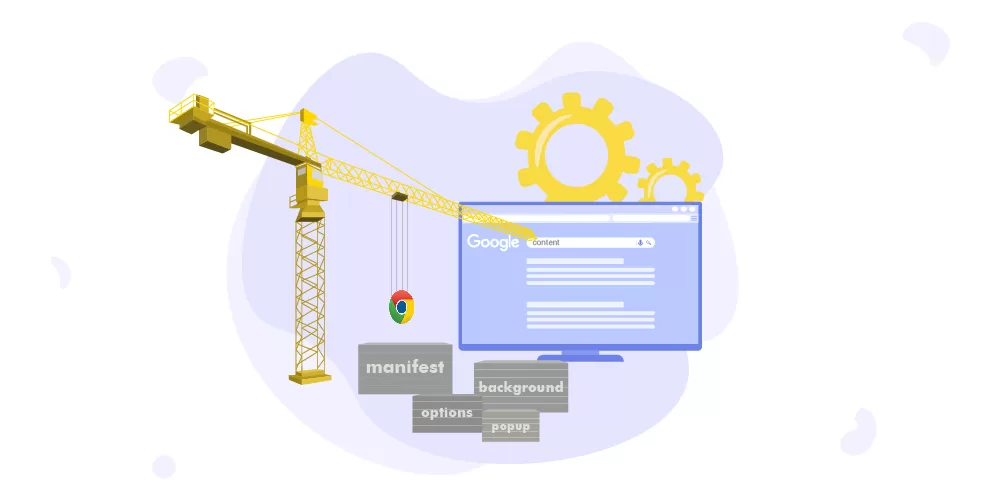
A typical Chrome extension includes:
- manifest.json – Required metadata that tells Chrome about your extension.
- Content scripts – JavaScript that runs inside web pages.
- Background/service worker scripts – Scripts that run in the background and listen for browser events.
- Popup or UI pages – Optional user interface for your extension.
- Icons and assets – Images and branding files your extension uses.
🛠 3. Create Your First Chrome Extension
How to Build a Chrome Extension
🗂 Step 1: Create Your Extension Folder
Make a new folder on your computer. This will contain all your extension files.
🔧 Step 2: Create the Manifest
In your folder, create a file named manifest.json and add:
{
  "manifest_version": 3,
  "name": "My First Chrome Extension",
  "version": "1.0.0",
  "description": "A simple Chrome extension example.",
  "action": {
      "default_popup": "popup.html",
      "default_icon": "icon.png"
  },
  "permissions": ["activeTab", "scripting"]
}
manifest_version: Latest Chrome requires version 3.name,description,version: Info shown in Chrome and the store.permissions: What features your extension needs.
📄 Step 3: Create a Popup (Optional)
Create popup.html with basic UI:
<!DOCTYPE html>
<html>
<head>
    <title>My Extension</title>
</head>
<body>
    <h3>Hello from your extension!</h3>
    <button id="change-color">Change Color</button>
    <script src="popup.js"></script>
</body>
</html>
Then make popup.js to interact with the page:
document.getElementById("change-color").addEventListener("click", async () => {
    const [tab] = await chrome.tabs.query({ active: true, currentWindow: true });
    chrome.scripting.executeScript({
        target: { tabId: tab.id },
        function: () => document.body.style.backgroundColor = "yellow"
    });
});
This button will change the current page’s background to yellow.
🧪 4. Test Your Extension in Chrome

- Open Chrome and go to
chrome://extensions/ - Toggle Developer mode ON (top right).
- Click Load unpacked.
- Select your extension folder.
If all goes well, your extension will load and you’ll see your icon in the toolbar. Testing locally ensures everything works before publishing.
📦 5. Package Your Extension
Before publishing:
- Confirm your manifest.json has no errors.
- Ensure icons and screenshots are ready.
- Test all functionality on multiple pages if needed.
Then compress your extension folder into a ZIP file. Make sure manifest.json is at the root of the ZIP, not nested in a subfolder.
🚀 6. Publish on the Chrome Web Store
Publishing requires a Chrome developer account:
- Go to the Chrome Web Store Developer Dashboard (linked from Google).
- Pay a one-time $5 registration fee to verify your developer account.
- Click Add New Item and upload your extension ZIP file.
- Fill out metadata like name, description, icons, and screenshots.
- Set categories, provide privacy details, and language options.
- Click Submit for Review.
Once submitted, Chrome reviews your extension. This process can take a few days — during which you can still make edits if needed.
🧑💻 7. After Publishing
Once live, users can install your extension from the Chrome Web Store. Keep these tips in mind:
- Respond to user feedback.
- Update often to fix bugs and add features.
- Monitor performance and compatibility.
🧾 Summary
Here’s a quick recap of the How to Build a Chrome Extension journey:
- Create files: manifest, scripts, popup/UI.
- Test locally using
chrome://extensions/. - Package your extension into a ZIP file.
- Publish via the Chrome Web Store with a developer account.
And that’s it — you’ve built and published a Chrome extension in just a few minutes! 🎉
Conclusion:
How to Build a Chrome Extension and publishing a Chrome extension is no longer a complex or time-consuming process. With just basic knowledge of HTML, CSS, and JavaScript, you can transform a simple idea into a functional browser tool in minutes. How to Build a Chrome Extension – By creating a proper manifest.json, adding your UI and scripts, testing through chrome://extensions/, and submitting your ZIP file to the Chrome Web Store, you complete the entire development lifecycle—from concept to live product. The key is to keep your permissions minimal, follow Manifest V3 guidelines, and thoroughly test before submission. Once published, your extension has the potential to reach millions of Chrome users worldwide, opening doors for innovation, learning, and even monetization.
Want to Learn More ? Kaashiv Infotech Offers Full Stack Python Course, Artificial Intelligence Course, Data Science Course & More Visit Their Website course.kaashivinfotech.com.
Related Reads: