How to Calculate Percentage in Excel: 7 Powerful Ways (With Formulas & Examples)
How to calculate percentage in Excel is the question users ask when they need quick, working formulas—not theory. Excel doesn’t have a single “percentage button” that does math for you. It uses simple multiplication and division, and then formatting as %.If you learn a handful of patterns, you’ll handle taxes, discounts, marksheets, growth rates—fast. This guide centers on the exact excel percentage formula patterns you’ll actually use.
🔑 Key Highlights
- Percentages are formatting. The math is multiplication or division; the % sign is just how Excel displays it.
- Core formulas:
=A1*B1,=A1/B1,=(New-Old)/Old,=A1*(1±B1). - Real-world use cases: VAT/GST, discounts, student marksheets, revenue growth, combined discounts.
- Best practice: Enter
20%or0.2, then format with Percent Style; control decimals. - Common mistake: Adding discounts instead of multiplying them sequentially.

What Is the Formula of Percentage in Excel?
A percentage is “per hundred.” Example: 25% = 25/100 = 0.25. In Excel, 0.25 and 25% are the same value—only the cell’s format differs. That’s why every excel percentage formula reduces to multiplication or division, then percentage formatting.
Helpful reference: See Microsoft’s guide on percentages in Excel for deeper examples:
Microsoft Excel Support.
How to Write Percentages in Excel
How to calculate percentage in Excel – When working with data in Excel, numbers are often entered as decimals (for example, 0.2) but you may want them to appear as percentages (20%). Excel makes this easy with the Percentage Style button.
- Select the cell with the decimal value.
- Click the % button in the Number group on the Ribbon.
- Excel will instantly format the value as a percentage.

Adjust Decimal Places in Excel Percentages
By default, Excel might round your percentages to the nearest whole number. You can easily increase or decrease decimal places.
- Select the percentage cell.
- Use the Increase Decimal or Decrease Decimal buttons (shown as .00 → .0).
- This way, you can show more precision when needed.
Multiply Numbers with Percentages in Excel
Excel can directly calculate percentages in formulas. For example, if you want to find 87% of 824:
- Formula:
=A1*B1 - Excel automatically multiplies the number by the percentage.
Calculate Percentage from Two Numbers
If you want to know what portion one number is of another, divide and then format as a percentage.
- Formula:
=G1/H1 - Excel shows decimal
0.5281. - Format as percentage → 52.8%.
- You can round it to 53% if needed.
Combine Discounts Using Percentages
You can also calculate combined discounts. For example, if an item discount is 80% and a cart discount is 90%, the effective discount can be calculated with multiplication.
- Formula:
=I2*J2 - Excel gives 72% total discount.
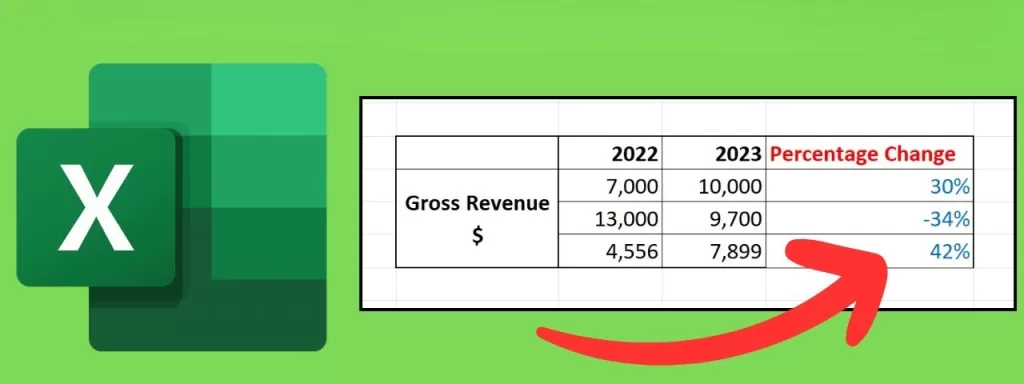
Percentage Change Formula in Excel
To find percentage increase or decrease between two numbers, subtract and divide by the original value.
- Formula:
(New – Old)/Old - Format result as percentage.
- Positive = Increase, Negative = Decrease.
Percentage Share of Total in Excel
If you want to know how much one value contributes to the total:
- Formula:
=Part/Total - Format as percentage to get share contribution.
Percentage Calculations in Excel (The Core Patterns)
1 How to Calculate Percentage of a Number in Excel
Formula: =A1*B1
- If
A1=824andB1=87%→ result is 716.88. - Use cases: commissions, interest portions, tax components.
2 How to Add Percentage in Excel (Increase)
Formula: =A1*(1+B1)
- Price
=185, VAT=17%→=185*(1+17%)= 216.45. - Why this works: you multiply by
1 + rateto add a percentage to a base.
3 How to Subtract or Minus Percentage in Excel (Discounts)
Formula: =A1*(1-B1)
- Original
=999, Discount=20%→=999*(1-20%)= 799.20. - Use cases: retail discounts, markdowns, promo codes.
4 How to Find Percentage of One Number Compared to Another
Formula: =A1/B1 then format as %
75/142→ 52.8%.- Use cases: marks obtained vs. total, task completion vs. target.
5 How to Calculate Percentage Increase or Decrease in Excel
Formula: =(New-Old)/Old
- Revenue
50,000 → 65,000→=(65000-50000)/50000= 30% increase. - Why managers use it: it normalizes change to the original baseline, so teams can compare periods fairly.
- Further reading:
Microsoft: Calculate a percentage
6 How to Apply Multiple Percentage Formulas (Stacked Discounts)
Formula: =A1*(1-B1)*(1-B2)
- Price
=1000, discounts=20%then10%→ result 720. - Common mistake: adding discounts (20%+10%=30%) is wrong. Discounts apply sequentially, so multiply the remaining portions.
7 How to Calculate Average Percentage in Excel
Formula: =AVERAGE(range)
- Example: percentages in
A1:A5→=AVERAGE(A1:A5). - Use cases: student term averages, average completion rate across sprints.
Percentage Formula in Excel Marksheet
Students and teachers often search how to calculate percentage in Excel for marksheets. The pattern is simple.
Formula: =Obtained/Total (format as %)
- Marks obtained
=450, total=600→=450/600= 75%. - Best practice for templates: fix total with absolute references, e.g.
=A2/$B$1, then fill down.
Formatting & Removing Percentages in Excel
- Remove % formatting: Right-click → Format Cells → Number.
- Control decimals: Use Increase/Decrease Decimal for readable precision on dashboards.
- Trust the formula bar: The cell might show 75%, but the bar stores 0.75—exact value matters for downstream formulas.
Quick Reference Table:
| Task | Formula | Example |
|---|---|---|
| % of a number | =A1*B1 | 824*87% → 716.88 |
| Add % (increase) | =A1*(1+B1) | 185*(1+17%) → 216.45 |
| Subtract % (discount) | =A1*(1-B1) | 999*(1-20%) → 799.20 |
| Compare two numbers | =A1/B1 (format %) | 75/142 → 52.8% |
| % change (increase/decrease) | =(New-Old)/Old | =(65000-50000)/50000 → 30% |
| Combined discounts | =A1*(1-B1)*(1-B2) | 1000*(1-20%)*(1-10%) → 720 |
| Average percentage | =AVERAGE(range) | =AVERAGE(A1:A5) |
FAQs on the Excel Percentage Formula
Q1: What is the formula of percentage in Excel?
Use =Part/Total and format as %. That’s the foundation of every percentage calculation.
Q2: How do you calculate discount percentage in Excel?
Final price: =Original*(1-Discount). If you need the discount value itself: =Original*Discount.
Q3: How do you remove percentage in Excel?
Change the cell format back to Number or General. The stored value remains the same; only the display changes.
Q4: How to calculate percentage in Excel sheet for marks?=Obtained/Total, then format as %. Use absolute references for the total when copying formulas down.
Q5: How to apply a percentage formula across many rows?
Anchor constants with $ (e.g., =$B$1) and drag the fill handle. This prevents reference drift.
Conclusion:
When someone asks how to calculate percentage in Excel, the real answer is simple: multiply or divide, then format as %. That’s it. Master these patterns and you’ll handle taxes, discounts, marksheets, and performance reports without guesswork.
Level up with related skills: try a guide on percentage change, CAGR, and conditional logic like IF + percentage. For authoritative references, bookmark:
Overview of formulas in Excel (Microsoft).
How to calculate percentage in Excel – Kaashiv Infotech Offers Excel Course, Data Analytics Course & other Programming & Non Coding Courses visit our website www.kaashivinfotech.com.
Related Reads: