How to Copy a Folder in Google Drive: 3 Easy Ways to Organize & Backup Your Files in 2025

Managing files effectively is a must in today’s digital world. If you’ve ever wondered how to copy a folder in Google Drive, you’re not alone. While Google Drive doesn’t offer a built-in “Copy Folder” button, there are several simple ways to duplicate the contents of a folder for backup, sharing, or organization.
In this guide, we’ll explore how to copy a folder in Google Drive using three easy methods, and along the way, we’ll share helpful Google Drive file management tips to keep your cloud workspace clean and efficient. 🚀
🔍 Key Highlights:
- Learn how to copy a folder in Google Drive quickly
- Discover 3 simple methods (Manual, Google Apps Script, and Third-party tools)
- Bonus: Google Drive file management tips to stay organized
- Great for students, professionals, and anyone working with the cloud
- Ideal for backups, team sharing, or reorganizing project folders
✨ Why Knowing How to Copy a Folder in Google Drive Matters
How to copy a folder in Google Drive is one of the most common questions from users trying to back up or share their data. Though Google Drive allows easy sharing, there is no direct option to duplicate entire folders, which can be frustrating.
Whether you’re a student organizing assignments or a business user preparing backups, knowing this trick will save time and improve your Google Drive file management.
🔄 Method 1: Copy Files Manually from One Folder to Another
Steps:
- Open your Google Drive.
- Go to the folder you want to copy.
- Select all files inside the folder (Ctrl+A / Cmd+A).
- Right-click and choose “Make a copy”.
- Google Drive will create copies with “Copy of” in the file names.
- Move the copied files into a new folder.
Pros:
- No additional tools needed
- Simple and quick
Cons:
- You have to manually create and move files
- Time-consuming for large folders
✅ Google Drive file management tip: Use color coding and naming conventions (like ProjectX_Backup_2025) to easily identify copied folders.
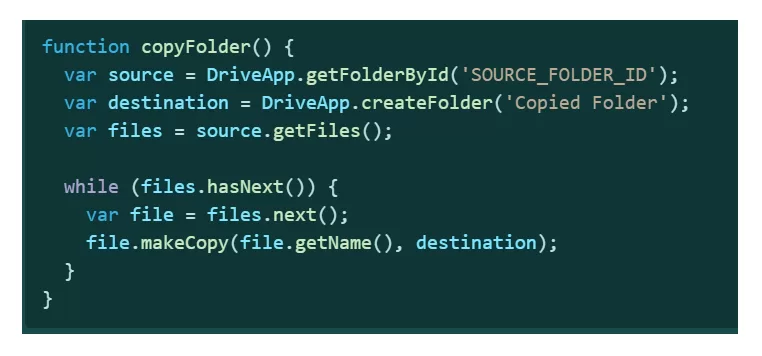
🧰 Method 2: Use Google Apps Script to Copy a Folder
This method requires a bit of technical know-how but automates the process.
Steps:
- Go to Google Apps Script.
- Create a new script and paste a folder-copying script (you can find reliable snippets on GitHub).
- Run the script with your folder ID.
Example Script:
Pros:
- Fully automated
- Good for large folders or frequent use
Cons:
- Requires script editing knowledge
🚀 Method 3: Use Third-party Tools like MultCloud or CloudHQ
Steps:
- Sign up for MultCloud or CloudHQ.
- Connect your Google Drive account.
- Use their folder copy/transfer feature.
Pros:
- Easy UI
- Best for non-tech users
Cons:
- Free plans may be limited
- Requires access to your Drive
📅 Google Drive file management tip: Always check access permissions when using third-party tools to ensure your data privacy.
📚 Bonus Tips: Google Drive File Management Tips You Should Know
- Use Shared Drives: Great for teams who need consistent access.
- Regular Backups: Keep a copy of important folders offline or in another Drive.
- Organize by Year or Project: Helps in quickly locating files.
- Use Descriptive Folder Names: e.g., “Marketing_2025_Q1”
- Set Expiration on Shared Links: Add a layer of security for shared files.
🔗 Want to automate tasks like these further? Check out our guide on Openpyxl Formulas for advanced spreadsheet automation!
🚀 Final Thoughts
Now that you know how to copy a folder in Google Drive, organizing your cloud files will be easier than ever. Whether you prefer the manual method, a bit of coding, or using tools like MultCloud, there’s a solution for everyone.
Don’t forget to implement these Google Drive file management tips to keep your folders neat, secure, and easy to navigate. 📆