🥇 How to Remove Duplicates in Excel: 5 Easy Methods to Clean Your Data Like a Pro

How to remove duplicates in Excel is one of the most searched questions by spreadsheet users across the world. Whether you’re cleaning up contact lists, preparing data for analysis, or managing inventory, finding and removing duplicate entries is essential. In this guide, you’ll learn how to remove duplicates in Excel step-by-step, using multiple methods that suit different scenarios. These Excel data cleaning tips will save you time, effort, and errors!
🔹 Key Highlights:
- Understand how to remove duplicates in Excel using 5 quick methods
- Learn when and why to clean your Excel data
- Master built-in Excel tools like Conditional Formatting, Remove Duplicates, Power Query, and more
- Discover powerful Excel data cleaning tips to keep your spreadsheets error-free
- Useful for beginners and professionals working with large datasets
🔐 Why You Should Know How to Remove Duplicates in Excel
Duplicate entries can create confusion, inflate data, and lead to incorrect analysis. That’s why it’s important to learn how to remove duplicates in Excel and ensure your information stays clean and accurate.
Whether you’re:
- Sending email campaigns
- Managing inventory lists
- Creating reports
- Importing data from external sources
…these Excel data cleaning tips will help you keep everything tidy and professional.
🤷 1. Use the Built-in “Remove Duplicates” Tool
This is the most common and direct way to remove duplicate values.

Steps:
- Select your data range.
- Go to the Data tab on the Ribbon.
- Click Remove Duplicates.
- Choose the columns you want to check.
- Click OK.
Excel will instantly delete the duplicates and show you how many were removed.
Pro Tip: Always make a backup before applying this to important files!
📊 2. Highlight Duplicates Using Conditional Formatting
Sometimes, you may want to see duplicates before deleting them. Conditional Formatting helps you do just that.
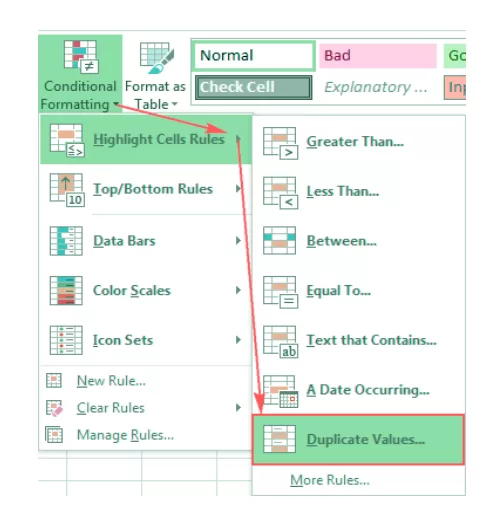
Steps:
- Select the data range.
- Go to Home > Conditional Formatting > Highlight Cells Rules > Duplicate Values.
- Choose a color format.
Now all duplicates will be highlighted — no deletions, just visibility. A great trick for visual analysis!
📜 3. Remove Duplicates with Excel Filters
Using filters is another smart way to manually spot and delete duplicates.

Steps:
- Select your data.
- Go to Data > Filter.
- Click the dropdown on your column and look for duplicate values.
- Manually delete rows that are repeated.
Excel data cleaning tips often suggest this method for greater control, especially with partial duplicates.
🧰 4. Use Excel Formulas to Find Duplicates
Want full control? Use Excel formulas like COUNTIF to find how many times each value appears.
Formula Example:

=COUNTIF(A:A, A2)
If the result is greater than 1, the value is a duplicate.
You can then filter or sort by this column to review and delete duplicate entries.
🤖 5. Power Query: The Advanced Option
For large data sets, Power Query is a life-saver. It’s powerful, flexible, and doesn’t mess with your original data.
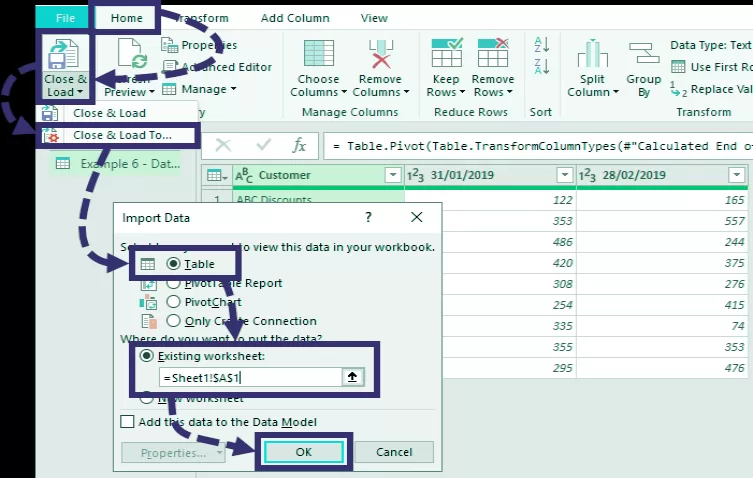
Steps:
- Select your data > Go to Data > Get & Transform > From Table/Range.
- Power Query Editor will open.
- Select the columns > Click Remove Duplicates.
- Click Close & Load.
This method is especially useful for recurring tasks and automation.
🪜 Excel Data Cleaning Tips You Should Know
- Always create a copy of your data before applying changes.
- Combine duplicate removal with sorting for better clarity.
- Use
TRIM()to clean spaces before checking for duplicates. - Remove formatting that may hide duplicates (like hidden rows or colors).
- Practice with dummy data if you’re a beginner.
These Excel data cleaning tips will take your spreadsheet skills to the next level!
If you’re ready to take Excel data cleaning to the next level, check out our guide on using Openpyxl for automation. How to Use Openpyxl for Excel Automation in Python
🚀 Final Thoughts: Mastering How to Remove Duplicates in Excel
Learning how to remove duplicates in Excel is a must for anyone working with data. With these 5 simple methods and bonus Excel data cleaning tips, you’ll be able to clean up any dataset in no time.
From beginners to pros, mastering this skill boosts your confidence and ensures your work is always neat and reliable. So the next time you open Excel, don’t let duplicates slow you down — clean them up like a pro! 😉
Which method do you use most often? Let us know in the comments! 📄