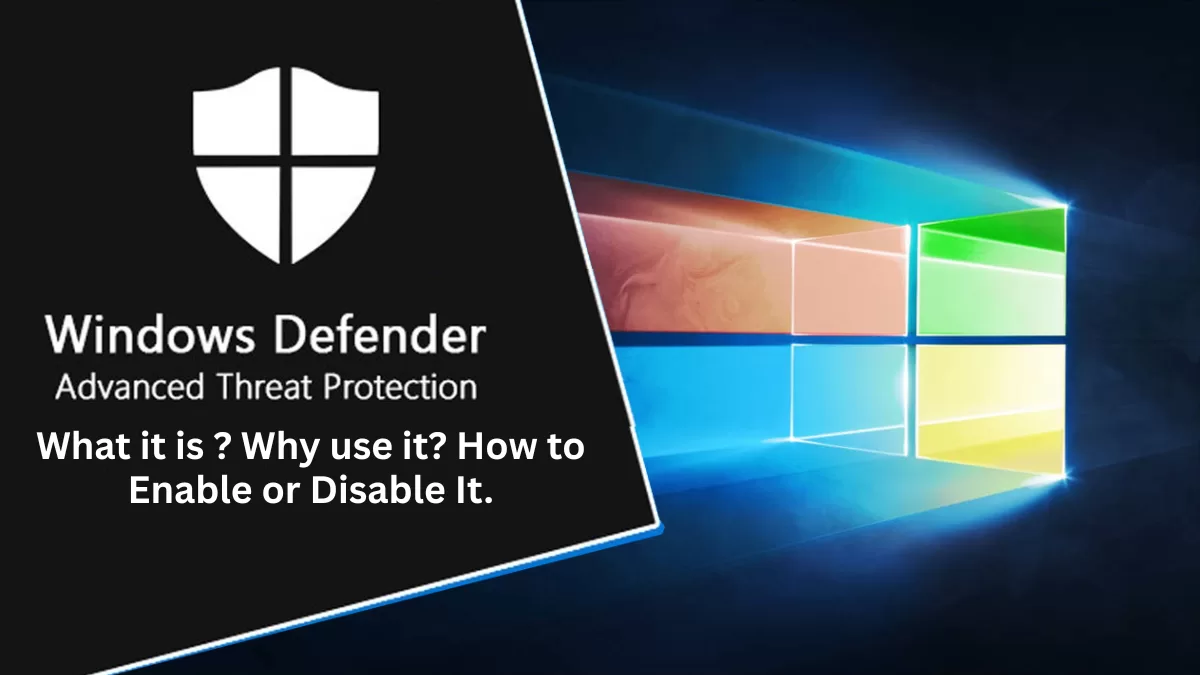
Microsoft Windows Defender: What it is ? Why use it? How to Enable or Disable It. 🚀
What is Microsoft Windows Defender? 🤔
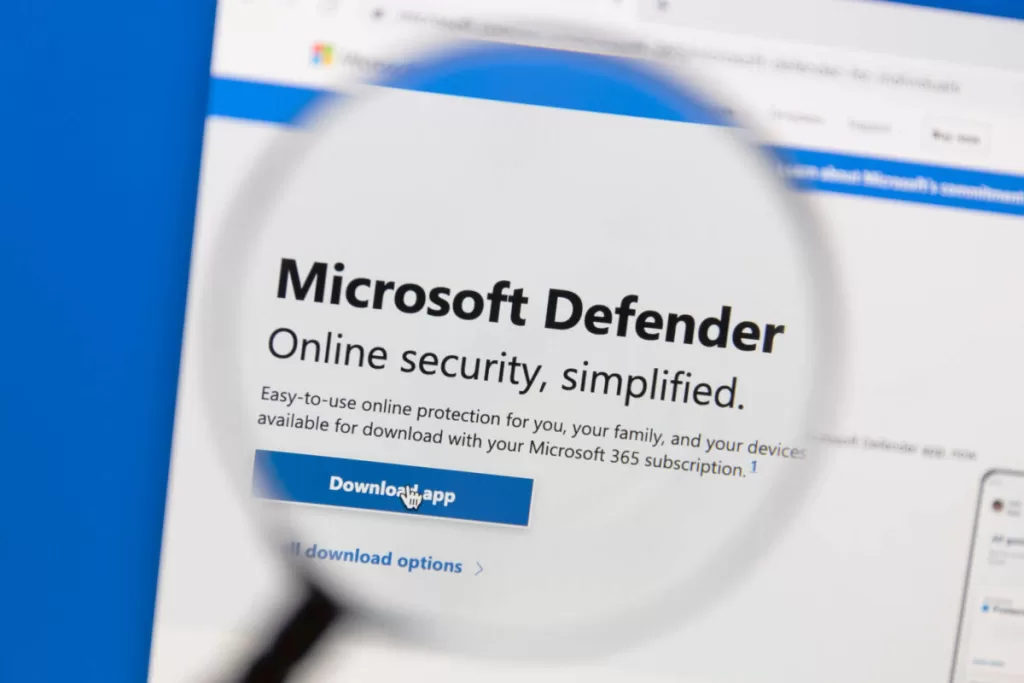
Let’s be real—nobody likes dealing with viruses and malware. And yet, most people either ignore security altogether or get overwhelmed by the sheer number of antivirus options. But here’s the thing: Microsoft Windows Defender (now called Microsoft Defender Antivirus) is built right into Windows, and for most people, it’s all the protection they need. No extra downloads. No annoying pop-ups. Just simple, effective security.
I’ve been using it for years, and guess what? My PC has never been infected. No expensive third-party antivirus, no complicated settings—just Windows Security doing its job.
🔎 Want to know more about how viruses work and how hackers exploit vulnerabilities? Check out this detailed guide on computer viruses and ethical hacking. Understanding these threats helps you see why having a solid antivirus matters.
Why Use Microsoft Windows Defender? 🔥
So, why should you even bother with Microsoft Defender Antivirus when there are so many paid options out there? Simple. It works.
Here’s why I recommend keeping it on:
✅ Free and Built-in – No need to install anything extra. It’s already there!
✅ Real-time Protection – Stops malware before it can harm your system.
✅ Regular Updates – Gets security patches directly from Microsoft (unlike third-party tools that might lag behind).
✅ Minimal System Impact – Doesn’t slow down your PC like some bloated antivirus software.
✅ Seamless Integration – Works perfectly with Windows Security settings like Firewall and SmartScreen.
✅ Periodic Scanning – Even if you install another antivirus, Defender can still run scheduled scans as a second layer of protection.
✅ Cloud-based Threat Detection – Uses AI and machine learning to detect new threats faster than traditional antivirus software.
And if you’re thinking, “But isn’t a paid antivirus better?”—not necessarily. Unless you’re visiting sketchy websites or downloading unknown files, Windows Defender is more than enough for most users.
How to Enable Microsoft Windows Defender
If you’re using a fresh Windows installation, Microsoft Defender Antivirus is already turned on by default. But let’s make sure everything is running smoothly:
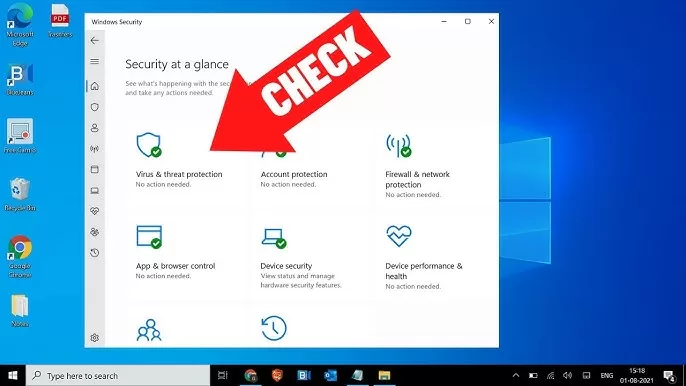
1️⃣ Press Windows + S and type Windows Security. Click to open it.
2️⃣ Go to Virus & threat protection.
3️⃣ Look for Microsoft Defender Antivirus options.
4️⃣ If it’s off, toggle it ON to enable Real-time Protection.
5️⃣ Turn on Cloud-delivered protection and Automatic sample submission for the best security.
That’s it! Your PC is now protected by Windows Security. No fancy software required. 💪

How to Disable Windows Defender (If You Really Need To) 🚨
Okay, so maybe you have a specific reason to disable Windows Defender—like installing another antivirus or troubleshooting performance issues. I get it. But before you turn it off, just remember: your PC will be vulnerable unless you have another security solution in place.
⚠️ Warning: Disabling Microsoft Defender Antivirus is NOT recommended unless you know what you’re doing! Proceed with caution. ⚠️
Temporarily Disable Windows Defender ⏳
1️⃣ Open Windows Security (Search for it in Start Menu).
2️⃣ Click on Virus & threat protection.
3️⃣ Under Virus & threat protection settings, click Manage settings.
4️⃣ Toggle Real-time protection to OFF.
(Windows will automatically turn Microsoft Windows Defender back on after a while, so this isn’t a permanent fix.)
Permanently Disable Windows Defender via Group Policy (For Advanced Users) ⚡
If you’re determined to turn it off for good, here’s how:
1️⃣ Press Win + R, type gpedit.msc, and press Enter.
2️⃣ Navigate to:
Computer Configuration → Administrative Templates → Windows Components → Microsoft Defender Antivirus
3️⃣ Double-click Turn off Microsoft Defender Antivirus and select Enabled.
4️⃣ Click Apply and OK, then restart your PC.
To re-enable Defender, follow the same steps but set it to Not Configured.
(P.S. If you ever see an error message while disabling it, you might need to turn off Tamper Protection first under Windows Security → Virus & Threat Protection Settings before you can turn Microsoft Windows Defender off.)
What Microsoft Defender Can’t Do (Limitations You Should Know) ⚠️
This balances the article. Most guides oversell Defender — by openly addressing its gaps, you build trust.
- Works best with an internet connection (cloud intelligence is key).
- Web protection is stronger in Edge than Chrome/Firefox.
- Doesn’t include extras like VPN, password manager, identity theft monitoring (things some paid suites offer).
- Advanced threats (zero-days, ransomware variants) may slip through without careful user behavior.
👉 This section positions you as honest, not a “fanboy.”
Pro Tips to Get the Most Out of Microsoft Defender 🛡️
Turn it into a practical, actionable mini-guide:
- Keep Windows + Defender definitions updated (auto updates on by default).
- Turn on Tamper Protection to stop malware from disabling Defender.
- Enable Controlled Folder Access (anti-ransomware feature) to protect important files.
- Use Smart App Control (Windows 11) to block unknown apps.
- Pair with a free tool like VirusTotal or Malwarebytes (on-demand scanner) for occasional extra scans.
👉 This elevates the article from “just an explainer” to “real-world guide.”
Final Thoughts: Should You Keep Windows Defender On? 🤷♂️
If you ask me, Microsoft Windows Defender is more than enough for most people. It’s free, built-in, and constantly updated by Microsoft—what more do you need?
However, if you work with high-risk files, use enterprise-level security, or just don’t trust Microsoft, then sure, go ahead and install a third-party antivirus. But for 90% of users, Windows Security is the best option.
💡 Pro Tip: Want to double-check if a file is safe before running it? Try VirusTotal . It scans files and URLs with multiple antivirus engines, giving you extra peace of mind before opening anything suspicious.
So, are you keeping Microsoft Defender Antivirus on or turning it off? Let me know in the comments! And don’t forget to share this with your friends—because PC security is no joke! 🔥💻