Resolving Live Server Problems in VS Code: An In-Depth Troubleshooting Handbook
Resolving Live Server Problems in VS Code – If you are learning web development or building front-end projects, Live Server is probably one of your most-used tools inside Visual Studio Code. With a single click on Go Live, it launches a local server and refreshes your browser automatically whenever you save changes.
But what if Live Server suddenly stops working?
Maybe the browser doesn’t open. Maybe it shows a blank page. Maybe you see an error saying the port is already in use. Or worse — nothing happens at all.
Don’t worry. In this detailed guide, we’ll explore why Live Server fails, how it works behind the scenes, and how to fix every common issue using a structured approach. This article is designed especially for beginners and intermediate developers who want a clear, practical troubleshooting process.
What is Live Server in VS Code?
Live Server is a lightweight development server extension created by Ritwick Dey. It allows you to:
- Run static HTML, CSS, and JavaScript projects locally
- Automatically reload the browser when files change
- Avoid manual refreshing
- Speed up front-end development
When you click Go Live, the extension starts a local server (usually on port 5500) and hosts your project at:
http://127.0.0.1:5500
It also injects a small script into your webpage that listens for file updates. If any part of this process fails, Live Server won’t function correctly.
Why Live Server Stops Working
Live Server issues usually happen because of one of the following reasons:
- Incorrect folder setup
- Port conflicts
- Extension conflicts
- Browser caching
- Firewall restrictions
- Corrupted VS Code settings
Instead of randomly trying solutions, let’s fix them one by one.
1. Live Server Not Starting
You click Go Live, but nothing happens. No browser. No error.
This typically occurs when you haven’t opened your project correctly. Live Server requires a full project folder to function properly. If you opened just a single HTML file directly, the extension may not activate.
To fix this, close the file and open your project using:
File → Open Folder
Select the entire project directory and then open your HTML file again.
If the issue persists, completely close and reopen Visual Studio Code. Sometimes the extension fails to initialize properly, and a restart resolves it immediately.
If restarting doesn’t help, uninstall and reinstall the Live Server extension. After reinstalling, restart VS Code again before testing.
2. Port 5500 is Already in Use
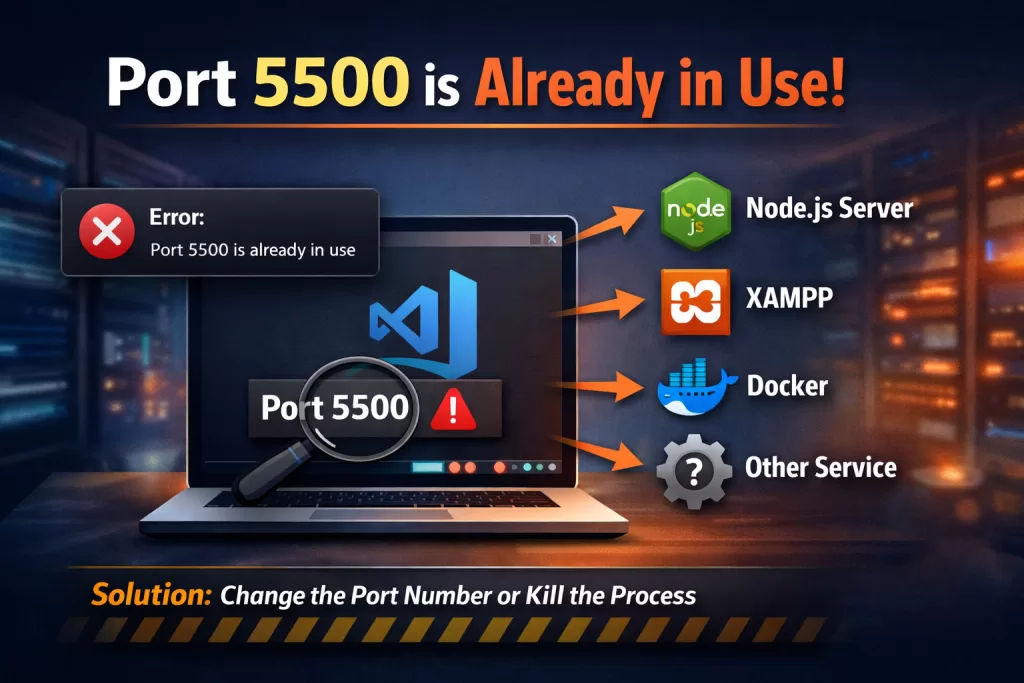
This is one of the most common errors:
“Port 5500 is already in use.”
This means another application is occupying that port. It could be another Live Server instance, a Node application, XAMPP, Docker, or even a background service.
The simplest fix is to change the port number in settings. Open Settings and search for Live Server Port. Change it from 5500 to 5501 or 5502. Save and try again.
If you prefer keeping port 5500, you need to identify the conflicting process. On Windows, you can use the Command Prompt to check which process is using the port and terminate it. Once freed, Live Server should start normally.
In some cases, restarting your system clears locked ports automatically.
3. “Go Live” Button Missing
If you cannot see the Go Live button in the bottom-right corner, the extension may not be activated.
Live Server activates only when:
- A project folder is open
- An HTML file is active
Open an .html file inside your project folder and check again.
If it’s still missing, reload the VS Code window using the Command Palette. Extension conflicts with other preview tools can also hide the button, so temporarily disable similar extensions and test again.
4. Live Reload Not Working
Sometimes Live Server starts properly, but the browser does not refresh after changes.
This usually happens because the file was not saved. Live Server reloads only after detecting a save event. Enabling Auto Save in VS Code ensures that every change triggers a reload automatically.
Another common cause is browser caching. Your browser may still be showing an older version of the file. Open Developer Tools in your browser and enable “Disable cache” while testing.
There is also a reload delay setting in Live Server. Reducing the wait time in extension settings can improve responsiveness.
5. Browser Not Opening Automatically
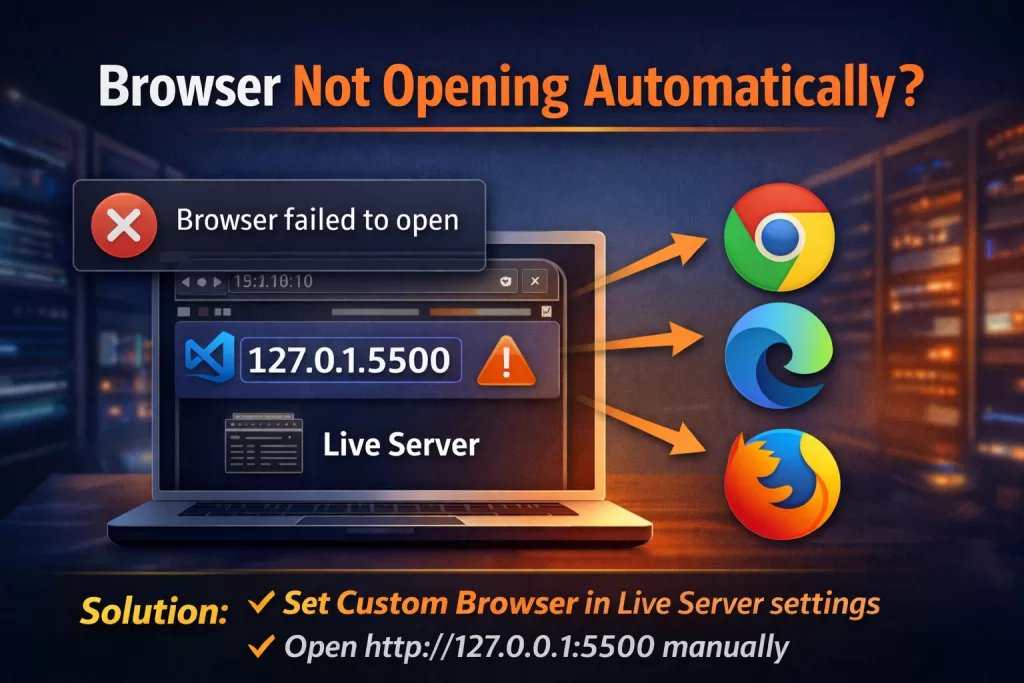
If Live Server starts but does not open a browser, the issue may be related to your default browser configuration.
In settings, search for Custom Browser and specify your preferred browser manually, such as Chrome or Edge.
Even if automatic launching fails, you can manually open your browser and enter:
http://127.0.0.1:5500
If the page loads, the server is working correctly.
6. Firewall Blocking Live Server
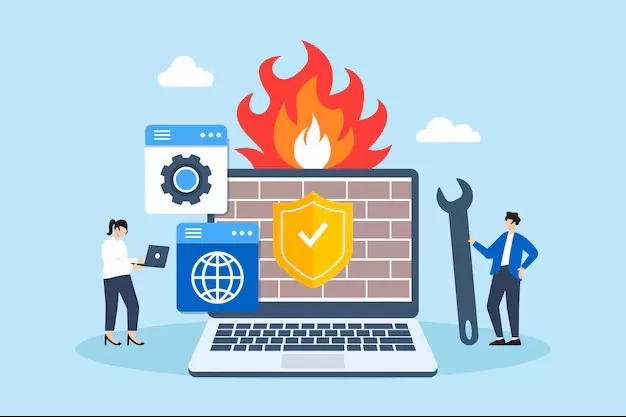
On some systems, especially Windows machines with strict firewall rules, local servers may be blocked.
Open Windows Defender Firewall and allow Visual Studio Code through both Private and Public networks. After granting permission, restart VS Code and try again.
Security software can sometimes block localhost access silently, so checking firewall settings is important.
7. Using Live Server with React or Backend Projects
Many beginners try to run React or Node.js projects using Live Server. This does not work because Live Server is designed only for static files.
If you are working with:
- React
- Angular
- Next.js
- Node.js backend
You must use the framework’s development server command like:
npm start
Live Server does not process backend logic or module bundling.
8. Extension Conflicts
If you have multiple preview or server-related extensions installed, they may conflict with Live Server.
Disable other live preview extensions temporarily and test again. If the issue disappears, you’ve found the conflict.
Keeping your extension list minimal improves stability.
9. Resetting VS Code Configuration
If nothing works, your VS Code configuration may be corrupted.
Close VS Code and clear its cache folder from the system directory. When you restart, the editor rebuilds necessary files automatically.
You can also reset your settings.json file after backing it up. Sometimes incorrect configurations cause extension failures.
A Smart Troubleshooting Strategy
Instead of trying everything randomly, follow this logical order:
First, confirm the project folder is opened correctly.
Second, check whether the port is available.
Third, verify the extension is enabled.
Fourth, inspect browser caching and firewall permissions.
Finally, check for extension conflicts.
This systematic approach saves time and avoids unnecessary reinstallations.
When Should You Use Live Server?
Live Server is perfect for:
- Beginners learning HTML and CSS
- Static websites
- Portfolio projects
- Landing pages
- JavaScript practice
For advanced applications involving backend servers, use dedicated development tools.
Conclusion
Live Server inside Visual Studio Code is one of the simplest yet most powerful tools for front-end development. Most issues arise from configuration mistakes, port conflicts, caching problems, or firewall restrictions — not from major technical failures.
By understanding how Live Server works and following a structured troubleshooting method, you can fix almost any issue within minutes.
Instead of getting frustrated when “Go Live” doesn’t work, treat it as a checklist problem. Identify the cause, apply the right fix, and get back to building your project smoothly.
Want to Learn More Kaashiv Infotech Offers, Full Stack Java Course, Java Course, Data Science Course, Internships & More, Visit Their Website www.kaashivinfotech.com.
Related Reads:




![Agile Model in Software Engineering [2025]](https://www.wikitechy.com/wp-content/uploads/2025/08/Agile-Model-in-Software-Engineering-2025-380x220.webp)