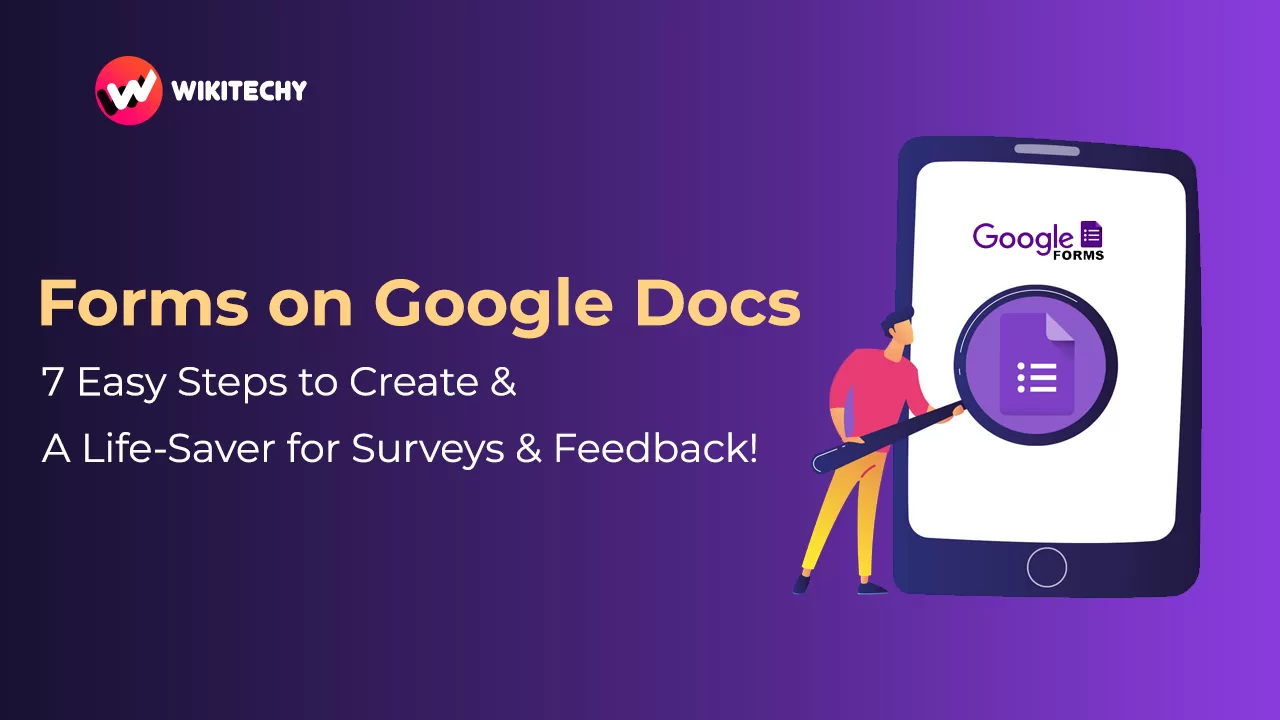
7 Easy Steps to Create Forms on Google Docs – A Life-Saver for Surveys & Feedback! 💡
Let me ask you a quick question—have you ever been stuck trying to collect feedback, schedule an event, or run a quick quiz, and thought, “There must be an easier way!”?
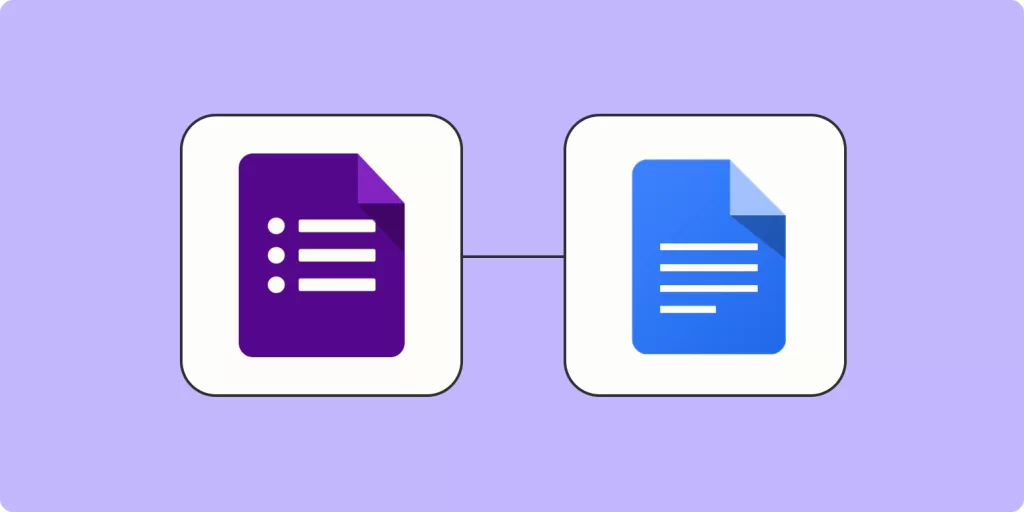
Well, guess what? I’ve been there too. And the good news? I found my solution in something we all already use daily—Google Docs. Or more specifically, forms on Google Docs—yes, I’m talking about Google Forms, which is accessible through your Google Docs workspace.
In this blog, I’ll walk you through how to create forms on Google Docs, step by step. No fluff. Just friendly, real talk and clear actions. 😊
✍️ Why You Should Care About Forms on Google Docs
Before we dive into the how, let’s talk about why. Whether you’re a student, a teacher, a marketer, or just someone trying to gather opinions for your next house party—Google Docs forms can seriously save you time and effort.
- It’s free.
- It’s easy to use.
- And it’s available to anyone with a Google account.
I remember when I had to conduct a feedback session for one of my workshops. I tried using spreadsheets. It was chaos. Then I switched to Google Forms via Google Docs. Total game-changer. And guess what? People actually enjoyed filling out the form. 🎯
📌 Step-by-Step Guide: How to Create Forms on Google Docs
Alright, no more suspense. Here’s how to create forms on Google Docs in just 7 simple steps:
✅ 1. Go to Google Forms (through Google Docs Workspace)
Start by heading over to 👉 https://forms.google.com
Or, you can:
- Open Google Docs
- Click the Apps grid (top-right corner)
- Choose Forms

Yes, technically, it’s called Google Forms, but it’s part of the Google Docs family. So, if someone says “forms on Google Docs,” they’re not wrong. 😉
✅ 2. Click the Blank Template (or Use a Pre-Made One)
Once you’re in, you’ll see options like:
- Blank form
- Contact info form
- RSVP form
- Event feedback
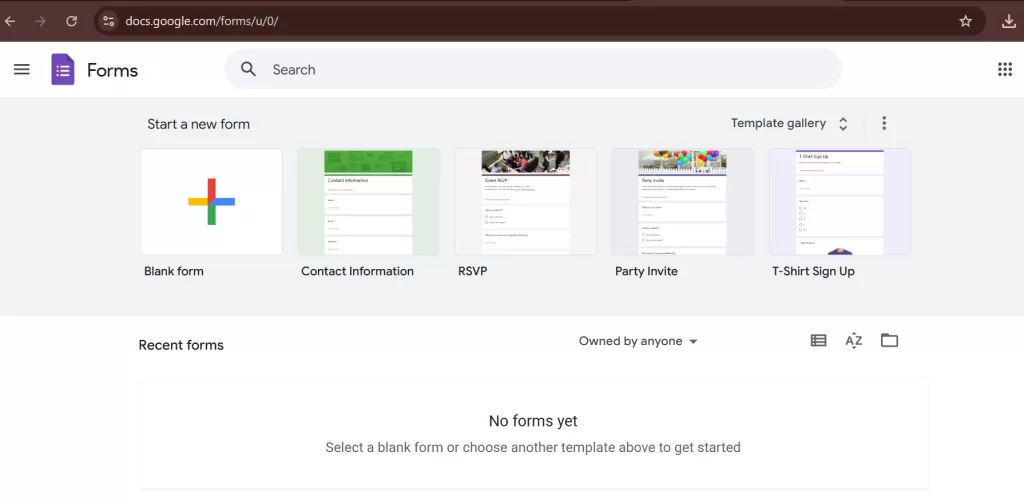
Pick one that suits your vibe. I usually start with the blank one for full creative control.
✅ 3. Add Your Title & Description
This is where you tell people what this form is all about. Don’t overthink it. Just be honest.
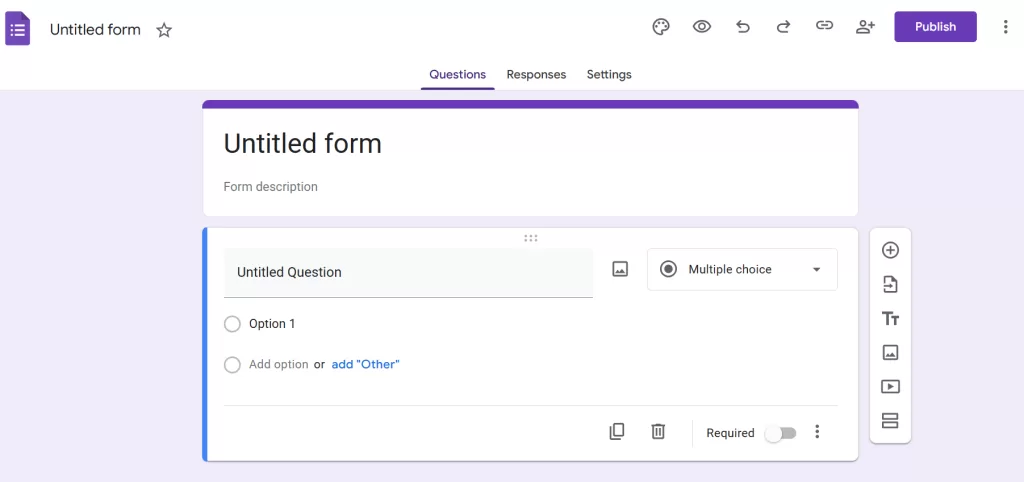
Example:
🎉 “Weekend Potluck Survey”
Tell us what you’re bringing, and we’ll save you a plate!
Keep it short, sweet, and you.
✅ 4. Add Questions (Multiple Choice, Checkboxes, Text, etc.)
Click the ➕ button to add a new question. You’ll see different formats:
- Short answer (for names, emails)
- Paragraph (for long responses)
- Multiple choice (great for quizzes)
- Checkboxes (for multi-select)
- Dropdown
- File upload (super handy for resumes or assignments)

Pro Tip: Mix it up! I like to throw in an optional emoji rating question to keep things fun. ⭐
✅ 5. Customize with Themes & Colors 🎨
Here’s where Google Docs makes your form shine. Click the palette icon at the top to change:
- Header image
- Form color
- Font style
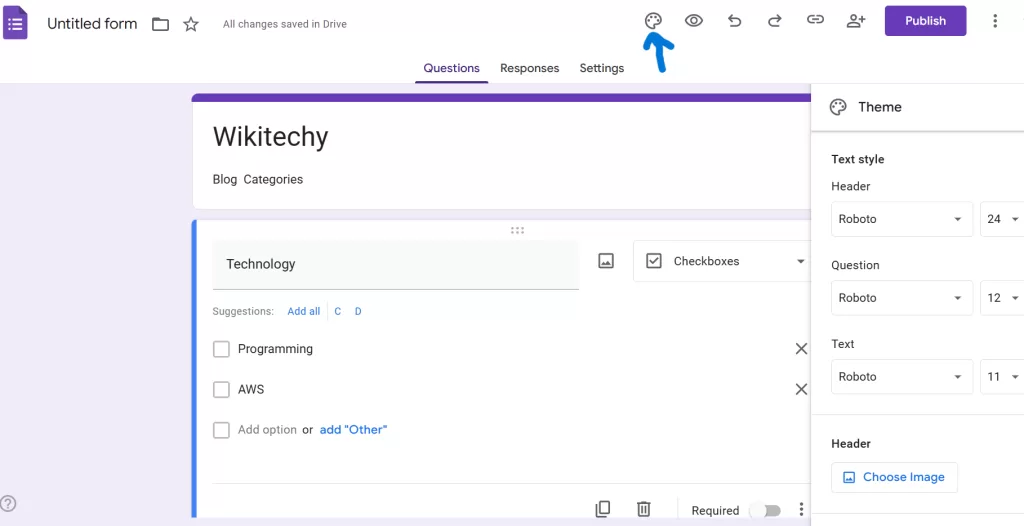
I often use the “Playful” font for casual invites and “Formal” for business stuff.
✅ 6. Set Up Responses
Click the Responses tab. Here’s where your collected data will appear. If you want it organized, click the green Sheets icon to link responses to a Google Sheets doc.
Trust me, this makes your life so much easier when reviewing data later.
✅ 7. Share Your Form with the World 🌍
Click the Send button (top-right). You can:
- Email it directly
- Copy a link
- Embed it in a website
- Share on WhatsApp or social media

Don’t forget to shorten the link using the “Shorten URL” checkbox. Makes sharing cleaner!
🔄 Real-Life Uses of Google Docs Forms
Still wondering where this fits in your life? Let me paint you a few pictures:
🎓 Teachers:
- Online quizzes
- Attendance forms
- Student feedback
📈 Business Owners:
- Customer satisfaction surveys
- Product feedback
- Job applications
🧑🎤 Event Planners:
- RSVPs
- Volunteer sign-ups
- Music or food preferences
I personally used Google Docs forms to plan my wedding. Yep, from RSVP to dinner preferences. Saved us so many headaches!
🛠️ Bonus Tips to Master Forms on Google Docs
Here are some quick tricks I’ve learned (the hard way 😅):
- Enable “Required” on key questions to avoid empty answers.
- Use “Go to section based on answer” to create dynamic logic (great for quizzes or branching questions).
- Add collaborators to your form (just like in Docs or Sheets).
- Use response validation to accept only specific answers (like email formats or number ranges).
- Embed videos or images for visual engagement!
💬 My Final Thoughts on Forms on Google Docs
If you’ve made it this far, I’ll just say this — don’t sleep on forms on Google Docs. They might look simple, but they’re powerful tools hiding in plain sight. You don’t need coding skills. You don’t need special software. All you need is curiosity and a few clicks.
If u want to learn Courses like Full Stack Dotnet, Python, Java with certification visit www.KaashivInfotech.com
So go ahead — make your first form. Whether it’s for a feedback survey, a quiz, or a fun party poll, you’re going to love how seamless it is.
And hey, if I can do it, so can you. 😄
🔗 Helpful Links & Resources