How to Create a Website From Scratch And Why Your Career Depends on It in 2026

Let’s face facts. Hearing the words “web development” usually triggers instant anxiety. You picture green code raining down a black screen while a hacker types furiously in a basement.
But what if building a digital presence is actually easier than making a decent cup of coffee?
If you want to know how to create a website from scratch, you are in the right place. Today, you do not need a computer science degree to get online. You just need the right tools, a tiny bit of guidance, and exactly ten minutes. Let’s break down the exact blueprint to get your first site live, why your career absolutely needs one, and how to write your very first line of code.
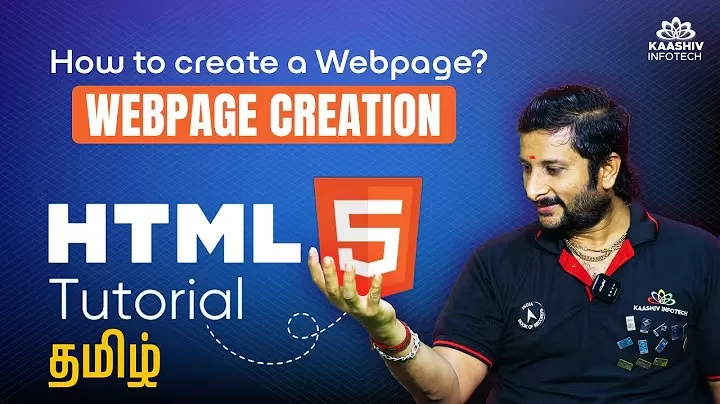
kaashiv infotech how to create a webpage
📊 The Career Angle: Why “Normal” People Need a Website
Before looking at the how, you must understand the why.
Data from Workfolio reveals a staggering statistic: 56% of hiring managers find personal portfolios more impressive than any resume. Yet, only a tiny fraction of job seekers actually take the time to build one.
Think about that massive gap. It is a golden opportunity.
Whether you are a local bakery owner trying to get foot traffic, a freelance graphic designer, or a college student applying for tech internships, a website acts as your 24/7 digital employee. It never sleeps. It pitches your skills to recruiters while you eat dinner. It builds instant credibility.
Furthermore, according to a recent Burning Glass report, hybrid jobs that require basic coding skills alongside soft skills pay up to $8,500 more per year than traditional roles.
You don’t need to be a software engineer. You just need to be digitally visible.
🛠️ The Fundamentals: The “Analogy” of Web Development
To understand website building tools for beginners, let’s use a simple real-world analogy: a PDF file.
When someone sends you a PDF, you need software like Adobe Reader to open it. Adobe Reader is just a viewer. But, if you want to create or edit a PDF, you need an editor, like Microsoft Word.
Building a website works exactly the same way. You need one tool to write the code and another tool to see the result.
- The Viewer (Google Chrome): To test the website files you create, you need a web browser. Developers heavily prefer Google Chrome because of its powerful built-in developer tools.
- The Editor (Visual Studio Code): Professional developers do not use basic Notepad to build massive sites. They use specialized code editors. Currently, Visual Studio Code (VS Code) by Microsoft reigns supreme. It is free, lightweight, and industry-standard.
Download both. Install them. You are now officially set up for web development.
💡 Developer’s Insight: The Template Revolution
Time for a quick tech reality check.
Ten years ago, setting up a basic site meant configuring a server, setting up databases, wrestling with FTP transfers, and praying nothing broke. It took weeks.
Today? Software engineers built platforms that automate the heavy lifting. Do not reinvent the wheel. Even senior developers use pre-made templates for rapid prototyping. Why spend 40 hours coding a contact page when a template gives you a secure, beautiful one in three seconds?
Here are two distinct ways to build a website today, depending on how deep you want to go.
🚀 Method 1: Create a Website in 10 Minutes (The Template Route)
Set a timer on your phone. Follow these steps. This is how you build a website without coding using industry-standard platforms.
Step 1: Choose Your Platform & Domain (Minutes 1-3)
You need an all-in-one platform that handles both hosting (where your site lives) and the domain (your www. name).
- Go to platforms like Hostinger, Wix, or WordPress.
- Claim your domain name.
- Best Practice (The Why): Always choose a plan that includes a free SSL certificate (that little padlock next to your URL). Why? Because Google actively penalizes sites without SSL. Without it, visitors see a terrifying “NOT SECURE” warning, and 84% of users will abandon a site immediately when they see that.
Step 2: Pick a Pre-Made Template (Minutes 3-6)
This is the secret to a quick setup. Never start from a blank page. Browse the platform’s template library. Find a design built by professional UI/UX designers that looks 80% similar to what you want. Do not obsess over colors yet; look at the core layout. Click “Apply.”
Step 3: Customize for the Real World (Minutes 6-9)
The template is loaded. Now, make it yours.
- Change the Hero Headline: Make it punchy. Instead of “I am a writer,” type, “B2B Copywriter Helping Tech Startups Scale.”
- Swap the Images: Ditch generic stock photos. Upload real photos of your work or your storefront. Authenticity builds trust.
- Update the Call to Action (CTA): What should visitors do? “Hire Me,” “Buy Now,” or “Email Me.” Make the button impossible to miss.
Step 4: Optimize for Mobile (Minute 10)
Here is a vital statistic: Over 58% of all global web traffic comes from mobile devices.
Before hitting publish, click the mobile phone icon on your screen. Does the text look too big? Are the buttons easy to tap with a thumb? Double-check the mobile view, then click Publish.
You are live.
Method 2: The “Copy-Paste” Magic Trick (Coding for Beginners)
Using templates is highly practical. But what if you want to understand the actual engine under the hood?
Want to feel like a hacker for a minute? Let’s build a website directly on your computer right now, from scratch.
Step 1: Open Your Editor
- Open the VS Code software you installed earlier.
- (Alternatively, open Notepad on Windows or TextEdit on Mac. Mac users: go to Format > “Make Plain Text”).
Step 2: Copy and Paste This Exact Code
Do not panic if this looks like a foreign language. Just highlight the code in the box below, copy it, and paste it into your editor.
HTML<!DOCTYPE html>
<html lang="en">
<head>
    <meta charset="UTF-8">
    <meta name="viewport" content="width=device-width, initial-scale=1.0">
    <title>My 10-Minute Portfolio</title>
    <style>
        /* This is CSS. It acts as the paint and decoration for your website! */
        body {
            font-family: 'Segoe UI', Tahoma, Geneva, Verdana, sans-serif;
            background-color: #1e272e;
            margin: 0;
            padding: 0;
            display: flex;
            justify-content: center;
            align-items: center;
            height: 100vh;
        }
        .profile-card {
            background-color: white;
            padding: 40px;
            border-radius: 15px;
            box-shadow: 0 10px 30px rgba(0,0,0,0.5);
            text-align: center;
            max-width: 400px;
        }
        h1 {
            color: #2f3640;
            margin-bottom: 5px;
        }
        p {
            color: #718093;
            font-size: 16px;
            line-height: 1.6;
        }
        .btn {
            display: inline-block;
            margin-top: 20px;
            padding: 12px 25px;
            background-color: #00a8ff;
            color: white;
            text-decoration: none;
            border-radius: 25px;
            font-weight: bold;
            transition: <em>background</em> 0.3s ease;
        }
        .btn:hover {
            background-color: #0097e6;
        }
    </style>
</head>
<body>

    <!-- This is HTML. It forms the bones and structure of your website! -->
    <div class="profile-card">
        <h1>👋 Hi, I am [Your Name]</h1>
        <p>I am a highly motivated professional learning <strong>how to create a website from scratch</strong>. I literally just copied and pasted this code, and it worked!</p>

        <!-- This is a tiny bit of JavaScript for interactivity -->
        <a href="#" class="btn" onclick="alert('Awesome! You just interacted with JavaScript!')">Click To Connect</a>
    </div>

</body>
</html>
Step 3: Save the File as “index.html”
This is the single most important step. When you save the file, do not save it as a standard .txt file.
Name it exactly: index.html
Save it right to your Desktop so you can find it easily.
Step 4: Open It in Your Browser (The Viewer)
Go to your Desktop. You will see your new index.html file. Its icon will probably look like Google Chrome.
Double-click it. 💥
Look at your browser. You just built a clean, modern, interactive portfolio card from scratch using raw code. You used HTML for the structure, CSS for the beautiful styling, and JavaScript to make the button clickable.
Go back to your code editor, change [Your Name] to your actual name, save the file, and refresh your browser.
Congratulations. You just became a web developer.
🎓 Next Steps: Level Up Your Tech Career
I hope this guide proved that diving into tech doesn’t have to be terrifying. Building digital skills is the absolute best investment you can make for your future, regardless of your current industry.
Are you ready to stop copying and pasting, and actually understand how to build complex, high-paying tech projects?
Kaashiv Infotech offers industry-leading technical courses, hands-on internships, and deep-dive training programs designed specifically to take you from a complete beginner to a highly employable tech professional.
Stop waiting on the sidelines. Reach out to the Kaashiv Infotech team today via WhatsApp or their official website to secure your internship or enroll in a course. The tech world is waiting for you!