
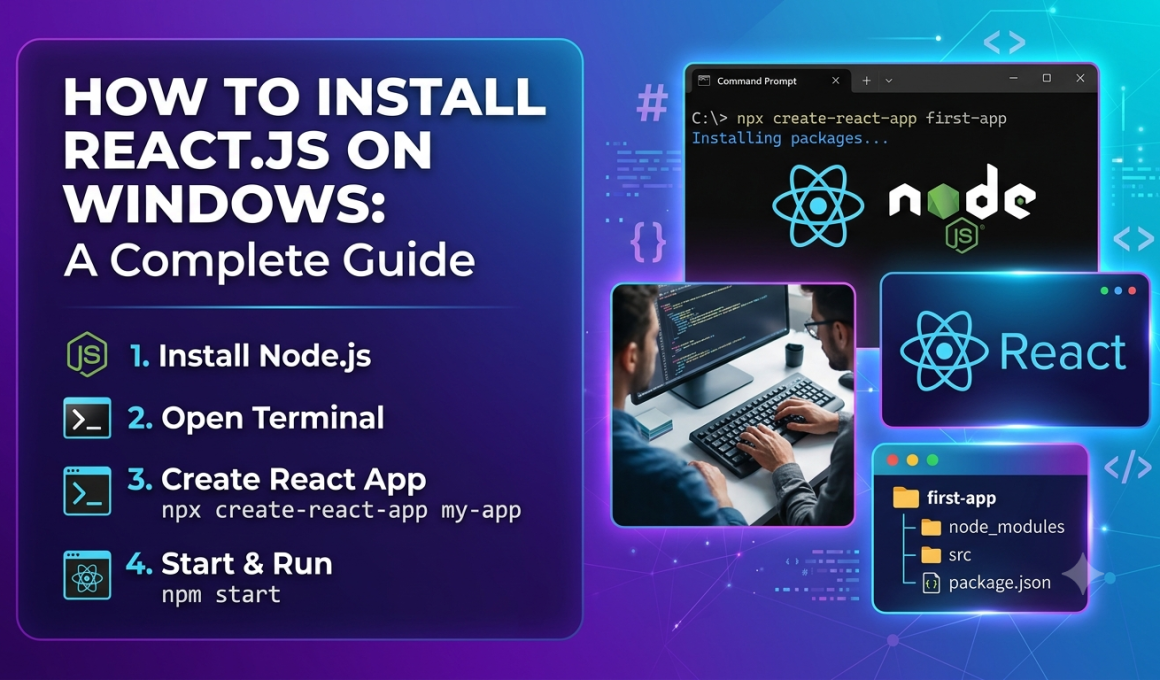
How to Install React.js on Windows: A Complete Guide — if that’s exactly what you searched for, you’re in the right place.
How to Install React.js on Windows: A Complete Guide is one of the first things every aspiring React developer needs to learn. The good news? Installing React on Windows is much easier today than it was a few years ago.
I still remember the first time I tried setting up React. I spent nearly two hours debugging installation errors, only to discover I hadn’t installed Node.js correctly. Frustrating? Absolutely.
That’s why I created this beginner-friendly guide.
By the end of this tutorial, you’ll know:
✅ How to install Node.js
✅ How to install React.js on Windows
✅ How to create your first React application
✅ How to run React projects locally
✅ Common installation errors and fixes
Let’s get started! 🎉
📌 Key Highlights
- Learn How to Install React.js on Windows: A Complete Guide step-by-step
- Install Node.js correctly
- Verify npm installation
- Create your first React application
- Run React locally on your computer
- Understand React project structure
- Fix common installation issues
- Learn modern React setup methods
- Get ready for React development in 2026
What Is React.js?
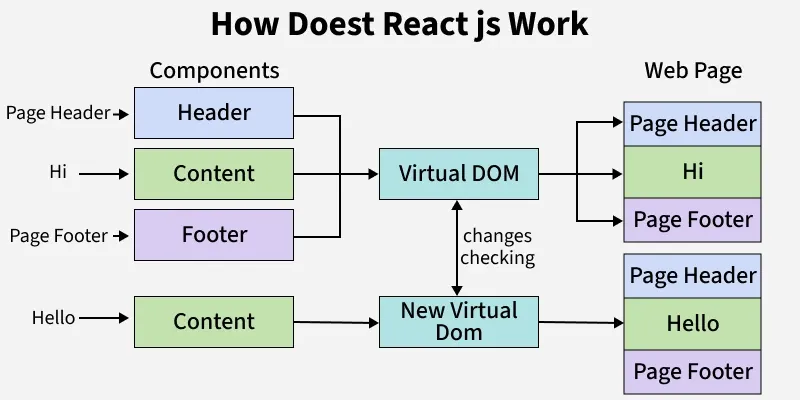
Before installing React, let’s quickly understand what it is.
React.js is a popular JavaScript library used to build user interfaces.
It was developed by the engineering team at Meta Platforms and is used by thousands of companies worldwide.
Whenever you use:
- Netflix
- Airbnb
- WhatsApp Web
There’s a good chance React is helping power parts of those applications.
What I personally like about React is its component-based approach.
Instead of creating huge pages, we build small reusable pieces called components.
Why Learn React in 2026?
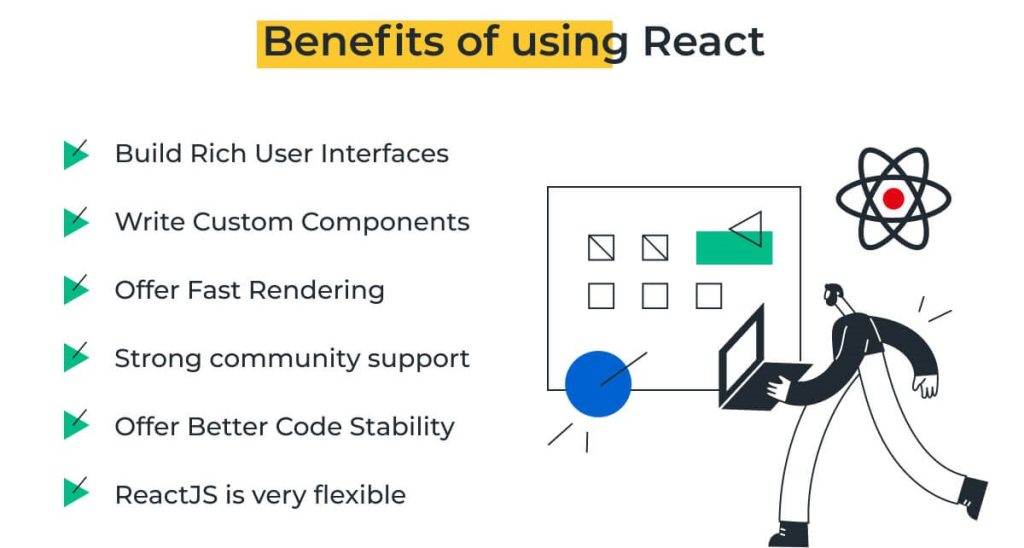
The demand for React developers continues to remain strong.
Many companies use React because it:
- Is easy to learn
- Has a huge community
- Supports reusable components
- Works well with modern web applications
- Integrates with many backend technologies
If your goal is frontend development, learning React is a smart investment.
System Requirements Before Installing React.js
Before following How to Install React.js on Windows: A Complete Guide, ensure your computer meets these basic requirements.
Minimum Requirements
- Windows 10 or Windows 11
- Internet connection
- Modern browser
- At least 4GB RAM
- Administrator access
You don’t need a powerful computer to learn React.
I started learning React on an older laptop with 8GB RAM and it worked perfectly.
Step 1: Install Node.js on Windows
React requires Node.js.
Without Node.js, React won’t run.
Download Node.js
Visit:
Official Website:
Download the LTS (Long-Term Support) version.
I always recommend using the LTS version because it’s stable and widely supported.
Install Node.js
After downloading:
- Open the installer
- Click Next
- Accept the license agreement
- Keep default settings
- Click Install
- Finish installation
Simple.
Step 2: Verify Node.js Installation
Open Command Prompt.
Type:
node -vYou should see something like:
v22.x.xNow check npm:
npm -vOutput:
10.x.xIf both commands work, you’re ready.
Step 3: Install Visual Studio Code
Although optional, I highly recommend using Visual Studio Code.
It’s my favorite code editor for React development.
Download VS Code
Visual Studio Code Official Website
Install it using default settings.
Useful extensions:
- ES7 React Snippets
- Prettier
- Auto Rename Tag
- Live Server
- JavaScript Booster
These extensions save a lot of time.
Step 4: Create a React Project
This is where How to Install React.js on Windows: A Complete Guide becomes exciting.
Open Command Prompt.
Navigate to your desired folder.
Example:
cd DesktopCreate React app using Vite:
npm create vite@latest my-react-appYou’ll see prompts.
Choose:
React
JavaScript
Move into the project:
cd my-react-appInstall dependencies:
npm installDone.
Your React project is now created.
Why Vite Is Better Than Create React App
A few years ago, many tutorials recommended Create React App.
Today, most developers prefer Vite.
Why?
Because Vite offers:
- Faster startup
- Faster builds
- Better performance
- Modern tooling
Whenever I start a new React project today, Vite is usually my first choice.
Step 5: Run Your React Application
Start the development server:
npm run devYou’ll see something like:
Local:
http://localhost:5173
Open the URL in your browser.
Congratulations! 🎉
Your React application is running.
Understanding the React Project Structure
After installation, you’ll see folders like:
node_modules
public
src
package.json
vite.config.js
Let’s simplify them.
src Folder
Contains your React code.
public Folder
Stores static files.
package.json
Stores project information and dependencies.
node_modules
Contains installed packages.
When I first saw node_modules, I was shocked.
Thousands of files!
Don’t worry.
That’s completely normal.
Create Your First React Component
Inside the src folder create:
Welcome.jsxAdd:
function Welcome() {
  return <h1>Hello React!</h1>;
}

export default Welcome;
Now import it into App.jsx.
import Welcome from './Welcome';

function App() {
  return (
    <>
      <Welcome />
    </>
  );
}

export default App;
Save.
Refresh.
Your first component appears.
That’s React magic. ✨
Common React Installation Errors
Even while following How to Install React.js on Windows: A Complete Guide, you might face a few issues.
Let’s fix them.
Error: Node Is Not Recognized
Cause:
Node.js wasn’t installed correctly.
Solution:
- Reinstall Node.js
- Restart Command Prompt
- Restart your computer
Error: npm Command Not Found
Cause:
npm isn’t added to PATH.
Solution:
Reinstall Node.js.
npm is included automatically.
Error: Port Already In Use
Cause:
Another application is using the same port.
Solution:
Stop the running process or restart the server.
React Installation Best Practices
Whenever I install React, I follow these habits:
✅ Use latest LTS version of Node.js
✅ Keep npm updated
✅ Use Vite for new projects
✅ Organize components properly
✅ Learn JSX early
✅ Practice daily
These small habits save countless hours later.
How Long Does It Take to Learn React?
Many beginners ask me this.
The answer depends on your JavaScript knowledge.
Generally:
- React basics: 2–4 weeks
- Intermediate React: 2–3 months
- Advanced React: 6+ months
Consistency matters more than speed.
Even 30 minutes daily can make a huge difference.
Helpful External Resources
- React Official Documentation
- Node.js Official Website
- Vite Official Documentation
- MDN JavaScript Guide
Final Thoughts
If you followed this How to Install React.js on Windows: A Complete Guide, you now have everything needed to start building React applications.
I know installing new technologies can feel intimidating at first. I’ve been there myself. The first setup always feels harder than it actually is.
But once React is installed and your first project runs successfully, you’ll realize it’s much simpler than it seemed.
My advice?
Don’t stop after installation.
Build small projects.
Experiment.
Break things.
Fix them.
That’s how real learning happens.
And before you know it, you’ll be building full-fledged React applications with confidence. 🚀
Want to learn more about React ?, Kaashiv Infotech Offers React course and more Visit Their website www.kaashivinfotech.com.