How to Delete a File or Directory in Linux – Command to Remove a Folder
When I first started working with Linux, one of the biggest shocks for me was how simple yet dangerous the delete command could be. You know that feeling when you accidentally delete something important and wish there was a “Ctrl + Z” for life? Yeah, Linux doesn’t forgive that easily.
If you’re new to Linux or just trying to figure out how to remove folder in Linux, you’ve come to the right place. I’ve made those “oops” moments so you don’t have to. Let me walk you through it step by step — safely, smartly, and with a few tips I wish I’d known earlier.
Understanding File and Folder Deletion in Linux
Before diving into commands, let’s get one thing clear: files and directories (folders) are treated differently in Linux.
- A file is a document, script, or any data item.
- A directory is a container that holds files or other directories.
So, the command to delete a file isn’t exactly the same as the one to remove a directory. If you use the wrong one, you might end up deleting more than you intended (been there, done that).
How to Remove Folder in Linux – The Basics
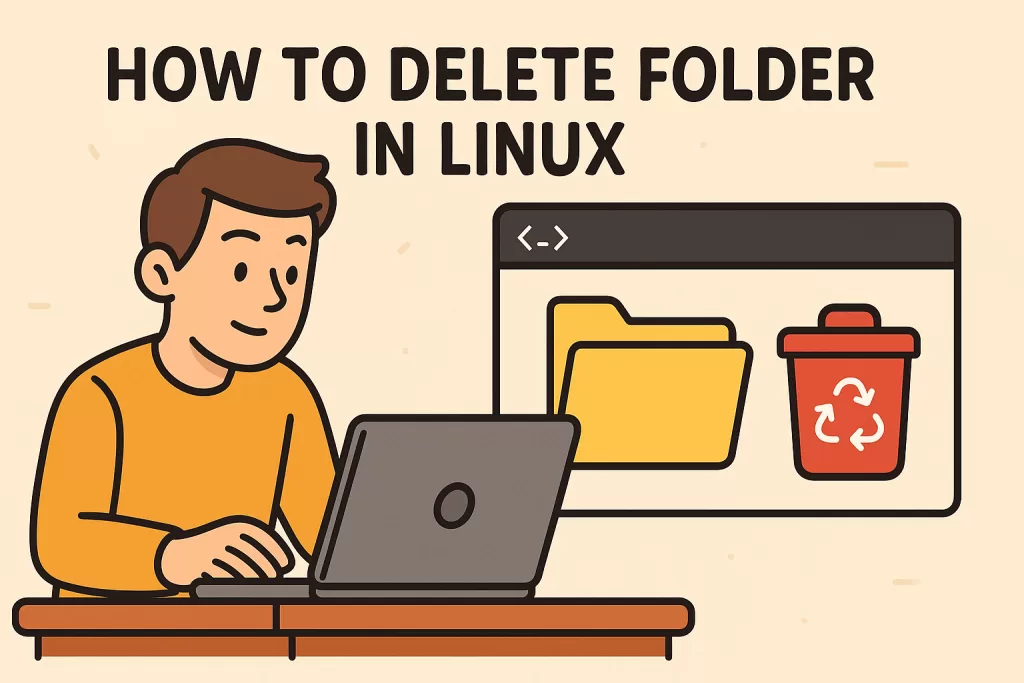
Now, let’s start with the star of the show: how to remove folder in Linux.
There are mainly two commands you’ll use to delete folders in Linux:
rmdir– Removes empty directories only.rm -r– Removes non-empty directories (and everything inside them).
Let’s see how each works 👇
1. Removing an Empty Directory with rmdir

If you have an empty folder named testfolder, you can simply run:
it’s gone. But remember, rmdir works only if the directory is empty.
When I first tried this command, I kept getting this annoying message:
“rmdir: failed to remove ‘testfolder’: Directory not empty”
Turns out, there were hidden files inside (like .DS_Store or .git). So, always check using:
That shows hidden files too.
2. How to Remove Folder in Linux with rm -r

This is the real deal. If you have a folder that’s packed with files, subfolders, and who knows what, use this command:
The -r flag means recursive, which tells Linux to go inside the folder and delete everything inside it.
🧠 Pro Tip: Always use -i (interactive mode) if you’re new to Linux:
This way, Linux asks for confirmation before deleting each file — a lifesaver if you’re dealing with important data.
3.The Dangerous Power of rm -rf
Here’s where things get intense.
This command removes everything inside the folder without asking any questions. The -f stands for force.
It’s fast. It’s powerful.
But if you type it wrong, it can wipe your entire system.
I remember deleting my project folder once because I missed a “/” in the command. Hours of work — gone in a second. So please, double-check your command before hitting Enter.
⚠️ Warning: Never run
rm -rf /orsudo rm -rf /. That command wipes your system clean.
How to Delete a File in Linux
Deleting individual files is much simpler.
Just use:
Example:
Want to delete multiple files? You can do that too:
Or use a wildcard * to delete all .txt files:
🔗 How to Remove Folder in Linux Using Absolute or Relative Paths
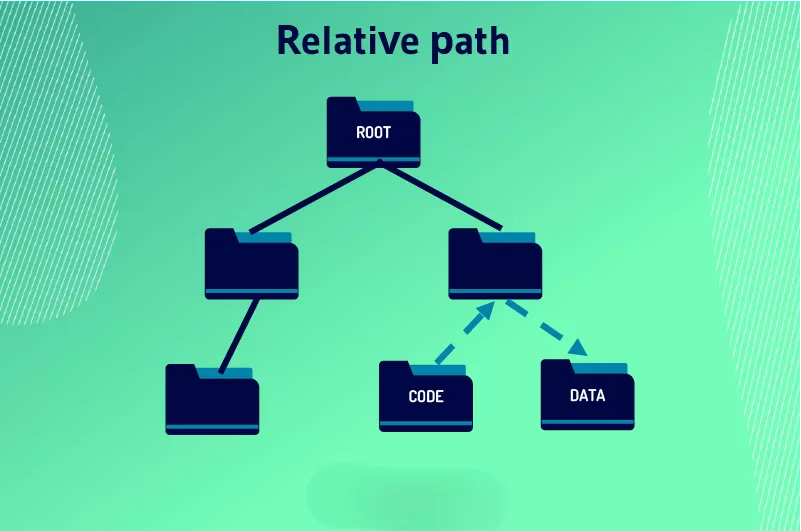
Sometimes, you’re not in the same directory as the folder you want to delete. In that case, you can use absolute paths or relative paths.
Example:
Or, if you’re already inside /home/user, just use:
Using absolute paths helps you avoid confusion when managing multiple folders — something that’s crucial if you’re working on servers or shared systems.
Advanced Deletion Tricks – How to Remove Folder in Linux Safely
If you’re managing production servers or sensitive projects, here are some safety tricks I’ve picked up:
- Use
trash-cliinstead ofrmto move files to trash instead of permanent deletion.
Install it using:
Then use:
You can later restore it — it’s like a Recycle Bin for Linux!
- Alias your rm command for extra safety:
That makes every delete interactive by default.
- Check disk space after deleting with:
to make sure the cleanup worked.

Real-Life Example: Cleaning My Downloads Folder
Last month, my Downloads folder on Ubuntu looked like a digital jungle — .deb files, old PDFs, screenshots from 2022, random zip archives. I decided it was time to clean it up.
Here’s what I did:
The -i option made it safe, so I could decide what to delete. I even discovered old project files I’d forgotten about. It felt oddly satisfying to clear it out.
Linux gives you control, but also demands responsibility. That’s what makes it beautiful.
Summary – How to Remove Folder in Linux
| Command | Description | Example |
|---|---|---|
rmdir | Remove empty directory | rmdir newfolder |
rm -r | Remove non-empty directory | rm -r myfolder |
rm -rf | Force remove directory | rm -rf oldfolder |
rm filename | Delete single file | rm data.txt |
trash-put | Safe deletion (moves to trash) | trash-put folder |
Final Thoughts
Learning how to remove folder in Linux may sound simple, but it’s a skill that demands respect. Linux doesn’t babysit you — it expects you to know what you’re doing. Once you get comfortable with these commands, you’ll feel an incredible sense of control and confidence.
Want to learn about Linux Commands, Kaashiv Infotech Offers, Linux Course Cyber Security Course, or Networking Course ?, Visit www.kaashivinfotech.com.
Related Reads: