


Have you ever sat in front of your keyboard, staring at it, wondering where that tiny degree symbol (°) or copyright mark (©) hides? I have.
Back in college, I remember preparing a project report about temperature sensors — and every time I had to type “25°C,” I’d copy-paste that little degree sign from Google. I didn’t even know I could just type it directly.
Then one day, someone casually told me, “You can use Alt codes to type special characters in keyboard.” That one line changed everything.
Since then, I’ve been using Alt key combinations to type special characters, emojis, mathematical symbols, and arrows right from my keyboard — no copy-pasting needed!
So, in this guide, I’ll walk you through everything I’ve learned about how to type special characters in keyboard using Alt keys, step-by-step, along with a massive list of 100+ Alt codes that’ll make your typing life easier.

What Are Alt Codes?
Alt codes are secret keyboard shortcuts that let you type special characters in keyboard using the Alt key and a numeric code on your numeric keypad.
Every symbol, letter, or shape has a corresponding number. When you press Alt + [number], your computer turns that number into a character.
For example:
- Alt + 0176 → ° (Degree)
- Alt + 0169 → © (Copyright)
- Alt + 3 → ♥ (Heart)
No magic, no extensions — just your keyboard doing its hidden tricks.
How to Type Special Characters in Keyboard Using Alt Keys
Here’s the simple step-by-step process I follow:
- Turn on Num Lock.
(Alt codes only work when Num Lock is enabled on your numeric keypad.) - Hold down the Alt key.
- Type the numeric code of the symbol you want using the number pad.
- Release the Alt key — and there’s your symbol!
For example, if you hold Alt + 0153, you’ll get ™.
✅ Tip: Always use the numeric keypad on the right — the numbers above letters won’t work for Alt codes.

Why Alt Codes Are Worth Learning
I used to think memorizing these codes was unnecessary. But honestly? They’re a lifesaver when:
- You’re formatting a report or writing code.
- You want to add symbols like °, →, or ™ instantly.
- You’re designing something in Word, PowerPoint, or Excel.
Learning these codes makes typing special characters in keyboard 10x faster and cleaner.
🔢 100+ Useful Alt Codes
| Symbol | Alt Code | Description |
|---|---|---|
| ☺ | Alt + 1 | White Smiley |
| ☻ | Alt + 2 | Black Smiley |
| ♥ | Alt + 3 | Heart |
| ♦ | Alt + 4 | Diamond |
| ♣ | Alt + 5 | Club |
| ♠ | Alt + 6 | Spade |
| • | Alt + 7 | Bullet |
| ◘ | Alt + 8 | Inverse Bullet |
| ○ | Alt + 9 | Hollow Circle |
| ◙ | Alt + 10 | Inverse Circle |
| ♂ | Alt + 11 | Male Symbol |
| ♀ | Alt + 12 | Female Symbol |
| ♪ | Alt + 13 | Single Note |
| ♫ | Alt + 14 | Double Note |
| ☼ | Alt + 15 | Sun |
| ► | Alt + 16 | Right Arrow |
| ◄ | Alt + 17 | Left Arrow |
| ↕ | Alt + 18 | Up/Down Arrow |
| ‼ | Alt + 19 | Double Exclamation |
| ¶ | Alt + 20 | Paragraph |
| § | Alt + 21 | Section |
| ▬ | Alt + 22 | Black Rectangle |
| ↨ | Alt + 23 | Up Down Arrow |
| ↑ | Alt + 24 | Up Arrow |
| ↓ | Alt + 25 | Down Arrow |
| → | Alt + 26 | Right Arrow |
| ← | Alt + 27 | Left Arrow |
| ∟ | Alt + 28 | Right Angle |
| ↔ | Alt + 29 | Left-Right Arrow |
| ▲ | Alt + 30 | Up Triangle |
| ▼ | Alt + 31 | Down Triangle |
| ⌂ | Alt + 127 | House |
| Ç | Alt + 128 | Capital C Cedilla |
| ü | Alt + 129 | Lowercase u Umlaut |
| é | Alt + 130 | Lowercase e Acute |
| â | Alt + 131 | Lowercase a Circumflex |
| ä | Alt + 132 | Lowercase a Umlaut |
| à | Alt + 133 | Lowercase a Grave |
| å | Alt + 134 | Lowercase a Ring |
| ç | Alt + 135 | Lowercase c Cedilla |
| ê | Alt + 136 | Lowercase e Circumflex |
| ë | Alt + 137 | Lowercase e Umlaut |
| è | Alt + 138 | Lowercase e Grave |
| ï | Alt + 139 | Lowercase i Umlaut |
| î | Alt + 140 | Lowercase i Circumflex |
| ì | Alt + 141 | Lowercase i Grave |
| Ä | Alt + 142 | Capital A Umlaut |
| Å | Alt + 143 | Capital A Ring |
| É | Alt + 144 | Capital E Acute |
| æ | Alt + 145 | AE Symbol |
| Æ | Alt + 146 | Capital AE |
| ô | Alt + 147 | Lowercase o Circumflex |
| ö | Alt + 148 | Lowercase o Umlaut |
| ò | Alt + 149 | Lowercase o Grave |
| û | Alt + 150 | Lowercase u Circumflex |
| ù | Alt + 151 | Lowercase u Grave |
| ÿ | Alt + 152 | Lowercase y Umlaut |
| Ö | Alt + 153 | Capital O Umlaut |
| Ü | Alt + 154 | Capital U Umlaut |
| ¢ | Alt + 155 | Cent Sign |
| £ | Alt + 156 | Pound Sterling |
| ¥ | Alt + 157 | Yen |
| ₧ | Alt + 158 | Peseta |
| ƒ | Alt + 159 | Function Symbol |
| á | Alt + 160 | Lowercase a Acute |
| í | Alt + 161 | Lowercase i Acute |
| ó | Alt + 162 | Lowercase o Acute |
| ú | Alt + 163 | Lowercase u Acute |
| ñ | Alt + 164 | Lowercase n Tilde |
| Ñ | Alt + 165 | Capital N Tilde |
| ª | Alt + 166 | Feminine Ordinal |
| º | Alt + 167 | Masculine Ordinal |
| ¿ | Alt + 168 | Inverted Question |
| ⌐ | Alt + 169 | Reversed Not Sign |
| ¬ | Alt + 170 | Not Sign |
| ½ | Alt + 171 | One Half |
| ¼ | Alt + 172 | One Fourth |
| ¡ | Alt + 173 | Inverted Exclamation |
| « | Alt + 174 | Left Guillemet |
| » | Alt + 175 | Right Guillemet |
| ░ | Alt + 176 | Light Shade |
| ▒ | Alt + 177 | Medium Shade |
| ▓ | Alt + 178 | Dark Shade |
| │ | Alt + 179 | Vertical Line |
| ┤ | Alt + 180 | Right T |
| ╡ | Alt + 181 | Box Drawing |
| ╢ | Alt + 182 | Box Drawing |
| ╖ | Alt + 183 | Box Drawing |
| ╕ | Alt + 184 | Box Drawing |
| ╣ | Alt + 185 | Double Line |
| ║ | Alt + 186 | Double Vertical |
| ╗ | Alt + 187 | Box Corner |
| ╝ | Alt + 188 | Box Corner |
| ╜ | Alt + 189 | Box Corner |
| ╛ | Alt + 190 | Box Corner |
| ┐ | Alt + 191 | Box Drawing |
| └ | Alt + 192 | Box Drawing |
| ┴ | Alt + 193 | Box Drawing |
| ┬ | Alt + 194 | Box Drawing |
| ├ | Alt + 195 | Box Drawing |
| ─ | Alt + 196 | Horizontal Line |
| ┼ | Alt + 197 | Box Drawing |
| ╞ | Alt + 198 | Double Line |
| ╟ | Alt + 199 | Double Line |
| ╚ | Alt + 200 | Box Corner |
| ╔ | Alt + 201 | Box Corner |
| ╩ | Alt + 202 | Double Line |
| ╦ | Alt + 203 | Double Line |
| ╠ | Alt + 204 | Double Line |
| ╬ | Alt + 205 | Double Line |
| ╧ | Alt + 206 | Double Line |
| ╨ | Alt + 207 | Double Line |
| ╤ | Alt + 208 | Double Line |
| ╥ | Alt + 209 | Double Line |
| ╙ | Alt + 210 | Box Corner |
| ╘ | Alt + 211 | Box Corner |
| ╒ | Alt + 212 | Box Corner |
| ╓ | Alt + 213 | Box Corner |
| ╫ | Alt + 214 | Double Line |
| ╪ | Alt + 215 | Double Line |
| ┘ | Alt + 216 | Box Drawing |
| ┌ | Alt + 218 | Box Drawing |
| © | Alt + 0169 | Copyright |
| ® | Alt + 0174 | Registered |
| ™ | Alt + 0153 | Trademark |
| ° | Alt + 0176 | Degree |
| ± | Alt + 0177 | Plus Minus |
| µ | Alt + 0181 | Micro |
| ¶ | Alt + 0182 | Paragraph |
| · | Alt + 0183 | Middle Dot |
| ¹ | Alt + 0185 | Superscript 1 |
| ² | Alt + 0178 | Superscript 2 |
| ³ | Alt + 0179 | Superscript 3 |
What If Alt Codes Don’t Work?
If you press Alt + code and nothing happens, here’s what you can check:
- Make sure Num Lock is turned on.
- Use the numeric keypad (not the number keys above letters).
- Try changing your keyboard layout to English (US).
- Note that Alt codes only work on Windows (not on Mac).
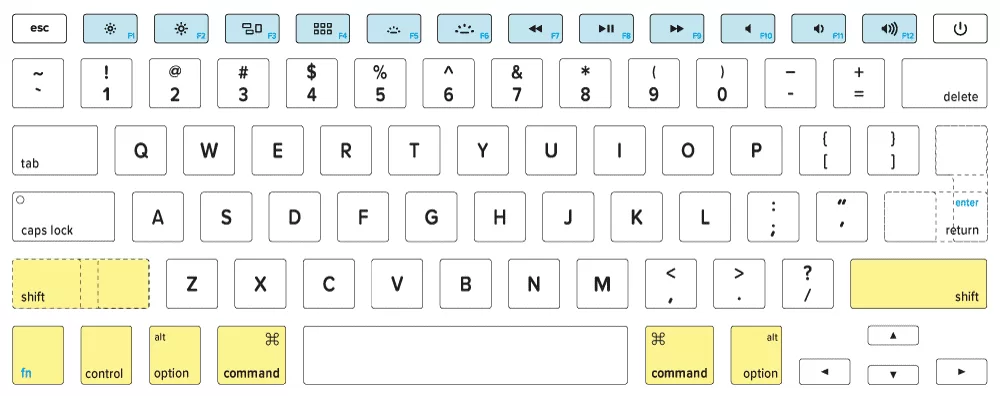
If you’re a Mac user, you’ll need Option key shortcuts instead.
For example:
- Option + G → ©
- Option + 2 → ™
- Option + R → ®
👉 Here’s Apple’s official list: Mac Keyboard Symbols Guide
My Personal Hack to Remember Codes
I keep my favorite Alt codes written on a sticky note near my monitor.
It’s small but powerful. For instance:
- Alt + 0176 (°) → for temperature.
- Alt + 0153 (™) → for product names.
- Alt + 0169 (©) → for blog credits.
Once you use these codes regularly, they become second nature — like typing “Ctrl + C.”
Final Thoughts:
Learning how to type special characters in keyboard using Alt codes is one of those tiny skills that saves hours in the long run.
It’s faster than copy-pasting, cleaner than inserting from menus, and surprisingly satisfying once you get used to it.
So next time you need a °, ©, or ♥, don’t waste time searching online — just press Alt + the right code and type like a pro.
Want to learn more?, Kaashiv Infotech Offers Excel Course, Data Analysis Course & More visit www.kaashivinfotech.com.