Looking for a fast and simple way to trace the source of an image or check if a photo is authentic? You’re in the right place! In this guide, you’ll learn how to reverse image search on Google using iPhone & Android (2025). Whether you’re verifying a picture, identifying a product, or tracking down image origins, this article has got you covered.
🔍 Key Highlights:
- Step-by-step guide to reverse image search on iPhone and Android
- Use Google Lens, mobile browsers, and third-party apps
- No need for a computer or desktop tools
- Works for Chrome, Safari, and other browsers
What Is Reverse Image Search on Google?
Reverse image search on Google allows you to search the internet using an image instead of text. You can upload or paste an image, and Google will show you visually similar results, sources, and related pages. It’s useful for verifying photos, checking for plagiarism, finding image origins, and even shopping online.
Why Use Reverse Image Search on iPhone and Android in 2025?
With the explosion of AI-generated content and misinformation, the ability to verify images has become crucial. Knowing how to reverse image search on Google using iPhone & Android (2025) helps:
- Detect fake profiles on social media
- Confirm if a viral image is real or altered
- Identify products from images
- Find high-resolution versions of photos
📱 How to Reverse Image Search on Google Using iPhone (2025)
1. Use Google Lens (Recommended Method)
Google Lens is integrated directly into the Google app and Chrome browser on iPhones.
Steps:
- Open the Google app or Chrome browser
- Tap the camera icon (Google Lens)
- Upload or snap a picture
- Google will show visually similar results instantly
✨ Tip: Make sure your Google app is updated to the latest version.
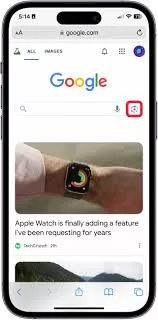
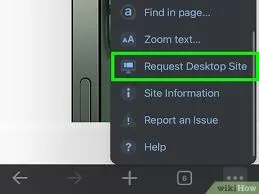
2. Use Safari with Desktop Mode
If you prefer Safari:
- Visit Google Images
- Tap aA icon in the address bar > Request Desktop Website
- Tap the camera icon in the search bar
- Upload an image from your gallery or paste a link
📲 How to Reverse Image Search on Google Using Android (2025)
1. Use Google Lens (Built-In on Android)
Google Lens is pre-installed on most Android phones and works seamlessly.
Steps:
- Open your Camera app or Google Photos
- Tap the Google Lens icon
- Select the image you want to search
- View visually similar results, links, and sources
2. Use Chrome Browser
- Open Chrome and go to any webpage with an image
- Long-press on the image
- Tap Search image with Google Lens
- Google will show image matches and related content

🔍 Best Tools for Reverse Image Search on Google
- Google Lens (Learn More)
- TinEye (alternative tool for more detailed image tracking)
- Yandex Images (especially useful for global image results)
Want more productivity tools? Check out our guide on the Best Free CRM Software for Small Business in 2025.
Common Use Cases of Reverse Image Search
- 🚫 Detecting scams and catfishing profiles
- 👨🎓 Verifying educational certificates or ID images
- 🚀 Finding high-quality stock images
- 💼 Checking image copyright or reuse permissions
Frequently Asked Questions
Q1. Can I reverse image search a screenshot? Yes! Just upload the screenshot through Google Lens or Chrome browser.
Q2. Is reverse image search free? Absolutely. All the methods shared above are free to use.
Q3. Which method is best in 2025? Google Lens is the most accurate and convenient method in 2025.
Final Thoughts: Master Reverse Image Search on the Go 🚀
Now you know how to reverse image search on Google using iPhone & Android (2025). Whether you’re a student, professional, or just curious, reverse image searching is a powerful tool to verify, research, and explore visual content. Try it out today!
🌐 More Helpful Reads:
- How to Remove Tracking Cookies in Any Browser (Step-by-Step Guide)
- How to Find and Secure Your WordPress Login URL
Got questions about reverse image search? Drop them in the comments 💬 or share your favorite method!