How to Use Google Sheets: A Beginner’s Guide to Getting Started (2025)
Google Sheets has become an essential tool for anyone looking to organize, analyze, and present data in a simple, easy-to-use platform. Whether you’re a student, professional, or business owner, learning how to use Google Sheets can open up a world of possibilities. In this beginner’s guide, we’ll take you through everything you need to get started, from basic functions to more advanced features, so you can harness the power of Google Sheets for your personal and professional needs.
Key Highlights:
- What is Google Sheets? – Overview of the tool.
- How to Create a Spreadsheet – Getting started with a new document.
- Basic Functions & Features – Formula basics, formatting, and data entry.
- Tips for Organizing Data Efficiently – Sorting, filtering, and grouping.
- Advanced Features – Charts, conditional formatting, and data validation.
- Collaboration Tools in Google Sheets – Sharing and real-time editing.
- How to Use Google Sheets on Mobile – Accessing spreadsheets on the go.

What is Google Sheets?
Google Sheets is a free, cloud-based spreadsheet tool that allows you to create, edit, and store spreadsheets online. It is part of Google Drive, making it easily accessible across all devices with an internet connection. How to use Google Sheets effectively can save you hours of work and streamline data management for personal or business tasks.

How to Create a Spreadsheet in Google Sheets
Getting started with Google Sheets is simple. Here’s how you can create a new spreadsheet:
- Open Google Sheets: Go to the Google Sheets website or open the Google Sheets app on your mobile device.
- Create a New Document: Click the “+” button or select “Blank” to start a new spreadsheet.
- Set Up Your Sheet: Customize your new document by naming it at the top and adjusting settings (e.g., color, borders) for better organization.
This is the first step in how to use Google Sheets effectively: creating a clear structure from the start!

Basic Functions & Features in Google Sheets
Once your sheet is set up, it’s time to dive into the basics. Here are some essential functions you’ll use often:
1. Entering Data
Type directly into any cell in Google Sheets to add text, numbers, or dates. Use the Tab key to move horizontally across rows and the Enter key to move vertically down columns.
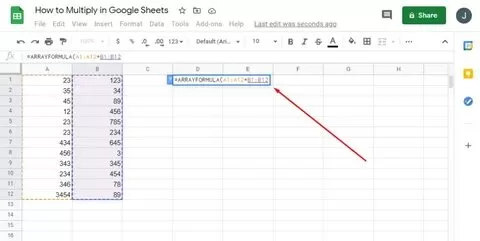
2. Formulas and Functions
Google Sheets makes it easy to perform calculations. Some of the most common functions are:
- SUM: Adds up numbers in a range. Example:
=SUM(A1:A5) - AVERAGE: Finds the average of a range. Example:
=AVERAGE(B1:B5) - IF: Returns one value if a condition is true and another if false. Example:
=IF(C1>100, "Yes", "No") - VLOOKUP: Searches for a value and returns data from another column. Example:
=VLOOKUP(D2, A1:B5, 2, FALSE)
These functions are key in learning how to use Google Sheets effectively for calculations and data analysis.
How to Use Google Sheets for Organizing Data
Once your spreadsheet is up and running, here are some useful features to keep your data organized:
1. Sorting & Filtering
Google Sheets offers sorting and filtering tools that help you view specific data points:
- Sort: Click on a column and select Data > Sort sheet by column to organize your data alphabetically or numerically.
- Filter: Use the filter icon to display only certain rows based on criteria like dates, numbers, or text.
2. Conditional Formatting
With conditional formatting, you can highlight important data. For example, you can color cells that are greater than a certain value or less than another. To use this, go to Format > Conditional formatting and set the conditions for your data.
Advanced Features in Google Sheets
Once you’re comfortable with the basics, you can take your Google Sheets skills to the next level with these advanced features:
1. Creating Charts and Graphs
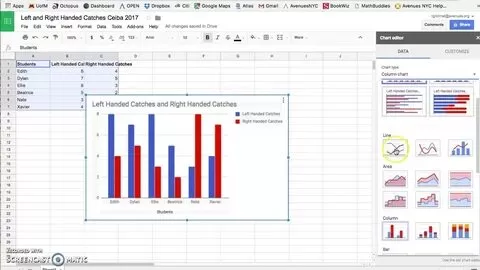
One of the most powerful features of Google Sheets is its ability to turn data into visual charts and graphs. To create a chart:
- Highlight the data you want to visualize.
- Click on Insert > Chart.
- Choose from various chart types like bar charts, pie charts, or line graphs.
Charts make your data more accessible and help you analyze trends.
2. Data Validation
Data validation allows you to control what data is entered into a cell. You can set up a dropdown list of options or restrict input to certain types (e.g., numbers, dates). This ensures your data remains accurate and consistent.
Collaboration Tools in Google Sheets
One of the standout features of Google Sheets is its real-time collaboration tools. Whether you’re working on a personal project or a team assignment, you can:
- Share Your Document: Click on the Share button and enter the email addresses of your collaborators.
- Real-Time Editing: See changes as they happen. Google Sheets automatically saves and syncs changes, making it perfect for team projects.
- Commenting: Add comments to specific cells to communicate with your team without altering the data.
How to Use Google Sheets on Mobile
Google Sheets isn’t just for desktop use; it’s also fully functional on your mobile device. Here’s how to use Google Sheets on the go:
- Download the Google Sheets app from the App Store or Google Play.
- Open the app and sign in with your Google account.
- Access your documents from Google Drive and edit them just like on your computer.
With the mobile app, you can manage your data anytime, anywhere!
Conclusion: How to Use Google Sheets for Success
Now that you’ve learned the basics of how to use Google Sheets, you’re ready to take on more complex projects, organize data efficiently, and collaborate with others in real-time. Google Sheets is an incredibly versatile tool that can help you manage everything from budgeting and scheduling to data analysis and reporting.
Remember, mastering Google Sheets takes time, but with the tips and features we’ve covered, you’ll be on your way to becoming a Google Sheets pro! 🚀
FAQ
Q1: How can I use Google Sheets for team collaboration?
Google Sheets allows you to share and edit spreadsheets in real time with team members, making it an ideal tool for collaborative projects.
Q2: Can I use Google Sheets offline?
Yes! You can access your Google Sheets documents offline by enabling offline mode in Google Drive settings.
Q3: How do I automate tasks in Google Sheets?
You can use Google Sheets’ built-in macros or Google Apps Script to automate repetitive tasks, like data entry or report generation.
This article provides a clear, beginner-friendly approach to how to use Google Sheets in 2025, equipping you with the knowledge and tools to start working with this powerful platform right away. Whether you’re handling personal projects or collaborating with teams, Google Sheets is the go-to tool for managing data efficiently.