What is Localhost? Local Host IP Address Explained (My Honest Guide)

What is Localhost?
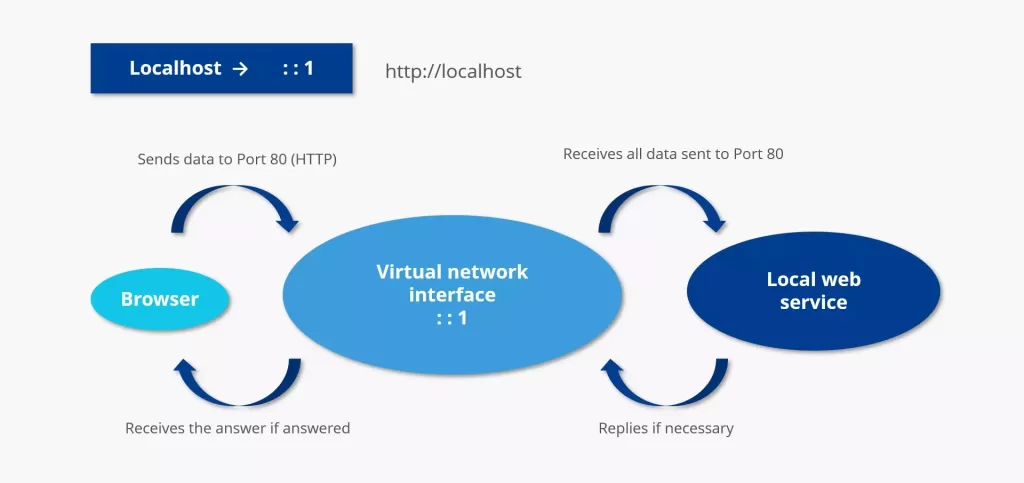
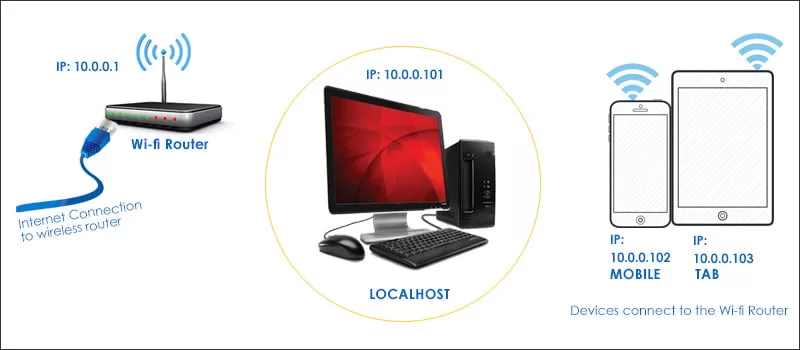
Okay, let’s hit the basics. Localhost is basically your computer pretending to be a server. Instead of connecting to some faraway server on the internet, when you type localhost in your browser, you’re telling your machine: “Hey, run this right here on my own device.”
To put it in even simpler terms:
- Local = your system
- Host = server
So It is your own system acting like a server.
When you run http://localhost, you’re not connecting to the web, you’re looping back to your own device. That’s why It is often called the loopback address.
The Localhost IP Address – 127.0.0.1 🌍
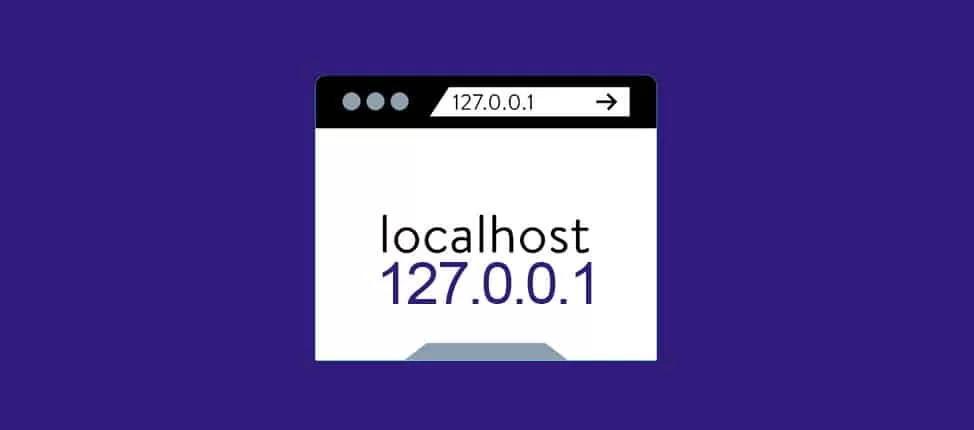
Here’s a fun fact: every computer has a special IP address reserved for localhost. That’s 127.0.0.1. You might also see it written as ::1 (for IPv6 users).
Why 127.0.0.1? Well, without diving into the full networking textbook, it’s just a reserved range that always points back to—you guessed it—your own machine.
I still remember the first time I typed ping 127.0.0.1 into my terminal. My laptop happily replied back to itself, and I sat there like, “Wait… I’m literally talking to my own machine.” It felt geeky but kind of cool.
Why Do Developers Use This?
If you’re wondering why localhost matters so much, let me share a story. When I was building my first website, I uploaded it straight to a live server. The result? A page full of bugs, 404 errors, and a friend calling me saying, “Bro, your website is broken.” Ouch.
That’s when I learned about It. Instead of testing directly online (and embarrassing myself), I could:
- Run the website locally using XAMPP, WAMP, or Node.js.
- Test databases like MySQL right from It.
- Check for bugs, errors, and design flaws before the public sees it.
Basically, It is like a safe sandbox where developers can break stuff without worrying about the world watching. 🌍
Localhost vs. Remote Host 🆚

Here’s another question I had back then: “If localhost is my computer, what’s a remote host?”
- Localhost → Your computer acting as the server.
- Remote Host → Any other computer/server you connect to over the internet.
So if I’m running localhost:8000 on my laptop, it’s just me. But if I upload my site to a hosting service and share the domain with you, that’s a remote host.
Ports and Localhost ⚡
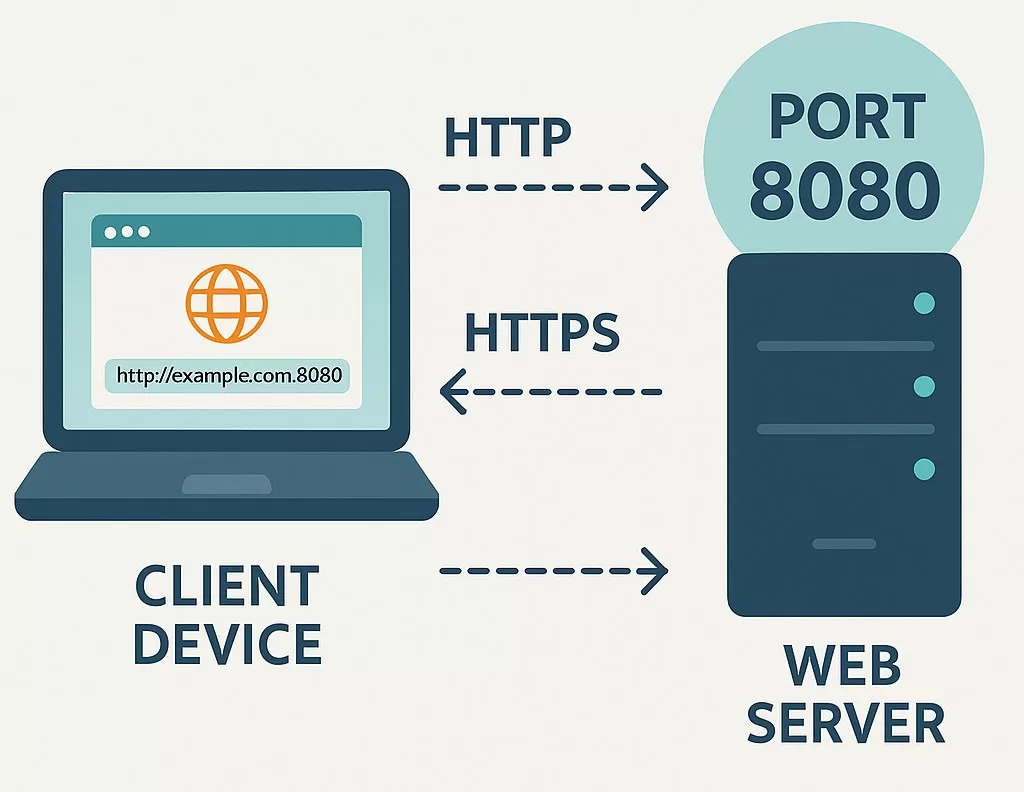
Ever seen something like or localhost:8080? Those numbers after the colon are called ports.
Think of ports as doors in your computer. Your system uses them to handle different services. For example:
- Port 80 → Default for HTTP
- Port 443 → Default for HTTPS
- Port 3306 → MySQL database
- Port 3000 → Often used in Node.js projects
So, when you run localhost:3000, your computer knows: “Hey, check door number 3000. That’s where the project is running.”
Common Uses of Localhost 💻
From my experience, host comes in handy in so many ways:
- Web development – Testing sites before they go live.
- Database testing – Running MySQL or MongoDB locally.
- Software testing – Checking apps in a local environment.
- Learning and experimenting – Safe space for beginners to practice coding.
- Debugging – Fixing bugs without the risk of crashing a live site.
I still use it almost daily. Whether I’m spinning up a new React project or playing around with APIs, it is my go-to buddy.
How to Use Localhost (Beginner-Friendly) 🎯
If you’re new, here’s how you can get started:
- Install a local server environment – Tools like XAMPP, WAMP, or MAMP are great.
- Run the software – It usually starts Apache (web server) and MySQL (database).
- Open your browser – Type
http://localhostand hit enter. - Start building – Place your files in the
htdocs(for XAMPP) or relevant folder.
And boom—you’re now running your own little internet, but only visible to you.
Troubleshooting Localhost Issues 🛠️
Now, let’s be real. It doesn’t always work perfectly. I’ve had days where it just refused to start. Here are some common problems:
- Port conflicts – Another app (like Skype) might be using port 80.
- Firewall settings – Sometimes block local connections.
- Server not started – You forgot to run Apache or Node.js.
- Wrong file path – Happens to the best of us.
Pro tip: Changing the port number (e.g., localhost:8080) often fixes conflicts.
Localhost in Real Life 🌟
To make this less theoretical, let me tell you about a time It saved me. I was once building a client website with a shopping cart. Imagine launching it straight online and realizing the checkout button doesn’t work. Disaster, right?
But thanks to I tested everything—from login forms to payment gateways—on my own system before uploading. Saved me from a lot of angry emails.
Final Thoughts:
So, It’s more than just a nerdy term. It’s a developer’s best friend, a safe playground for testing, learning, and building without judgment.
Every time I spin up a project, I silently thank localhost for existing. Without it, we’d all be breaking websites live in front of the world. And trust me—you don’t want your boss or clients calling you at 2 AM because you skipped testing.
Want to Learn More About Networking ? Kaashivinfotech Offers Networking Course, Cloud Computing Course, Cyber Security Course, Visit www.kaashivinfotech.com.
Related Reads: