

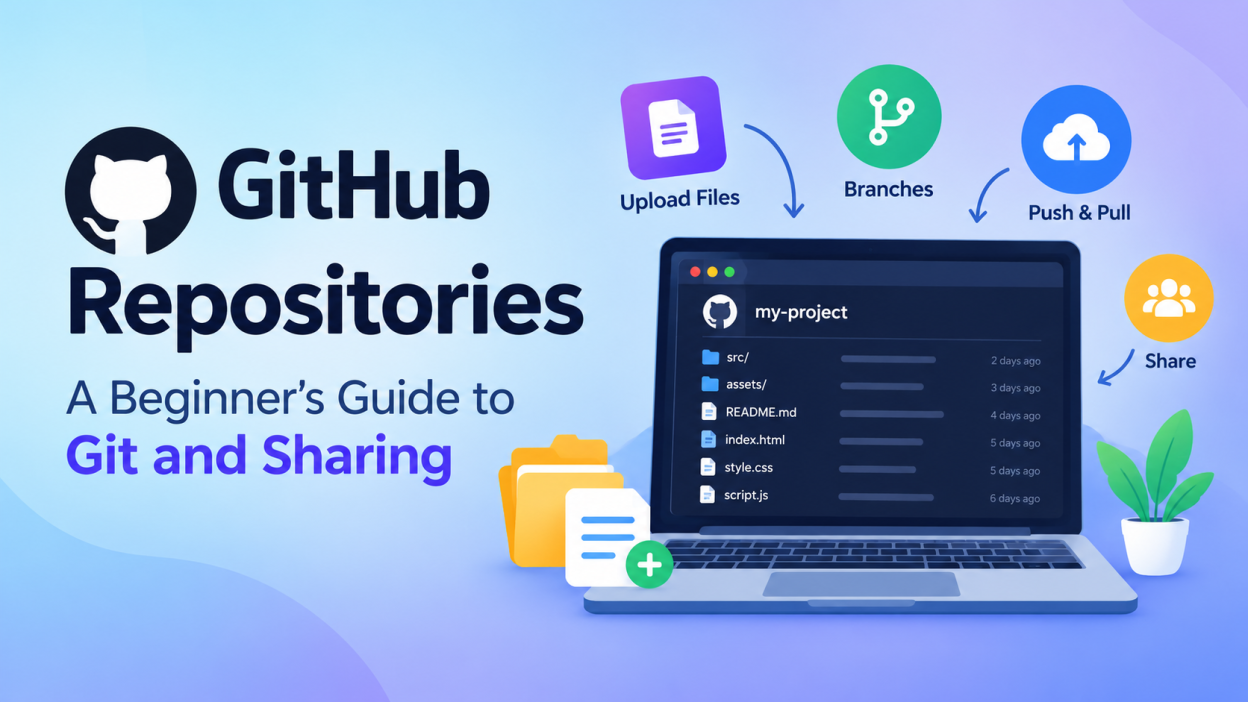
GitHub has become one of the most popular platforms for developers to store, manage, and share their code. Whether you are learning programming, working on a college project, building a portfolio, or collaborating with a development team, understanding GitHub repositories is an important skill.
For beginners, terms such as repository, commit, branch, push, pull, clone, and file sharing may seem confusing at first. However, once you understand how these features work together, using GitHub becomes much easier.
This guide explains GitHub repositories and file sharing in simple terms and provides a practical overview for beginners.
What Is GitHub?
GitHub is a cloud-based platform that helps developers store and manage software projects using Git, a version control system. Git keeps track of changes made to files, while GitHub provides an online platform where Git repositories can be stored and shared.
Developers can use GitHub to:
- Store source code and project files
- Track changes to projects
- Collaborate with other developers
- Share projects publicly or privately
- Manage different versions of a project
- Build a professional coding portfolio
- Contribute to open-source projects
For example, if you are creating a Python project, you can store your Python files, documentation, images, and other project resources inside a GitHub repository.
What Is a GitHub Repository?
A GitHub repository, commonly called a repo, is a storage space for a project. It contains the files, folders, and information needed to manage that project.
A repository can contain:
- Source code
- Images
- Documentation
- Configuration files
- Project reports
- README files
- Other resources
For example, suppose you create a website using HTML, CSS, and JavaScript. You can create a repository called my-portfolio-website and upload all your project files into it.
A repository can be public or private. Public repositories can generally be viewed by anyone, while private repositories are restricted to authorized users.

How to Create a GitHub Repository
Creating a repository is simple.
First, create or log in to your GitHub account. After logging in, select the option to create a new repository.
Enter a suitable repository name, such as:
student-management-system
You can then add a description explaining what the project does. Choose whether the repository should be public or private.
You can also create a README file when creating the repository. A README is useful because it explains the purpose of the project and provides instructions for using it.
After creating the repository, you can start adding files.
How to Upload Files to GitHub
GitHub allows you to upload files directly through its website.
Open your repository and choose the option to add or upload files. You can select files from your computer and upload them to the repository.
For example, you might upload:
index.html
style.css
script.js
README.md
images/
After selecting the files, GitHub asks you to create a commit.
A commit is basically a saved record of changes made to the repository.
You can write a message such as:
Added homepage files
and save the changes.
What Is a Git Commit?
A commit records changes made to files in a Git repository.
Think of a commit like a checkpoint in your project.
For example:
- Commit 1 – Created the project structure
- Commit 2 – Added login page
- Commit 3 – Added database connection
- Commit 4 – Fixed login validation
This history makes it easier to understand how a project developed over time.
If something goes wrong, developers can also examine previous versions of their files.

What Is Git Push?
When developers work with Git on their computer, they can make changes to a local repository and then send those changes to GitHub.
This process is called pushing.
A common workflow looks like this:
Make changes
     ↓
git add
     ↓
git commit
     ↓
git push
     ↓
GitHub Repository
For example, after modifying a Python file, you can commit the changes and push them to GitHub. The updated version will then be available in the online repository.
What Is Git Clone?
GitHub also allows you to download an entire repository to your computer.
This is commonly done using the git clone command.
For example:
git clone https://github.com/username/project-name.gitCloning creates a local copy of the repository on your computer.
This is particularly useful when you want to work on an existing project locally.
How GitHub Helps With File Sharing
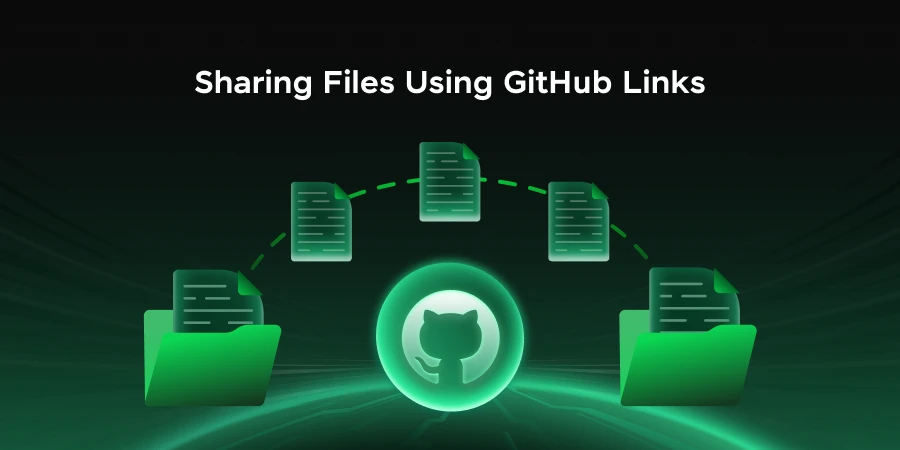
GitHub can be useful for sharing project files with classmates, developers, teachers, clients, and team members.
For example, instead of sending several project files through email, you can upload them to a repository and share the repository with the required people.
A public repository can be shared through its GitHub page. For private repositories, you can give access to specific collaborators.
This makes project sharing easier because everyone can work with the same online version of the files.
GitHub Branches for Safer Development
A branch is a separate line of development inside a repository.
The main branch generally contains the primary version of a project. Developers can create another branch when working on a new feature or making changes.
For example:
main
 ├── login-feature
 ├── payment-feature
 └── bug-fix
After testing the changes, developers can merge them into the main branch.
Branches are especially useful for team projects because multiple developers can work on different features without immediately changing the main version.
GitHub for Student Projects
GitHub is particularly useful for students and beginners.
Students can upload projects such as:
- Web development projects
- Python applications
- Java projects
- Data science projects
- Machine learning projects
- Mobile applications
- Database projects
Maintaining repositories also helps students demonstrate practical coding experience when creating a technical portfolio.
A well-organized repository should ideally include a clear README, meaningful file names, useful commit messages, and proper project documentation.
Best Practices for Beginners
When using GitHub, beginners should follow a few simple practices.
Use meaningful repository names: Choose names that clearly describe your project.
Write a useful README: Explain what the project does, the technologies used, and how someone can run it.
Commit regularly: Save meaningful changes instead of putting everything into one large commit.
Keep files organized: Use folders to separate source code, images, documentation, and other resources.
Avoid uploading sensitive information: Never upload passwords, API keys, private credentials, or other confidential information to a repository.
Write clear commit messages: Messages such as “Added login validation” are more useful than simply writing “update.”
Conclusion
Understanding GitHub repositories and file sharing is an important first step for anyone learning software development. A repository provides a central place to store project files, while Git helps track changes and maintain different versions of the project.
By learning basic concepts such as repositories, commits, branches, cloning, pushing, and file sharing, beginners can start managing their projects more professionally.
Whether you are building a college project, creating a coding portfolio, or working with a development team, GitHub can make your development workflow more organized and collaborative. Starting with a small project and practicing these basic GitHub features is one of the easiest ways to become comfortable with version control.
if you want to level up? Enroll in a hands-on DevOps course in Chennai that includes software development projects. It’s the best of both worlds.