

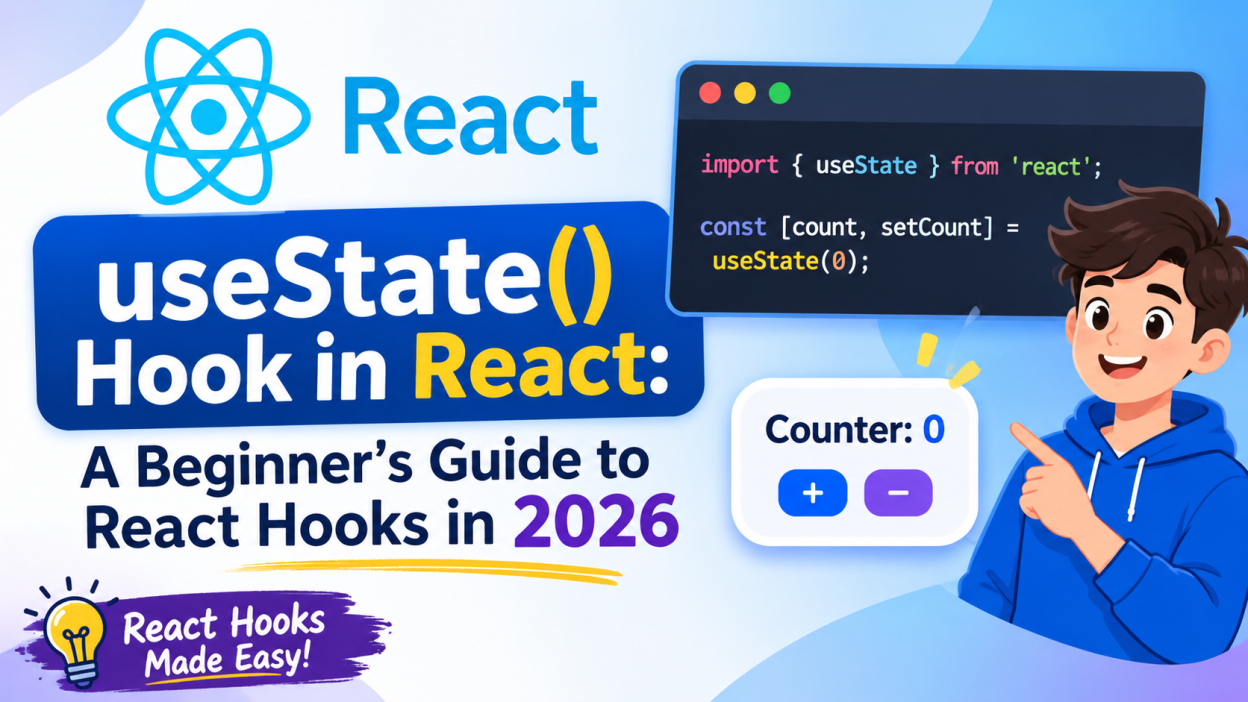
useState() Hook in React – React is one of the most popular JavaScript libraries for building interactive user interfaces. When developing React applications, developers often need to store information, update values, and display changes dynamically. For example, a counter should increase when a user clicks a button, a form should store entered information, and a menu should open or close based on user interaction.
React provides a feature called Hooks to handle these requirements efficiently. One of the most commonly used hooks is useState(). It allows developers to add and manage state in functional components without writing class components.
In this guide, you will learn what the useState() hook is, how it works, its syntax, practical examples, common mistakes, and best practices for beginners.
What Is the useState() Hook in React?

The useState() hook is a built-in React function that allows functional components to create and manage state. State represents information that can change while an application is running.
When state changes, React automatically updates the user interface to reflect the new value. This makes it possible to build interactive applications without manually updating HTML elements.
For example, consider a counter application. When a user clicks an increment button, the counter value changes from 0 to 1, 1 to 2, and so on. The useState() hook stores the counter value and helps React display the updated number.
Some common uses of useState() include:
- Managing counter values
- Handling form input fields
- Showing or hiding elements
- Creating dropdown menus
- Managing login information
- Tracking selected items
- Updating application settings
The useState() hook is especially useful for beginners because it provides a simple way to understand how React handles dynamic data.
Syntax of the useState() Hook
The basic syntax of the useState() hook is:
import { useState } from 'react';

const [state, setState] = useState(initialValue);
Here is what each part means:
useState()is the React hook used to create state.initialValueis the starting value of the state.staterepresents the current state value.setStateis the function used to update the state.
For example, if you want to create a state variable for a counter, you can initialize it with zero.
const [count, setCount] = useState(0);In this example, count stores the current counter value, and setCount updates that value whenever the user performs an action.
How to Use useState() in React

To use the useState() hook, you must import it from React and declare it inside a functional component.
The following example demonstrates a simple counter application.
import { useState } from 'react';

function Counter() {
  const [count, setCount] = useState(0);

  return (
    <div>
      <h2>Counter: {count}</h2>

      <button onClick={() => setCount(count + 1)}>
        Increment
      </button>

      <button onClick={() => setCount(count - 1)}>
        Decrement
      </button>
    </div>
  );
}

export default Counter;
In this example, the counter starts at zero. When the user clicks the Increment button, setCount() increases the value by one. When the Decrement button is clicked, it decreases the value by one.
React re-renders the component whenever the state changes, so the updated counter value automatically appears on the screen.
Example: Creating a Show and Hide Password Feature
The useState() hook can also be used to control whether a password is visible or hidden.
import { useState } from 'react';

function PasswordToggle() {
  const [showPassword, setShowPassword] = useState(false);

  return (
    <div>
      <input
        type={showPassword ? 'text' : 'password'}
        placeholder="Enter password"
      />

      <button onClick={() => setShowPassword(!showPassword)}>
        {showPassword ? 'Hide Password' : 'Show Password'}
      </button>
    </div>
  );
}

export default PasswordToggle;
Here, showPassword stores a Boolean value. Initially, it is false, so the password is hidden.
When the user clicks the button, setShowPassword() changes the value to true. The input field then displays the password as normal text. Clicking the button again hides it.
This example shows how state can control the appearance and behavior of elements in a React application.
Managing Multiple State Variables

A React component can use multiple useState() hooks to manage different values. For example, you can store a username, email address, and password separately.
import { useState } from 'react';

function UserForm() {
  const [username, setUsername] = useState('');
  const [email, setEmail] = useState('');

  return (
    <div>
      <input
        value={username}
        onChange={(e) => setUsername(e.target.value)}
        placeholder="Enter username"
      />

      <input
        value={email}
        onChange={(e) => setEmail(e.target.value)}
        placeholder="Enter email"
      />

      <p>Username: {username}</p>
      <p>Email: {email}</p>
    </div>
  );
}

export default UserForm;
In this example, two state variables are created. The username state stores the username, while the email state stores the email address. Whenever users type something into the input fields, the corresponding state updates automatically.
This approach is commonly used when building registration forms, login pages, search boxes, and other interactive components.
Updating State Using Previous Values
Sometimes, you need to update a state value based on its previous value. React provides a functional update method for this purpose.
const [count, setCount] = useState(0);

function increment() {
  setCount((previousCount) => previousCount + 1);
}
Here, previousCount represents the previous state value. React uses it to calculate the next value.
This method is useful when multiple state updates happen quickly or when the next value depends on the current state. It helps prevent unexpected results caused by using an outdated state value. React
Rules for Using the useState() Hook
Developers should follow some important rules when working with useState().
1. Call hooks at the top level
Do not call useState() inside loops, conditions, or nested functions. Declare hooks directly inside your functional component before conditional returns.
2. Do not modify state directly
Avoid changing state variables manually. Always use the setter function to update state.
Incorrect:
count = count + 1;Correct:
setCount(count + 1);3. State updates trigger re-rendering
When the setter function is called, React schedules an update and renders the component again with the new state value.
4. Use meaningful variable names
Choose descriptive names such as isLoggedIn, userName, selectedColor, and totalPrice. This makes your code easier to read and maintain.
5. Update arrays and objects correctly
When updating objects or arrays stored in state, create a new object or array instead of directly modifying the existing value. React+1
Common Mistakes Beginners Make
Beginners often make mistakes while learning the useState() hook. One common mistake is forgetting to import useState from React. Another is calling the setter function incorrectly or expecting the state value to change immediately within the same function.
For example:
setCount(count + 1);
console.log(count);
The console may still display the previous value because the current render’s state behaves like a snapshot. The updated value becomes available during the next render. React
Another common mistake is calling a function immediately inside an event handler instead of passing it as a callback.
Incorrect:
<button onClick={increment()}>
  Click
</button>
Correct:
<button onClick={increment}>
  Click
</button>
Understanding these mistakes will help beginners write cleaner and more reliable React applications.
Conclusion
The useState() hook is one of the fundamental concepts in React development. It allows functional components to store information, manage user interactions, and update the interface dynamically. From simple counter applications to complex forms and interactive websites, useState() plays an important role in building modern React applications.
By practicing examples such as counters, password toggles, forms, and dropdowns, beginners can understand state management more easily. Once you become comfortable with useState(), you can move on to other React hooks such as useEffect(), useContext(), and useReducer() to build more advanced applications.
Learning React hooks step by step will help you develop interactive, maintainable, and efficient web applications in 2026.
Want to learn more about React ?, Kaashiv Infotech Offers React course and more Visit Their website www.kaashivinfotech.com.