So, you’ve got an XML file sitting in your folder, and you’re probably staring at it, wondering, “How in the world do I open this thing?” Well, don’t sweat it! You’re not alone—I’ve been there too. Whether you’re dealing with an XML file from a website, a software application, or a data feed, opening it doesn’t have to feel like you’re decoding some ancient script. Let’s walk through some super simple ways to open your file XML, and I’ll give you a couple of tips that might save you time down the road.
Key Highlights:
- Quick ways to open XML files on different devices
- Free and paid tools to help you view, edit, and manage XML files
- What XML files are and why they’re used
- Tips for troubleshooting if things go wrong
Now, I know that when people first encounter XML files, they’re often intimidated by the structure. The tags, the nested elements—it can look like a puzzle. But trust me, once you get the hang of it, you’ll realize it’s just another format like JSON or CSV. You’ve got this!
What Exactly is an File XML?
Before diving into how to open it, let’s make sure we’re on the same page. XML stands for eXtensible Markup Language. It’s a text-based file format used to store and transport data. The beauty of XML files is in their flexibility—they can store all sorts of data, from contact info to complex databases. In fact, you’ve probably seen XML files in places you didn’t even know about. Ever use a weather app? Yeah, those forecasts are often pulled from XML files.
Now, let’s get to the part that’s on your mind: how to open an XML file. I’ll walk you through 7 simple methods.
1. Open Your XML File in a Web Browser (The Easiest Way! 🖥️)
If you just need to view your XML file, the simplest way to do it is by opening it in a web browser. You don’t need fancy software for this—your browser can handle it easily. Here’s how:
- Step 1: Right-click on the XML file.
- Step 2: Select “Open with” and choose your preferred browser (Chrome, Firefox, Edge—any will do).
- Step 3: Voilà! Your XML file is now displayed in a readable format.
While this is a quick and easy method, it only allows for viewing. You won’t be able to edit or modify the file this way, but it’s perfect if all you need is a glance at the data.

2. Use Notepad or Any Text Editor for Quick Access
If you need to edit or inspect your XML file more closely, using a text editor like Notepad (Windows) or TextEdit (Mac) is an easy option. Here’s why:
- Step 1: Right-click the XML file.
- Step 2: Select “Open with” and choose Notepad or TextEdit (you can also use any other text editor).
- Step 3: You’ll now see all the raw XML code. It may look like a jumble of tags, but this is where the magic happens if you’re looking to tweak or troubleshoot the file.
It’s a great choice if you’re comfortable with the structure of XML files and need to dive into the content. But be careful—you can easily mess up the tags if you’re not paying attention!

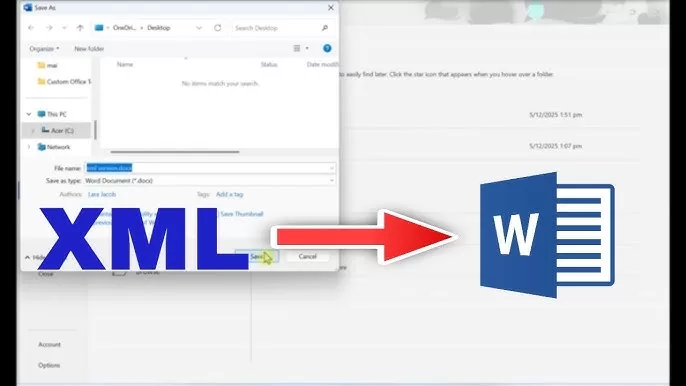
3. Open an XML File Using Microsoft Word (Not So Intuitive, But Still Useful)
Did you know that you can open XML files in Microsoft Word? Yeah, it’s a little-known feature, but Word will display the file in a formatted way. You won’t get the kind of data manipulation you could in a specialized editor, but it’s useful for a quick peek.
- Step 1: Open Microsoft Word.
- Step 2: Go to File > Open, and select your XML file.
- Step 3: Word will format it for you, so it’s easier to read, though it might not look as neat as a specialized XML viewer.
This method is best for casual viewing or if you’re working on a Word document that contains XML data.
4. Use Free Online XML Viewers (Great for On-the-Go!)
Sometimes you just need something quick and you don’t want to mess with software installation. Enter online XML viewers. These are free tools that let you upload your XML file and view or edit it in a clean, formatted interface. Some great options include:
- XMLViewer.org
- Code Beautify XML Viewer
Here’s how to use them:
- Step 1: Go to one of the online tools above.
- Step 2: Upload your XML file.
- Step 3: You’ll see the XML file displayed in a neat, human-readable way.
Bonus: Most of these tools let you validate your XML file to make sure it’s properly structured. If your file has errors, these viewers can point them out.

5. Use Specialized XML Editors for Advanced Features
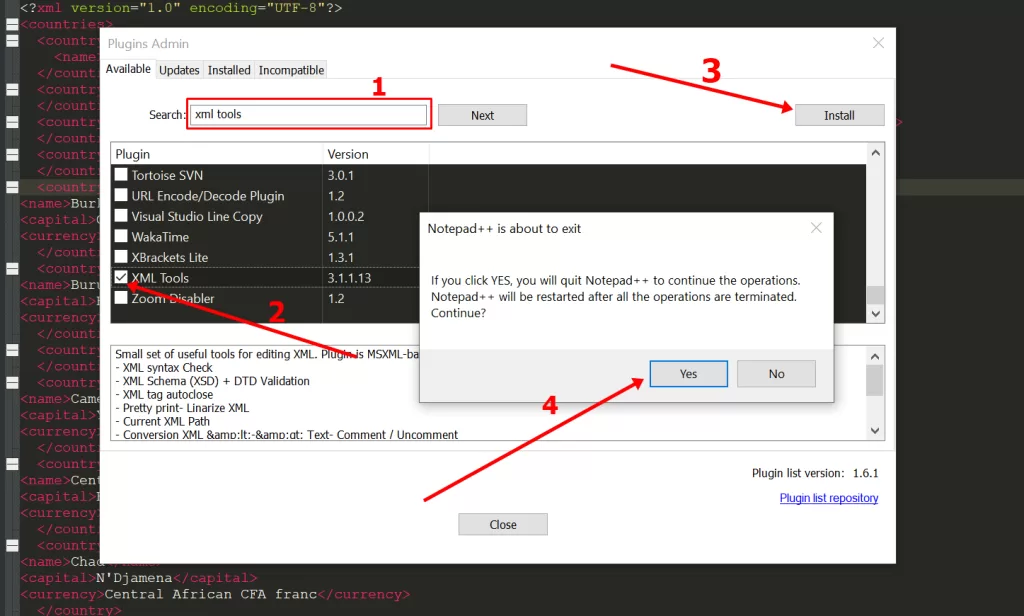
If you’re working with XML files on a regular basis or need advanced features like validation, error checking, and auto-completion, then you should consider using a specialized XML editor. These are professional-grade tools that give you more control and ease when dealing with XML files. Some of the most popular ones are:
- Notepad++ with XML Tools plugin (Free and powerful)
- Oxygen XML Editor (Paid but incredibly feature-rich)
- Sublime Text with XML syntax highlighting
Why would you use one of these? Well, they provide:
- Syntax highlighting (so you can easily spot errors)
- Validation tools (to make sure your XML file is correctly structured)
- Auto-completion (so you don’t have to manually type every tag)
I love Notepad++ with the XML Tools plugin because it’s lightweight and customizable.
6. Open XML Files with Microsoft Excel (When Data Needs to Be Organized)
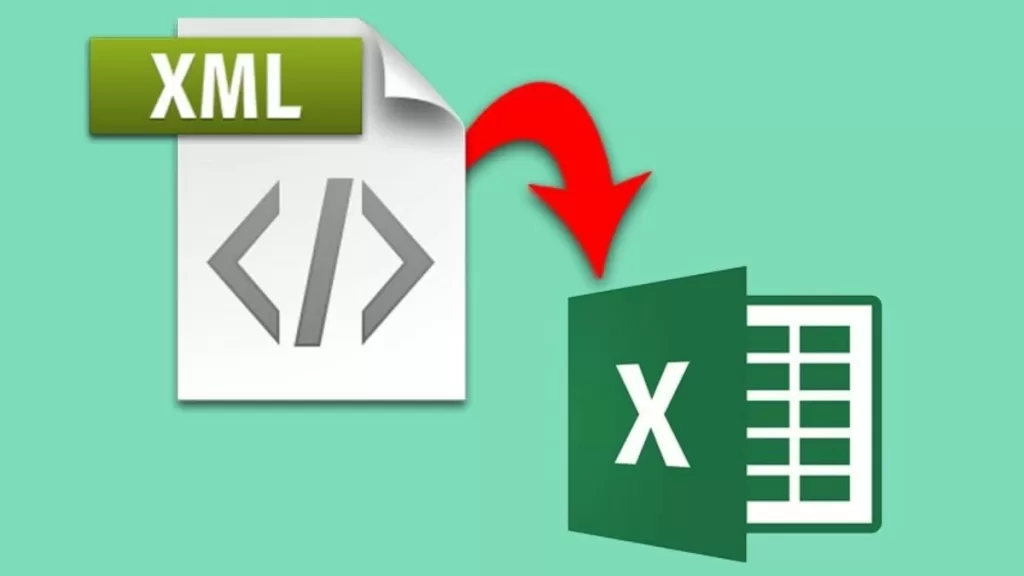
Here’s a tip that might surprise you: Excel can actually open file XML and display the data in a neat tabular format. This is super useful when your file XML contains structured data like a list of products, contacts, or inventory.
- Step 1: Open Excel and go to File > Open.
- Step 2: Select your XML file.
- Step 3: Excel will ask how you want to import the data. Choose “As an XML table” and click OK.
The result? Your XML data will be transformed into rows and columns, making it much easier to analyze or manipulate. It’s perfect for when you’re working with large datasets.
7. Use Command Line (For the Tech-Savvy Folks Only)
Alright, I’ll admit, this one’s not for everyone. But if you’re a bit of a techie and love the command line, you can open file XML using tools like vim or nano (on Linux or Mac), or even PowerShell on Windows.
This method lets you open the file directly in your terminal, which might be handy if you’re automating tasks or just don’t want to leave the command line.
Final Thoughts:
So, there you have it! Whether you’re just trying to peek at your file XML, make quick edits, or dive deep into its data structure, there’s a way that’ll work for you. Personally, I like using Notepad++ for its simplicity, but depending on your needs, any of the methods above can be a game-changer.
And don’t forget: file XML aren’t some mysterious black box—they’re just a format for data, and with the right tool, you can handle them with ease. If you’re curious about diving deeper into how files XML work, or if you want to learn how to edit them properly, check out some of the free editors I mentioned.
Want to learn more?, Kaashiv Infotech Offers Full Stack Development Course, Front End Developement Course & More Visit www.kaashivinfotech.com.
Related Reads: