
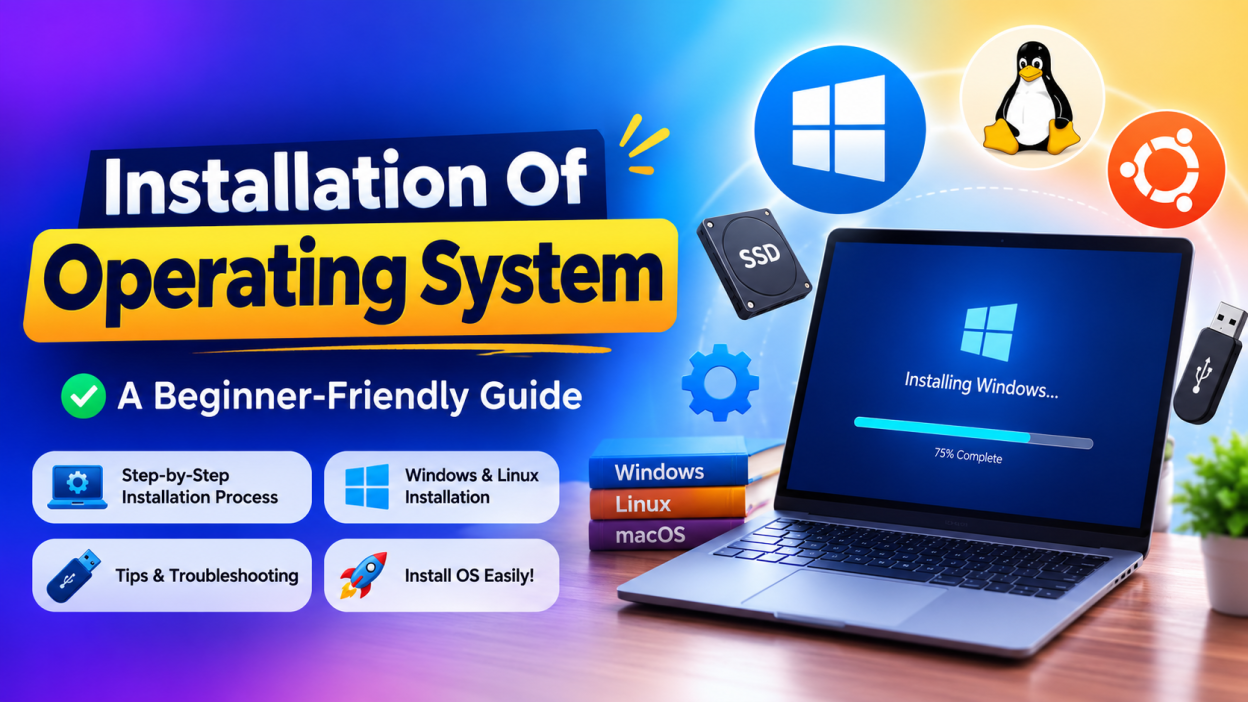
Installation Of Operating System is one of the first practical skills I learned when I started exploring computers. At first, I thought it was something only IT professionals could do. But after installing Windows on my own laptop for the first time, I realized it wasn’t as difficult as I had imagined.
Installation Of Operating System is simply the process of installing software like Windows, Linux, or macOS so that your computer can start, manage hardware, and run applications. If you’ve ever purchased a new PC without an operating system or needed to reinstall Windows because your system became slow or corrupted, you’ve already faced a situation where OS installation becomes necessary.
In this guide, I’ll explain everything in simple language. Whether you’re a student, beginner, or someone curious about computers, this article will help you understand the Installation Of Operating System step by step. 😊
🌟 Key Highlights
- ✅ Understand what Installation Of Operating System means
- ✅ Learn why an operating system is important
- ✅ Know the different types of OS installation
- ✅ Discover the system requirements before installation
- ✅ Follow the complete Operating System Installation process
- ✅ Learn common mistakes to avoid
- ✅ Find troubleshooting tips after installation
- ✅ Understand the benefits of reinstalling an operating system
What is an Installation Of Operating System? 💻
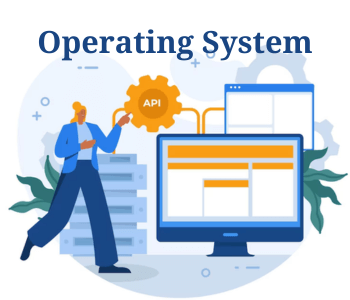
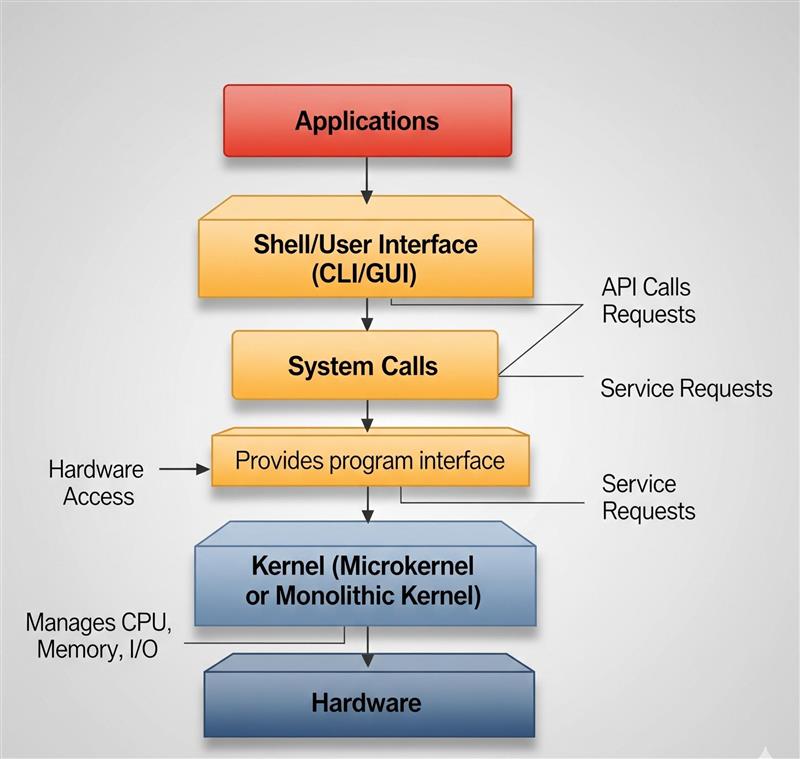
The Installation Of Operating System is the process of installing system software on a computer so that it becomes usable. Without an operating system, your computer cannot communicate with hardware like the keyboard, mouse, monitor, storage device, or printer.
Think of it this way.
Imagine buying a brand-new smartphone without Android or iOS. It would simply be a piece of hardware with no interface. A computer works the same way.
When I installed Windows for the first time, I was surprised that everything—from choosing the language to creating a user account—was guided step by step. Once the installation finished, my laptop felt like a brand-new machine.
Why is Installation Of Operating System Important? 🤔
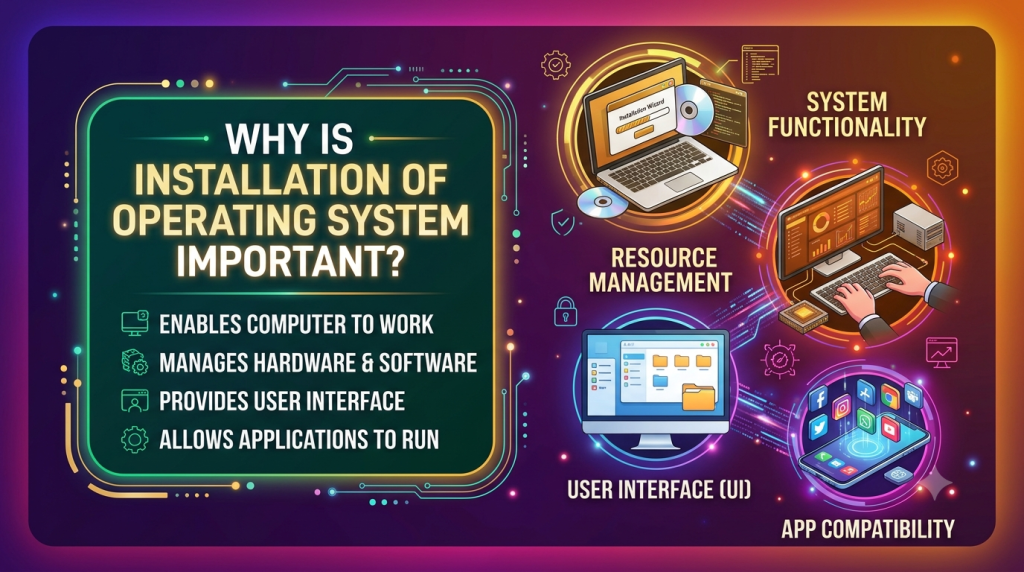
An operating system is the heart of every computer.
Without it, you cannot:
- Run software applications
- Store or access files
- Connect to the internet
- Use hardware devices
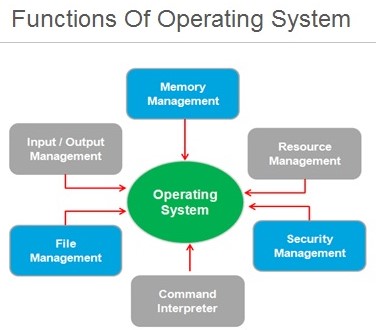
- Manage system resources
The Operating System Installation process prepares the computer to perform all these tasks efficiently.
Common Reasons to Perform an Installation Of Operating System
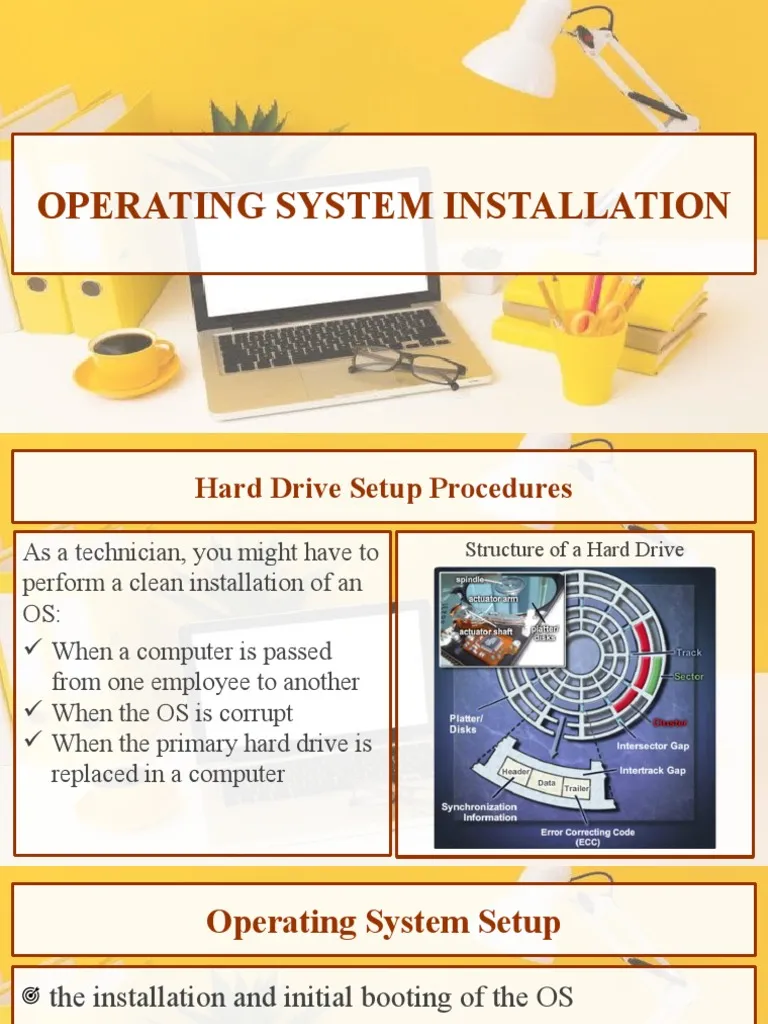
There are many situations where installing an operating system becomes necessary.
1. Buying a New Computer
Some custom-built computers come without Windows or Linux installed.
2. Computer Running Very Slow
Over time, unnecessary files and software may affect performance. Reinstalling the operating system often improves speed.
3. Virus or Malware Infection
If malware damages important system files, installing a fresh operating system is usually the safest solution.
4. Upgrading to a New Version
Many users move from Windows 10 to Windows 11 or upgrade to newer Linux distributions.
5. Hard Disk Replacement
Installing a new SSD or HDD requires another Installation Of Operating System.
Types of Operating System Installation
Understanding these installation methods makes the process much easier.
1. Clean Installation
A clean installation removes everything from the drive and installs a fresh operating system.
Best for:
- New computers
- Removing viruses
- Improving performance
2. Upgrade Installation
This method installs a newer version while keeping your files and applications.
Example:
- Windows 10 → Windows 11
3. Dual Boot Installation
This allows two operating systems on the same computer.
For example:
- Windows + Ubuntu Linux
You choose which operating system to use during startup.
4. Network Installation
Large organizations install operating systems over a network instead of using USB drives.
Things You Need Before Installation Of Operating System 📝
Before starting, I always prepare a checklist.
✔ Backup important files
✔ Stable internet connection (optional but helpful)
✔ Bootable USB drive
✔ Product key (if required)
✔ Minimum system requirements
✔ Power supply connected
These small preparations can save a lot of time later.
System Requirements Before Installing an Operating System
Although requirements vary, most operating systems need:
| Requirement | Recommended |
|---|---|
| Processor | 64-bit CPU |
| RAM | 4 GB or more |
| Storage | 64 GB or more |
| USB Drive | 8 GB minimum |
| Internet | Recommended |
Always check the official requirements before starting the Operating System Installation.
Step-by-Step Installation Of Operating System Process 🛠️
Let’s go through the complete Installation Of Operating System process.
Step 1: Download the Operating System
Download the ISO file from the official website.
Examples:
- Microsoft Windows
- Ubuntu Linux
- Fedora Linux
Downloading from official sources ensures the files are genuine and secure.
Step 2: Create a Bootable USB Drive
Use tools such as:
- Rufus
- Balena Etcher
- Ventoy
These tools copy the operating system files to a USB drive and make it bootable.
Step 3: Backup Your Files
Never skip this step.
I once forgot to back up an important folder before reinstalling Windows. Recovering those files wasn’t easy, and I learned the lesson the hard way.
Save important files to:
- External hard disk
- Cloud storage
- Another computer
Step 4: Restart the Computer
Insert the USB drive.
Restart the PC.
Open the Boot Menu using keys like:
- F12
- Esc
- F9
- Del
The key depends on your computer manufacturer.
Step 5: Choose the Boot Device
Select the USB drive.
The computer now starts the Operating System Installation instead of loading the existing operating system.
Step 6: Select Language and Keyboard
Choose:
- Language
- Time format
- Keyboard layout
Click Next.
Step 7: Install the Operating System
Click Install Now.
Accept the license agreement.
Choose either:
- Upgrade
- Custom Installation
For a fresh setup, select Custom Installation.
Step 8: Select the Installation Drive
Choose the drive where you want the operating system installed.
If necessary, create or format partitions carefully.
Then click Next.
The installation begins automatically.
Step 9: Wait for Installation
This stage usually takes between 15 and 45 minutes, depending on your computer.
The system restarts several times.
Don’t remove the USB until instructed.
Step 10: Complete the Setup
After installation:
- Create a username
- Set a password
- Choose privacy settings
- Connect to Wi-Fi
- Finish setup
Congratulations! 🎉
Your Installation Of Operating System is complete.
What Should You Do After Installing an Operating System?
Many beginners think the job ends after installation.
Actually, there’s still some work left.
I usually do these immediately:
- Install device drivers
- Run operating system updates
- Install antivirus software
- Restore backed-up files
- Install essential applications
- Create a system restore point
These steps keep the computer secure and ready for everyday use.
Common Mistakes During Installation Of Operating System ❌
Avoid these common errors.
Forgetting to Backup Files
This is probably the biggest mistake.
Downloading Fake ISO Files
Always download operating systems from official websites.
Low Battery
Keep laptops plugged into power throughout installation.
Wrong Partition Selection
Formatting the wrong drive can permanently erase important files.
Interrupting the Installation
Never turn off the computer while installation is in progress.
Advantages of Proper Installation Of Operating System 🌟
A successful installation offers many benefits.
- Better performance
- Improved security
- Latest features
- Bug fixes
- Better compatibility
- Faster startup
- Stable system performance
Troubleshooting Tips
Sometimes things don’t go as planned.
Here are a few quick solutions.
Computer Doesn’t Detect USB
- Recreate the bootable USB.
- Change the boot order in BIOS/UEFI.
Installation Freezes
- Check if the ISO file is corrupted.
- Verify your RAM and storage drive.
Drivers Are Missing
Download drivers from your computer manufacturer’s support website.
Windows Isn’t Activated
Enter a valid product key or activate it using your Microsoft account if eligible.
Real-Life Example
One of my friends complained that his laptop took almost five minutes to start. He assumed the hardware was failing.
Instead of buying a new laptop, we backed up his files, performed a clean Installation Of Operating System, installed the latest updates, and replaced the old hard drive with an SSD. The difference was incredible. The laptop booted in under 20 seconds and felt much smoother.
That experience reminded me that sometimes a fresh operating system is all a computer needs.
Best Practices for Installation Of Operating System ✅
- Always back up important data
- Use official installation files
- Check hardware compatibility
- Keep your system updated
- Install trusted antivirus software
- Update drivers after installation
- Create recovery media for future use
Final Thoughts
Learning the Installation Of Operating System may seem intimidating at first, but once you understand the steps, it becomes a valuable skill that can save both time and money. I remember feeling nervous before my first installation because I was afraid of making a mistake. After completing it successfully, I realized the process is mostly about following instructions carefully and preparing beforehand.
Whether you’re installing Windows on a new computer, setting up Linux to explore open-source software, or reinstalling your existing system to improve performance, understanding the Installation Of Operating System gives you greater control over your computer. Take your time, back up your files, and don’t rush through the setup. With a little patience, you’ll have a fresh, secure, and reliable operating system ready to use. 🚀
Frequently Asked Questions (FAQs)
1. What is the Installation Of Operating System?
It is the process of installing system software like Windows or Linux on a computer so it can manage hardware and run applications.
2. Why do I need to install an operating system?
Without an operating system, a computer cannot function properly or run software.
3. How long does an Operating System Installation take?
Typically, it takes 15–45 minutes, depending on your hardware.
4. Will installing an operating system erase my files?
A clean installation usually removes existing data from the selected drive, so backing up your files is essential.
5. Can I install two operating systems on one computer?
Yes. A dual boot installation lets you install and use two operating systems on the same computer.
Kaashiv Infotech Offers Networking Course, Cyber Security Course, Cloud Computing Course Visit Their Website www.kaashivinfotech.com.