What is Office 365? A Complete Guide to the Apps That Run Modern Business
As we discussed in the video, most people drastically underestimate what is Office 365 and what it can do. They see Word, Excel, and PowerPoint and think they know the whole story. But the real power for your career—the tools that businesses are desperate for—lies hidden just beneath the surface.
First, let’s clear up the confusion. You might know it as Office 365, Office 360, or its new official name, Microsoft 365. They all refer to the same powerful suite of cloud-based applications.
This guide is your complete resource hub. It contains all the links, data, and step-by-step instructions we couldn’t fit in the video to help you turn your Microsoft 365 subscription into a career-launching toolkit.
First, The Core Apps You Already Know
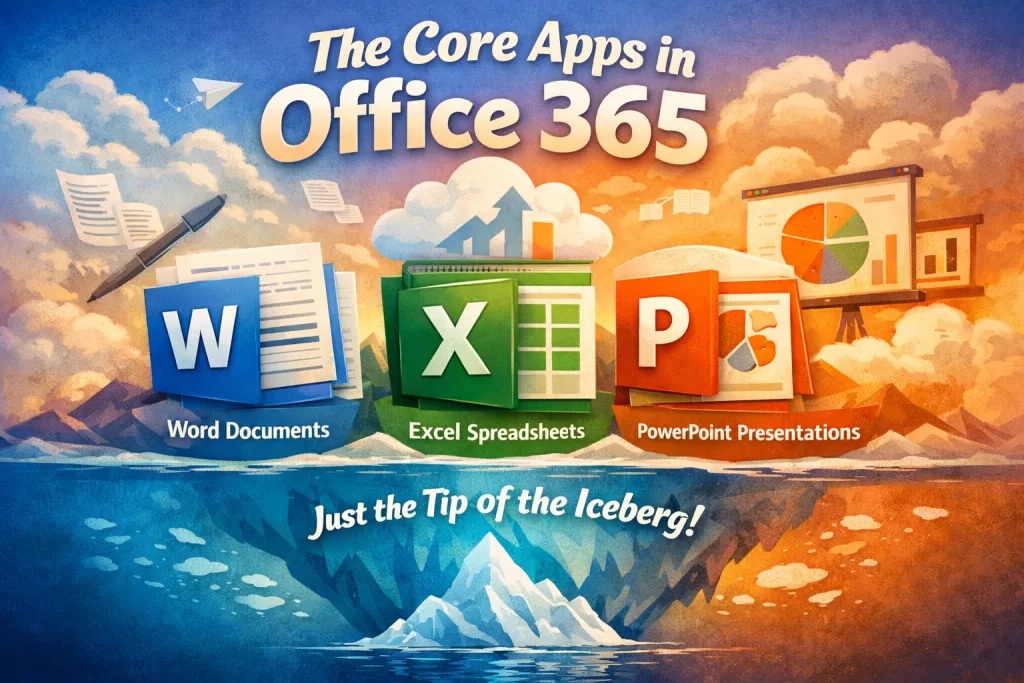
The foundation of Office 365 is the trio of apps that have dominated offices for decades, now supercharged by the cloud:
- Microsoft Word: For creating professional documents with real-time collaboration.
- Microsoft Excel: For organizing data in spreadsheets and performing calculations.
- Microsoft PowerPoint: For building compelling presentations.
But if this is all you’re using, you’re leaving 90% of the value on the table.
The “Hidden” Career-Building Apps in Office 365
The true power of a Microsoft 365 subscription is the ecosystem of connected apps that automate tasks and drive business decisions.
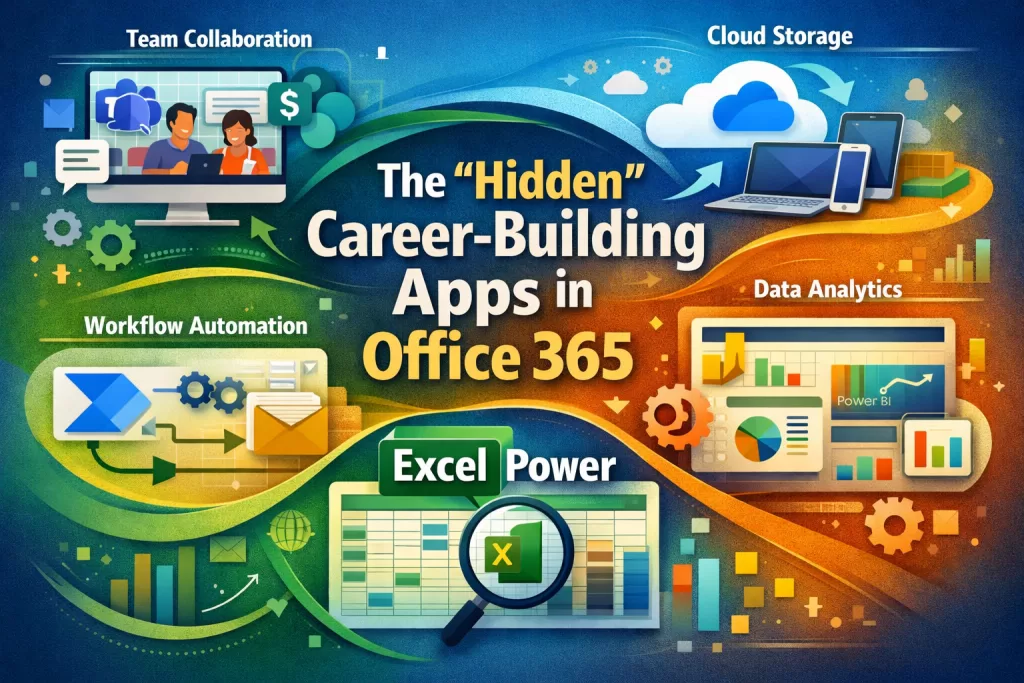
- Microsoft Teams & SharePoint: This is the collaboration hub where teams chat, meet, and share files securely.
- OneDrive: This is your personal cloud storage, allowing you to access your files from any device, anywhere in the world.
- Power Automate & Power BI: These are the data analysis game-changers. Power Automate creates automated workflows (e.g., “when I receive an email with an invoice, save the attachment to this folder”), while Power BI creates interactive data dashboards.
The most accessible and powerful of these data tools, however, is already sitting inside the app you use every day: Excel.
Deep Dive: Using Excel for Data Analysis in Office 365
Stop thinking of Excel as just a digital ledger. In 2024, it’s a full-fledged data analysis environment. A recent Forrester report found that a stunning 81% of businesses rely on Microsoft Excel for data analytics tasks, making it the most in-demand data skill on the planet.
The Old Way vs. The New Way: VLOOKUP is Dead
For years, VLOOKUP was the go-to function for combining data from different tables. But it was slow, fragile, and notoriously difficult to debug. For modern data tasks, VLOOKUP is obsolete.
Welcome to Power Query: Your Automated Data Cleaner
The game-changer inside modern Excel is Power Query. It’s a data connection and transformation tool that acts like an automated data janitor. You can use it to:
- Connect to hundreds of data sources (web pages, databases, other files).
- Clean messy data (remove errors, split columns, change formats).
- Merge and combine datasets effortlessly.
The best part? It records every step you take. The next time you get new data, you just click “Refresh,” and Power Query repeats the entire cleaning process for you in seconds.
Step-by-Step Tutorial: Your First Data Project
Let’s run a quick project. Imagine you have a messy sales report.
- Step 1: Get Data with Power Query. In Excel, go to the
Datatab and clickFrom Text/CSV. Select your messy sales file. The Power Query Editor window will open. - Step 2: Clean and Transform. Inside Power Query, you can perform magic. Let’s say your “Order Date” column is formatted as text. Right-click the column header, choose
Change Type, and selectDate. See a column full of errors? Right-click andRemoveit. Power Query records these steps. - Step 3: Load and Analyze. Once your data is clean, click
Close & Load. The clean data appears in a new Excel sheet. Now, you can create aPivotTablefrom this clean data to instantly summarize sales by region or product.
What is Office 365 To your Career & How to Put “Office 365” on Your Resume Correctly
In real-world development, messy work is often the first sign of messy thinking. Clean, structured work tells reviewers that you understand the big picture. Stop writing “Proficient in Microsoft Office” on your resume. It’s meaningless.
Instead, leverage the skills you just learned about:
- Bad Resume: “Proficient in Microsoft Office (Word, Excel, PowerPoint).”
- Good Resume: “Skilled in data analysis and ETL processes using Excel Power Query; creating interactive summaries with PivotTables and building automated workflows within the Microsoft 365 ecosystem.”
Which candidate do you think gets the interview for a data analyst role?
Your Video Resource Hub: Links and Downloads
Here are all the resources mentioned in the video and this guide, all in one place.
- 🔗 Download the Sample Dataset used in this data set to practice yourself.
- 🔗 Official Microsoft 365 Training Center
- 🔗 Deep Dive into Power Query for Beginners
- 🚀 Recommended Data Analytics Course at Kaashiv Infotech: If you’re serious about turning these skills into a career, this is the next step. Our hands-on training will guide you through complex, real-world projects.Kaashiv Infotech’s Data Analytics course in Chennai
Key Takeaways
- Office 365 is now officially called Microsoft 365, but it’s the same powerful suite of tools.
- It’s more than just Word and Excel; it includes Teams, OneDrive, and Power Platform for collaboration and automation.
- Power Query in Excel has replaced
VLOOKUPas the modern standard for cleaning and preparing data. - Listing specific data skills like “Power Query” and “PivotTables” on your resume is far more valuable than “Proficient in Microsoft Office.”
FAQs: People Also Ask
1. What is the main difference between Office 365 and Office 2021?
Office 365 (Microsoft 365) is a subscription service that is constantly updated with the latest features, including powerful cloud services like Power Query. Office 2021 is a one-time purchase with a fixed set of features that will not be updated.
2. Is Office 360 the same as Microsoft 365?
Yes. Microsoft began rebranding Office 365 to Microsoft 365 in 2020. Office 360 is a common typo, but people searching for it are looking for the same product suite.
3. What is Office 365 used for in business?
It is used for everything from document creation (Word), data analysis (Excel), and presentations (PowerPoint) to internal communication (Teams), cloud storage (OneDrive), and business process automation (Power Automate).
4. Can I use Excel for serious data analysis?
Absolutely. With the addition of Power Query for data transformation and Power Pivot for data modeling, Excel can handle datasets with millions of rows and is a professional-grade business intelligence tool.
5. How much does Microsoft 365 cost?
Pricing varies based on the plan (Personal, Family, or Business). Microsoft offers monthly or annual subscriptions, and you can find the current pricing on the official Microsoft 365 website.