

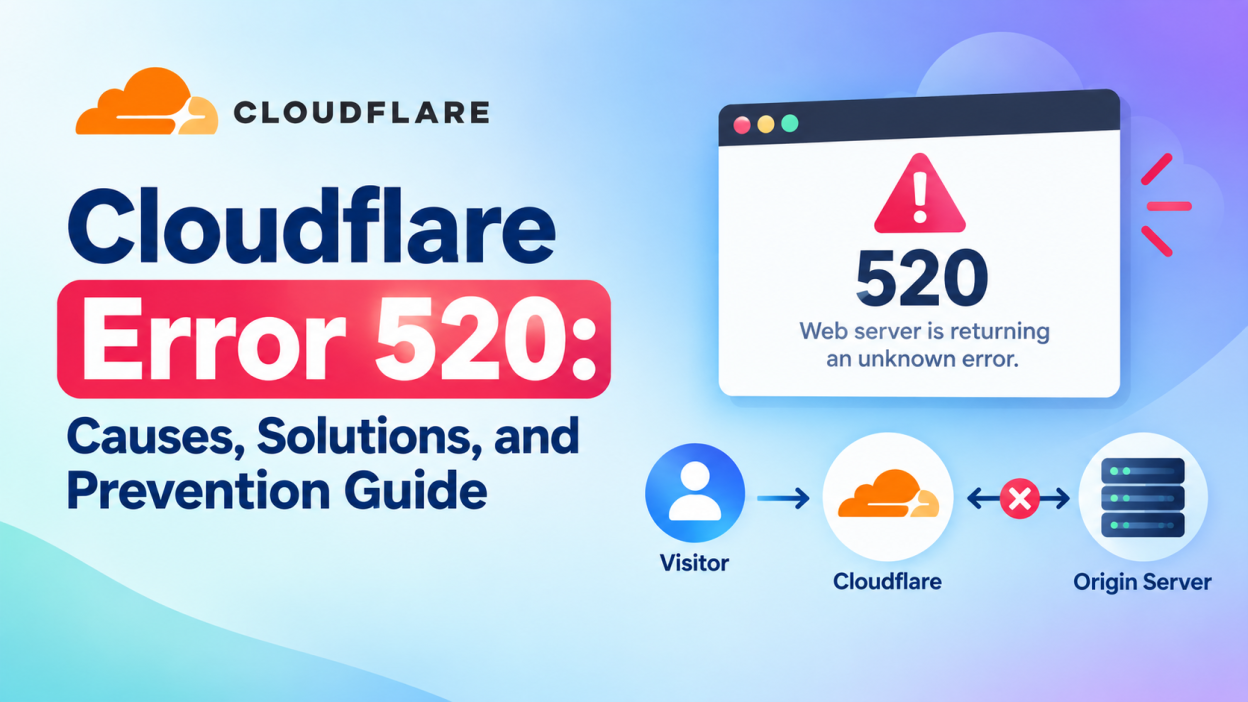
Website errors can be frustrating for both website owners and visitors. One common issue is Cloudflare Error 520, which appears when Cloudflare receives an unexpected response from the origin web server. Unlike errors caused directly by a browser or internet connection, Error 520 usually involves communication between Cloudflare and the website’s server.
Understanding why this error occurs can help website owners troubleshoot the problem quickly and prevent it from happening again. In this guide, we will explore what Cloudflare Error 520 means, its common causes, and practical ways to fix it.
What Is Cloudflare Error 520?
Cloudflare Error 520 is a server communication error. It generally means that Cloudflare successfully connected to the origin server, but the server returned an unexpected, empty, malformed, or otherwise unusual response.
When a website uses Cloudflare, the normal request flow looks like this:
Visitor → Cloudflare → Origin Server → Cloudflare → Visitor
If the origin server responds incorrectly or closes the connection unexpectedly, Cloudflare may display a 520 error page instead of the requested website.
The error can occur temporarily or repeatedly, depending on the underlying server configuration.
What Does Error 520 Look Like?
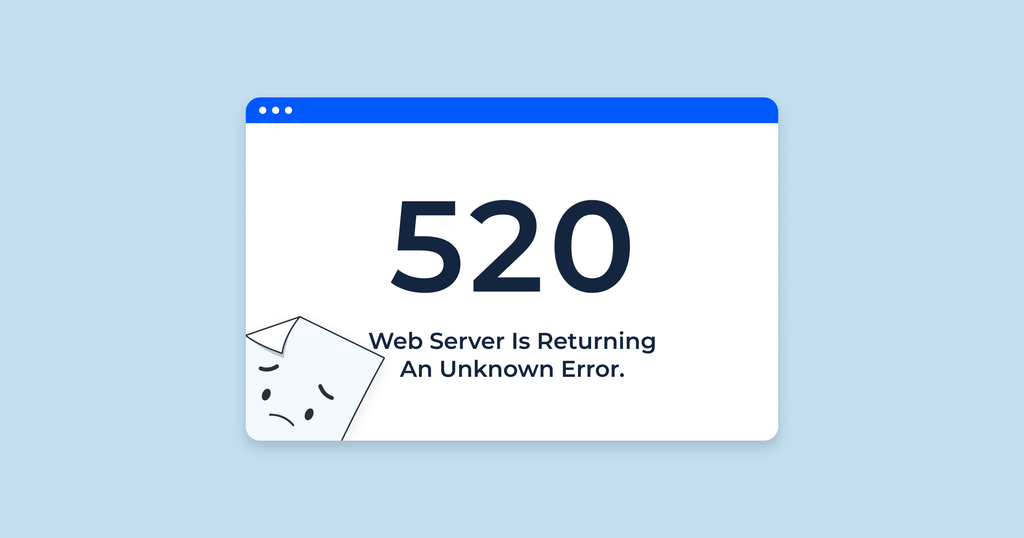
A typical Error 520 page may display a message such as:
“Web server is returning an unknown error.”
The page can also show information about Cloudflare, the visitor, and the host server. This helps indicate that the problem is related to communication between Cloudflare and the origin server rather than simply being a browser problem.
Common Causes of Error 520
There are several reasons why a website may experience Error 520.
1. Origin Server Returns an Empty Response
One of the most common causes is an origin server that sends no valid HTTP response to Cloudflare.
This can happen when the web server crashes, becomes overloaded, or terminates a connection unexpectedly.
Checking the server’s error logs can help identify whether the application or web server stopped responding correctly.
2. Server Overload
A server receiving too many requests may struggle to process new connections. High CPU usage, insufficient RAM, database problems, or traffic spikes can all contribute to this issue.
If Error 520 appears during periods of unusually high traffic, server resource usage should be checked.
3. Incorrect Firewall Configuration
Firewalls and security systems can sometimes interfere with Cloudflare’s requests. A server firewall may incorrectly block Cloudflare IP addresses or terminate connections.
Website administrators should verify that Cloudflare traffic is allowed through the server’s firewall and security software.
4. Broken HTTP Headers
Invalid or unusually large HTTP headers can also cause communication problems.
For example, incorrect server configurations, application errors, or problematic cookies may result in unexpected headers being sent to Cloudflare.
Checking the response headers from the origin server can help identify this type of issue.
5. Web Server Configuration Problems
Incorrect configurations in Apache, Nginx, IIS, or other web servers can cause unexpected responses.
Recent configuration changes should be reviewed if Error 520 suddenly starts appearing after a server update or migration.
6. Server Software or Application Errors
A website application can sometimes generate an unexpected response because of coding problems, plugin conflicts, database failures, or backend errors.
For WordPress websites, recently installed plugins or themes can be investigated if the error began after a change.
How to Fix Cloudflare Error 520

The appropriate solution depends on what is causing the communication failure. Try the following troubleshooting steps.
Step 1: Refresh the Website
If you are a visitor, start by refreshing the page. A temporary server problem may disappear after a few moments.
You can also try opening the website in another browser or using a private browsing window.
Step 2: Check the Origin Server
Website administrators should check whether the origin server is online and responding normally.
Try accessing the server directly, if possible, without routing the request through Cloudflare. This can help determine whether the problem is caused by the server itself.
Step 3: Review Server Logs
Server logs are one of the most useful tools for troubleshooting Error 520.
Check:
- Web server error logs
- Application logs
- PHP logs
- Database logs
- Firewall logs
Look for crashes, connection failures, resource exhaustion, or unusual requests around the time the error occurred.
Step 4: Check Firewall and Security Rules
Review firewall rules and security plugins to make sure legitimate Cloudflare traffic is not being blocked.
If a security system recently changed its rules, temporarily reviewing or adjusting those rules may help identify the problem.
Step 5: Check Recent Website Changes
Think about what changed before the error appeared.
Possible changes include:
- Installing a new plugin
- Updating a theme
- Changing server settings
- Moving to a new hosting provider
- Updating PHP
- Changing DNS settings
- Installing security software
Reverting a recent problematic change can help determine whether it caused the issue.
Step 6: Check Server Resources
Monitor CPU, RAM, storage, and network usage. If resources are consistently reaching their limits, the server may need optimization or additional capacity.
Database optimization, caching, code improvements, or upgrading the hosting plan may help reduce server load.
Step 7: Temporarily Disable Cloudflare Proxy
Administrators can temporarily switch the relevant DNS record from proxied to DNS-only mode to test the origin server directly.
If the website works correctly without Cloudflare, the next step is to investigate the interaction between Cloudflare and the origin server.
This should be treated as a troubleshooting step rather than a permanent solution.
How to Prevent Error 520

Preventing recurring Error 520 requires maintaining a stable origin server and properly configuring the connection between the server and Cloudflare.
Regularly monitor server resources and application logs. Keep your operating system, web server, CMS, plugins, and frameworks updated. Review firewall rules after making infrastructure changes.
Website owners should also maintain backups and monitoring systems so that server problems can be detected quickly.
Error 520 vs Other Cloudflare Errors
Cloudflare displays several different error codes, and they do not all indicate the same problem.
Error 520 generally indicates an unexpected response from the origin server.
Error 521 usually means the origin server refused Cloudflare’s connection.
Error 522 indicates that Cloudflare timed out while connecting to the origin server.
Error 524 generally occurs when Cloudflare successfully connects to the origin server, but the server takes too long to respond.
Understanding these differences can make troubleshooting much easier.
Final Thoughts
Cloudflare Error 520 usually indicates a communication problem between Cloudflare and the origin server. Server overload, firewall rules, application errors, invalid responses, and configuration problems are some of the common causes.
For visitors, refreshing the page and trying again later may resolve a temporary issue. For website administrators, checking server logs, firewall settings, server resources, and recent configuration changes provides a better way to identify the root cause.
A properly monitored and maintained origin server can significantly reduce the chances of recurring Cloudflare errors and help provide a more reliable experience for website visitors.
Want Learn Cloud Computing Course, Cyber Security Course, Networking Course ?, Visit Our Website www.kaashivinfotech.com.