

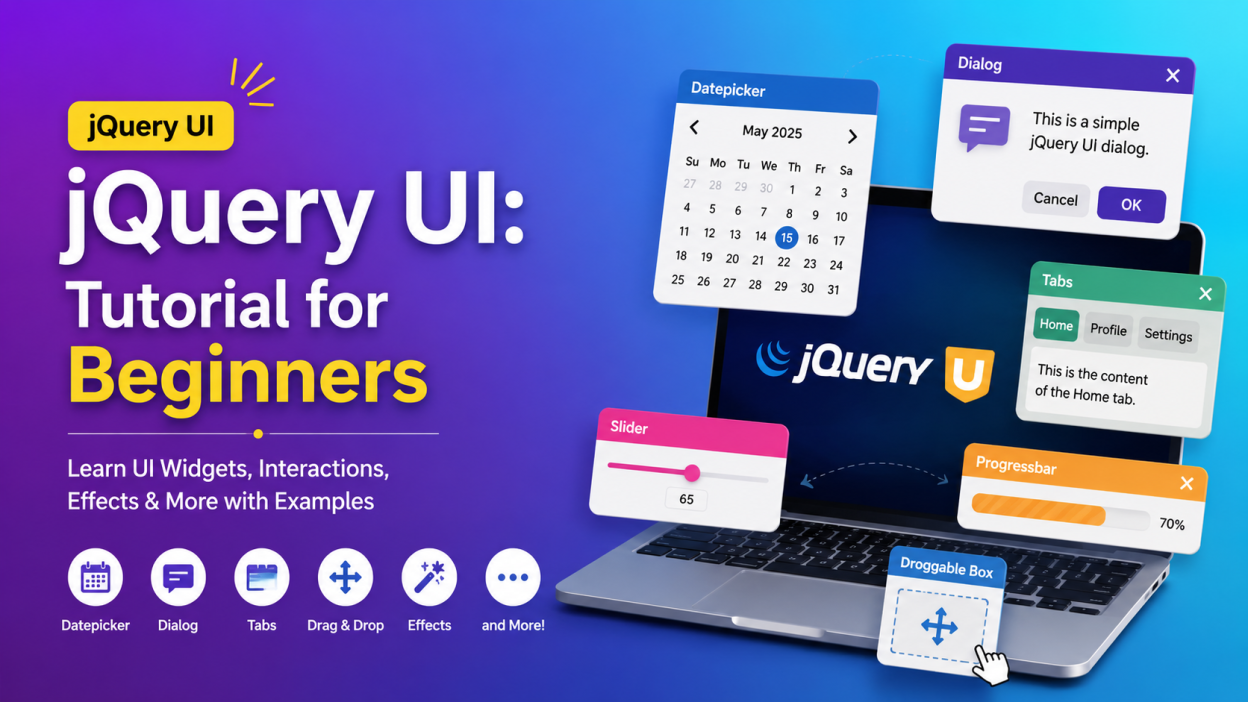
jQuery UI is a collection of ready-made user interface widgets, interactions, effects, and themes built on top of the jQuery JavaScript library. If you’re a beginner and wondering how websites create things like date pickers, draggable boxes, sortable lists, tabs, dialogs, sliders, and autocomplete fields without writing everything from scratch, jQuery UI is a great library to explore.
jQuery UI becomes especially useful when I want to add an interactive feature quickly instead of spending hours building the same functionality with JavaScript and CSS from zero.
In this jQuery UI tutorial for beginners, I’ll explain what jQuery UI is, why it is used, how to install it, and how to build some common UI components with simple examples.
Key Highlights of jQuery UI ⭐
- jQuery UI extends the jQuery JavaScript library.
- It provides ready-to-use UI widgets.
- You can create drag-and-drop interfaces easily.
- It includes components such as Datepicker, Dialog, Tabs, Accordion, Slider, Tooltip, and Autocomplete.
- It provides effects and animations.
- It supports customizable themes and styling.
- You don’t have to build every interactive component from scratch.
- It is beginner-friendly if you already know basic HTML, CSS, JavaScript, and jQuery.
- The official project currently maintains the 1.14.x line, while significant new feature development is not planned because jQuery UI is in maintenance mode.
What Is jQuery UI?
Let’s start with the simplest definition.
jQuery UI is a UI library built on top of jQuery that provides ready-made interactive components for web pages.
Think about a normal HTML form.
You might have:
<input type="text">
That’s just a basic text box.
Now imagine you want the user to select a date from a small calendar instead of typing something like 26/08/2026 manually.
Building that calendar yourself would take quite a bit of HTML, CSS, and JavaScript.
With jQuery UI, you can use its Datepicker widget.
That’s the part I like about jQuery UI: instead of reinventing common UI components, I can use a component that already handles much of the interaction.
The official project describes jQuery UI as a collection of interactions, effects, widgets, and themes designed to work together or independently.
jQuery vs jQuery UI – What’s the Difference?
This is one of the first questions beginners usually ask.
jQuery and jQuery UI are related, but they aren’t the same thing.
jQuery
jQuery is a JavaScript library that makes common JavaScript tasks easier.
For example, you can use jQuery to:
- Select HTML elements
- Change HTML content
- Change CSS
- Handle events
- Make AJAX requests
- Create animations
jQuery UI
jQuery UI builds on jQuery and gives you ready-made user interface components and interactions.
For example:
- Datepicker
- Dialog
- Accordion
- Tabs
- Slider
- Autocomplete
- Draggable
- Droppable
- Sortable
- Resizable
So, I remember it this way:
jQuery = JavaScript helper library
jQuery UI = UI components and interactions built using jQuery
You generally need jQuery before using jQuery UI.
Why Do We Use jQuery UI?
Imagine you’re building an admin dashboard.
You need:
- A date picker
- Tabs
- A popup dialog
- A sortable list
- A slider
- Tooltips
You could build each feature yourself.
But why spend hours solving problems that a UI library has already solved?
That’s where jQuery UI can save development time.
For example, a simple date picker can turn an ordinary input field into a much friendlier interface.
This is particularly useful when you’re learning web development because you can focus on how UI components work instead of getting stuck writing hundreds of lines of JavaScript for basic interactions.
Main Features of jQuery UI
The official jQuery UI project groups its functionality into four major areas:
- Interactions
- Widgets
- Effects
- Utilities
Let’s understand each one.
1. jQuery UI Interactions
Interactions allow users to interact with elements using mouse-based actions.
The main interactions include:
- Draggable
- Droppable
- Resizable
- Selectable
- Sortable
For example, imagine a task-management application.
You could make tasks draggable so that the user can move them from one position to another.
The official demos show these interactions as core jQuery UI functionality.
Draggable
The Draggable interaction allows the user to click an element and move it around.
Example:
$("#box").draggable();
Now the element with the ID box can be dragged around the page.
Pretty simple, right?
That’s one of the reasons beginners often enjoy experimenting with jQuery UI.
2. Droppable
Droppable works nicely with Draggable.
You can create an element that accepts another draggable element.
For example, imagine a simple drag-and-drop game.
$("#box").draggable();

$("#target").droppable({
    drop: function() {
        alert("Dropped!");
    }
});
When the draggable element is dropped onto the target, the drop event runs.
3. Resizable
The Resizable interaction allows users to change the size of an element.
For example:
$("#box").resizable();
Now the user can resize the element using its resize handles.
You might see similar behavior in applications where panels or boxes can be expanded or reduced.
4. Sortable
The Sortable interaction is one of my favorite examples because the use case is very easy to understand.
Suppose you have a list:
<ul id="students">
    <li>John</li>
    <li>David</li>
    <li>Sarah</li>
    <li>Emma</li>
</ul>
You can make the list sortable:
$("#students").sortable();
Now the user can drag the items and change their order.
This can be useful for:
- Task lists
- Menus
- Product lists
- Dashboard widgets
- Priority lists
jQuery UI Widgets
This is probably the part you’ll use most when learning jQuery UI.
Widgets are ready-made UI controls.
The official jQuery UI documentation includes widgets such as Accordion, Autocomplete, Button, Datepicker, Dialog, Menu, Progressbar, Selectmenu, Slider, Spinner, Tabs, and Tooltip.
Let’s look at some important ones.
jQuery UI Datepicker 📅
If I need a calendar for selecting a date, I don’t need to build one manually.
HTML:
<input type="text" id="date">
JavaScript:
$("#date").datepicker();
That’s it.
The input field becomes a date-selection interface.
This is one of the easiest jQuery UI examples to try as a beginner.
jQuery UI Dialog
A Dialog creates a popup-style window.
For example:
<div id="dialog" title="Welcome">
    <p>Hello! Welcome to my website.</p>
</div>
JavaScript:
$("#dialog").dialog();
Now the content can appear as a dialog.
You can use dialogs for:
- Confirmation messages
- Login forms
- Notifications
- Information
- Small forms
The current jQuery UI documentation also includes options for controlling the heading level used for dialog titles.
jQuery UI Accordion
An Accordion displays content in expandable sections.
For example:
<div id="accordion">
    <h3>HTML</h3>
    <div>
        <p>HTML creates the structure of a web page.</p>
    </div>

    <h3>CSS</h3>
    <div>
        <p>CSS controls the appearance of a web page.</p>
    </div>

    <h3>JavaScript</h3>
    <div>
        <p>JavaScript adds behavior and interaction.</p>
    </div>
</div>
JavaScript:
$("#accordion").accordion();
Now users can expand and collapse the sections.
This is useful when you have a lot of information but don’t want everything visible at once.
jQuery UI Tabs
Tabs are another common UI pattern.
Think about a website containing:
- Profile
- Settings
- Orders
- Notifications
Instead of displaying everything together, we can separate the content into tabs.
Example:
<div id="tabs">
    <ul>
        <li><a href="#home">Home</a></li>
        <li><a href="#about">About</a></li>
    </ul>

    <div id="home">
        <p>Welcome to the home page.</p>
    </div>

    <div id="about">
        <p>This is the about section.</p>
    </div>
</div>
JavaScript:
$("#tabs").tabs();
And we have a tabbed interface.
jQuery UI Autocomplete
Have you ever typed something into a search box and immediately received suggestions?
That’s an autocomplete pattern.
jQuery UI provides an Autocomplete widget for this kind of interface.
A simple example could look like:
var languages = [
    "JavaScript",
    "Python",
    "Java",
    "C#",
    "C++"
];

$("#language").autocomplete({
    source: languages
});
When the user starts typing, matching suggestions can appear.
It’s a small feature, but it can make a search or form feel much more polished.
jQuery UI Slider
A Slider lets users select a value by moving a handle.
For example:
<div id="slider"></div>
JavaScript:
$("#slider").slider();
You can also configure values and ranges.
For example, you might use a slider for:
- Price ranges
- Volume
- Ratings
- Age ranges
- Product filters
jQuery UI Tooltip
A Tooltip displays additional information when the user interacts with an element.
Example:
<button title="Click to save your work">
    Save
</button>
JavaScript:
$(document).tooltip();
Now the title information can appear as a styled tooltip.
Small feature. Big usability improvement.
jQuery UI Effects ✨
jQuery UI doesn’t only provide widgets.
It also provides effects.
You can use effects for showing, hiding, animating, and changing elements.
The official project includes effects such as:
- Fade
- Slide
- Bounce
- Shake
- Scale
- Highlight
- Fold
- Drop
- Puff
For example:
$("#box").effect("bounce");
You can also control effect duration and other options.
Animations should support the user experience, though. I wouldn’t add five different effects to one page just because I can. 😄
A little animation can help.
Too much animation can become distracting.
How to Install jQuery UI
There are several ways to use jQuery UI.
For beginners, I recommend starting with the CDN approach because it requires very little setup.
The official jQuery UI download page currently lists 1.14.2 as the stable version.
You can also use the official jQuery UI Download Builder to select components and themes.
Basic HTML Setup
Here’s a simple example using jQuery and jQuery UI:
<!DOCTYPE html>
<html>
<head>
    <title>jQuery UI Example</title>

    <link rel="stylesheet"
          href="https://code.jquery.com/ui/1.14.2/themes/base/jquery-ui.css">
</head>

<body>

    <input type="text" id="date">

    <script src="https://code.jquery.com/jquery-3.7.1.js"></script>

    <script src="https://code.jquery.com/ui/1.14.2/jquery-ui.js"></script>

    <script>
        $(function() {
            $("#date").datepicker();
        });
    </script>

</body>
</html>
Notice the order.
First:
jQuery
Then:
jQuery UI
Then:
Your JavaScript
That order matters because jQuery UI depends on jQuery.
A Simple jQuery UI Example for Beginners
Let’s put everything together with a tiny example.
<!DOCTYPE html>
<html>
<head>
    <title>My jQuery UI Demo</title>

    <link rel="stylesheet"
          href="https://code.jquery.com/ui/1.14.2/themes/base/jquery-ui.css">
</head>

<body>

    <h2>jQuery UI Demo</h2>

    <input type="text" id="date" placeholder="Select a date">

    <div id="box" title="My Dialog">
        <p>This is a jQuery UI dialog.</p>
    </div>

    <script src="https://code.jquery.com/jquery-3.7.1.js"></script>
    <script src="https://code.jquery.com/ui/1.14.2/jquery-ui.js"></script>

    <script>
        $(function() {

            $("#date").datepicker();

            $("#box").dialog();

        });
    </script>

</body>
</html>
Here we’re using two jQuery UI components:
- Datepicker
- Dialog
And we didn’t have to write the complete calendar or popup system ourselves.
That’s the practical value of jQuery UI.
jQuery UI Themes 🎨
A UI component shouldn’t just work. It should also look decent.
jQuery UI provides themes that help developers style its widgets consistently.
You can use the official ThemeRoller and other theme resources to customize the appearance of jQuery UI components.
This is useful when you want your buttons, dialogs, tabs, sliders, and other components to have a consistent visual style.
The official project specifically focuses on flexible styling and provides CSS hooks that can be customized with its CSS framework or your own CSS.
What Should You Know Before Learning jQuery UI?
I wouldn’t recommend jumping into jQuery UI without knowing basic web development.
You don’t need to be an expert.
But I would learn these first:
HTML
Understand:
- Elements
- Attributes
- Forms
- Inputs
- Buttons
- Lists
- IDs and classes
CSS
Know:
- Selectors
- Colors
- Fonts
- Box model
- Margin and padding
- Display
- Position
- Basic layout
JavaScript
Understand:
- Variables
- Functions
- Events
- Arrays
- Objects
- Conditions
- Loops
jQuery
This one is important.
Before learning jQuery UI, understand basic jQuery concepts such as:
$("#id")
$(".class")
$("p")
and methods such as:
.click()
.hide()
.show()
.css()
Once those ideas become comfortable, jQuery UI becomes much easier.
jQuery UI vs JavaScript: Do I Need Both?
Yes.
This isn’t really an either/or situation.
JavaScript is the programming language.
jQuery is a JavaScript library.
jQuery UI is a UI library built on jQuery.
So the relationship looks roughly like this:
JavaScript
    ↓
  jQuery
    ↓
jQuery UI
    ↓
UI Components
For example, JavaScript gives you the programming foundation.
jQuery makes many common DOM and event tasks shorter.
jQuery UI gives you ready-made interactive UI components.
Is jQuery UI Still Used?
This is an important question in 2026.
Yes, jQuery UI still exists and has a current stable 1.14.x release, but I wouldn’t describe it as a rapidly evolving modern UI framework.
The jQuery UI team has stated that the project is in a maintenance state. The focus is compatibility and security fixes rather than major new feature development.
That doesn’t mean learning it is useless.
If you’re maintaining an older application, working with a legacy codebase, or coming across jQuery UI in a real project, knowing it can be extremely useful.
I’d simply avoid treating jQuery UI as the only modern frontend technology you should learn.
If you’re starting frontend development today, I’d also learn modern JavaScript and at least one current frontend framework or library.
Advantages of jQuery UI
Here are the main reasons developers still encounter and use jQuery UI.
1. Easy to Start
The syntax for many widgets is simple.
$("#datepicker").datepicker();
That’s remarkably short.
2. Ready-Made Components
You don’t have to build every common UI element yourself.
3. Good Documentation
The official jQuery UI API documentation provides documentation for widgets, interactions, effects, and utilities.
4. Customizable
You can configure many widgets using options, methods, and events.
5. Useful for Existing Projects
Many older web applications still use jQuery and jQuery UI.
Understanding the library can make maintaining those applications much easier.
Limitations of jQuery UI
I also want to be realistic here.
jQuery UI isn’t the first UI technology I’d recommend for every new application in 2026.
The library is in maintenance mode, and it isn’t receiving the kind of major feature development you’d expect from a rapidly evolving frontend framework.
There are also newer approaches for building modern web interfaces.
So if you’re learning frontend development from scratch, I’d treat jQuery UI as a useful skill, not your entire frontend roadmap.
jQuery UI Tutorial: What Should You Learn First?
If you’re completely new, don’t try to memorize every widget.
I’d learn in this order:
- HTML basics
- CSS basics
- JavaScript fundamentals
- jQuery basics
- jQuery selectors
- jQuery events
- jQuery UI widgets
- jQuery UI interactions
- jQuery UI effects
- jQuery UI themes and customization
Then build something.
For example, create a small Task Management App using:
- Sortable
- Draggable
- Dialog
- Datepicker
- Tooltip
Suddenly, the individual concepts stop feeling like isolated tutorials. They become parts of one real application.
That’s how I prefer to learn libraries.
Frequently Asked Questions About jQuery UI
Is jQuery UI the same as jQuery?
No.
jQuery is a JavaScript library, while jQuery UI provides UI widgets, interactions, effects, and themes built on top of jQuery.
Is jQuery UI easy for beginners?
Yes, especially if you already understand basic HTML, CSS, JavaScript, and jQuery.
What is jQuery UI mainly used for?
It is used to add interactive UI features such as Datepicker, Dialog, Tabs, Accordion, Slider, Autocomplete, Drag and Drop, Sortable, and Resizable elements.
Is jQuery UI free?
Yes. jQuery UI is an open-source project and its official downloads are available through the jQuery UI website.
What is the latest jQuery UI version?
As of 2026, the current stable release is jQuery UI 1.14.2, released on January 28, 2026.
Should I learn jQuery UI in 2026?
It can be useful, especially for legacy applications and projects that already use jQuery UI. But I would learn modern JavaScript alongside it rather than relying on jQuery UI alone.
Final Thoughts
When I first look at a UI library, I don’t want a list of 50 components thrown at me. I want to understand one thing:
What problem does this library solve?
That’s where jQuery UI makes sense.
Instead of spending time creating a date picker, dialog, slider, sortable list, or drag-and-drop interaction from scratch, you can start with a ready-made component and customize it for your application.
And honestly, that’s still a useful lesson for any developer.
You don’t always need to build everything yourself.
Start with a simple Datepicker. Then try a Dialog. Move on to Sortable or Draggable. Once you understand how the widgets are initialized and configured, experiment with options and events.
The official jQuery UI demos are especially useful because you can see the widgets working and inspect their examples. The API documentation is the next place I’d go when I want to understand a specific method or option.
So if you’re a beginner, don’t overcomplicate it.
Learn jQuery. Learn the basic jQuery UI widgets. Build one small project. Break it. Fix it. Experiment.
That’s usually when a tutorial turns into an actual skill. 🚀
Want to learn more about javascript??, kaashiv Infotech Offers Front End Development Course, Full Stack Development Course, & More www.kaashivinfotech.com.