🤖 How to Add Bots to Discord: A Quick & Easy Guide for 2025

Want to level up your Discord server? You’re in the right place! How to Add Bots to Discord: A Quick & Easy Guide for 2025 is your go-to tutorial for automating tasks, enhancing user engagement, and making your community more fun and interactive.
Whether you’re running a gaming group, a study server, or even a business hub, this guide shows you how to add bots to Discord effortlessly—no tech skills required. 🎯
🔍 Key Highlights:
- ✅ Learn how to add bots to Discord on both desktop and mobile
- ✅ Discover how bots can automate and improve your server
- ✅ Understand how to interact with and manage bots
- ✅ Easy-to-follow steps with screenshots and examples
- ✅ Includes bonus tips and bot suggestions
📚 Table of Contents:
- What Are Discord Bots & Why Use Them?
- How to Add Bots to a Discord Server on Desktop
- How to Add Bots to a Discord Server on Mobile
- How to Interact With Bots on Discord
- How to Remove a Bot From a Discord Server
- Automate Discord With Smart Bots
- Top Recommended Bots for 2025
- Final Thoughts
🧠 What Are Discord Bots & Why Use Them?
Before we dive into how to add bots to Discord, let’s quickly understand what bots do.
Discord bots are automated programs that help you manage and enhance your server. From playing music 🎶 and moderating chats 🔨 to running giveaways 🎁 and sending reminders, bots make life easier for server admins.
In 2025, more Discord servers than ever are powered by bots for automation and better community engagement.
💻 How to Add Bots to a Discord Server on Desktop
Ready to learn how to add bots to Discord: a quick & easy guide for 2025 (on desktop)? Here’s how to do it in a few simple steps:
🔹 Step 1: Choose a Bot
Pick a bot from a trusted bot list like:
Popular bots: MEE6, Dyno, Carl-bot, Dank Memer
🔹 Step 2: Invite the Bot
Click the “Invite” or “Add to Server” button.
You’ll be redirected to the Discord authorization screen.
🔹 Step 3: Select Your Server
- Log in to Discord
- Choose the server where you want to install the bot
- Click “Continue”
Note: You must have “Manage Server” permission.
🔹 Step 4: Authorize Permissions
Grant permissions the bot needs (moderation, messages, etc.)
✅ Click “Authorize”
🎉 That’s it! You’ve learned how to add bots to Discord on desktop.

📱 How to Add Bots to a Discord Server on Mobile
You can also follow How to Add Bots to Discord: A Quick & Easy Guide for 2025 on mobile:
🔹 Step 1: Open your browser
Use Safari or Chrome and visit top.gg or another bot list site.
🔹 Step 2: Find & Invite the Bot
Same process as desktop—tap “Invite”.
🔹 Step 3: Log in and Authorize
The mobile interface might be a bit cramped, but the process is identical.
Congrats—you now know how to add bots to Discord on the go! 🚀

🤖 How to Interact With Bots on Discord
Once added, bots usually have a default prefix (like !, /, or ?).
Examples:
!playto play music/banto ban a user/helpto see a bot’s command list
🧩 Tip: Check the bot’s documentation or use /help to explore all available commands.
Learning how to interact with bots on Discord is just as important as adding them!

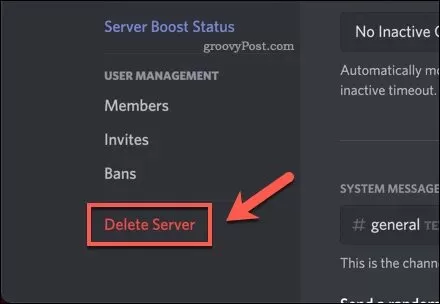
❌ How to Remove a Bot From a Discord Server
If you ever want to remove a bot, here’s how:
On Desktop:
- Right-click the bot’s name in your member list
- Select “Kick” or “Ban”
On Mobile:
- Tap the server icon → Members list
- Long-press the bot → Tap “Kick”
Bot removed! Easy, right?
🤖 Automate Discord With Smart Bots
One of the best reasons to learn how to add bots to Discord is automation. Bots can:
- Moderate spam automatically 🔒
- Greet new members 👋
- Schedule events and reminders ⏰
- Assign roles based on reactions 🎭
- Track user stats and engagement 📊
Automation makes server management effortless, especially as your community grows.
🌟 Top Recommended Bots for 2025
If you’re not sure which bots to add, here are some top picks for 2025:
- MEE6 – Best for moderation and leveling
- Dyno – Great all-in-one bot
- Carl-bot – Top role management bot
- Dank Memer – Fun memes and games
- Tatsumaki – User engagement and leveling
- PollBot – Quick polls and surveys
- Arcane – Leveling and moderation combo
💡 All these can be found on Top.gg
✅ Final Thoughts
You made it to the end of How to Add Bots to Discord: A Quick & Easy Guide for 2025! 🎉
To recap:
- You now know how to add bots to Discord on desktop and mobile
- You understand how to interact with, remove, and automate using bots
- You’ve got a list of the Best Discord Bots for 2025
Adding bots isn’t just about fun—it’s about creating an interactive, manageable, and engaging Discord community.
🔗 More Helpful Guides: