7 Easy Ways to Remove Tracking Cookies in Any Browser (Step-by-Step Guide) 🔒🧹
Key Highlights ✨
- ✅ Learn how to remove tracking cookies in any browser (step-by-step guide).
- ✅ Understand the importance of deleting cookies for privacy and security.
- ✅ Find specific instructions on how to delete cookies in Chrome, Firefox, Safari, Edge, and more.
- ✅ Easy-to-follow guide—no technical knowledge required!
- ✅ Bonus tips on preventing future cookie tracking.
How to Remove Tracking Cookies in Any Browser (Step-by-Step Guide) – If you’re worried about your online privacy, you’re not alone. Every time you visit a website, tiny bits of data called tracking cookies get stored in your browser. These cookies follow your activity, collect information about your preferences, and are often used for targeted ads.
In this article, you’ll quickly learn how to remove tracking cookies in any browser (step-by-step guide) 🛡️. Whether you’re using Chrome, Firefox, Safari, or Edge, we’ve got you covered!
Why You Should Remove Tracking Cookies 🚫🍪
Tracking cookies can:
- Monitor your browsing habits 👀
- Collect sensitive data over time
- Slow down your browser
- Compromise your online privacy
That’s why learning how to delete cookies in Chrome and other browsers is crucial to keep your data safe and your browser clean.
🚀 What Are Tracking Cookies?
Tracking cookies are small files that websites place on your device. They’re not always harmful—but third-party cookies can track your behavior across multiple websites.
Examples:
- Ads that follow you from one website to another? That’s tracking cookies in action.
- Login details saved on a shopping site? Also a cookie—though not necessarily a tracking one.
So, if you care about privacy, you should know how to remove tracking cookies in any browser (step-by-step guide)—and do it regularly.
🔍 How to Delete Cookies in Chrome (Step-by-Step)
Chrome (Windows & macOS) 🔥
- Open Google Chrome
- Click the three dots (⋮) in the top-right corner
- Go to Settings > Privacy and security
- Click Cookies and other site data
- Click See all site data and permissions
- Hit Clear browsing data
- Choose Cookies and other site data
- Select a time range (Last hour, 24 hours, All time)
- Click Clear data
💡 Pro Tip: You can also enable “Block third-party cookies” in Chrome’s settings to stop future tracking.
This process is one of the most important parts of how to delete cookies in Chrome.

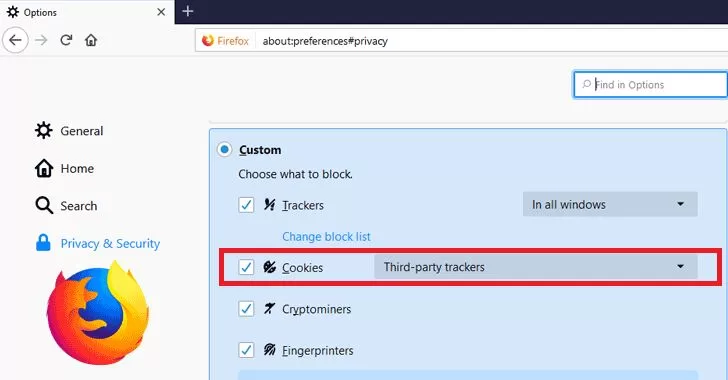
🦊 How to Remove Tracking Cookies in Firefox
- Open Mozilla Firefox
- Click the menu (☰) icon
- Choose Settings > Privacy & Security
- Scroll down to Cookies and Site Data
- Click Clear Data…
- Select Cookies and Site Data
- Click Clear
You can also enable Enhanced Tracking Protection for extra privacy 🔐.
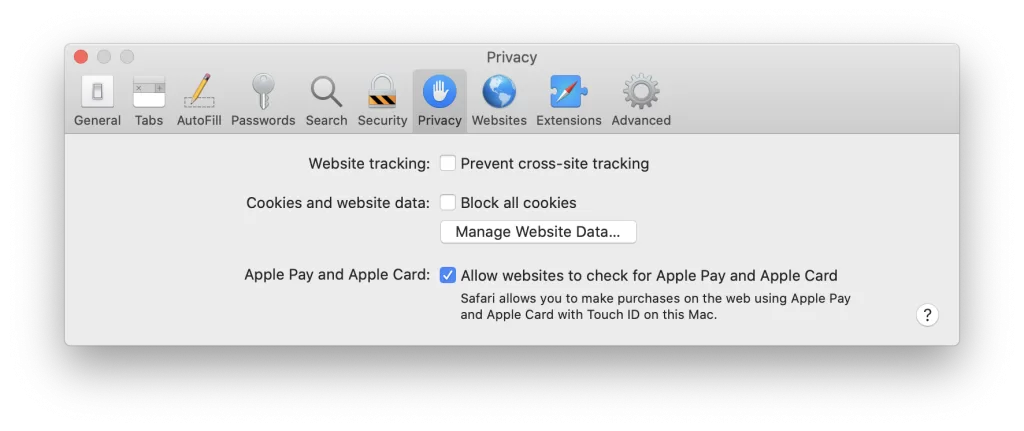
🍏 How to Remove Tracking Cookies in Safari (macOS & iOS)
Safari on macOS:
- Open Safari
- Go to Preferences > Privacy
- Click Manage Website Data…
- Click Remove All
- Confirm by clicking Remove Now
Safari on iPhone/iPad:
- Open Settings
- Scroll down and tap Safari
- Tap Clear History and Website Data
That’s how you handle how to remove tracking cookies in any browser (step-by-step guide) on Apple devices.
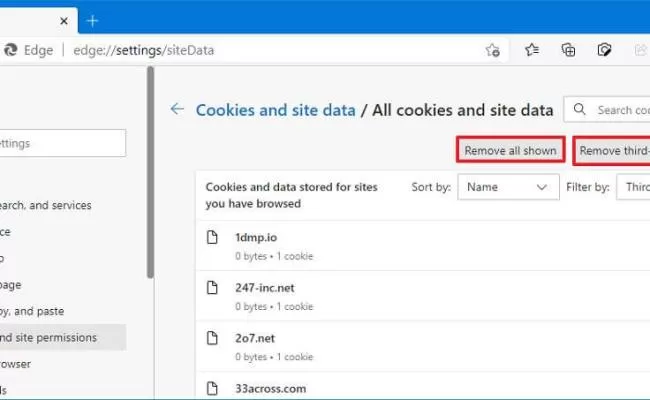
💻 How to Remove Tracking Cookies in Microsoft Edge
- Open Edge
- Click the three-dot (⋮) menu
- Select Settings > Privacy, search, and services
- Under Clear browsing data, click Choose what to clear
- Select Cookies and other site data
- Click Clear now
Edge also provides Tracking Prevention—you can set it to Strict for maximum protection 🛡️.
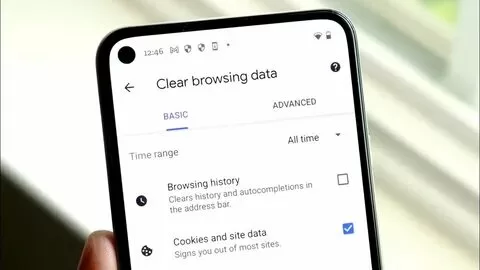
📱 How to Delete Cookies in Mobile Browsers (Android & iOS)
For Chrome on Android/iOS:
- Open Chrome app
- Tap ⋮ (menu) > History
- Tap Clear browsing data
- Choose Cookies and site data
- Tap Clear data
Most mobile browsers follow similar steps.
💬 Want to keep some cookies but delete others? Use site-specific cookie controls in your browser’s settings.
🧰 Tools to Automatically Remove Tracking Cookies
Here are some browser extensions and tools that can help:
- CCleaner (Windows/macOS): Cleans cookies and browsing data with one click.
- Privacy Badger (Browser Extension): Automatically blocks trackers.
- Ghostery: Blocks tracking scripts and ads.
- Click&Clean (Chrome Extension): Adds quick cleaning options to your browser toolbar.
These tools help you regularly remove tracking cookies in any browser (step-by-step guide) without the hassle.
🔐 Tips to Prevent Future Tracking
- Use incognito or private mode when browsing.
- Block third-party cookies in browser settings.
- Install ad blockers with anti-tracking features.
- Review cookie consent banners and opt-out when possible.
By applying these tips, you won’t just know how to delete cookies in Chrome or Firefox—you’ll avoid many of them in the first place! 🙌
🌐 Related Reading
- 🔗 How to Clear Cache in Chrome
- 🔗 WordPress Security Guide
- 🔗 How to Submit Your Website to Search Engines in 2025
✅ Final Thoughts
Knowing how to remove tracking cookies in any browser (step-by-step guide) is essential in 2025. Cookies can be helpful, but many are there just to track you, target ads, and slow your system down.
And if you’re specifically asking how to delete cookies in Chrome, now you’ve got all the tools and steps to do it in minutes.
Take a few minutes today, clear out those cookies 🍪, and breathe easier knowing your online activity is more private and secure 🔒✨.