How to Open Task Manager on Mac — Apple Shortcut Tutorial
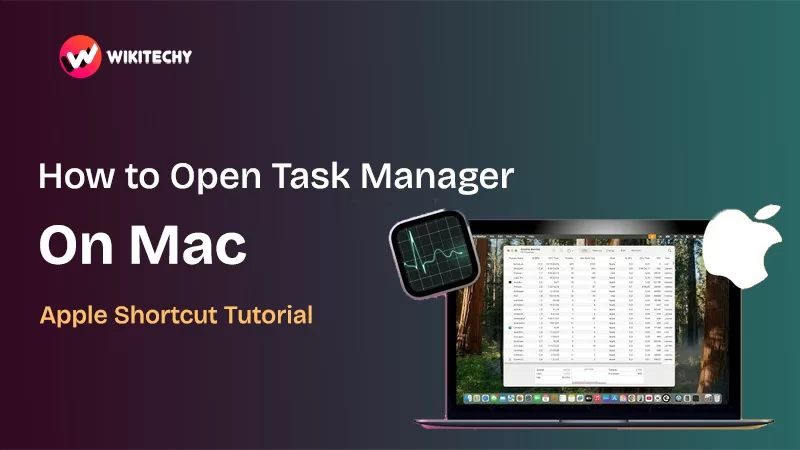
When your Mac slows down or an app freezes, the first thing I always do is hunt for the “Task Manager” shortcut. Turns out, Macs don’t have a “Task Manager” exactly like Windows—but there is a built-in tool (and shortcuts) that do the same job. Here’s how I open it in seconds.
Shortcut key of Task Manager (or its Mac equivalent) is what most people search for — so let’s get that out of the way first.
🧩 What Is the “Task Manager” on Mac Anyway?
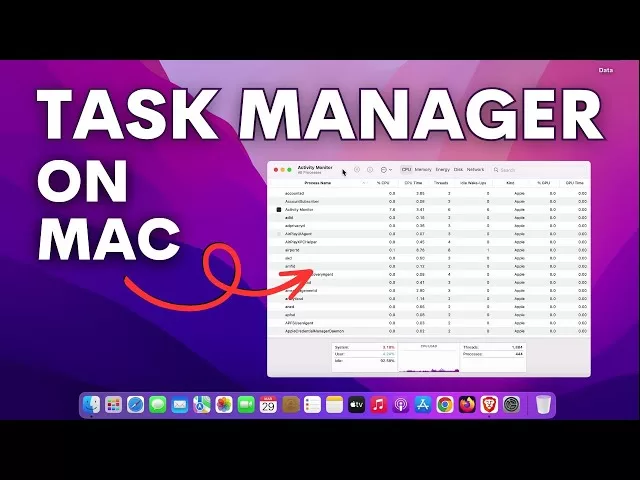
Let me be clear: macOS doesn’t call it “Task Manager.” The direct analog is Activity Monitor — that’s the tool that lets you see all running processes, resource hogs, memory use, and more.
But, there is a shortcut to quickly close a frozen app, which many users refer to as their “Task Manager” shortcut. That shortcut opens Force Quit Applications.
So when you hear me say “Task Manager on Mac” or “shortcut key of Task Manager,” it mostly means:
- Opening Force Quit window (to kill one misbehaving app quickly).
- Opening Activity Monitor (for deeper system insights).
⌘ Shortcut Key of Task Manager (Force Quit)
This is the first trick I reach for:
Press Command (⌘) + Option (⌥) + Esc
When I hit those three keys together, the Force Quit Applications window pops up.
From there:
- Click the app that’s frozen or misbehaving.
- Hit Force Quit.

Boom — the app closes without needing to reboot the entire Mac. I use this all the time when Chrome or Xcode stalls on me.
You can also access the same Force Quit window like this:
- Click the Apple menu () in the top-left corner → choose Force Quit…
- Or type “Force Quit” into Spotlight (Command + Space) and open it from there.

🔎 How to Open Activity Monitor (the Real Deal)
When I want to dig deeper than just killing a single app, I launch Activity Monitor. Here’s how:
Method 1: Spotlight
- Press Command (⌘) + Spacebar
- Type Activity Monitor, hit Enter
- It opens — simple and fast
Once open, I often right-click its Dock icon → Options → Keep in Dock, so next time it’s just one click away.
Method 2: Finder → Utilities
- Open Finder
- Go to Applications
- Then open Utilities
- Double-click Activity Monitor
This route is more manual but reliable, especially if Spotlight is acting weird.
Method 3: Launchpad
- Click Launchpad (rocket icon)
- Search for Activity Monitor
- Click it to open
If you’re new to macOS, this feels more visual and intuitive.

📊 Using Activity Monitor: What You’ll See
Once Activity Monitor is open, you’ll find five main tabs:
| Tab | What It Shows |
|---|---|
| CPU | Which apps or processes are eating your processor cycles |
| Memory | RAM usage by apps & processes |
| Energy | Which apps are draining battery or consuming power |
| Disk | Read/write activity on your storage |
| Network | How much data apps are sending/receiving |
If an app is freezing, I check CPU first. If the whole system feels sluggish, I head to Memory next.
You can search for a specific app in the search bar at top-right, click it, and use the “i” (Inspect) button to see detailed stats. Then click the “X” (top-left of the window) to quit or force quit that process.

⚠️ Be careful: force quitting system or background processes might crash things. So double-check what process you’re killing.
🧠 Terminal Alternative (for Power Users)
shortcut key of task manager – If you’re comfortable in the terminal, there’s another route — especially if the interface is frozen or unresponsive:
- Open Terminal (Spotlight → “Terminal”)
- Type
topand press Enter- You’ll see a real-time list of processes
- To stop viewing
top, press Control + C - If you spot a process hogging resources, note its PID (process ID)
- Type
kill -9 <PID>(replace<PID>with the number)- That force-kills the process
I rarely use this in day-to-day tasks, but it’s great when the UI is completely stuck.

Final Thoughts:
When I first switched to macOS, I kept hitting Ctrl + Shift + Esc (muscle memory from Windows). Nothing happened, and I panicked. After a few frustrating restarts, I discovered ⌘ + Option + Esc — and it felt like unlocking a cheat code.
Now, it’s become second nature. Whenever an app hangs, I’m already halfway to Force Quit before I even realize.
Here are a few extra tips from personal experience:
- Keep Activity Monitor in your Dock. You’ll thank yourself when your Mac slows down mid-project.
- Before force quitting, save everything. Sometimes apps freeze but recover — quitting mid-save can lose work.
- If a process name looks weird or you don’t know what it is, Google it before killing it.
- Reboot your Mac weekly (yes, I know it sounds basic). It clears caches and eases performance.
Kashiv Infotech Offers, Networking Course, Cyber Security Course, Cloud Computing Course, & More Visit Their Website www.kaashivinfotech.com
Related Reads: