

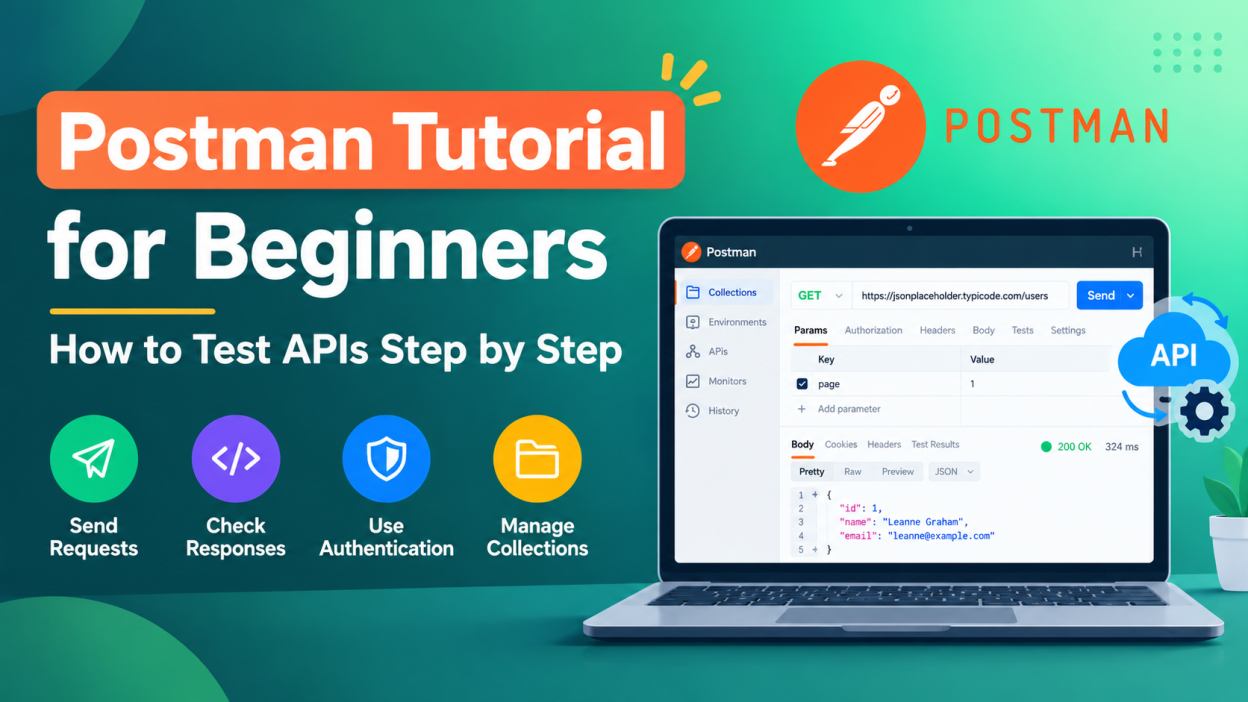
How to use postman tool – APIs play an important role in modern web and mobile applications. They allow different software systems to communicate with each other and exchange data. When developers build an API, they need a reliable way to send requests, check responses, identify errors, and test different scenarios. Postman is one of the most popular tools for this purpose.
Postman provides a user-friendly interface for working with APIs without requiring developers to build a complete frontend application. Whether you are a beginner, backend developer, tester, or full-stack developer, learning how to use Postman can make API testing much easier.
What Is Postman?
Postman is an API platform used to create, send, test, document, and manage API requests. It supports common HTTP methods such as GET, POST, PUT, PATCH, and DELETE.
For example, if an application has an API that returns customer information, you can use Postman to send a request and immediately view the server’s response.
A typical API request contains:
- URL
- HTTP method
- Headers
- Parameters
- Request body
- Authentication details
Postman allows you to manage all these components through its interface.
Why Use Postman for API Testing?
Testing APIs directly through code can take additional time, especially when you are learning backend development. Postman simplifies the process by providing a visual interface.
Some common benefits include:
- Easy API request creation
- Testing different HTTP methods
- Viewing API responses
- Sending JSON data
- Testing authentication
- Creating collections
- Writing automated tests
- Managing environment variables
- Debugging API errors
Postman is useful for both manual and automated API testing.
How to Install Postman
The first step is to install Postman on your computer. Download and install the appropriate version for your operating system.
After installation, open Postman. You can create an account if you want to synchronize your work across devices, although you can also use the application for basic API testing without depending on a complicated setup.
Once Postman opens, you can create a new HTTP request and start testing an API.
Understanding HTTP Methods
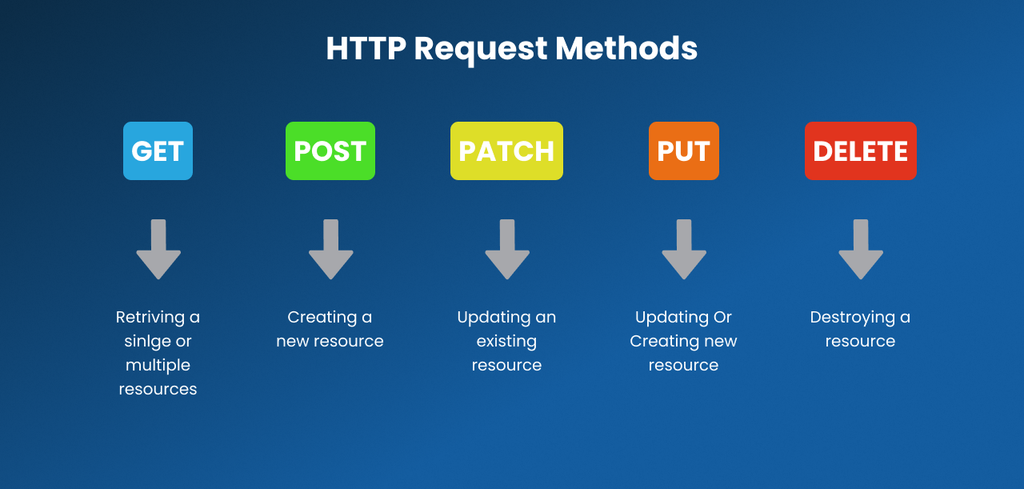
Before using Postman, it is important to understand the most common HTTP methods.
GET: Used to retrieve information from a server.
For example:
GET /users
This request may return a list of users.
POST: Used to send new data to a server.
For example, you might send a POST request to create a new user.
PUT: Generally used to update an existing resource.
PATCH: Used to partially update an existing resource.
DELETE: Used to remove a resource.
Understanding these methods helps you choose the correct request type when working with APIs.
How to Send a GET Request in Postman
Sending a GET request is one of the easiest ways to start learning Postman.
Open Postman and create a new HTTP request. Select GET from the method dropdown.
Enter an API endpoint in the URL field. For example, you can use a publicly available testing API such as:
https://jsonplaceholder.typicode.com/users
Click Send.
Postman sends the request to the server and displays the response in the lower section of the interface.
You may see information such as the response status code, response time, headers, and JSON response body.
How to Send a POST Request
A POST request is commonly used to send data to an API.
Select POST from the method dropdown and enter the API URL.
Next, open the Body section. Select raw and choose JSON as the format.
You can then enter JSON data such as:
{
  "name": "John",
  "email": "john@example.com"
}
Click Send to submit the request.
The server response can help you determine whether the request was processed correctly.
Working With Headers
Headers provide additional information about an API request or response.
For example, APIs that accept JSON data commonly use the following header:
Content-Type: application/json
Some APIs also require authorization headers. For example, an API might use a bearer token:
Authorization: Bearer YOUR_TOKEN
The exact authentication format depends on the API you are testing.
Using Query Parameters
Query parameters are commonly used to filter or customize API results.
For example:
https://example.com/products?category=mobile
In Postman, you can open the Params section and enter:
Key: category
Value: mobile
Postman automatically adds the parameter to the request URL.
This is useful when testing search, filtering, pagination, and sorting functionality.
Understanding API Responses
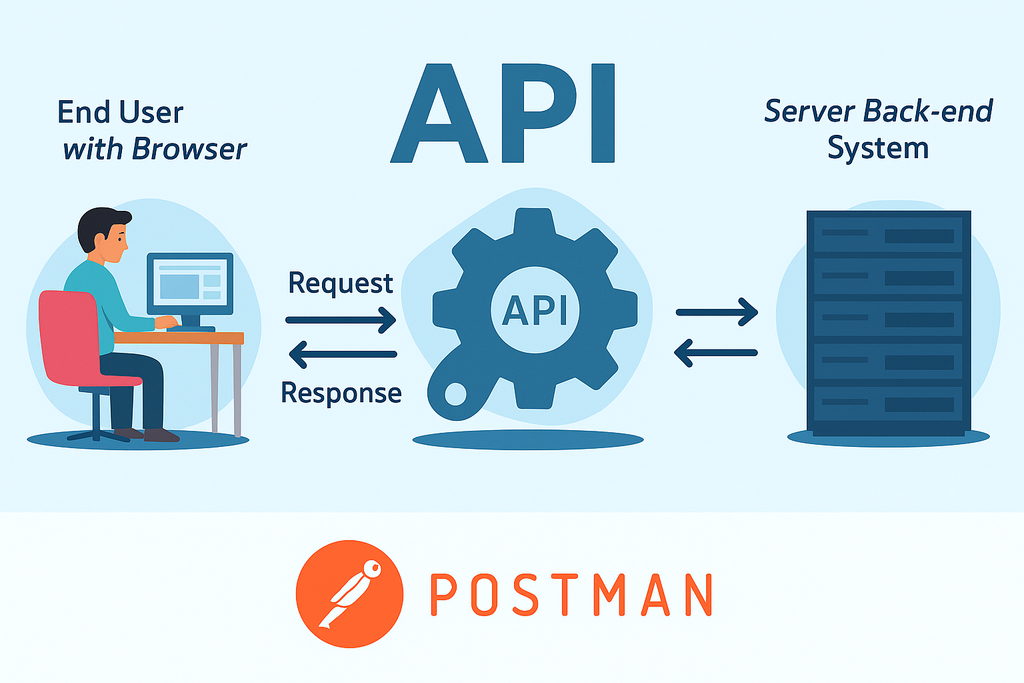
After sending a request, Postman displays the server response.
One of the most important things to check is the HTTP status code.
Common status codes include:
- 200 OK – Request was successful.
- 201 Created – A resource was successfully created.
- 400 Bad Request – The request contains invalid data.
- 401 Unauthorized – Authentication is required or invalid.
- 403 Forbidden – Access is not permitted.
- 404 Not Found – The requested resource does not exist.
- 500 Internal Server Error – A server-side problem occurred.
Checking status codes helps developers quickly identify API problems.
Creating Collections in Postman
When working on a project with multiple APIs, keeping requests organized is important.
Postman allows you to create Collections. A collection can contain multiple related API requests.
For example, an e-commerce project might have a collection containing:
- Login API
- User API
- Product API
- Order API
- Payment API
Collections make it easier to organize and reuse API requests.
Using Environment Variables
Environment variables are useful when the same API needs to be tested in different environments.
For example, your development API might use one URL while the production API uses another.
Instead of repeatedly changing URLs, you can create a variable such as:
{{base_url}}
Then your request can use:
{{base_url}}/users
You can change the environment value without modifying every individual request.
Testing APIs With Postman

Postman also supports automated API testing. You can write test scripts to verify whether an API response meets expected conditions.
For example, you can check whether the response status is 200 or whether a particular value exists in the response.
This is especially useful when developers need to test APIs repeatedly after making changes to backend code.
Best Practices for Using Postman
When working with Postman, follow a few simple practices:
Organize requests: Use collections and folders to keep APIs structured.
Use variables: Avoid repeatedly entering URLs, tokens, and other values.
Check responses carefully: Look at status codes, response bodies, headers, and response times.
Test different scenarios: Test successful requests as well as invalid inputs and missing parameters.
Protect sensitive information: Avoid sharing API keys, passwords, or access tokens publicly.
Conclusion
Postman is a useful tool for developers and testers who work with APIs. Beginners can start with simple GET requests and gradually learn POST, PUT, PATCH, and DELETE requests. As you become more comfortable, you can explore authentication, collections, environment variables, and automated testing.
Learning Postman is particularly valuable for backend and full-stack developers because it provides a simple way to understand how applications communicate with APIs. With regular practice, you can use Postman to test APIs, troubleshoot errors, organize requests, and improve the reliability of your applications.
Want to Learn More About Python & Artificial Intelligence ???, Kaashiv Infotech Offers Full Stack Python Course, Artificial Intelligence Course, Data Science Course & More Visit Their Website course.kaashivinfotech.com.