Mastering XPath in Selenium (2026): The Ultimate Guide to Precision Locating 🚀
What is XPath in Selenium?
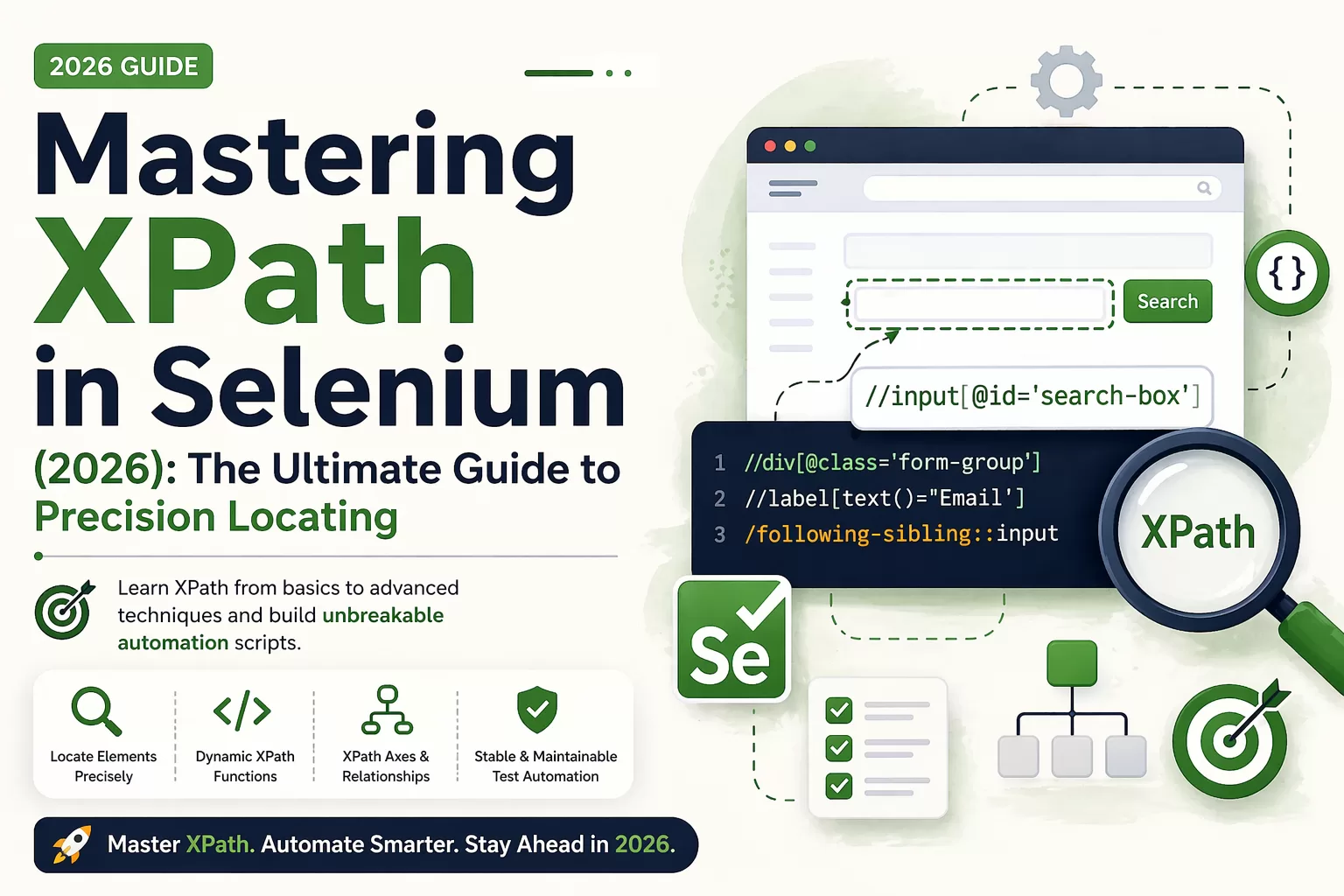
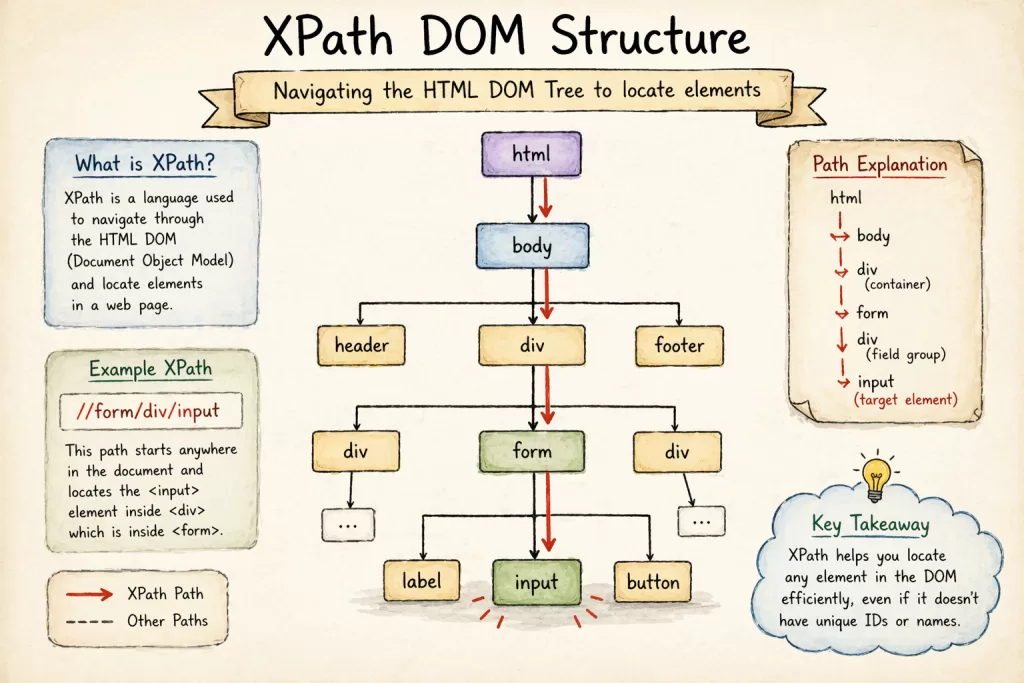
XPath in Selenium is a locator strategy used to identify and navigate elements within an HTML DOM (Document Object Model). By using XML path expressions, XPath allows automation testers to locate web elements—such as buttons, text fields, or complex grids—even when they lack unique IDs or Names. It is widely considered the most powerful and flexible locator in the Selenium WebDriver toolkit.
Have you ever spent hours writing a perfect automation script, only to have it crash the next morning because a developer changed a single <div> tag? We’ve all been there.
I remember back in 2022, I was working on a high-stakes fintech project. Every time the UI team pushed an update, our test suite turned into a “red sea” of failures. The problem? We were using “Copy XPath” from Chrome. Once I learned how to write custom, dynamic XPaths, our maintenance time dropped by 70%.
In this 2026 guide, I’m going to show you how to move from a beginner “copy-paster” to a pro-level automation engineer who writes unbreakable scripts.
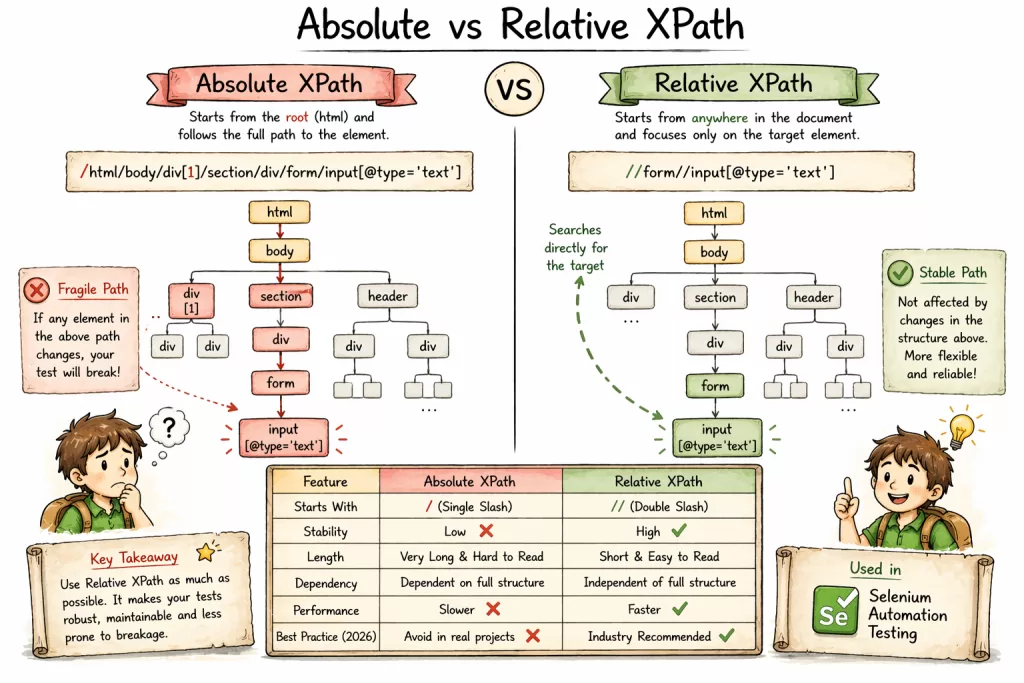
1. The Two Faces of XPath: Absolute vs. Relative
Before we dive into the code, you must understand the hierarchy. If you get this wrong, your scripts will be “fragile.”
| Feature | Absolute XPath | Relative XPath |
|---|---|---|
| Starts With | / (Single slash from root) | // (Double slash from anywhere) |
| Stability | Low ❌ (Breaks if any UI changes) | High ✅ (Stays stable) |
| Length | Long and unreadable | Short and focused |
| Industry Standard | Avoid in 2026 | Recommended for all projects |
Example of Absolute (Avoid):/html/body/div[2]/section/div/form/div[1]/input
Example of Relative (Best Practice)://input[@id='login-email']
2. 🚫 5 Common XPath Mistakes Beginners Make
If you want to rank as a top engineer, stop doing these five things:
- Using the “Index of Hell”: Writing
//div[5]/div[2]/button[1]. If the developers add a single notification banner above this, your index changes and the test fails. - Ignoring Dynamic IDs: Many modern apps (React/Angular) use IDs like
id="btn_9921". Tomorrow, it will beid="btn_4432". Hardcoding these is a rookie mistake. - Relying on “Copy XPath”: Chrome’s auto-generator is a shortcut to technical debt. It doesn’t understand context; it only understands current structure.
- Not Handling White Spaces: Sometimes a class looks like
"btn-submit ". A standard match will fail. Usenormalize-space(). - Forgetting iframes: If your XPath is 100% correct but Selenium says “Element not found,” check if the element is buried inside an
<iframe>.
3. How to Write XPath in Selenium: The Pro Formula
Most beginners just copy-paste from Chrome DevTools. Don’t do that. Professional testers write them manually to ensure they are clean.
The Basic Syntax://tagname[@attribute='value']
Real-World XPath Examples for Selenium:
- By ID:
//input[@id='email'] - By Class:
//button[@class='login-btn'] - By Placeholder:
//input[@placeholder='Search Courses']
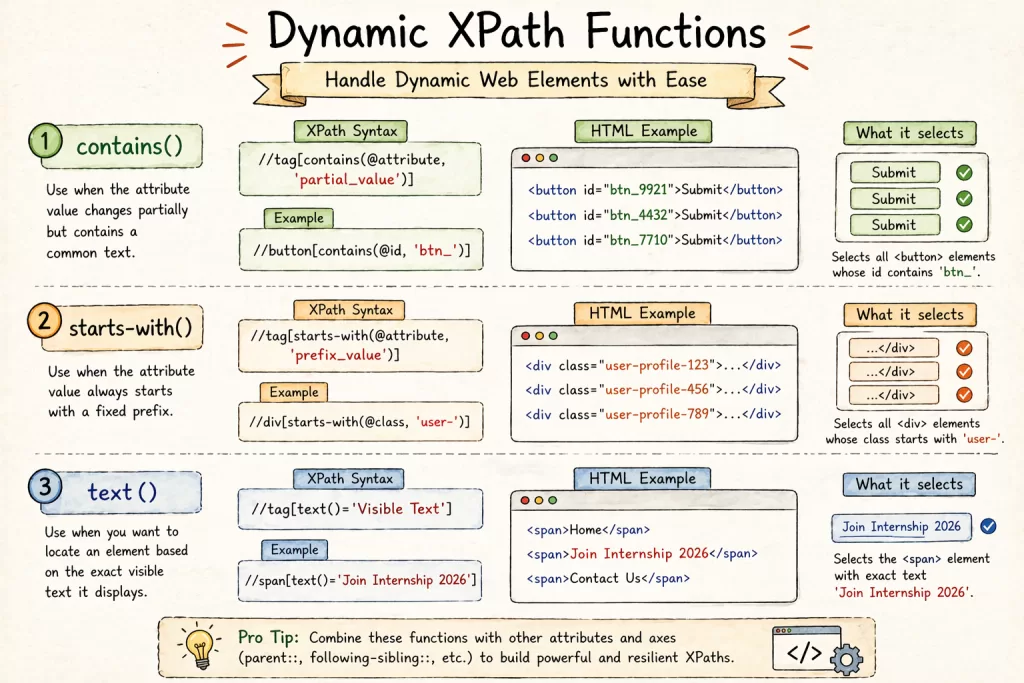
Dealing with the “Un-locatable”: Dynamic XPath in Selenium 🛠️
Modern web apps (built with React, Angular, or Vue) often generate Dynamic IDs that change on every page load (e.g., id="btn_9921" becomes id="btn_4432").
Here is how we solve this in real production environments:
1. The contains() Method
This is your best friend for dynamic elements.
- Example:
//button[contains(@id, 'btn_')] - Why it works: It looks for the constant part of the ID and ignores the changing numbers.
2. The starts-with() Method
Perfect for elements where the prefix is always the same.
- Example:
//div[starts-with(@class, 'user-profile-')]
3. Using text() for Better Readability
Sometimes, the only unique thing about a button is what is written on it.
Example: //span[text()='Book My Internship']
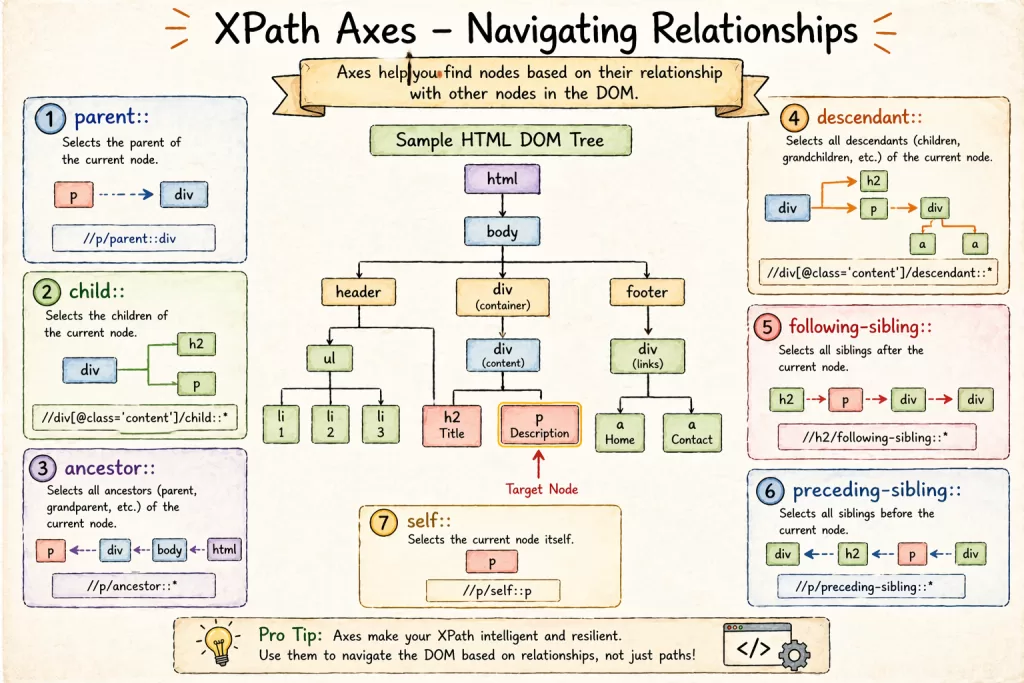
Expert Level: Using XPath Axes (The “Bug-Killer” Technique)
XPath Axes allow you to find elements based on their relationship to other elements. This is vital for complex web tables or nested grids.
- Parent Axis:
//input[@id='username']/parent::div - Following-Sibling: Find a text box based on the label next to it.
//label[text()='Password']/following-sibling::input
Industry Use Case: In a recent fintech project, we had a table where “Delete” buttons had no unique IDs. We used following-sibling to locate the button exactly across from the specific user’s email address. Zero failures since.
4. XPath vs. CSS Selector: The 2026 Verdict
This is the #1 question in automation interviews. Here is the data-driven comparison:
| Feature | XPath | CSS Selector |
|---|---|---|
| Navigate Up (Parent) | ✅ Yes (Using .. or parent::) | ❌ No |
| Speed | Medium (Slightly slower) | ✅ Fast (Native to browser) |
| Find by Text | ✅ Yes | ❌ No |
| Complex Logic | ✅ Very High | Low |
Pro Tip: Use CSS for simple, static IDs. Use XPath for everything else—especially for complex tables and dynamic text.
5. Real-World XPath Examples for Popular Sites
To get better, you have to practice on real UIs. Here are patterns we use for common site structures:
- Amazon Search Pattern:
//input[@aria-label='Search Amazon'] - E-commerce Price Extraction:
//span[contains(@class, 'price')]/ancestor::div[@class='product-info'] - Generic Login Toggle:
//button[@type='submit' and contains(@class, 'active')]
6. Career Angle: Is Selenium Still Worth It in 2026?
Absolutely. While new tools like Playwright have emerged, Selenium still holds 30%+ of the global market share.
- Salary Stats: In 2026, an Automation Lead (SDET) who can build custom XPath-based frameworks earns between ₹12 LPA and ₹25 LPA in top Indian tech hubs.
- The “Skill Gap”: Companies aren’t looking for people who can record and play tests. They are looking for “Script Architects”—people who know how to make tests run in CI/CD pipelines without failing.
Take the Next Step: Join Kaashiv Infotech 🎓
Reading about XPath is the first step. Building a production-ready framework is the real test.
At Kaashiv Infotech, we don’t just teach syntax; we give you industrial exposure. Our internships and courses are designed to make you “job-ready” by working on live projects. Whether you are a student or a professional looking to switch to automation, our hands-on approach is the differentiator.
7. ❓ Top 10 XPath FAQs (People Also Ask)
Q1: What is the difference between / and //?/ is for an absolute path (it looks only at the immediate child), while // is for a relative path (it searches the entire document).
Q2: Can XPath find elements by their visible text?
Yes, using the text() function. This is a major advantage XPath has over CSS Selectors.
Q3: How do I handle multiple classes in XPath?
Use contains(), like this: //div[contains(@class, 'class1') and contains(@class, 'class2')].
Q4: Why does my XPath work in the console but fail in my script?
Usually, this is a synchronization issue. Ensure you are using Explicit Waits so the element is fully rendered before Selenium tries to interact with it.
Q5: Is XPath case-sensitive?
Yes, standard XPath 1.0 (used by most browsers) is case-sensitive. //button[text()='Login'] is different from //button[text()='login'].
Q6: How do I select the 2nd element in a list?
Wrap your XPath in parentheses and use an index: (//input[@type='text'])[2].
Q7: Can I use XPath to go “backwards” to a parent?
Yes! Use /.. or the parent:: axis. This is one of XPath’s strongest features.
Q8: What is “Normalize-Space” in XPath?
It is a function that cleans up hidden tabs, newlines, and extra spaces around the text in an element.
Q9: How do I select an element with two different possible IDs?
Use the or operator: //*[@id='login' or @id='signin'].
Q10: Is XPath slower than ID?
Technically, yes. Locating by ID is the fastest possible way. However, in modern browsers, the speed difference is measured in milliseconds and is rarely a bottleneck.
Conclusion
Mastering XPath is like learning a new language. Once you understand the “logic” of the DOM, you stop guessing and start building. Move away from absolute paths, embrace dynamic functions like contains(), and always prioritize readability.
Ready to start? Open your browser console, hit Ctrl+F, and try to write an XPath for the “Submit” button on your favorite site today! 👨💻👩💻

![Square Brackets []](https://www.wikitechy.com/wp-content/uploads/2026/03/Square-Brackets-The-Critical-Key-to-Data-Access-in-Programming-🗝️-380x220.webp)