

Install Figma On Windows is much easier than it may sound. If you are a beginner who wants to learn UI/UX design, create website layouts, design mobile apps, or simply explore Figma, you can get started in just a few minutes.
When I first started exploring design tools, I used to think installation would involve a lot of complicated steps. Thankfully, Figma makes the process quite simple. You can use Figma directly in a browser, but installing the desktop application gives you a more dedicated experience on Windows.
In this guide, I’ll show you how to Install Figma On Windows in 2026, what you need before installation, where to download it safely, how to log in, and what to do if the application doesn’t work properly.
Let’s get started. 🚀
Key Highlights
- ✅ Learn how to Install Figma On Windows step by step.
- ✅ Download Figma from the official Figma website.
- ✅ Understand the Windows requirements before installation.
- ✅ Learn the difference between Figma in a browser and the desktop app.
- ✅ Find out how to log in after installation.
- ✅ Learn what to do if Figma shows a blank or black screen.
- ✅ Understand how Figma handles fonts on your computer.
- ✅ Get simple troubleshooting tips for beginners.
What Is Figma?
Before we install anything, let’s quickly understand what Figma actually is.
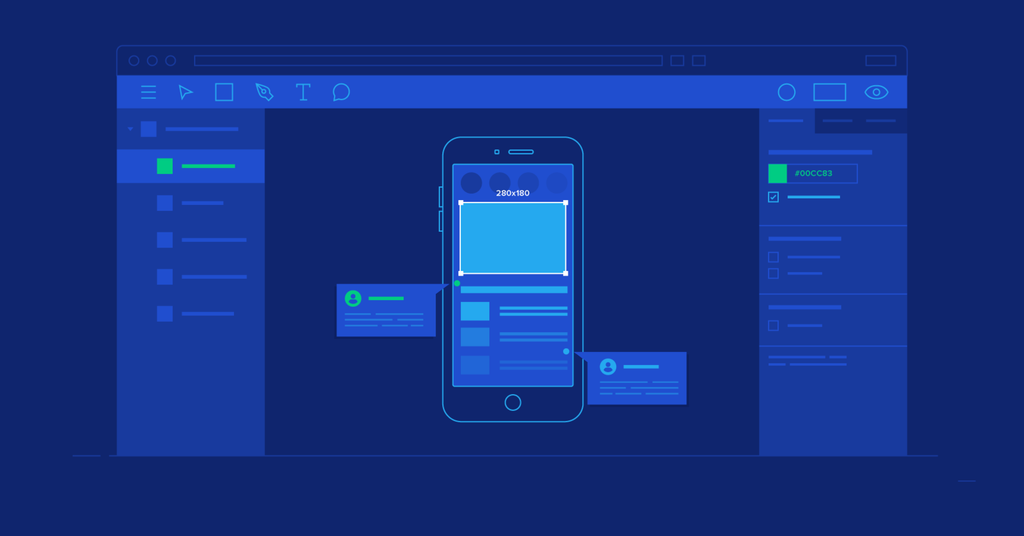
Figma is a collaborative design tool that people use to create interfaces, prototypes, wireframes, graphics, and other digital designs.
For example, imagine that you want to create the design of a food-delivery website.
Before writing HTML and CSS, you might want to decide:
- Where should the logo go?
- Where should the navigation menu appear?
- What should the buttons look like?
- How should the restaurant cards be arranged?
- What should the mobile version look like?
You can create those designs in Figma first.
This is one reason Figma is popular among UI designers, UX designers, product designers, developers, students, and design teams.
Can I Use Figma Without Installing It?
Yes! This is something beginners often don’t realize.
You do not necessarily need to install Figma to use it.
Figma works primarily as a browser-based application, and you can access it through supported browsers. Figma also provides a dedicated desktop application for Windows and macOS.
So you basically have two choices:
| Option | What you do |
|---|---|
| Figma Web | Open Figma in your browser |
| Figma Desktop | Install Figma on your Windows computer |
If you regularly work with Figma, I personally find the desktop application more convenient because it feels more like a normal application on your computer.
System Requirements to Install Figma On Windows
Before you Install Figma On Windows, check your Windows version.
According to Figma’s current desktop-app documentation, the Windows desktop application requires Windows 10 or later in a 64-bit environment.
How to Check Your Windows Version
You can check it easily.
- Click the Start button.
- Search for Computer or This PC.
- Right-click it.
- Select Properties.
- Look for your Windows edition and system type.
You want to make sure that your system uses a 64-bit version of Windows.
Figma specifically states that its desktop application isn’t supported on 32-bit Windows environments.
Quick Checklist
Before installation, check:
- ✔ Windows 10 or later
- ✔ 64-bit Windows
- ✔ Stable internet connection
- ✔ Enough storage space
- ✔ Updated graphics drivers if necessary
You don’t need an extremely powerful gaming PC just to learn basic Figma. However, keeping Windows and your graphics drivers reasonably up to date can help with performance.
How to Install Figma On Windows
Now let’s get to the part you’re probably here for.
Step 1: Open the Official Figma Website
First, open your web browser.
You can use Chrome, Edge, Firefox, or another supported browser.
Go to the official Figma Downloads page:
Figma Downloads – Official Website
You’ll find different Figma applications on the download page, including the Figma desktop app for Windows and a version for Windows Arm devices.
Important ⚠️
I recommend downloading Figma from the official Figma website rather than random third-party download websites.
Why?
Because when you’re installing software, there is no reason to take an unnecessary risk with an unknown installer.
Step 2: Choose Figma for Windows
On the Figma Downloads page, find the section for the Desktop App.
You’ll see options for:
- macOS
- Windows
- Windows Arm
If you’re using a normal Windows PC with an Intel or AMD processor, choose the standard Windows version.
If you have a Windows computer powered by an ARM processor, choose the Windows Arm version.
If you aren’t sure which one you have, you can check your Windows system information before downloading.
Step 3: Download the Figma Installer
Click the appropriate Windows download option.
Your browser will begin downloading the installer.
Depending on your browser settings, the downloaded file will normally appear in your Downloads folder.
Don’t worry if the installation file doesn’t immediately appear on your desktop. That’s normal.
Open your browser’s Downloads section or go to:
File Explorer → Downloads
and look for the Figma installer.
Step 4: Run the Installer
Once the download finishes, double-click the Figma installer.
Windows may ask whether you want to allow the application to make changes to your device.
If you’re downloading it from the official Figma website, review the prompt and continue with the installation.
The installer will take care of the installation process.
This is one of the nice things about Figma: you don’t have to manually configure a long list of installation settings.
Step 5: Wait for Figma to Install
Give the installer a moment.
Your internet speed and computer performance can affect how quickly the process finishes.
Once installation is complete, Figma should open.
You may also find the Figma application through the Windows Start menu.
Search:
Figma
and click the application.
🎉 That’s it!
You have successfully completed the basic Install Figma On Windows process.
Step 6: Sign In to Figma
After opening Figma, you’ll need to sign in.
Figma supports several login methods, including:
- Email and password
- SAML/third-party identity provider for supported organizations
The exact options available can depend on how your Figma account was created and your organization’s setup.
If you are completely new to Figma, look for the Sign up option and create an account.
If you already have an account, simply choose Log in.
Step 7: Create or Open Your First Figma File
Once you’re logged in, you’ll reach the Figma file browser.
This is where your designs, projects, teams, and files appear.
For a beginner, I recommend starting with a very simple project.
For example, create a basic website homepage containing:
- Logo
- Navigation bar
- Heading
- Paragraph
- Button
- Image
- Footer
Don’t try to design the next Instagram on your first day. 😄
Start small.
Once you understand frames, shapes, text, colors, components, and auto layout, you can gradually build more complicated designs.
Figma Desktop App vs Figma Browser
You may now be wondering:
“Why should I Install Figma On Windows when I can use Figma in Chrome?”
That’s a fair question.
The desktop app provides essentially the same core Figma functionality as the browser experience, but it provides a more native desktop workflow. Figma also notes that the desktop app can work with fonts installed on your device without requiring a separate font installer.
Here’s a simple comparison:
| Feature | Browser | Desktop App |
|---|---|---|
| Use Figma | ✅ | ✅ |
| Create designs | ✅ | ✅ |
| Prototype | ✅ | ✅ |
| Collaborate | ✅ | ✅ |
| Use installed fonts | Depends on setup | ✅ |
| Dedicated application | ❌ | ✅ |
| Windows Start menu access | ❌ | ✅ |
For occasional use, the browser may be enough.
For regular design work, you may prefer the desktop app.
Does Figma Desktop Need the Internet?
Yes, you should have a reliable internet connection for normal Figma usage.
Figma’s troubleshooting documentation notes that Figma requires a reliable connection, although some activities can work offline. Figma doesn’t provide a dedicated offline mode.
So if your internet connection suddenly disappears, don’t be surprised if some features stop working as expected.
What About Fonts in Figma?
This is another useful feature of the desktop application.
When you Install Figma On Windows, the desktop app includes the Figma font installer functionality. Figma’s documentation says the desktop app can access fonts installed on your computer.
Imagine you’re designing a website and you’ve installed a particular font on Windows.
With the appropriate Figma setup, that font can be available inside your designs.
That’s especially useful when you’re trying to match a brand’s typography.
How to Open Figma Links in the Desktop App
Suppose your friend sends you a Figma design link.
You click it.
Usually, the file opens in your browser.
But after installing the desktop application, you can open the file in the Figma desktop app.
Figma provides an Open in desktop app option for Figma files. You need to have the desktop app installed and be logged into the same account.
This becomes really convenient when you’re working with multiple Figma files.
Common Problems After Installing Figma
Sometimes installation works perfectly but the application doesn’t behave as expected.
Don’t panic.
Here are a few common problems.
1. Figma Shows a Black Screen
A black screen can sometimes be related to compatibility between Figma and your computer’s graphics configuration.
Figma recommends trying the Prefer High-Performance GPU setting under the application’s troubleshooting options if you’re experiencing this issue.
You can also try:
- Restarting Figma
- Updating your graphics drivers
- Updating Windows
- Restarting your computer
2. Figma Doesn’t Open
First, check whether your computer meets the desktop application’s requirements.
Remember:
Windows 10 or later + 64-bit environment is required for the current desktop application documentation.
Then try restarting your computer and opening Figma again.
If you’re still stuck, Figma’s troubleshooting resources provide additional steps.
3. Figma Is Slow
If your design contains a huge number of objects, images, effects, or complex elements, performance can suffer.
Try:
- Closing unnecessary Figma tabs
- Closing other applications
- Reducing unnecessary effects
- Splitting very large files
- Restarting Figma
Figma itself recommends several of these approaches as part of its troubleshooting checklist.
Keep Figma Updated
Once you Install Figma On Windows, don’t forget about updates.
Figma recommends keeping the desktop application updated. If you’re using an older version, Figma can display an update prompt. Figma also notes that support for previous versions is removed six months after release.
So when you see an official update notification, it’s generally a good idea to keep your application current.
Updates aren’t just about getting new features. They can also include fixes and improvements.
Figma in 2026: Why Beginners Should Try It
If you’re learning web development, Figma can be surprisingly useful.
You don’t have to become a professional UI designer.
Even basic Figma knowledge can help you understand how a website should look before you start coding it.
For example, I might design something like this first:
Figma Design
↓
Header
↓
Hero Section
↓
Cards
↓
Call-to-Action Button
↓
Footer
Then I can translate that design into:
HTML + CSS + JavaScript
This makes the connection between design and development much easier to understand.
And if you’re learning frontend development, this workflow is worth practicing.
What Should I Learn After Installing Figma?
If you’re completely new, don’t try to learn every Figma feature at once.
I’d recommend this order:
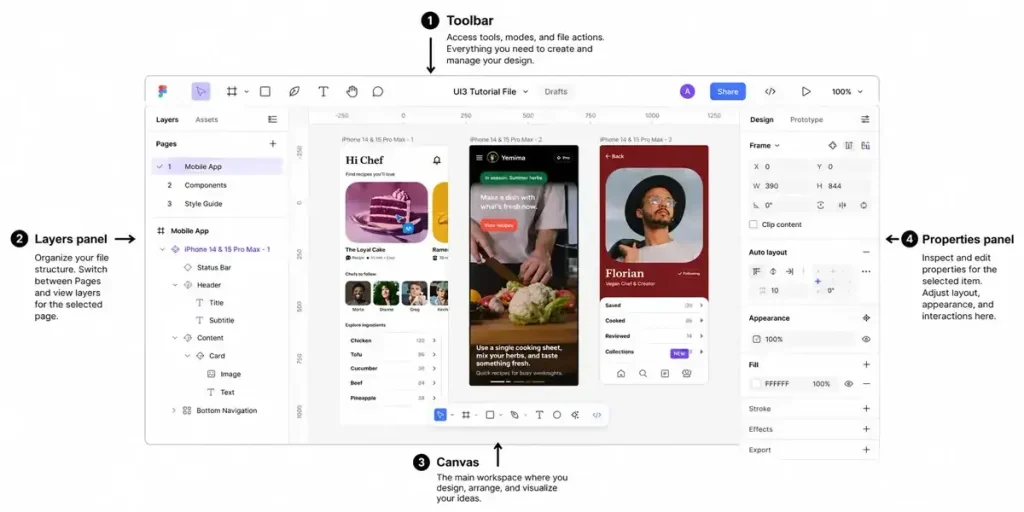
1. Learn the Figma interface
Understand:
- Toolbar
- Layers
- Properties panel
- Canvas
- Pages
2. Learn basic design tools
Practice:
- Text
- Shapes
- Images
- Colors
- Borders
- Shadows
3. Learn Frames
Frames are extremely important in Figma.
You can use them to represent things like:
- Web pages
- Mobile screens
- Sections
- Components
4. Learn Auto Layout
Once you understand the basics, move to Auto Layout.
It becomes extremely useful when designing responsive interfaces.
5. Learn Components
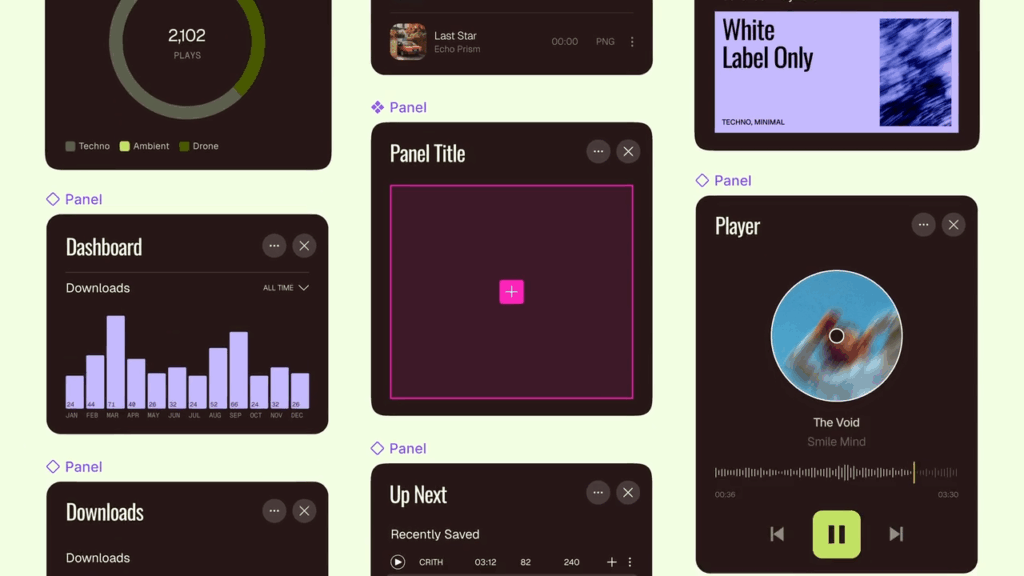
Components help you reuse elements such as:
- Buttons
- Navigation bars
- Cards
- Form fields
6. Learn Prototyping
Finally, connect your screens and create an interactive prototype.
Now your static design starts behaving more like a real application. 🚀
Frequently Asked Questions
Is Figma free on Windows?
Figma offers plans with different features, including a free option. The exact features and limits can change, so check Figma’s current pricing and plan information before choosing a plan.
Can I use Figma without installing it?
Yes. Figma can be used through a supported web browser, so installing the desktop application isn’t mandatory.
Can I Install Figma On Windows 10?
Figma’s current desktop-app documentation states that Windows 10 or later in a 64-bit environment is required.
Is Figma available for Windows ARM?
Yes. Figma’s official downloads page provides a separate Windows Arm desktop application.
Is Figma good for beginners?
Yes. The basic tools are relatively easy to start with, and you can gradually move into more advanced features such as components, Auto Layout, and prototyping.
Final Thoughts
If you were searching for how to Install Figma On Windows, the process is actually quite straightforward.
Check your Windows version, visit the official Figma Downloads page, download the correct Windows application, run the installer, and log in.
That’s all you need to get started.
Download Figma from the official website
My biggest suggestion for a beginner is simple: don’t spend your first few days only watching tutorials.
Open Figma.
Create a frame.
Add some text.
Draw a button.
Try changing the colors.
Make a simple navigation bar.
Break it.
Fix it.
Try again.
That’s how the tool starts becoming familiar.
And once you’re comfortable with the basics, you can connect Figma with your HTML, CSS, JavaScript, React, or other frontend development skills and start turning your designs into real websites.
So if you’ve been thinking about learning UI/UX design, take this as your first small step. Open Figma and start creating. 🎨
Want to learn more, Kaashiv Infotech Offers, UI UX Course, Front End Development Course, Full Stack Development Course & More, Visit Their Website www.kaashivinfotech.com.