

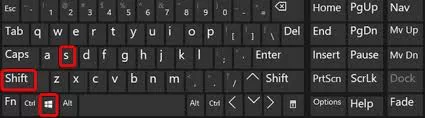
The keyboard shortcut for Snipping Tool in Windows 10 and Windows 11 is:
👉 Windows Key + Shift + S
Yes, that’s it! The magic trio. Press them together, and your screen will dim slightly. A small toolbar pops up on top, letting you snip:
- Rectangular Snip
- Freeform Snip
- Window Snip
- Fullscreen Snip
I love how quick this feels. No more hunting through menus or typing “snipping tool” in the search bar.
But wait… there’s more! Let me break it down step by step, because I’ve been in those situations where I’m in a meeting, my boss says “send me that screenshot quickly,” and my brain goes blank.
🖥️ Why I Can’t Live Without the Keyboard Shortcut for Snipping Tool
I’ll be honest—before I discovered the keyboard shortcut for snipping tool, I used to press Print Screen (PrtScn) and then paste it into Paint or Word. Ugh… time wasted.
Once I switched to Windows + Shift + S, my workflow changed forever. Now I can:
- Capture only the area I want.
- Instantly paste into Teams, WhatsApp, or Gmail.
- Avoid cluttering my folder with 20 random “Screenshot (99).png” files.
Think about it. How many times have you wanted just a tiny piece of your screen (say, a funny chat bubble or a graph) but ended up capturing your whole messy desktop? Yup. Been there.
⚡ Complete List of Snipping Tool Shortcut Keys in Windows

Here’s where things get fun. Windows actually gives you a bunch of different snipping tool keyboard shortcuts depending on your version:
🔑 Windows 10 Keyboard Shortcut for Snipping Tool
- Windows + Shift + S → Opens Snip & Sketch overlay.
- Alt + M → Choose snip mode (rectangular, freeform, etc.).
- Alt + N → Take a new snip in the same mode.
- Ctrl + S → Save your snip.
- Ctrl + C → Copy snip to clipboard.
🔑 Windows 11 Keyboard Shortcut for Snipping Tool
Windows 11 has combined “Snip & Sketch” with the old Snipping Tool. So, the same shortcut works:
- Windows + Shift + S → Capture instantly.
- Alt + Print Screen → Capture current window only.
- PrtScn (if mapped in Settings) → Directly open Snipping Tool.
Pro Tip 📝: You can remap the Print Screen button to always open the Snipping Tool. Just go to Settings > Accessibility > Keyboard and toggle on Use the Print Screen button to open screen snipping.
🕵️ Real-Life Times I Used These Shortcuts

- During Online Classes: I used to quickly grab notes from PowerPoint slides when my teacher changed slides too fast.
- At Work: I capture error logs when testing software—trust me, explaining bugs with screenshots saves endless emails.
- For Fun: Sometimes, I screenshot funny memes, crop them neatly, and send them to my friends. (Because let’s be real, memes deserve clean edges 😂).
The keyboard shortcut for snipping tool literally became my go-to tool for everything.
Snipping Tool vs Print Screen Key
You might be wondering: why not just stick to Print Screen?
Here’s the thing:
- Print Screen (PrtScn): Takes the whole screen.
- Alt + PrtScn: Captures only the active window.
- Windows + Shift + S: Gives you control—rectangle, freeform, window, or full screen.
For me, the snipping tool shortcut wins every time because it’s flexible.

💡 Hidden Tricks Most People Don’t Know
- Edit Instantly: After you snip, a notification appears. Click it, and you can highlight, draw, or add text right there.
- Delay Snips: Need to capture a menu that disappears? Use the built-in delay option (found in Snipping Tool app).
- Multiple Screens: If you’re using dual monitors, you can still snip across them with the same shortcut.
- Cloud Clipboard: If you enable cloud clipboard (Windows + V), you can access your snips across different PCs.
My Final Thoughts
If you’re still fumbling with Print Screen or searching for the Snipping Tool manually, stop. Seriously. Just use the keyboard shortcut for Snipping Tool (Windows + Shift + S).
I promise, once you start using it, you’ll wonder how you ever lived without it. It’s one of those small things in Windows that actually makes life simpler.
So next time your boss, teacher, or even your best friend says, “Send me a screenshot fast,” you’ll be ready. No panic. No clutter. Just clean, quick snips.
Want to Learn More About Programming Courses, Or Non Coding Courses Like Full Stack Java Course, Python Course, Networking Course Visit www.kaashivinfotech.com
And hey, if you find another hidden shortcut, do share it with me—I love learning these little hacks.