

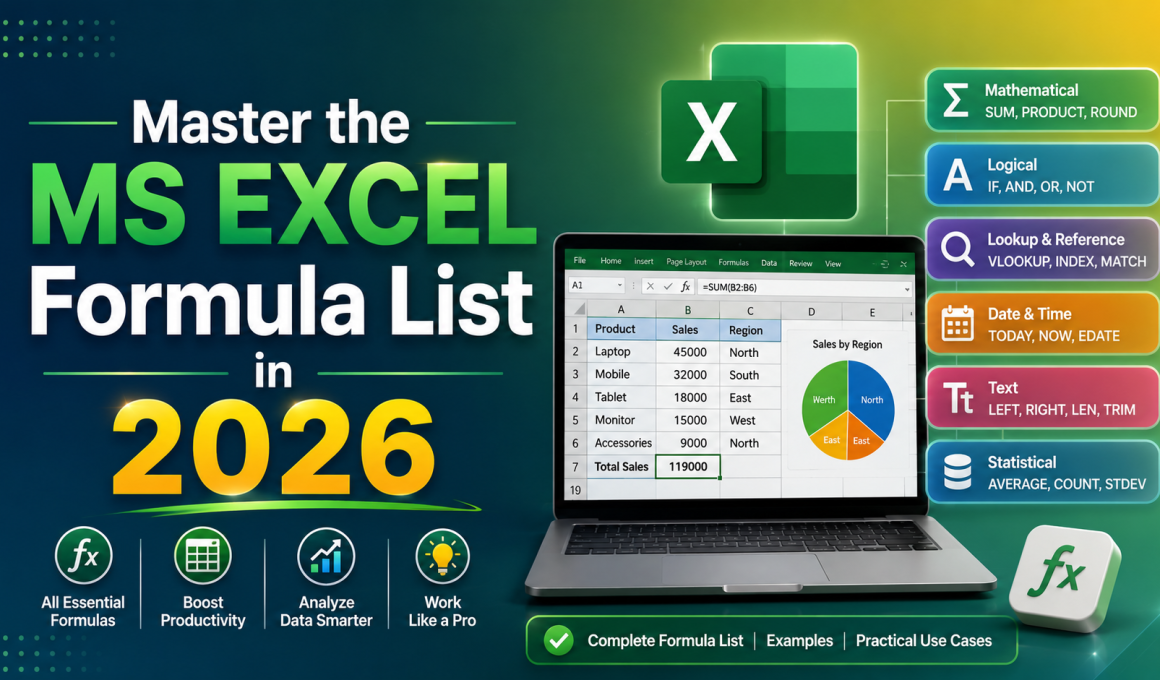
I’ve seen it happen a hundred times. A bright graduate joins a top firm, only to spend six hours manually calculating data that could have been handled in six seconds. Research shows that roughly 82% of middle-skill jobs require Excel proficiency. Even more startling? People who master advance excel formula techniques can earn up to 20% more than their peers.
Excel isn’t just about rows and columns; it’s about speaking the language of data. Whether you are looking for a computer excel formula to finish your homework or aiming for a high-paying data analyst role, this cheat sheet is your roadmap. We aren’t just looking at math; we’re looking at how you can reclaim your time. 📊
YouTube: kaashiv infotech excel
Getting Started: The Foundation of MS Excel Formula
Before we jump into the complex stuff, you need to know how to interact with the software. If you can’t see where to type, you can’t work.
How to Show and Enable the Formula Bar
Sometimes, the bar where you type your formulas disappears. Don’t panic. To show formula bar in excel, go to the View tab on the top ribbon and check the “Formula Bar” box. If it’s still not working, you may need to enable formula bar in excel through the Excel Options menu (File > Options > Advanced > Display).
How to Add and Put Formula in Excel
To add formula in excel, always start with the equals sign (=). This tells Excel, “Hey, don’t just treat this as text; do some math!”
- How to put formula in excel: Click a cell, type
=, and enter your logic (like10+10). - How to apply formula in excel: Once you press Enter, the result appears.
The Essential Excel Formula List (Your Daily Drivers)
If you are building a ms excel formula toolkit, these are the ones you will use 90% of the time.
1. Basic Math: Sum and Subtraction
The sum in excel formula is the most common. Instead of adding A1+A2+A3, use =SUM(A1:A3).
What about the excel formula for subtraction? Excel doesn’t have a “SUBTRACT” function. You simply use the minus sign: =A1-B1. Simple, right?
2. Mastering the IF and SUMIF Logic
The if formula in excel is a game-changer. It allows the spreadsheet to make decisions.
- Example:
=IF(A1>50, "Pass", "Fail")
If you need to add numbers only if they meet a certain condition, use the sumif formula in excel. For even more specific data, the sumifs formula in excel allows you to check multiple conditions at once (like “Sum all sales from ‘John’ in ‘March'”).
3. Percentage Calculations
Everyone needs an excel formula for percentage at some point. To find a percentage, use the formula =(Part/Total). Then, to apply percentage formula in excel, simply click the % button on the Home tab. This is the most efficient percentage in excel formula method used by pros. 📈
Data Lookup & Advanced Automation
If you want to move into advance excel formula territory, you must master Lookups.
VLOOKUP vs. HLOOKUP
The vlookup in excel formula stands for “Vertical Lookup.” It searches for a value in the first column of a table and returns a value in the same row from another column.
- v lookup h lookup in excel formula: Use VLOOKUP for vertical tables and HLOOKUP for horizontal ones. It’s the difference between looking down a list or across a row.
The Modern FILTER Formula
The filter formula in excel is a newer, more powerful tool. It allows you to pull out specific data from a large list based on your criteria without using complex macros.
Efficiency Hacks: Working at Light Speed
You shouldn’t have to type a formula more than once.
- How to copy formula in excel: Use
Ctrl + CandCtrl + V, but there’s a faster way. - How to drag formula in excel: Hover over the bottom-right corner of a cell until you see a small cross (+). Click and drag it down.
- How to apply formula to entire column in excel: Instead of dragging for miles, just double-click that small green cross! This will insert formula in excel for entire column instantly. 🚀
The “No-Formula” Magic: Case Changing
Sometimes, the best formula is none at all. A common question is how to change lowercase to uppercase in excel without formula.
The Secret: Use Flash Fill. Type the name in uppercase in the cell next to your lowercase list, press Ctrl + E, and watch Excel mimic your pattern for the whole column. It’s like magic.
Managing Your Formulas: Hide, Lock, and Remove
Once your sheet is perfect, you might want to protect your hard work.
- How to hide formula in excel: Right-click the cell > Format Cells > Protection > Check “Hidden.” Then, protect the sheet. This keeps your “secret sauce” invisible to others.
- How to lock formula in excel: Use the “Protect Sheet” feature under the Review tab to ensure no one accidentally deletes your complex calculations.
- How to remove formula in excel: If you want to keep the result but delete the formula, copy the cells, right-click, and select “Paste Values.”
Advanced Time and Date Calculations
- Age Calculator in Excel Formula: Use
=DATEDIF(B2, TODAY(), "Y"). This is the most reliable way to calculate years between a birthdate and today. - Excel formula to count days from date to today automatically: Simply use
=TODAY()-A1. It’s a lifesaver for project management. 📅
The Career Angle: Why This Matters for You
In today’s job market, saying “I know Excel” is not enough. You need to prove it. Recruiters at companies like Kaashiv Infotech look for candidates who can automate tasks. Whether you are seeking a career guide in data science or a simple administrative role, these formulas reduce human error and increase output.
Pro-Tip: If you’re looking for a physical copy to keep at your desk, search for an excel formula list pdf or an excel formula pdf. Having a tangible guide helps you memorize these faster. There is even an excel formula bot available online now that can help you write formulas using AI—but knowing the logic yourself is what gets you promoted.
Step Up Your Game with Kaashiv Infotech
Reading about formulas is the first step, but real-world application is where you truly grow. At Kaashiv Infotech, we bridge the gap between “knowing” and “doing.”
If you want to master advance excel formula techniques in a professional environment, check out our internships and courses. We offer hands-on training that transforms you from a beginner to a tech expert.
FAQs: People Also Ask
1. How do I turn a number to words in excel formula?
Excel doesn’t have a native number to words in excel formula. You usually need a small bit of VBA code or a specialized “Add-in” to achieve this for checks and invoices.
2. What is the difference between SUMIF and SUMIFS?
SUMIF handles one condition (e.g., “Sales > 100”). SUMIFS handles multiple conditions (e.g., “Sales > 100 AND Region = North”).
3. Why is my Excel formula not calculating?
Check if “Manual Calculation” is turned on. Go to the Formulas tab > Calculation Options > and ensure it is set to Automatic.
4. How do I lock a specific cell in a formula?
Use the $ sign (Absolute Reference). For example, =$A$1+B1. When you drag this, A1 will stay locked.
5. Can I find duplicates using a formula?
Yes! To find duplicate values in excel using formula, use =COUNTIF($A$2:$A$100, A2) > 1. If it returns TRUE, you’ve found a duplicate.
Conclusion
Mastering the ms excel formula world isn’t about memorizing 500 functions. It’s about knowing which 20 functions solve 80% of your problems. From the basic sum in excel formula to the complex vlookup, these tools turn you from a data entry clerk into a data strategist.
Start small. Try the percentage in excel formula today. Tomorrow, try a vlookup. Before you know it, you’ll be the “Excel Person” everyone in the office goes to for help. And remember, if you want to fast-track this journey, Kaashiv Infotech is here to help you lead the way. Happy Excelling! 🌟