

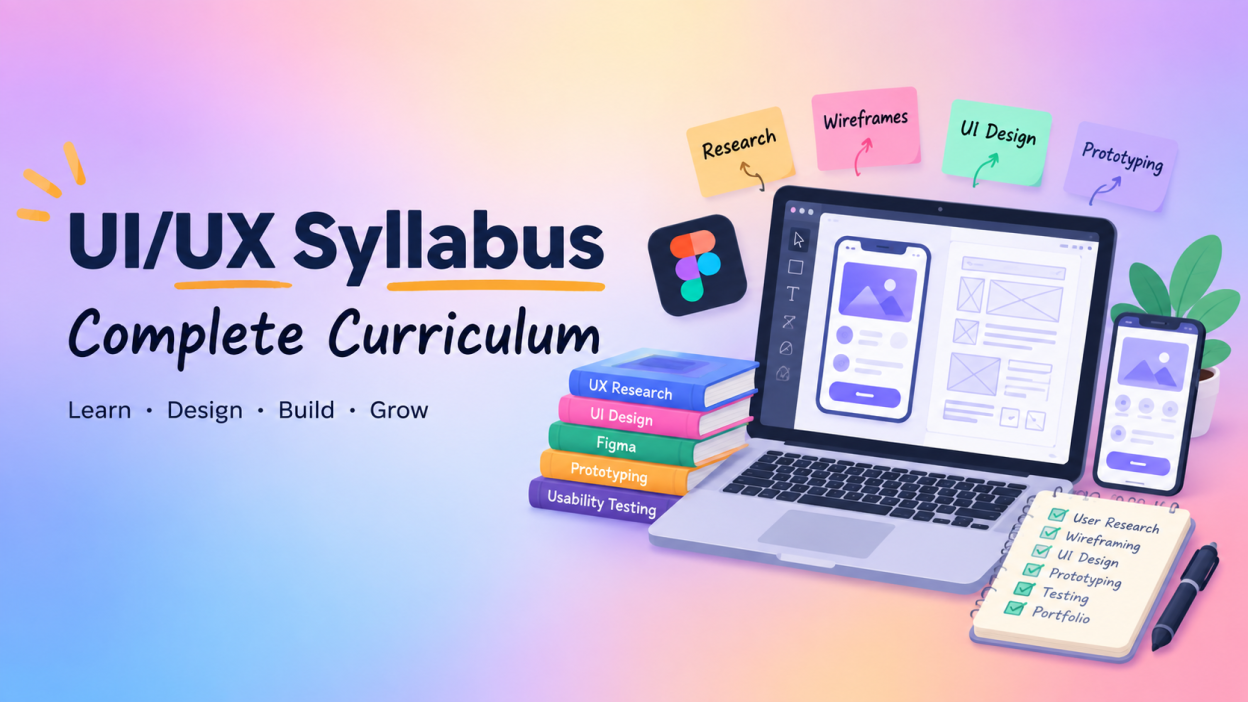
UI/UX Syllabus is a structured roadmap that teaches you how to understand users, plan digital experiences, create attractive interfaces, build prototypes, and test whether a design actually works.
If you are searching for a UI/UX Syllabus, you probably have one simple question in mind: What exactly should I learn to become a UI/UX designer?
The answer is more than just learning how to use Figma.
A good UI/UX Syllabus normally covers UX fundamentals, user research, information architecture, wireframing, UI design, typography, colour theory, responsive design, prototyping, usability testing, accessibility, design systems, and portfolio development.
I like to think of UI/UX design this way:
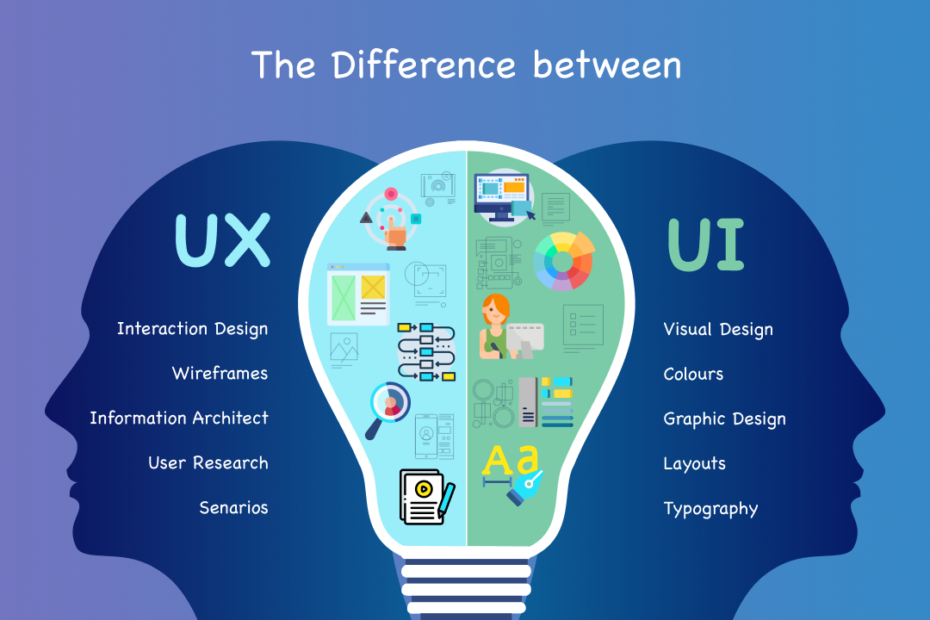
UX asks, “Does this work well for the user?”
UI asks, “Does this interface look and feel good?”
Both work together.
For example, imagine a food-delivery app. If I can easily find a restaurant, understand the menu, add food to my cart, pay without confusion, and track my order, the app has a good user experience. The buttons, colours, icons, spacing, fonts, and visual layout contribute to the UI.
So, if you’re starting from zero, don’t worry. You don’t need to know everything on day one. The UI/UX Syllabus can be learned step by step.
Key Highlights of the UI/UX Syllabus ✨
- Understand the difference between UI and UX
- Learn the UX design process
- Conduct user research
- Create user personas and journey maps
- Learn information architecture
- Create wireframes
- Design attractive and usable interfaces
- Learn colour theory and typography
- Understand responsive design
- Create interactive prototypes
- Perform usability testing
- Learn basic accessibility
- Work with tools such as Figma
- Build real-world UI/UX projects
- Create a strong UI/UX portfolio
What Is UI/UX Design?
Before going through the UI/UX Syllabus, let’s understand the two terms.
UI stands for User Interface.
It focuses on the visual and interactive parts of a digital product.
This includes:
- Buttons
- Colours
- Fonts
- Icons
- Images
- Navigation
- Spacing
- Layout
- Forms
- Cards
- Menus
- Animations
UX stands for User Experience.
UX focuses on how easily and effectively users can complete their goals.
For example, when I open a banking application, I don’t want to spend five minutes searching for the “Transfer Money” option.
That’s a UX problem.
So, UI is not simply about making an application “beautiful.” UX is about making the overall experience useful, understandable, and easy to use.
10 Best Video Editing Software for Beginners & Professionals in 2025
Complete UI/UX Syllabus 📚
Let’s now look at the major topics you should include in a UI/UX Syllabus.
1. UI/UX Fundamentals
The first module in the UI/UX Syllabus should introduce the basic concepts.
You should learn:
- What is UI?
- What is UX?
- Difference between UI and UX
- UI designer vs UX designer
- Interaction design
- Visual design
- Product design
- Human-computer interaction
- User-centred design
- Design thinking
- Design process
- Basic UX terminology
At this stage, I wouldn’t recommend jumping straight into Figma.
First understand why you’re designing something.
A beginner sometimes opens Figma and immediately starts creating colourful buttons. I made this mistake when learning design concepts too. The tool is easy to open, but knowing what to design and why is the harder part.
2. UX Research
UX research is one of the most important parts of the UI/UX Syllabus.
Before designing a product, we need to understand the people who will use it.
You should learn:
- User interviews
- Surveys
- Questionnaires
- User observation
- Competitive research
- Qualitative research
- Quantitative research
- User pain points
- User needs
- Research objectives
- Research questions
- Usability studies
For example, suppose we’re designing an online learning platform.
Instead of assuming what students want, we could ask:
- What problems do students face while learning online?
- How do they find courses?
- What makes them stop watching a course?
- Do they prefer videos, notes, or quizzes?
- What makes the payment process confusing?
These answers can influence our design decisions.
Professional UX resources also treat research and usability testing as important parts of UX practice. Nielsen Norman Group, for example, covers areas such as user interviews, surveys, personas, and usability testing.
3. User Personas and User Journey Maps
The next section of the UI/UX Syllabus should cover ways to represent users and understand their experiences.
User Persona
A user persona is a fictional representation of a target user based on research.
For example:
Name: Arun
Age: 22
Occupation: College student
Goal: Find affordable online courses
Problem: Gets confused by complicated course pages
The persona helps designers remember that they are not designing for themselves.
User Journey Map
A user journey map shows the steps a user takes while interacting with a product.
For example:
Open app → Search course → View course → Compare courses → Enrol → Make payment → Start learning
At each step, we can identify:
- User actions
- User thoughts
- Pain points
- Opportunities for improvement
Personas, user stories, and journey maps are also included in Google’s current UX Design Certificate curriculum.

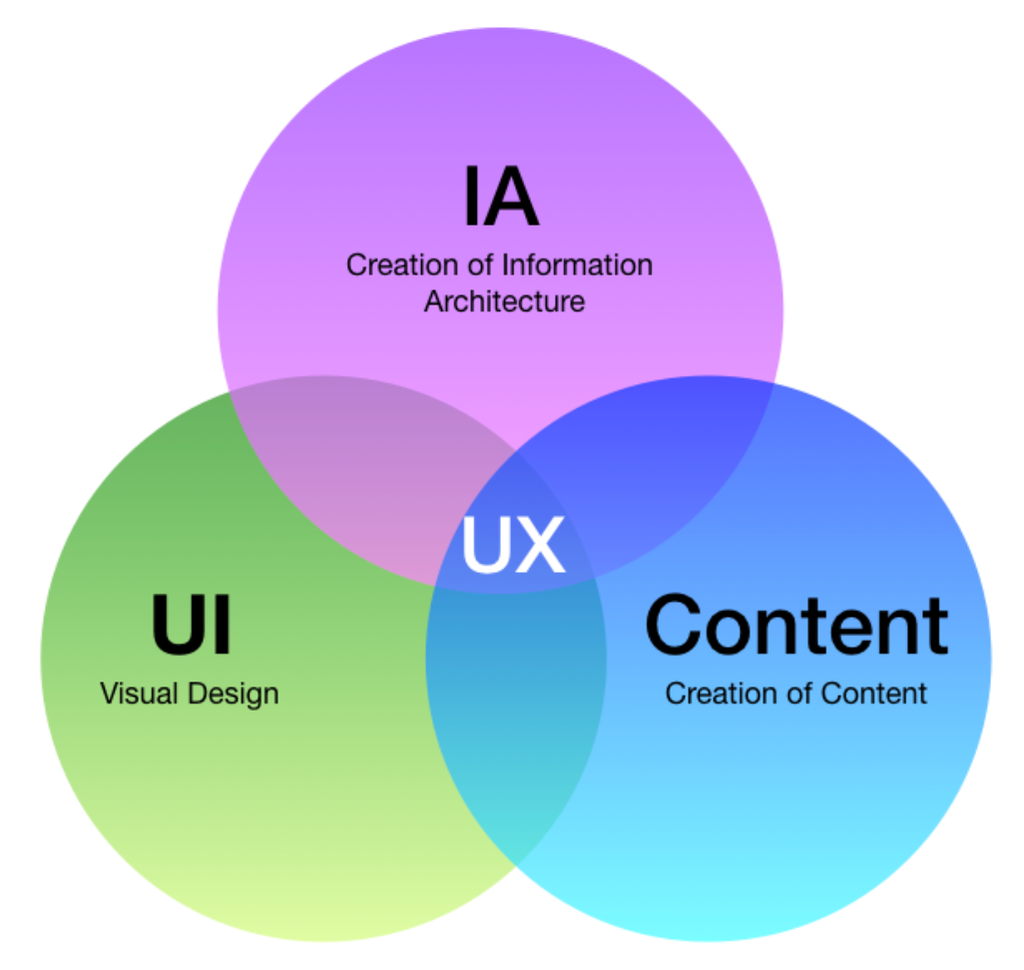
4. Information Architecture
This is another important topic in the UI/UX Syllabus.
Information Architecture (IA) means organising information so users can easily find what they need.
Imagine an e-commerce website with thousands of products.
If everything appears randomly on one page, users will quickly become frustrated.
Instead, we could organise products like this:
Electronics
- Mobiles
- Laptops
- Headphones
- Cameras
Fashion
- Men
- Women
- Kids
- Footwear
Good information architecture makes navigation easier.
You should learn:
- Navigation systems
- Website structure
- Content hierarchy
- Categories
- Menus
- Site maps
- User flows
- Card sorting
- Search and filtering
5. Wireframing
Wireframing is a major part of any practical UI/UX Syllabus.
A wireframe is a basic visual structure of a webpage or application screen.
Think of it as a blueprint.
Before building a house, we don’t start by choosing curtains. We first create the structure.
The same idea applies to UI/UX.
A simple mobile shopping screen might contain:
--------------------------------
| Logo              Search 🔍 |
--------------------------------
|                              |
|       Product Image          |
|                              |
--------------------------------
| Product Name                 |
| ₹999                         |
|                              |
|       [ Add to Cart ]        |
--------------------------------
| Home | Search | Cart | User |
--------------------------------
At the wireframing stage, we don’t worry too much about colours or fancy graphics.
You should learn:
- Low-fidelity wireframes
- High-fidelity wireframes
- Mobile wireframes
- Website wireframes
- Layout structure
- Content hierarchy
- User flows
6. UI Design Principles
Now we move into the visual side of the UI/UX Syllabus.
This is where the interface starts becoming visually polished.
You should learn:
Colour Theory 🎨
Understand:
- Primary colours
- Secondary colours
- Complementary colours
- Colour combinations
- Contrast
- Brand colours
- Background colours
- Colour accessibility
For example, using light grey text on a white background may look subtle to a designer but can become difficult for many users to read.
Typography
Typography deals with how text looks and behaves.
Learn:
- Font families
- Font size
- Font weight
- Line height
- Letter spacing
- Text hierarchy
- Readability
Layout
Learn:
- Alignment
- Spacing
- Grids
- White space
- Visual hierarchy
- Consistency
- Balance
These small things make a surprisingly big difference.
Top 10 Spotify Artists in 2025 (With Shocking Trends!)
7. Figma and UI/UX Design Tools 🖥️
A practical UI/UX Syllabus should include at least one major design tool.
Figma is particularly useful because designers can create interfaces, collaborate, and build interactive prototypes in the same environment.
You should learn:
- Figma interface
- Frames
- Layers
- Shapes
- Text
- Components
- Variants
- Auto Layout
- Constraints
- Styles
- Variables
- Assets
- Plugins
- Prototyping
- Collaboration
- Design handoff
Figma’s own beginner resources cover concepts such as layers, auto layout, components, and prototype connections.
8. Prototyping
After creating your screens, you need to show how they work together.
That’s where prototyping comes in.
A prototype can simulate interactions such as:
Login → Home → Product → Cart → Payment
Instead of showing five separate static screens, we connect them.
For example:
Click Login → Go to Home Screen
Click Product → Open Product Details
Click Add to Cart → Open Cart
Figma’s prototyping system supports interactive flows, connections, triggers, actions, destinations, and animations.
The UI/UX Syllabus should therefore cover:
- Low-fidelity prototypes
- High-fidelity prototypes
- Interactive prototypes
- User flows
- Screen transitions
- Micro-interactions
- Animations
- Clickable elements
- Prototype testing
The important thing is not to create animations just because they look cool.
Ask yourself:
Does this interaction help the user?
If yes, keep it.
9. Responsive Web Design
A modern UI/UX Syllabus should also cover responsive design.
A website may be viewed on:
- Desktop
- Laptop
- Tablet
- Mobile
The design should adapt to different screen sizes.
For example, a desktop navigation might look like:
Home | Products | Services | About | Contact
On a mobile screen, the same navigation might become a hamburger menu.
You should understand:
- Desktop design
- Mobile design
- Tablet design
- Responsive layouts
- Breakpoints
- Flexible grids
- Mobile-first thinking
- Touch-friendly interfaces
UX vs UI – What’s the Real Difference? (Definition, Meaning & Full Form)
10. Usability Testing
This is where we stop guessing and start observing.
Usability testing means asking users to interact with a design and observing where they struggle.
Imagine I’ve designed a food-ordering app.
I might ask a participant:
“Imagine you’re hungry. Please find a vegetarian pizza and place an order.”
Then I observe.
Maybe they cannot find the filter.
Maybe they don’t understand the checkout button.
Maybe they think the delivery fee is included in the product price.
Those observations are valuable.
The UI/UX Syllabus should cover:
- Usability testing
- Test objectives
- Test scenarios
- Participant selection
- Task creation
- Observation
- Feedback collection
- Identifying usability problems
- Iteration
A good UX process doesn’t end when the design looks finished.
We test → learn → improve → test again.
11. Accessibility in UI/UX ♿
Accessibility is sometimes forgotten by beginners, but it deserves a place in the UI/UX Syllabus.
Designers should consider users with different abilities and needs.
You should learn about:
- Colour contrast
- Keyboard navigation
- Readable text
- Alternative text
- Focus states
- Accessible forms
- Touch targets
- Screen readers
- Clear error messages
The W3C Web Content Accessibility Guidelines (WCAG) 2.2 provide recommendations for making web content more accessible to people with disabilities, while also often improving usability more broadly.
W3C Web Accessibility Guidelines (WCAG)
12. Design Systems
Once you start designing larger applications, you’ll notice something.
You don’t want to design every button from scratch.
That’s why we use design systems.
A design system can contain:
- Colours
- Typography
- Buttons
- Input fields
- Cards
- Icons
- Navigation
- Components
- Spacing rules
- Design guidelines
For example, if every primary button in an application uses the same style, users quickly understand what they can click.
Consistency is a big part of good UI design.
13. Portfolio Development
A UI/UX Syllabus shouldn’t stop at theory.
You need projects.
Your portfolio could include projects such as:
Project 1: Food Delivery App 🍕
Create:
- User research
- Persona
- User flow
- Wireframes
- UI screens
- Prototype
- Usability testing
Project 2: E-Commerce Website 🛒
Design:
- Homepage
- Product listing
- Product details
- Cart
- Checkout
- Payment flow
Project 3: Online Learning Platform 📚
Create:
- Course discovery
- Course details
- Video-learning screen
- Progress dashboard
- Quiz interface
Don’t simply upload screenshots.
Explain your design thinking.
Show:
Problem → Research → Ideas → Wireframes → Design → Testing → Improvements
That story can be much more useful than ten random UI screens.
Google’s UX curriculum also includes creating a professional portfolio and hands-on projects as part of its learning path.
UI/UX Syllabus: Tools You Can Learn
Here is a simple tool list to remember:
| Area | Tools |
|---|---|
| UI Design | Figma, Adobe XD |
| Prototyping | Figma, ProtoPie |
| Graphics | Adobe Illustrator, Photoshop |
| Research | Google Forms, surveys, interviews |
| Collaboration | FigJam, Miro |
| Portfolio | Behance, Dribbble, personal website |
| Accessibility | WAVE, Lighthouse |
| Handoff | Figma Dev Mode |
You don’t need to master every tool.
If you’re a beginner, I would start with Figma, learn the fundamentals properly, and then add other tools when your projects require them.
UI/UX Syllabus: Suggested Learning Order 🗺️
If you’re completely new, follow this order:
Step 1: UI/UX fundamentals
↓
Step 2: UX research
↓
Step 3: Personas and journey maps
↓
Step 4: Information architecture
↓
Step 5: User flows
↓
Step 6: Wireframing
↓
Step 7: UI design principles
↓
Step 8: Figma
↓
Step 9: Prototyping
↓
Step 10: Responsive design
↓
Step 11: Usability testing
↓
Step 12: Accessibility
↓
Step 13: Design systems
↓
Step 14: Real-world projects
↓
Step 15: Portfolio
This sequence keeps things manageable.
You don’t have to become an expert in typography, research, Figma, accessibility, and prototyping in your first week.
Career Options After Learning the UI/UX Syllabus 💼
After completing the major topics in a UI/UX Syllabus, you can explore roles such as:
- UI Designer
- UX Designer
- UX Researcher
- Interaction Designer
- Product Designer
- Visual Designer
- UX/UI Designer
Google’s current UX Design Certificate also lists roles such as UX Designer, UI Designer, Interaction Designer, Visual Designer, and Product Designer.
Your exact career path will depend on your skills, portfolio, experience, and the type of company you want to work for.
Final Thoughts on the UI/UX Syllabus ❤️
When I look at the UI/UX Syllabus, I don’t see it as a list of software tools.
I see it as a way of learning how to solve problems for real people.
That’s an important difference.
You can learn Figma in a few days. But learning why a user gets confused, why a button isn’t noticed, why a checkout process feels frustrating, or why a website is difficult to navigate takes practice.
So, if you’re starting your UI/UX journey, don’t try to create the world’s most beautiful app immediately.
Start small.
Pick one everyday problem.
Research it.
Create a simple user flow.
Draw some wireframes.
Turn them into a UI design.
Build a prototype.
Ask someone to use it.
Watch where they struggle.
Then improve it.
That’s where the real learning happens.
And if you follow the UI/UX Syllabus step by step, build practical projects, and document your design decisions, you’ll have something much more valuable than a collection of pretty screens — you’ll have evidence that you can think like a designer and solve user problems. 🚀
Want to learn more, Kaashiv Infotech Offers, UI UX Course, Front End Development Course, Full Stack Development Course & More, Visit Their Website www.kaashivinfotech.com.