

What if your AI tools’ search results do not perform to expectations? All you may have seen about the tools could be marketing. Or a quick preview of its capabilities. There can be more when it comes to the full offerings.
Table Of Content
- What is the Vmake AI?
- Best AI Tools Available in Vmake
- Vmake Review: Testing the Platform
- Interface and Workflow
- Testing the AI Video Enhancer Tool
- Testing the Watermark Removal Tool
- Testing the Auto Caption Generator
- Testing the Video Background Removal Tool
- Vmake Pricing
- Pros and Cons of Vmake
- Pros
- Cons
- User Applications of Vmake
This article explains the features and alternatives of Vmake AI. It provides an extensive review of the video editor and gives you a chance to learn firsthand about the tools if you are new to editing.
Read about how it works.
What is the Vmake AI?
Vmake AI falls into the category of AI production tools for creators who want quick results without technical training. It is a cloud-based video editing platform that uses artificial intelligence to automate video editing tasks without advanced software or procedures.
With this tool, you are not opening a complex timeline editor or adjusting layers. Rather, upload videos for Vmake AI to process. The system focuses on enhancement, background editing, watermark removal, and automated captioning.
In traditional video editing, familiarity with software such as professional editing suites, knowledge of codecs, and experience with visual effects are non-negotiable. Vmake simplifies these barriers with an easy workflow. AI processing occurs on remote servers rather than on the user’s computer.
You can process large video files without installing specialised software using your browser. If you produce frequent video content but do not want to maintain a complex editing workflow, the platform offers a streamlined alternative.
Also, there are situations where the Vmake AI works best. YouTube creators often need to improve older footage or repair poorly recorded clips. Social media marketers want to prepare multiple promotional videos. And e-commerce sellers need clean product videos that showcase their products. Vmake provides tools that address these needs for an all-around experience.
Best AI Tools Available in Vmake
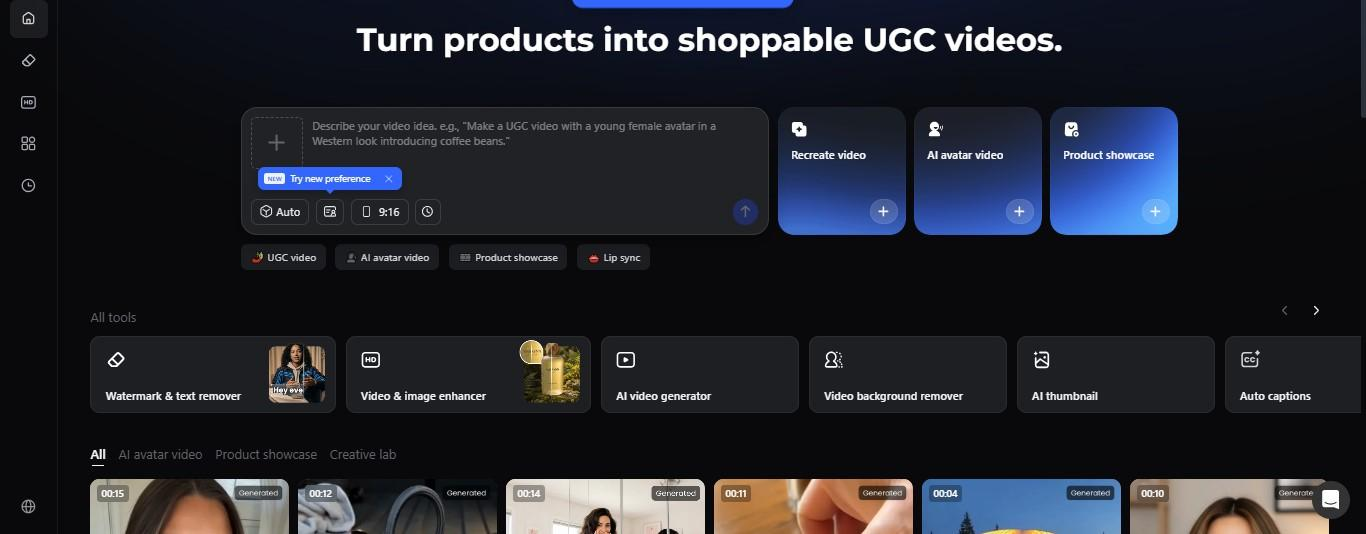
Vmake’s ecosystem includes several tools that address common video production challenges. The following features represent the most widely used functions on the platform.
- Video Enhancer: The video enhancer solves visual clarity and resolution problems by improving video quality up to 2K and 4K resolutions.
- Video Watermark Remover: This AI feature removes watermarks and fills logos and distracting text with matching pixels.
- Video Generator: Users can generate short videos with images, text descriptions, or video prompts.
- Video Background Remover: The BG Remover isolates the main subject and removes distracting background.
- Auto Caption Generator converts spoken words in videos into subtitles.
- Hook Generator: Generate an attention-grabbing element to start your video.
- Thumbnail Generator: create multiple thumbnails for your videos.
Vmake Review: Testing the Platform
Let us look at practical performance rather than pure marketing. The following sections examine how the platform behaves when real video files are processed with its key tools. The tests focus on interface usability, enhancement quality, watermark removal, caption generation, and background editing.
Interface and Workflow
Vmake differs from the traditional editing layout used by most professional software. It dishes out timeline, layer controls, and manual adjustments. It organises its features as separate AI tools. Choose among video enhancement, watermark removal, background editing, and caption generation in the dashboard.
The workflow is consistent across tools in this manner:
- Go to the workspace.
- Select an AI processing feature.
- Upload video file(s).
- Wait for the system to analyse the video.
- Preview the processed result.
- Download the output.
This structure reduces the amount of required decision-making. Are you coming as a beginner? Start editing within seconds as the system guides you through the process. Vmake’s simplicity makes the platform accessible to a wider audience.
Testing the AI Video Enhancer Tool
What do you do when the videos come from older phones or get compressed by social media platforms? Vmake video quality enhancer applies AI-based upscaling and sharpening to uploaded footage to solve this issue.
During testing, we uploaded several clips with moderate compression artefacts and low resolution on Vmake. Vmake system processed the video by analysing frame patterns, sharpening edges, and reducing noise.
The enhanced result showed visible improvements in several areas. Edges around objects appeared clearer, particularly in scenes with strong lighting contrast. Background textures also became more defined. The enhancer also reduced compression artefacts around moving elements.
In scenes with human faces, Vmake AI attempted to reconstruct details such as skin texture and facial outlines. Though the AI cannot recreate information lost in the original recording, the processed video displayed improved sharpness and smoother motion.
One important observation concerns lighting conditions. We tested the tool using videos recorded in poor lighting. The noise reduction fixed grainy textures and made the footage easier to watch.
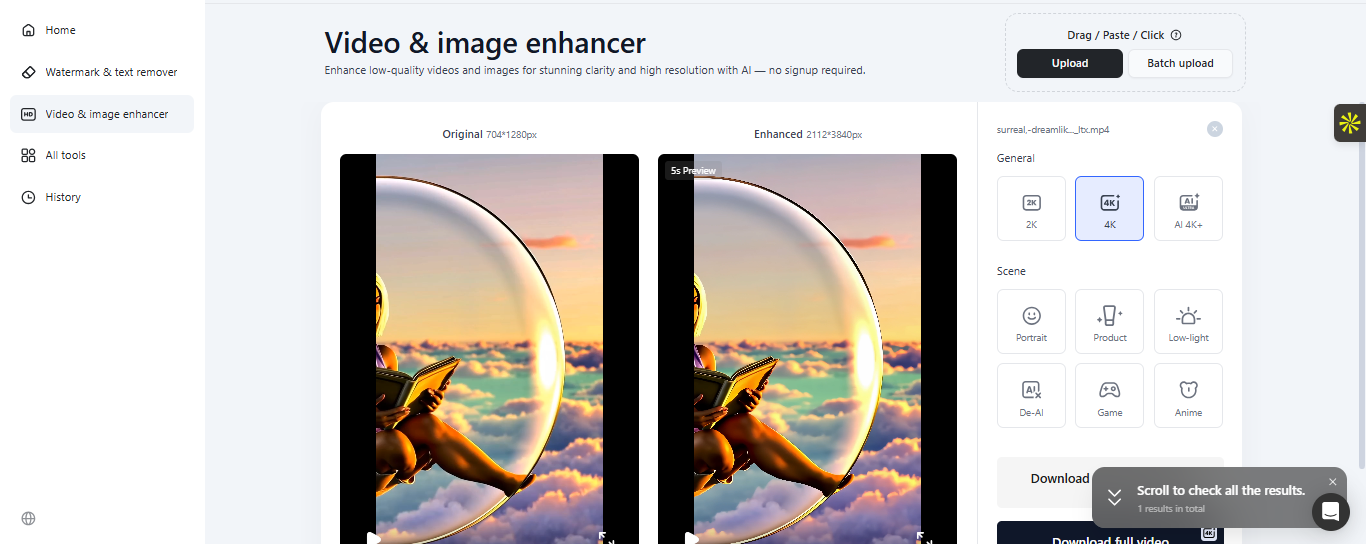
Screenshots of videos enhanced to 4K with the Vmake Video Enhancer
Testing the Watermark Removal Tool
Many videos downloaded from stock libraries or social media platforms have watermarks. To remove them, manually edit them frame by frame. Vmake AI online watermark remover simplifies this task. It detects the watermark location and reconstructs the underlying pixels.
Testing this tool involved uploading videos with small logo watermarks placed in the corners of the frame. After processing, the AI watermark remover replaced the marked region with reconstructed background elements.
In several tests, the tool removed static watermarks effectively. Background textures such as walls, skies, and flat surfaces were recreated with reasonable accuracy. The resulting frames appeared clean when viewed at normal playback speed.
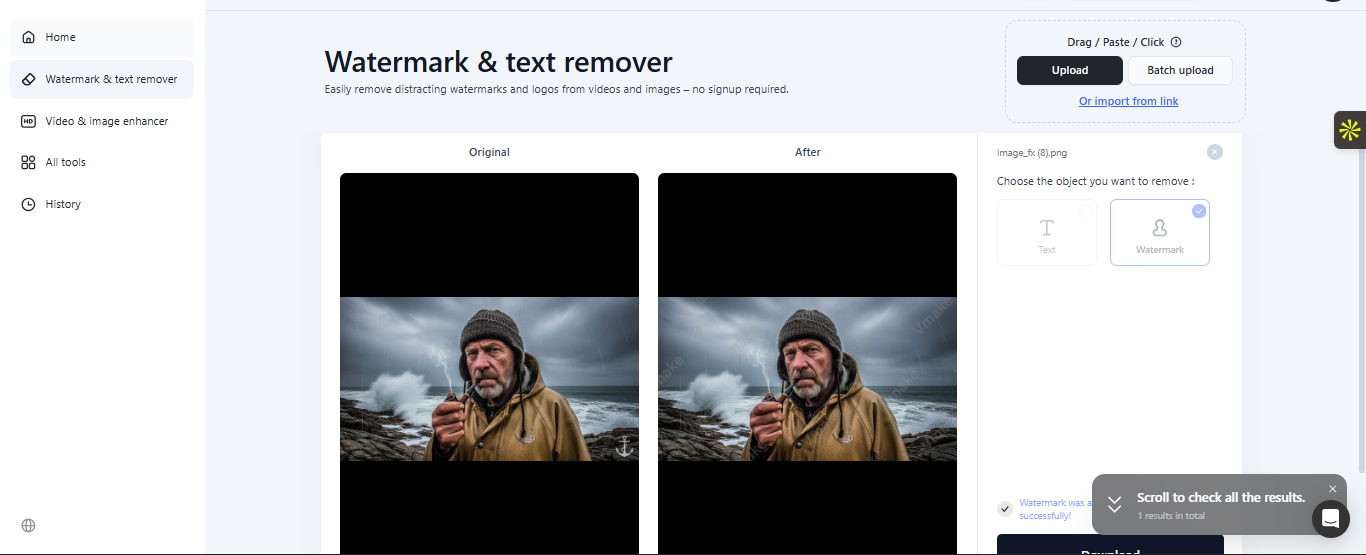
Screenshot of an original and after layout of an image with an arrow watermark and processed with the Vmake Watermark & Text Remover
Testing the Auto Caption Generator
Many video creators may not know that watching videos without sound on a mobile phone is one of the ways users watch reels these days. Check this out: the last time you watched social media videos on your phone, you were probably tracking the words as they appeared in the text. This prompted the test of Vmake AI’s automatic caption generation. We used the tool to add subtitles without manual transcription.
During testing, Vmake processed clips that contained clear spoken dialogue. The AI tool produced subtitles with reasonable accuracy. Most spoken words appeared correctly, though occasional corrections were needed for uncommon names or technical terms.
Captions aligned closely with speech, reducing the need for manual adjustment. You can edit captions before exporting the final video. This feature is important because automated transcription systems rarely achieve perfect accuracy.
Another advantage is the speed of generation—the captioning process required only a short processing period for the tested clips. For creators producing frequent educational or social media content, automated subtitles can save considerable time.
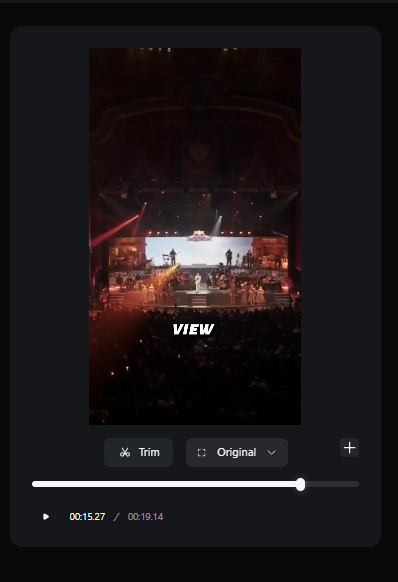
Screenshot of a video with captions generated by the Vmake Auto-Caption Generator
Testing the Video Background Removal Tool
In most cases, background editing requires green-screen recording or manual masking. Vmake AI background remover analyses your videos and extracts the main subjects from the background. This way, you can save the video with a clear background or swap it for a different image or video.
Testing the Vmake background remover used footage of a person standing against a simple background. The AI successfully detected the subject and removed most background elements. The resulting cutout appeared clean in many frames.
Overall, the tool provides a practical option for quick editing tasks. Try this for simple background replacements for promotional videos or social media posts.
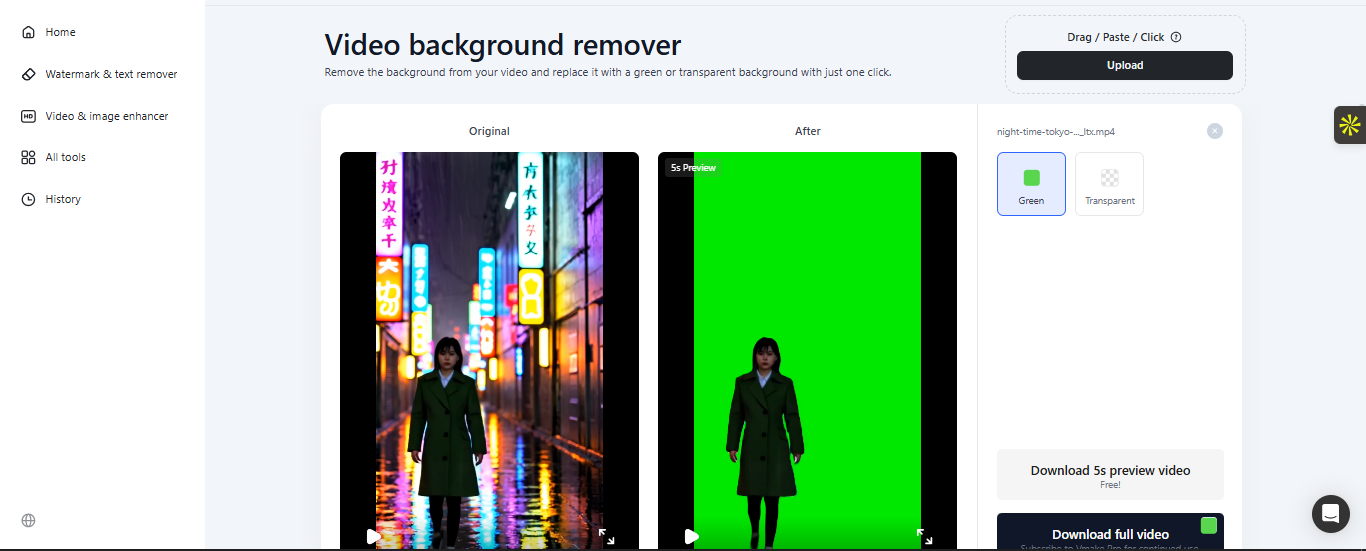
Screenshot of an original and after layout of a transparent video background processed with the Vmake Video Background Remover
Vmake Pricing
This is the cost of using the Vmake AI tool. Vmake follows a subscription model that combines free access with paid plans to unlock additional capabilities. There is a free plan with limited features and a paid plan with better advantages. Check the table below for a detailed breakdown of the pricing features
| Plan | Price | Features |
| Free | $0 |
|
| Plus | ($9.99/month) |
|
| Pro | ($29.99/month) |
|
Pros and Cons of Vmake
Let us evaluate the strengths and weaknesses of Vmake AI. This will help you determine whether it suits a particular workflow.
Pros
- Accessibility.
- Beginner-friendly interface allows
- Professional video editing without learning traditional software tools.
- Independent AI feature operation.
- Cloud processing.
- Quick automation and time efficiency.
Cons
- Limited manual control
- Varying processing time due to file size
- Slight visual artefacts with videos with complex backgrounds.
User Applications of Vmake
Vmake AI can be used in the following situations:
- E-commerce Product Videos: create product and promotional videos with a clean background and clear details.
- YouTube Content Creation: create video thumbnails, enhance old videos, and generate captions
- Social Media Marketing: generate captions, enhance visuals, and modify backgrounds quickly.
- Educational Video Production: create clear visuals and readable captions, enhance clarity, and generate subtitles.