If you’ve been sharing cooking videos on the web, you might already be familiar with how difficult voiceovers are. You may not have a quiet location to record from, an appropriate mic, or the confidence to speak up. For most home cooks, food bloggers, or influencers, this complicates videography more than it has to be.
Table Of Content
- Why Use CapCut PC’s TTS Tool for Recipe Videos
- How to Utilize CapCut PC’s Text to Speech for Recipe Videos
- Step 1: Download and Install CapCut PC from the Official Website
- Step 2: Import Your Recipe Clips and Add Text Captions
- Step 3: Turn Text Captions into Voice Using TTS
- Export and Share Your Recipe Videos
- Conclusion
That is where the CapCut desktop video editor comes in. It has a feature that converts your written instructions into spoken words through clear, natural voices. You don’t even have to record your voice.
Though CapCut PC boasts numerous wonderful features, remember that some of them would require payment. Nevertheless, the TTS tool could assist you in creating simple, concise recipe videos that are as engaging, without ever saying a word.
Why Use CapCut PC’s TTS Tool for Recipe Videos
Recipe videos are everywhere these days. You find them on YouTube, Instagram, and TikTok. The majority of these videos make use of text rather than voice. People watch them with their sound turned off and yet still follow each step.
Using the Text-to-Speech (TTS) feature in the CapCut desktop video editor, your written instructions can be converted into spoken words. This enables people who speak other languages to follow along. It also enables your videos to reach more viewers.
You can even utilize software such as an AI voice generator to have your video sound clear and smooth without using your own voice.
Because you don’t need a mic, your kitchen remains quiet and clean. You won’t have to worry about background noise or retakes. The voiceover rolls while your steps are on screen. It’s neat and professional-looking.
To access this feature, you will require a CapCut PC account. Some of the voice options can cost you more. However, the TTS feature is quick, simple, and provides your recipe videos with a professional touch.
How to Utilize CapCut PC’s Text to Speech for Recipe Videos
Step 1: Download and Install CapCut PC from the Official Website
Begin by going to the official page of the CapCut desktop video editor. Download the version suitable for your computer. When it is done, open the file and proceed with the installation steps. Once installed, open the app and log in using your account. In case you are new, create an account for free.
The editor comes with a clean design in which you can import, trim, and narrate your videos. Most features are available for free, but a few, such as high-quality voices, will cost you to use them. Remember that before you begin.
If the clips of your videos are blurred, you can use your AI video upscaler to make them sharper. This makes your older or low-light kitchen vids look better and makes your final video have a polished, clear appearance.

Step 2: Import Your Recipe Clips and Add Text Captions
Once inside CapCut PC, click “Import” to add your video clips. Drag them to the timeline below. Try to use one clip per step, like chopping, mixing, or baking. This keeps your video organized and easy to follow.
Employ the scissors symbol to clip longer clips into shorter ones. This keeps the AI viewer engaged. Next, press the “Text” tab and click “Default Text”. Write a brief, concise sentence for every step. Use simple language. Shorten long or complicated phrases. These captions are compatible with text to speech AI, so clarity is crucial.
The captions will inform your viewers and also serve as your voiceover. Ensure that they are spelled accurately and are meaningful.

Step 3: Turn Text Captions into Voice Using TTS
Click a “Text” box on the timeline, then go to the right panel and choose “Text to speech”. You’ll see different voice options. Choose the one that suits your video. Pick the language, tone, and pitch. Voices with a crown icon are premium and may need a paid plan.
Click “Generate speech”. Your audio file will appear under the video clip. Slide or cut it to sync with the timing. Text to speech AI allows you to produce smooth, studio-quality audio without a mic or quiet room.

Export and Share Your Recipe Videos
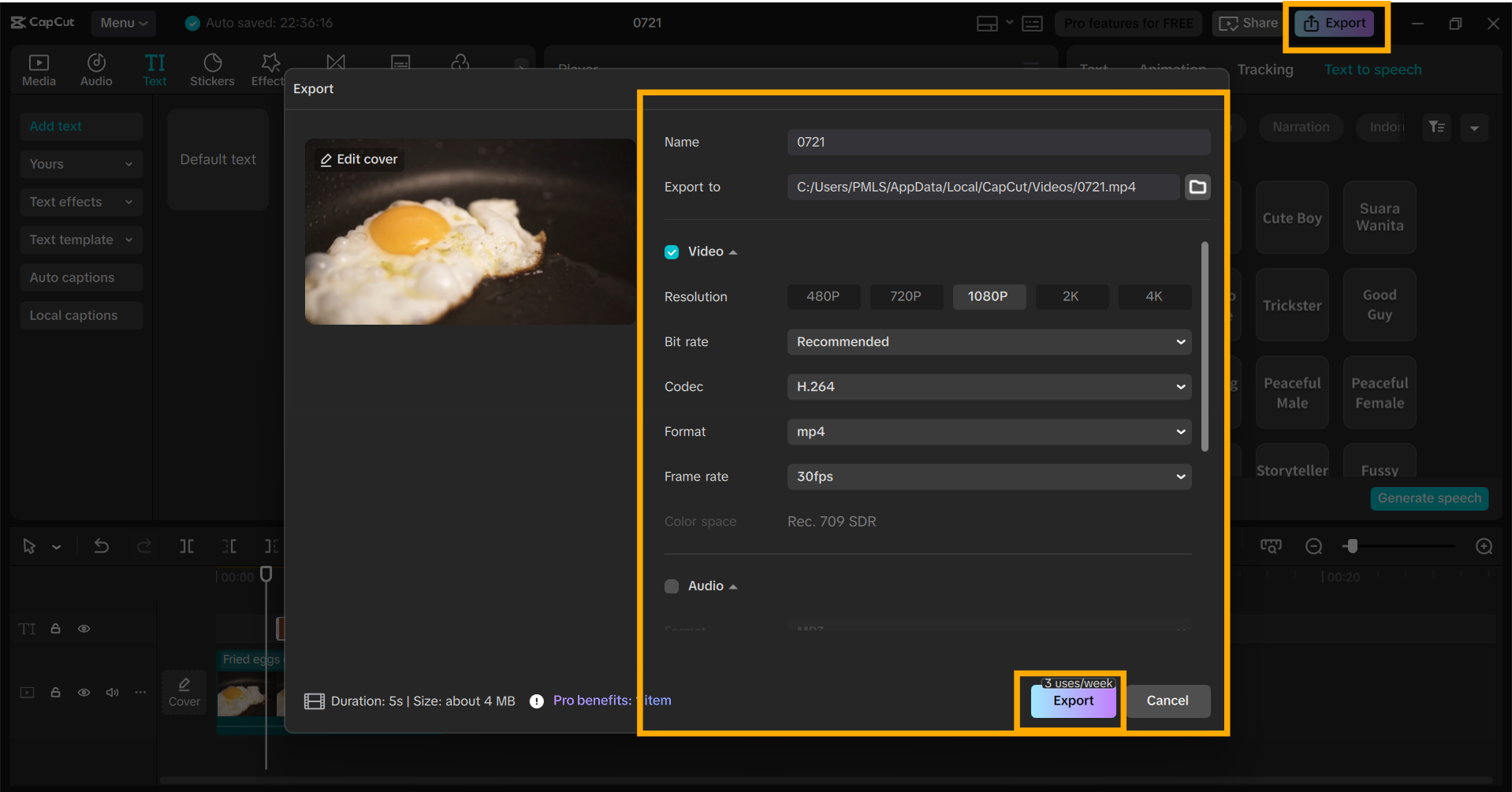
When you’ve finished, hit “Export” in the top right. Choose your file name, resolution, and aspect ratio. Save to your device. Now post your voice-free video on TikTok, YouTube, or your blog. You can make watermark-free, clean videos using CapCut PC, except when using premium tools.
Conclusion
With the CapCut video editor for desktop’s Text to speech AI function, you can create recipe videos that are clean-looking and clear-sounding, without having to speak. It saves you time and allows you to communicate more through other languages. You won’t need additional equipment or a soundproofed kitchen.
Some of the features require payment, but the primary tools are available for free trials. If you’re looking for an easy way to create step-by-step videos, try the TTS tool in CapCut PC. Begin your next cooking video today and enjoy how easy and stress-free it can be.