
Database Administrators use Database Console Commands (DBCC) to manage SQL Server databases. Alongside checking the physical and logical integrity of the SQL database, the DBCC CHECKDB command can also detect and debug issues related to database structure and corruption. Here, we will discuss in detail the role of the SQL Server command in repairing and resolving Database issues. Additionally, we will also discuss the significance of using third-party professional SQL recovery software, such as Stellar Repair for MS SQL in performing database repair.
Consistency Checks in the SQL Databases
Technically, the DBCC command checks the physical and logical consistency of the objects in a specific database by executing several important operations. Here, logical consistency checks refer to checking the ability of the data to follow the pre-defined database rules and relationships. Likewise, physical consistency checks refer to validating page structure, checksums, and allocation correctness.
Any inconsistency may indicate data corruption or structural errors, leading to unreliable query results. Leaving the problem unresolved can also cause significant data loss. Running the DBCC command will be instrumental in detecting these issues, as it carries out both the physical and logical consistency checks. Here is more on these two types of checks.
Physical Consistency Checks
These checks focus on the storage-level corruption in the database. One of these issues occurs when a contradiction occurs between the information provided by the page header and the allocation map. Admins use several DBCC sub-commands to check physical consistency, such as:
- DBCC CHECKALLOC: To check allocation consistency
- DBCC CHECKFILEGROUP: To check the pages and files in a file group
- DBCC CHECKDB: Checks the entire database for structural, allocation and consistency errors
Logical Consistency Checks
These crucial checks ensure that database structures, objects, and relationships abide by the logical rules of SQL Server. Instances like violation of a foreign key relationship by a row or a non-existent table row pointed by an index are some of the issues that surface during a logical check.
- DBCC CHECKTABLE: Check the inconsistency in a single database table and its indexes
- DBCC CHECKCATALOG: Uses snapshots of an internal database to check transactional consistency
- DBCC CHECKDB: Detects checksum failures, common hardware failures, torn pages, etc.
As is evident, DBCC CHECKDB plays a crucial role in carrying out both the logical and physical checks. If any errors surface during the checks, DBCC CHECKDB will report the issue and recommend the necessary repair option. Even if the database is already in the corrupt stage, the command can identify the error and recommend the best resolution. Here is a further insight into this widely used database command.
SQL Database Repair by Using the DBCC CHECKDB Command
You will need to launch SQL Server Management Studio (SSMS) for the repair task. Taking a backup of your database is advisable before starting the repair task. Additionally, you must also have administrative permissions to run the DBCC CHECKDB command. To proceed further, we will use a database named SQL_DB. Here are the necessary repair steps
- Launch SSMS and click New Query from the Main Menu
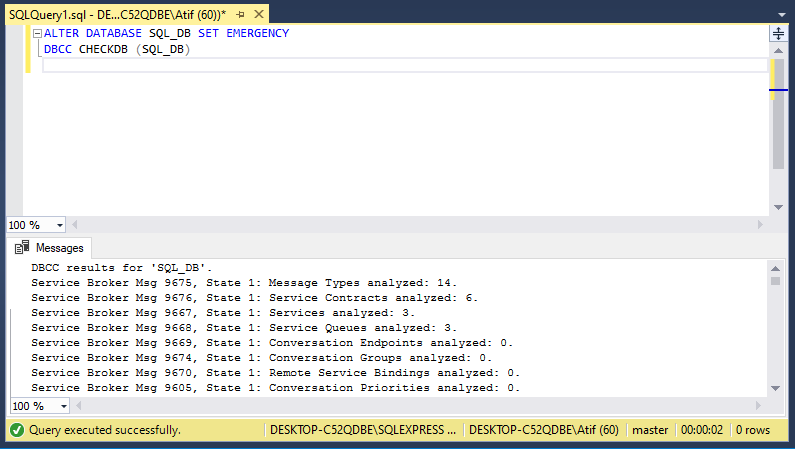
- If you cannot access the database, you will need to change its status to EMERGENCY mode. This will allow read-only access to the admin. Here is the SQL Query for the same:
ALTER DATABASE SQL_DB SET EMERGENCY
- Scan the database to find corruption errors by using the command below:
DBCC CHECKDB (SQL_DB)
- Next, put the database in SINGLE_USER mode. This will stop other users from using or modifying the data during the repair process.
ALTER DATABASE SQL_DB SET SINGLE_USER
- Now, run the REPAIR option recommended by the DBCC CHECK command. Here are the options that it may recommend:
DBCC CHECKDB (‘SQL_Db’, REPAIR_REBUILD)
- Serving the minimum repair level, this option rebuilds the database without causing loss of data
- Repairs missing rows in non-clustered indexes
- May take too long to fix even minor corruption
DBCC CHECKDB (‘SQL_Db’, REPAIR_FAST)
- Maintains only backward compatibility syntax
- Does not perform any repair actions
DBCC CHECKDB (N ‘SQL_Db’, REPAIR_ALLOW_DATA_LOSS WITH ALL_ERRORMSGS, NO_INFOMSGS😉
- Suitable only when the other repair options fail or DBCC CHECKDB recommends it
- Repairs the reported SQL database errors, but with data loss
- Microsoft recommends it as a last resort.
- After the successful completion of the repair work, set the Database back to MULTI_USER Mode by executing the following command:
ALTER DATABASE SQL_DB SET MULTI_USER
This entire process will resolve the consistency issues to repair your database and bring it back to a working state. However, using the REPAIR_ALLOW_DATA_LOSS option can accompany certain drawbacks.
Downsides of Using the DBCC CHECKDB Command
Though the DBCC CHECKDB command can fix database consistency issues, you have to consider the following downsides when using the DBCC CHECKDB commands. For instance
- REPAIR_FAST is obsolete and performs only simple and backward-compatible fixes
- REPAIR_REBUILD can fix only non-clustered index corruption and a few minor issues
- REPAIR_ALLOW_DATA_LOSS option can deallocate rows or pages during database repair, making the data unrecoverable and leaving gaps in logical data integrity, leading to further checks
Moreover, you may need to use the DBCC CHECKDB command with these options repeatedly to fix the SQL database issues in their entirety, consuming considerable time. Despite all these hassles, the command does not guarantee complete data recovery. The concluding section gives the solution in the disguise of an advanced, easy-to-use, and professional SQL recovery software.
Using Stellar Repair for MS SQL to repair SQL Database
It is better to choose suitable professional SQL recovery software that can protect your database from the side effects of the DBCC CHECKDB command. Stellar Repair for MS SQL is a befitting application in this context, as it ensures database repair with complete integrity and consistency. Here are some of its prominent features:
- Repairs badly corrupted MDF and NDF files
- Recovers all the SQL database objects, including tables, indexes, keys, stored procedures, etc.
- Performs SQL table recovery with PAGE and ROW compression
- Lets you preview recoverable items before saving the database
- Retrieves deleted records from SQL Database
- Offers a preview of recoverable database objects before saving
- Saves the repaired database file to CSV, HTML, and XLS file formats or to the live database
- Supports SQL Server database 2022, 2019, and all previous versions
You can use this software to recover your database in a few easy steps. Visit the official Stellar Info website to buy the professional SQL recovery software today. Choose from Corporate, Technician, or Toolkit editions. If you just want to scan & preview recoverable SQL Server database objects, simply download the free trial version of Stellar Repair for MS SQL.
Conclusion
If you have to repair your corrupt SQL Server Database, you need to find out the error behind the corruption first. To serve this purpose, you can use the DBCC CHECKDB command in SQL Server Management Studio. The command helps to check the database for logical and physical consistency. Depending on the error, it will list the options that you can use to repair the database.
These options include REPAIR_REBUILD, REPAIR_FAST, and REPAIR_ALLOW_DATA_LOSS. These options can resolve various corruption issues in your database, but cannot guarantee complete recovery. At times, they can resolve smaller errors, but take too much time. Moreover, in the case of the REPAIR_ALLOW_DATA_LOSS option, it can also cause significant data loss during the process.
Therefore, switching to professional SQL recovery software, such as Stellar Repair for MS SQL, will be a smart decision. The advanced tool works quickly and effectively in repairing the database without leading to any loss of data. You can buy the software by visiting the official website of Stellar Info. You may also download the free trial version of the software with limited features.