
Nowadays, OCR is a technology that is primarily known for converting images into text. In fact, it would be better to say “extracted text from the images.” We often come in need of that.
Table Of Content
Sometimes we have a scanned document or a screenshot containing important text. And we need that text in a digital form instantly. That is where we go online and search for an image-to-text conversion solution.
Among the results, the most we get are OCR-powered image to text conversion tools. These tools can instantly convert any readable text or characters in images into digital text.
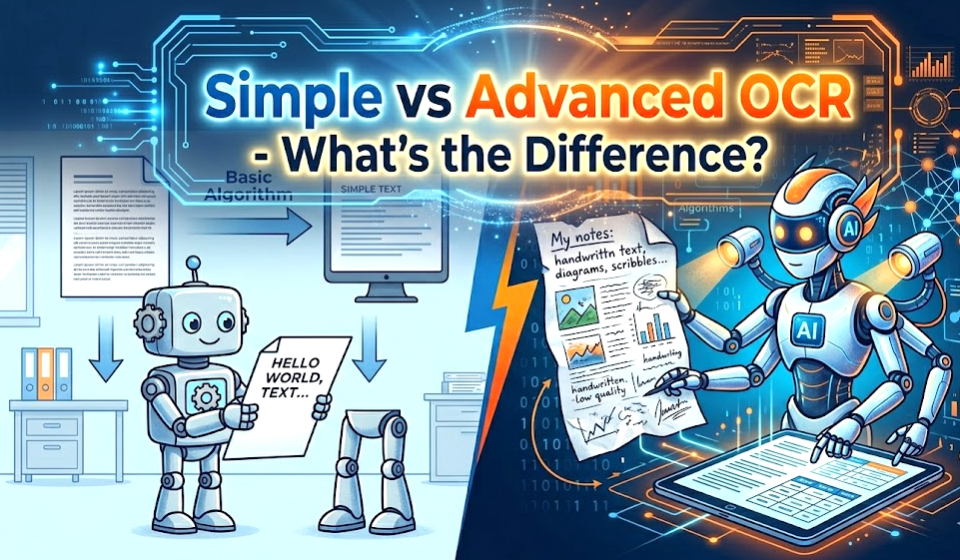
However, not all OCR tools work the same way. Some use simple OCR and produce basic results, while others use advanced OCR and deliver clean, accurate output.
What is OCR?
OCR, full form Optical Character Recognition, is a technology that reads text from images and turns it into editable digital text.
People use OCR tools/converters for many simple tasks. For example, they use them to:
- Copy text from screenshots
- Convert scanned files into an editable document
- Extract texts from a PDF or any other static image
Based on modern-day scenarios, OCR is generally categorized as simple OCR and advanced OCR. We are going to walk you through both one by one.
Simple OCR
Simple OCR is the basic version of OCR technology. It focuses on reading clear and simple text.
It works well when the image has clean text with no complex layout. For example, a plain document with one font and no design.
However, simple OCR has limits. For example, it struggles with tables, columns, and mixed fonts. Also, it often ignores formatting and breaks sentences or spacing during conversion.
Because of this, the output may look messy and sometimes require manual error correction.
Advanced OCR
Advanced OCR is a smarter and more powerful version of OCR. It uses better technology (sometimes combined with AI) to understand text and layout. It does not only read words. It also understands how the content is structured.
Here is what makes it better:
- Gives higher accuracy
- Keeps formatting like bullets, paragraphs, and number listings
- No or fewer spelling errors
- Good understanding of handwriting
- Handles low-quality images better
Because of this, the output looks clean and ready to use.
Simple OCR vs Advanced OCR (Key Differences)
| Feature | Simple OCR | Advanced OCR |
| Accuracy | Makes more mistakes | Gives higher accuracy |
| Formatting | Loses structure and layout | Keeps original format |
| Handling Complex Content | Struggles with tables, columns, and mixed fonts | Handles complex layouts easily |
| Speed vs Quality | Fast but basic results | Slightly slower but much better quality |
Testing Different OCR Tools
Now, for a better understanding of yours, we are going to show you a little demonstration using two OCR powered image to text converter tools that appear among the top results on Google. These tools include:
- Image to Text Converter
- Transkribus.org
For testing purposes, we are going to use the screenshot (attached below) of a webpage we took at random.
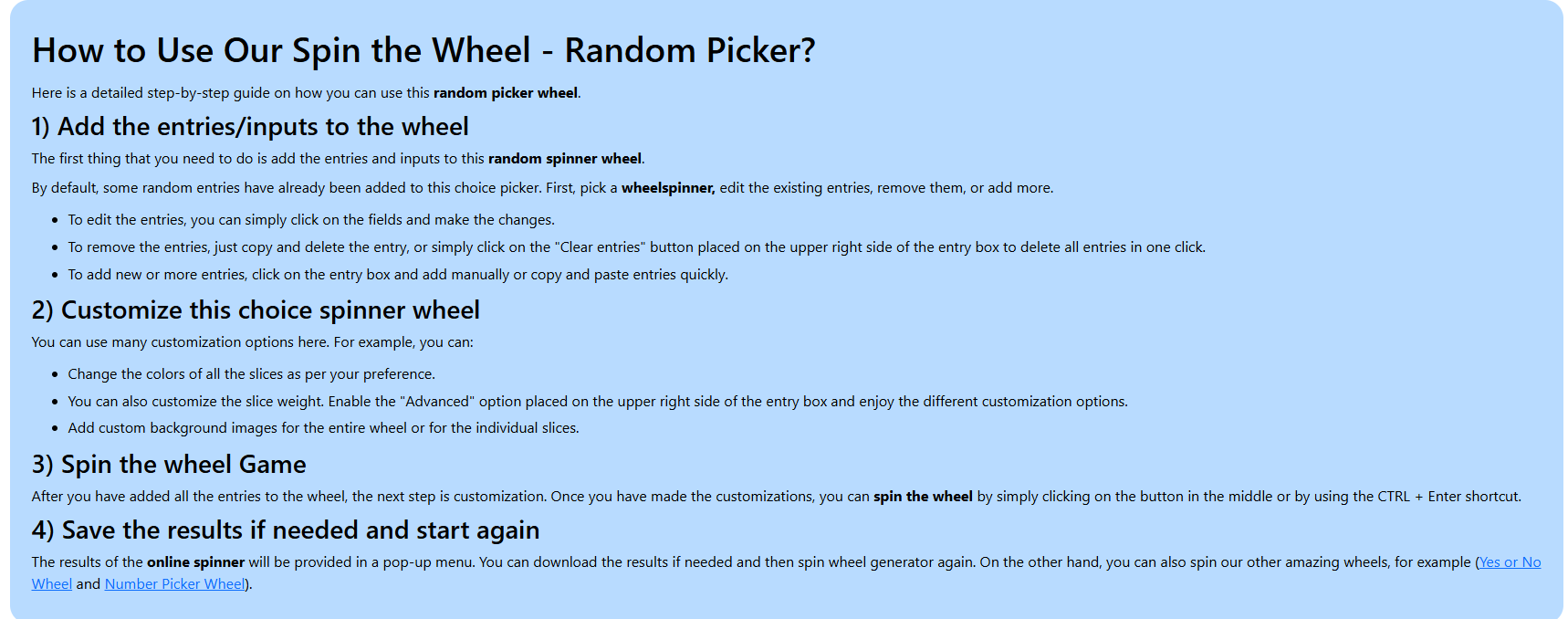
Now, let’s convert this screenshot into text using the mentioned tools individually.
1. Testing Image to Text Converter
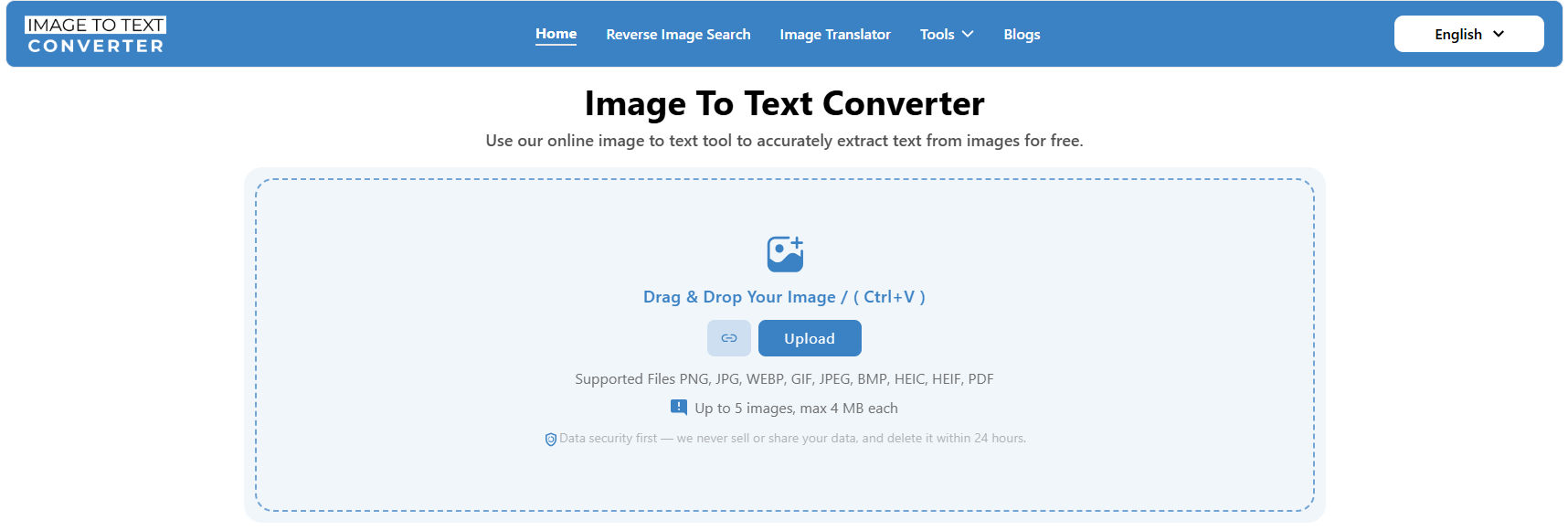
Image to Text Converter is a free tool that we found among the top results on Google. This tool claims to use advanced OCR technology along with AI integration.
For testing, we are going to upload the random screenshot that we took to this tool and convert it into text.
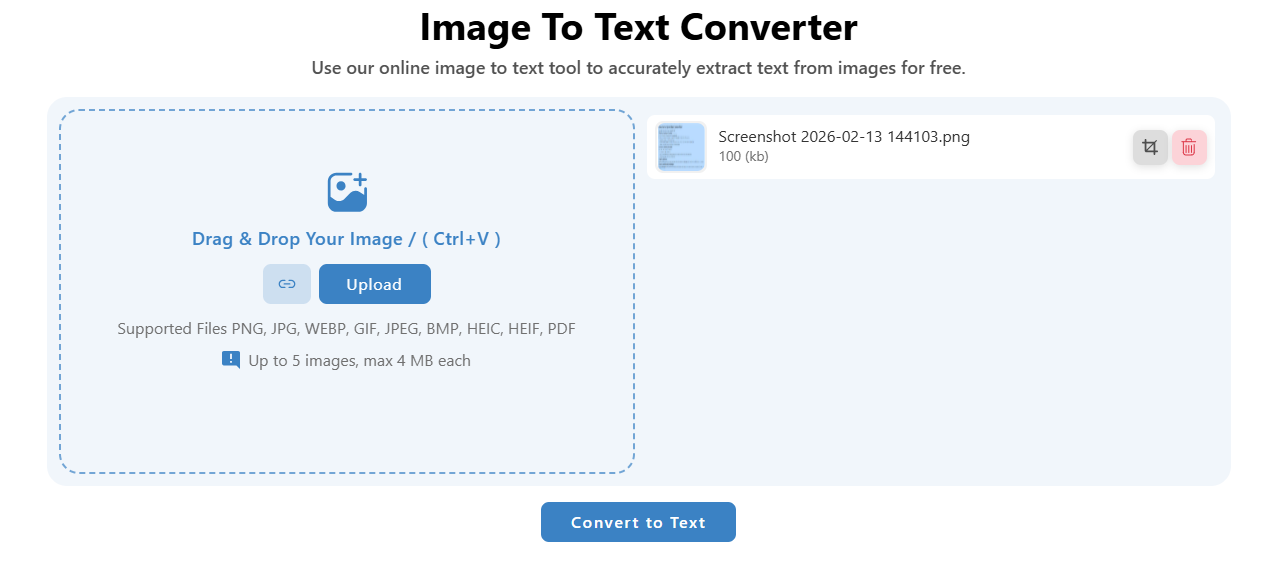
The conversion is completed. Now we are going to download the extracted text as a PDF document.
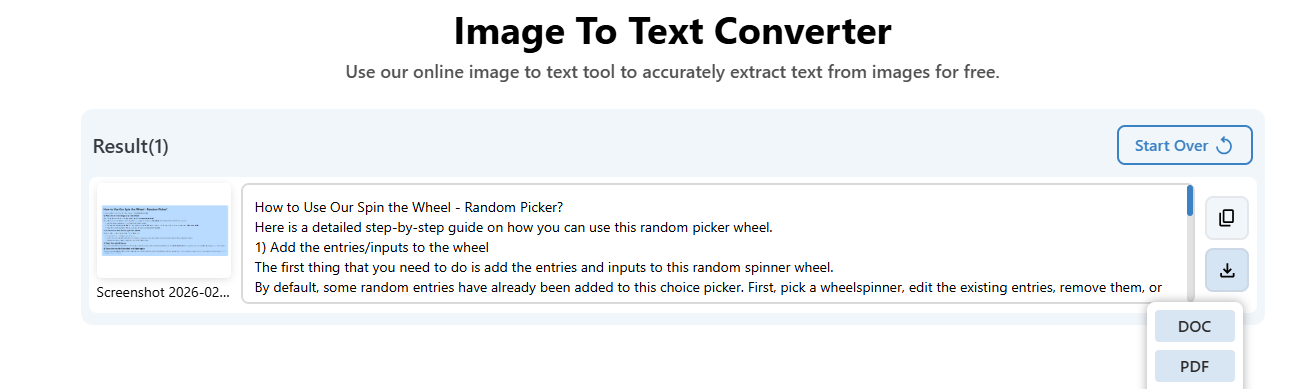
Here are the results from the PDF we got from Image to Text Converter.
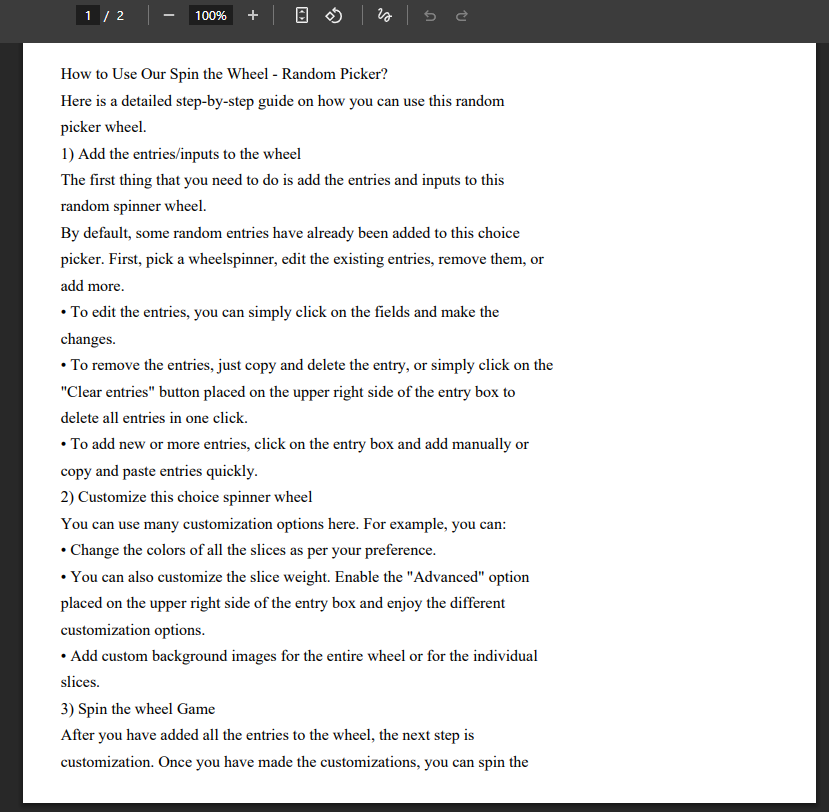
See the above screenshot for yourself. The tool has successfully extracted all the text while retaining the format. Same number of paragraphs and also it retained the indents, i.e., bullet points. Also, we found no spelling errors.
2. Testing Transkribus.org
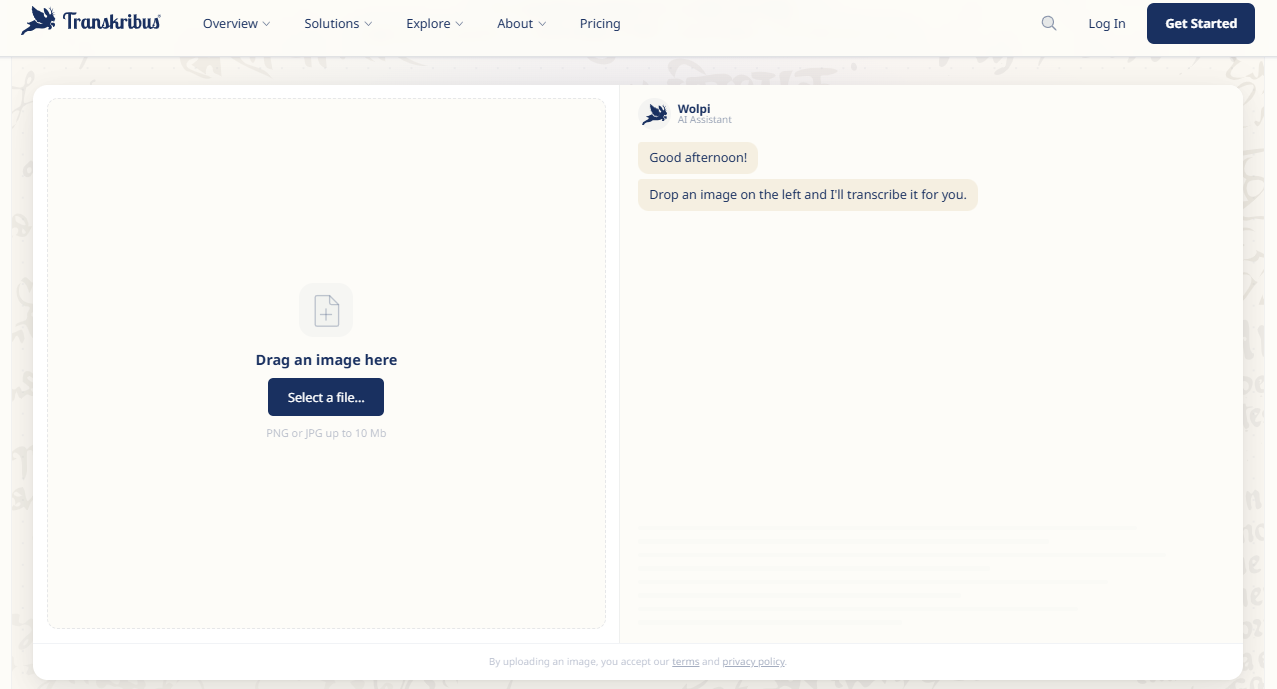
This is another tool we found on Google among the top OCR tools. If we talk about features, this tool seems to offer fewer than the Image to Text Converter we tested earlier. They might be offering it in the premium version. The previous one was completely free to use, and at the time, we found no paid plans for that.
Now we are going to upload the same screenshot we took earlier to this tool and convert it into text.
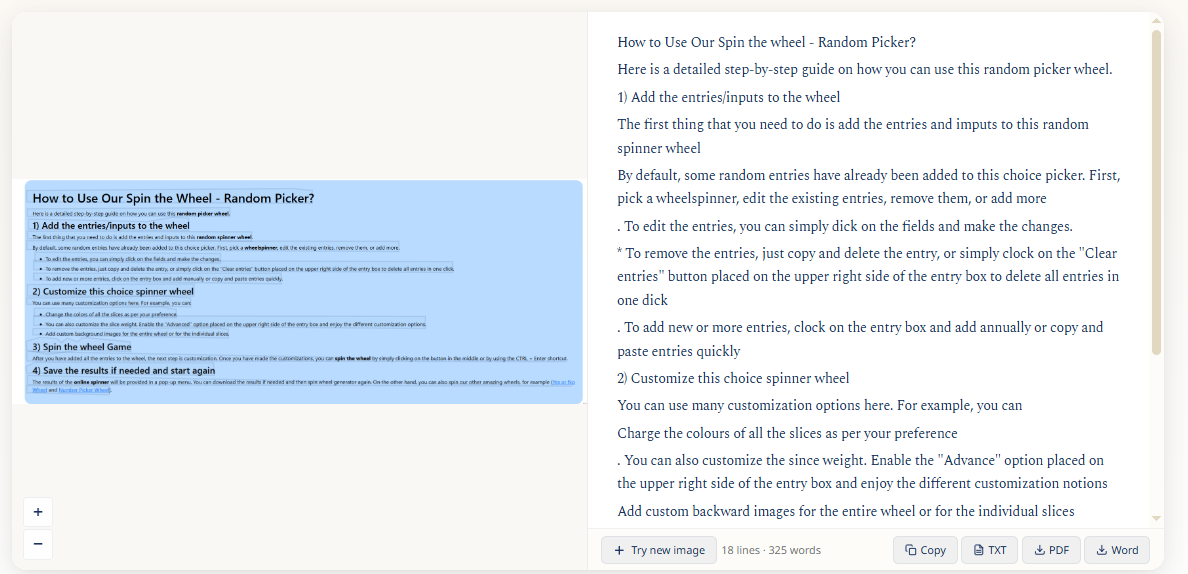
Now we are going to download the conversion results provided by this tool as a PDF document so we can better compare both tools.
Here is the PDF output we got from Transkribus:
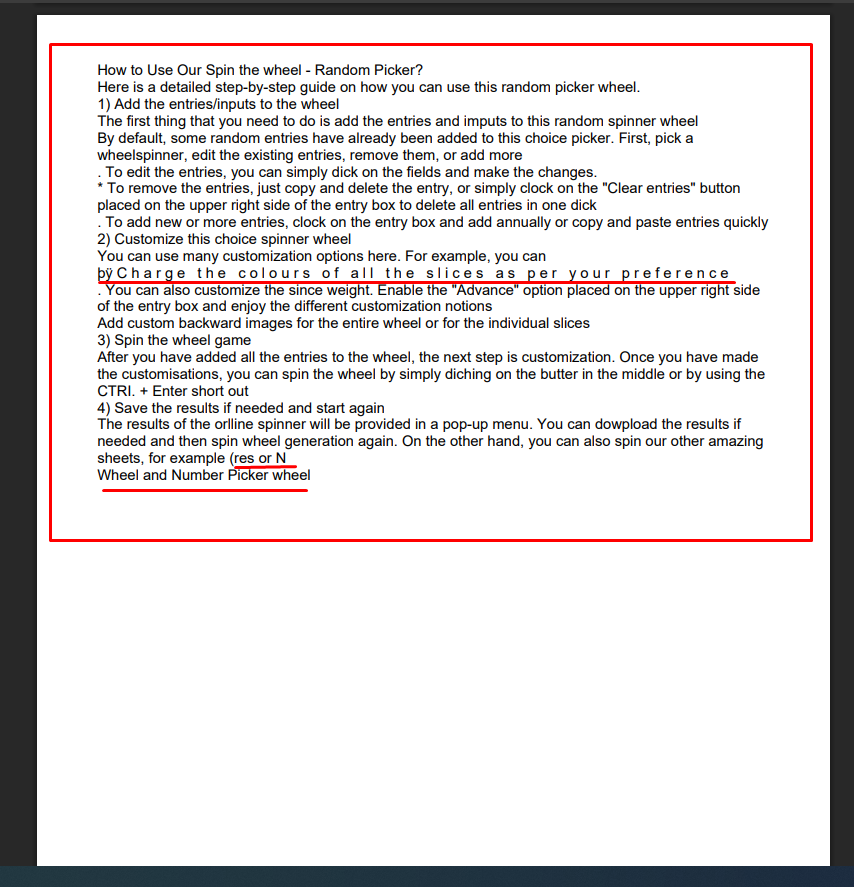
Now, carefully look at the image above. The OCR tools by Transcribus have extracted the text from the image. But if we compare the results with the previous tool, the quality of output is much lower.
For example, it has provided the text in a compacted view. It has not maintained formatting, including line spacing and bullet structure, and there are many spelling errors. And the reason, in our opinion, is that they are using a simple OCR model in the free version of the tool.
Our Take
The results were clear. Image to Text Converter that uses advanced OCR performs much better. It gave clean text and kept the format. On the other hand, the basic OCR tool struggled with the accuracy and structure.
Why is Advanced OCR Becoming the Standard?
Today, people need clean and accurate data. Businesses, students, and writers all depend on it.
Because of this, advanced OCR is becoming more common.
It saves time because you do not need to fix errors. It also improves productivity because the text is ready to use.
Conclusion
Simple OCR and advanced OCR both convert images into text. However, the results are very different.
Simple OCR works for basic tasks. But advanced OCR gives better accuracy and keeps the original format. If you want clean and reliable results, advanced OCR is the better choice.