
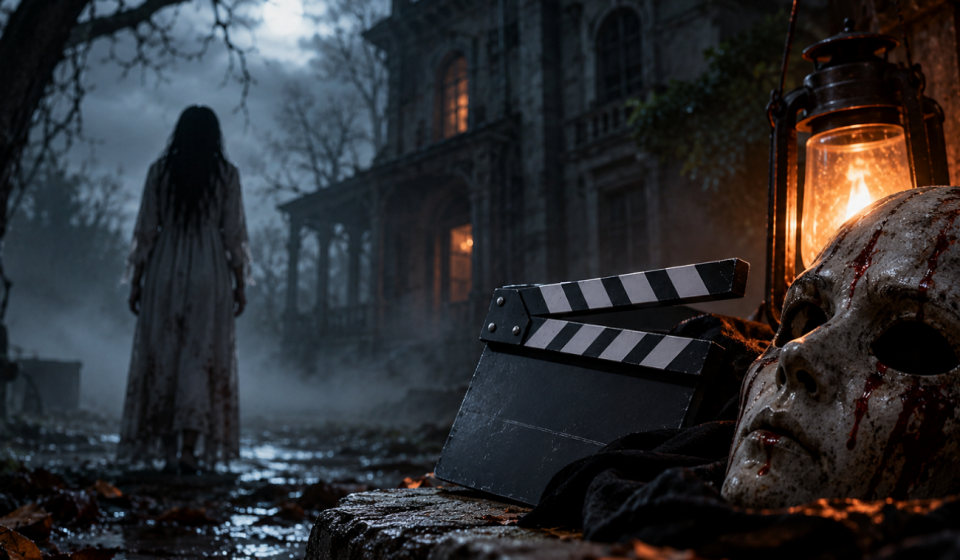

A storyteller has a new ghost tale set in a lakeside cabin where the lights go out at midnight. Shooting it for real would need a location, actors, and the right weather. An AI horror video generator offers another route, taking the written story and turning it into eerie scenes. Horror can fall flat when the timing feels wrong, or characters suddenly look different. MagicLight AI plans the story before creating the scenes, helping the same cast carry the tension through to the final scare.
Table Of Content
- Part 1. 6 Best AI Horror Video Generators
- 1. MagicLight AI
- Key Features
- Pros
- Con
- 2. Runway
- Key Features
- Pros
- Cons
- 3. Higgsfield
- Key Features
- Pros
- Cons
- 4. InVideo AI
- Key Features
- Pros
- Cons
- 5. Hedra
- Key Features
- Pros
- Cons
- 6. PixVerse
- Key Features
- Pros
- Cons
- Part 2. How to Create AI Horror Videos with MagicLight AI
- How to Create an AI-Generated Horror Video with MagicLight AI
- Part 3. Tips for Creating More Scary and Engaging AI Horror Videos
- Conclusion
- FAQs About AI Horror Video Generators
- 1. What is the best free AI horror video generator?
- 2. Can I generate horror videos with AI for free?
- 3. Can AI turn a horror story into a video?
- 4. How do I make AI-generated horror videos more realistic?
Part 1. 6 Best AI Horror Video Generators
Not every horror AI video generator approaches a scary story the same way. Some excel at full narratives, while others focus on individual shots, speaking characters, or short clips. The tools below cover these different parts of horror video creation:
1. MagicLight AI
Best For: Full horror story videos where one cast and narrator carry every scene.
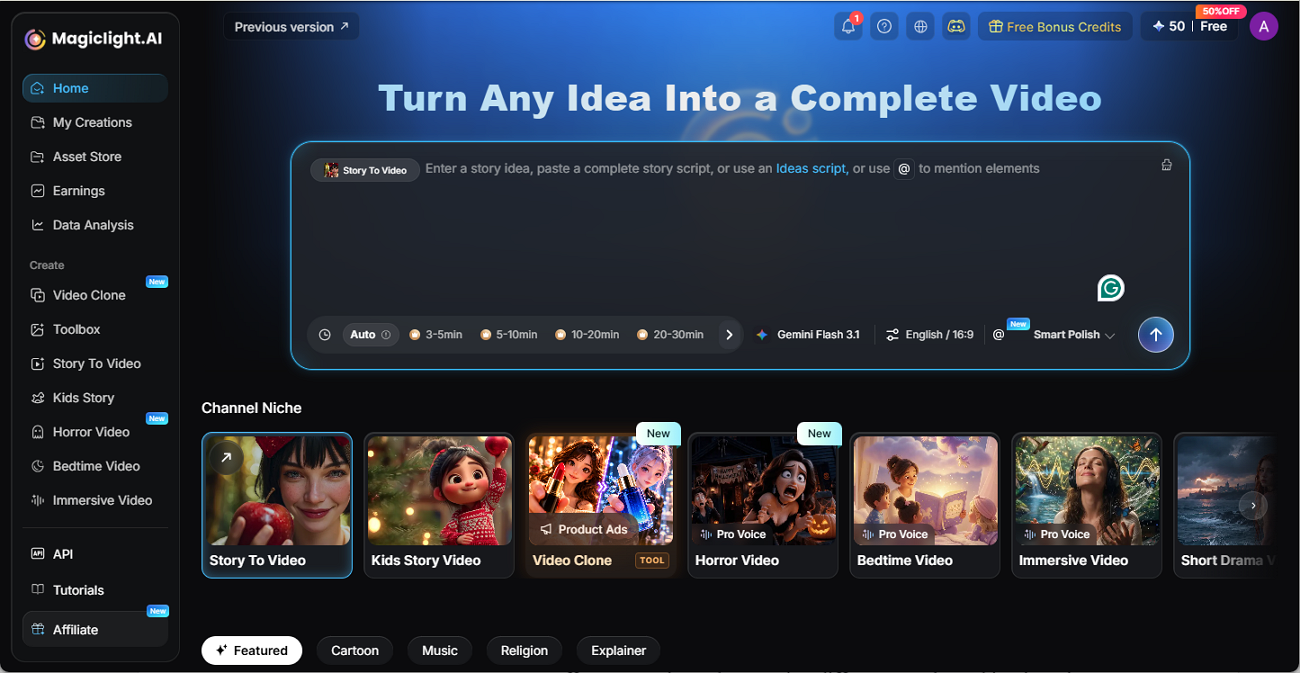
MagicLight AI supports videos up to 50 minutes, making it suitable for horror stories that need more than a few short clips. Its Asset Store also lets creators save characters and reuse them across later scenes instead of starting each character again.
For an AI horror video generator, the Agent handles the story before video generation begins. It supports 14 story models, including GPT-5.6, and offers 37 voices for assigning different voices to characters.
Key Features
- MagicLight Agent: A short chat produces the script and lays out a production plan for the video.
- Long-Form Story Prompt: Add up to 12,000 characters of input, giving longer horror stories enough space for plot, dialogue, and scene details.
- Custom Character Creation: A 1,000-character description can define a character’s appearance and other visual details before generation.
- Background Music Library: Offers 40 music tracks covering different moods, making it easier to match the soundtrack to each part of a horror story.
- Visual Style: More than 52 visual styles are available, including Realistic, Anime, and Comic options for different horror looks.
Pros
- Lip sync supports 11 languages, making multilingual horror versions easier.
- Regenerate one weak shot without changing scenes that already work.
- Edit dialogue, pacing, and visuals throughout the entire production process.
Con
- Does not offer exporting videos in resolutions more than 1080p.
2. Runway
Best For: Cinematic horror shots and darker mood edits on existing footage.
For cinematic scares, Runway works as a horror AI video generator and an editor in one. Its Aleph model can relight existing footage or shift the time of day on clips up to 30 seconds. Gen-4.5 can also create new horror shots from text or image prompts when no source footage exists.
Key Features
- Restyle an entire video to give ordinary footage a grainy, found-footage look.
- Unwanted objects or passersby can be removed, keeping an empty hallway truly empty.
- A webcam performance can drive a still character’s face.
Pros
- Reference images help maintain character appearance across multiple horror clips.
- Generated scenes can include ambient audio alongside background music.
Cons
- Individual generations remain short, limiting longer uninterrupted horror sequences.
- Performance capture becomes less reliable when source webcam footage looks noisy.
3. Higgsfield
Best For: Horror shots built on dramatic camera moves and atmospheric effects.
Camera movement carries much of the fear in horror, and Higgsfield offers more than 70 cinematic presets for it. A crash zoom or slow push-in applies with one selection. As a free AI horror video generator to try, it also supports effects that can give short scenes a darker, more unsettling finish.
Key Features
- A Dolly Zoom preset recreates the classic vertigo effect, warping the background around a steady subject.
- Training Soul ID on a handful of photos keeps one face consistent.
- Fog and rain effects can be layered onto a shot for a damp, haunted atmosphere.
Pros
- Over 15 external video models provide more visual options in one place.
- Lipsync Studio matches recorded dialogue with character mouth movements.
Cons
- Lower-tier video models can produce noticeably weaker results.
- Generation queues may become slower during busy periods.
4. InVideo AI
Best For: Narrated horror story videos for faceless YouTube and TikTok channels.
For a narrated urban legend, InVideo AI works as an AI video generator horror channels can run from one prompt. Its agent writes the script, picks footage, and adds voiceover, subtitles, and music. Creators can then revise individual scenes or change the narration before exporting the finished story.
Key Features
- Footage comes from 16 million stock clips, with generative shots from outside models.
- Typed requests, such as slowing the intro, change the edit without a timeline.
- Half a minute of recorded speech is enough for a cloned narrator voice.
Pros
- Voiceovers and subtitles support 50+ languages for multilingual videos.
- AI presenters use 40 facial micro-expressions for more expressive delivery.
Cons
- Selected footage may miss important details from the original script.
- Cloned voices can lack emotional range during tense horror narration.
5. Hedra
Best For: Creepy talking characters such as a haunted doll or a ghostly narrator.
A haunted doll can narrate its own story through Hedra, which animates a single still image to match an uploaded audio track. Its model reads image, text, and audio together to shape the performance. Character-3 can generate speaking character clips up to 10 minutes long from a single image.
Key Features
- Blinks, eye shifts, and small head tilts appear without manual keyframing.
- Written prompts can hold back unwanted motion, such as dramatic hand gestures.
- Output covers seven aspect ratios, including vertical 9:16 and ultra-wide 21:9.
Pros
- Both stylized and realistic faces work naturally as speaking characters.
- Longer performances can run 10 minutes, enough for complete narrations.
Cons
- Facial distortions and word mispronunciations can affect performances.
- Character faces may shift between clips, especially in busier scenes.
6. PixVerse
Best For: Short scary clips for social feeds, complete with sound and talking characters.
Bite-size scares for social feeds come together in PixVerse, with music and sound effects attached to each clip. Dialogue between several characters fits in one clip, with lip sync matched to each voice. For an AI-generated horror video, effects such as Zombie Mode can quickly turn an ordinary subject into something unsettling.
Key Features
- Keyframe control sets how a shot moves between two frames.
- Style transfer pushes one scene toward realistic, anime, or 3D looks.
- More than 20 stylized effects and templates offer starting points for a scare.
Pros
- Fast generation helps creators maintain demanding social media posting schedules.
- Reference photos can anchor fictional scares within recognizable real-world settings.
Cons
- Clips run only 5–10 seconds, restricting longer continuous horror scenes.
- Complex prompts may produce inconsistent results, especially during peak periods.
Part 2. How to Create AI Horror Videos with MagicLight AI
MagicLight AI handles ghost stories, creature tales, and slow-burn mysteries through its Agent, and a dedicated scary video maker offers another starting point. A first test on this horror AI video generator’s free tier needs no card, since every new account comes with sign-up credits.
- Smart Polish: Rough outlines grow into fuller, scene-ready scripts before any visuals exist.
- Animation Models: Pick from 16 animation models to control how scenes move once the horror storyboard is ready.
- Scheduled Publishing: Magic Claw reviews and edits each finished episode, then posts it at a set time.
How to Create an AI-Generated Horror Video with MagicLight AI
Follow the steps below to control how the midnight blackout, narrator, and final scare appear in the finished AI-generated horror video:
Step 1. Start With Your Horror Idea
Begin in MagicLight AI’s homepage and enter the cabin story with its setting, characters, and main scare. Set Duration and Language, then press the Arrow to develop the story.
Step 2. Shape the Script
Once the Summary and scenes appear, look for lines that reveal too much too early. Adjust the dialogue, narration, or scene order where needed, then click Confirm Script.
Step 3. Set the Visual Direction
Under Visual Style, select a look that fits the story, such as Realistic for darker, lifelike scenes. Choose Animate Video, review the production estimate, and press Confirm.
Step 4. Inspect the Characters
Within Asset, check whether each character fits their role and remains visually suitable for the story. Make any needed changes before selecting Continue to Storyboard.
Step 5. Edit in the Storyboard
Work through individual shots with Expression, Pose, or Prompt to improve the mood. Regenerate scenes that feel too bright or weak, then select Animate.
Step 6. Bring in Music and Subtitles
Inside Compose, select tense Background Music and balance its volume against the narration. Pick a readable Subtitle Style, then click Generate.
Step 7. Prepare the Export
Set Ratio to 9:16 for Shorts or TikTok, or 16:9 for widescreen viewing. Choose 720p or 1080p under Video Export Resolution, then press OK.
Step 8. Watch and Save the Result
Play the completed horror video in Preview and check its pacing, sound, visuals, and final scare. Once everything works together, press Download Video.
Part 3. Tips for Creating More Scary and Engaging AI Horror Videos
A free AI horror video generator gives you the footage, but the scare still depends on how each moment is handled. The tips below show where to tighten the pacing, control what viewers see, and make each reveal land with more impact:
- Build Suspense Before the Scare: Every scare lands harder after a long, quiet stretch. Ordinary beats in the cabin, such as dishes in a sink, set up the first flicker for viewers who are not yet braced.
- Light Scenes for Dread: Prompts that name a light source produce eerier frames than vague mood words. A bare bulb, moonlight through blinds, or a flashlight beam leaves most of the frame dark.
- Show Less of the Monster: A creature seen in full rarely stays frightening for long. Partial glimpses, such as a shape in a doorway, keep the threat undefined and hide the artifacts AI faces often show.
Conclusion
The right AI horror video generator depends on the scare you want to create. Runway and Higgsfield suit cinematic shots, Hedra handles creepy talking characters, InVideo AI covers narrated stories, and PixVerse fits social clips. For longer horror stories, MagicLight AI stands out by keeping characters, voices, and visual style consistent across scenes.
FAQs About AI Horror Video Generators
1. What is the best free AI horror video generator?
The best AI horror video generator free choice depends on the format. PixVerse handles short social clips on daily credits, and Runway grants a one-time batch for cinematic tests. MagicLight AI is the recommendation for a full horror story with a steady cast and narrator.
2. Can I generate horror videos with AI for free?
Several platforms offer free starter credits, usually with a watermark. On sign-up credits, MagicLight AI offers a free AI horror video generator with watermarked 720p exports.
3. Can AI turn a horror story into a video?
Story-based tools can break a finished horror tale into scenes with characters, narration, and music. MagicLight AI accepts story text up to 12,000 characters, and its Basic Script option keeps the original wording intact.
4. How do I make AI-generated horror videos more realistic?
Realism improves when each shot asks the model for less at once. A single subject and a slow camera move reduce the warped faces and hands that break the illusion. In MagicLight AI, choosing the Realistic style and regenerating glitchy shots keeps the film believable.