
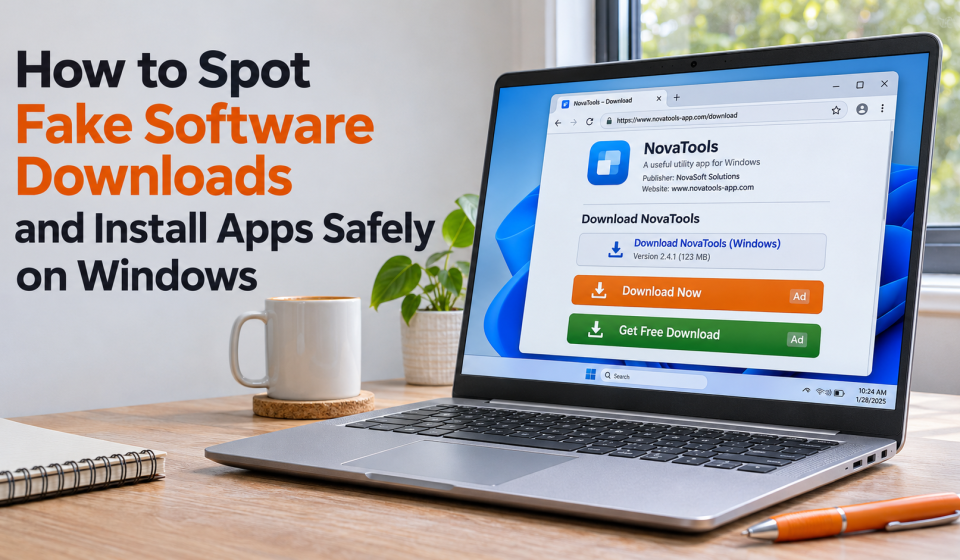

You search for a free app, click Download, and suddenly see three more download buttons. Which one is real? Worse, the file you receive might not even be the software you wanted.
Table Of Content
- 1. Recognize the Warning Signs of Fake Download Pages
- 2. Find the Software Publisher’s Official Website
- 3. Check Windows Security Warnings Before Running a File
- 4. Choose the Correct Installer for Your Windows PC
- 5. Verify Digital Signatures and File Hashes
- 6. Scan the Installer and Review Requested Permissions
- 7. Be Careful With Browser Extensions and Software Bundles
- 8. Use This Quick Download Safety Checklist
- 9. What Should You Do If You Already Installed Something Suspicious?
- Conclusion
Fake download pages, misleading advertisements, and modified installers can expose Windows users to unwanted programs and security risks.
Fortunately, a few checks can help you distinguish legitimate software from suspicious downloads. Here’s how to find the correct installer, verify its authenticity, and install applications more safely.
1. Recognize the Warning Signs of Fake Download Pages
Not every download button leads to the software advertised.
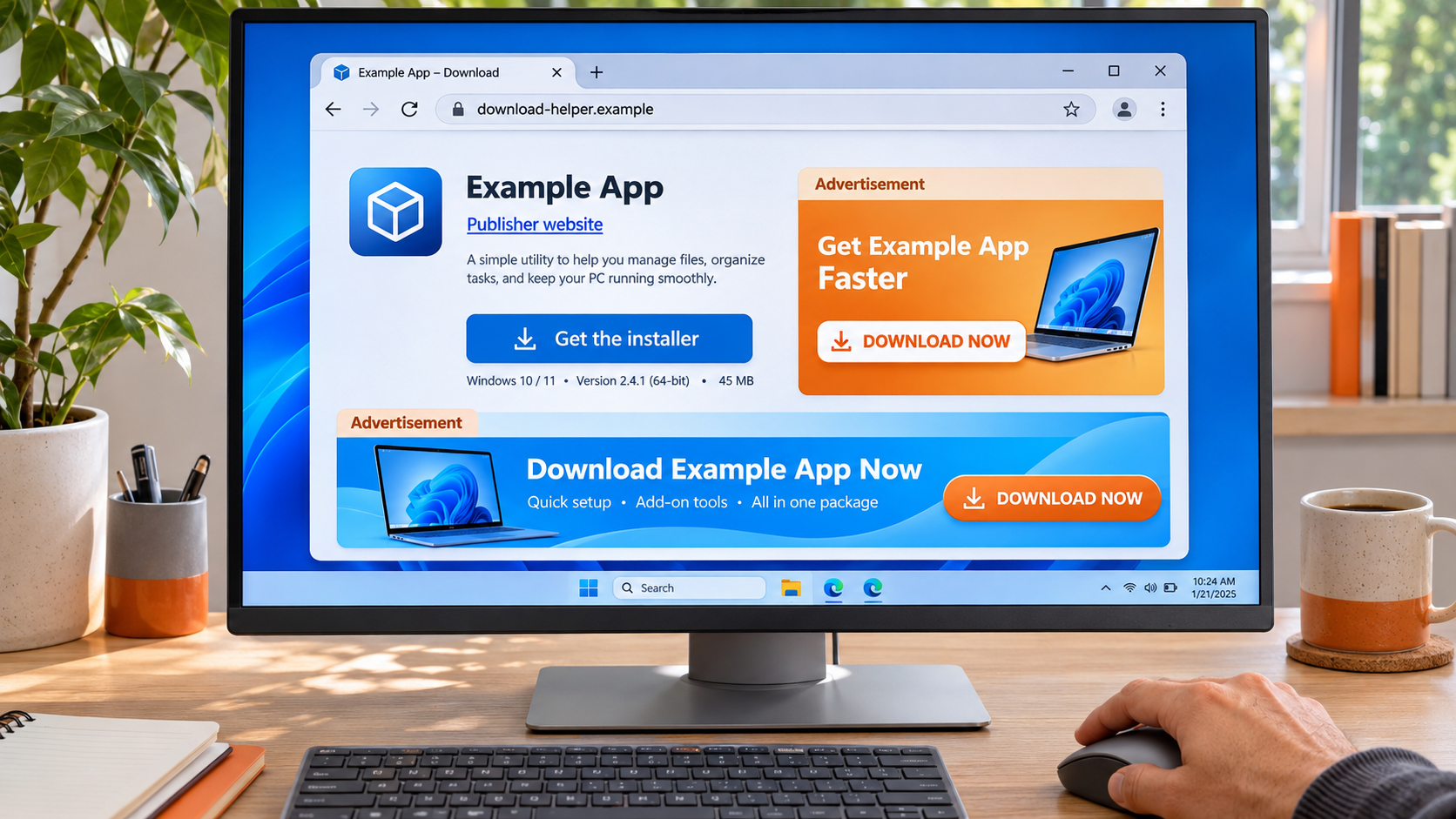
Some websites display advertisements designed to resemble official download controls. Others redirect visitors through multiple pages before providing a file.
Watch for these warning signs:
- Multiple large Download buttons with unclear destinations.
- Pop-ups claiming your computer has a virus.
- Requests to install a separate download manager.
- Unexpected browser extensions or configuration changes.
- Files with names unrelated to the application you selected.
A download page can look professional and still be misleading.
Before clicking, check the website address and inspect where the download button leads. If anything seems suspicious, leave the page and find the software publisher directly.
2. Find the Software Publisher’s Official Website
One of the simplest ways to avoid fake installers is to download software directly from its original publisher.
Search engines can display advertisements and third-party download platforms alongside official websites. Their position in search results does not automatically establish trustworthiness.
Start by confirming the correct domain. Look for the publisher’s company information, product documentation, support resources, and download instructions.
For example, when evaluating network privacy software, visiting a VPN provider’s official website lets you review its product information and available platforms before choosing an installer.
Pay attention to domain spelling. Attackers may register lookalike addresses that differ from legitimate websites by only one character.
A secure HTTPS connection is important, but the padlock alone does not prove that a website belongs to the company it claims to represent.
When available, the Microsoft Store can provide another distribution channel. However, you should still verify the application’s publisher and permissions.
3. Check Windows Security Warnings Before Running a File
Windows includes built-in protections designed to identify suspicious applications and downloads.
Microsoft Defender SmartScreen evaluates websites and downloaded files using reputation information. Windows 11 also offers Smart App Control on eligible installations.
To review available protections:
- Open Windows Security from the Start menu.
- Select App & browser control.
- Open Reputation-based protection.
- Review the available SmartScreen and potentially unwanted app protection settings.
If Windows warns that a file may be unsafe, investigate the warning instead of immediately bypassing it.
An unfamiliar application may trigger a reputation warning without necessarily being malicious. However, that does not mean the warning should be ignored.
Verify the publisher, download source, and reason for the alert before proceeding.
4. Choose the Correct Installer for Your Windows PC
Downloading software from an official website is only part of the process. You also need the correct version.
Windows applications may offer different installers for x64, ARM64, or other supported architectures.
To check your computer:
- Press Windows + I to open Settings.
- Go to System > About.
- Find System type under Device specifications.
- Compare the information with the application’s system requirements.
For instance, an official Windows VPN download page can offer different installers for x64 and ARM64 devices. Selecting the appropriate version helps avoid unnecessary compatibility problems.
Also check the supported operating system version, storage requirements, and any additional dependencies.
If your computer uses Windows 11 in S mode, installation is restricted to compatible Microsoft Store apps. Switching out of S mode is a separate, irreversible decision, so check whether a suitable Store version exists first.
5. Verify Digital Signatures and File Hashes
For software that requires an installer, Windows provides ways to inspect the downloaded file before opening it.
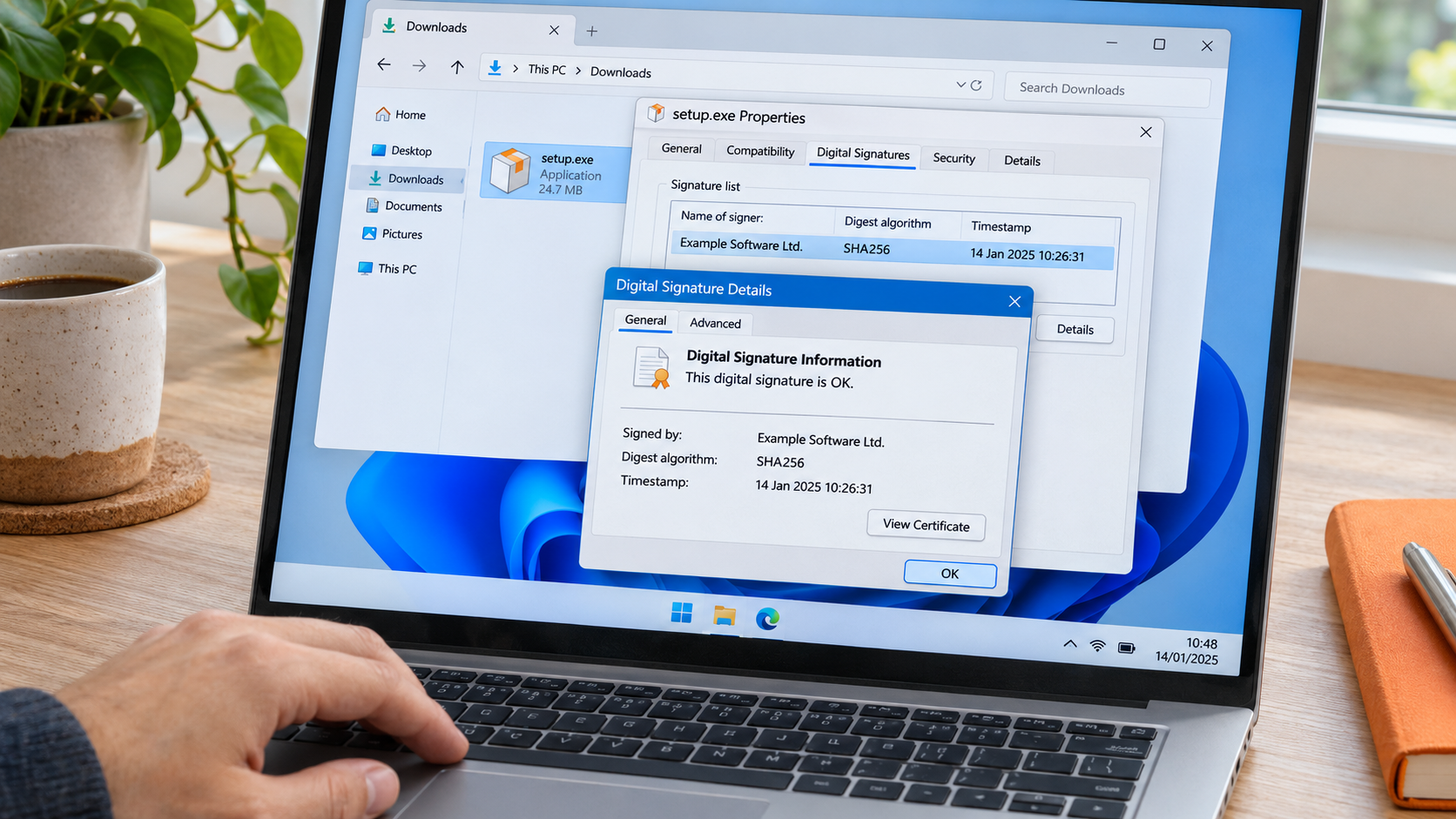
First, right-click the installer and select Properties.
If a Digital Signatures tab is available, examine the signer information and signature status.
A valid signature can help establish that the file was signed by the identified publisher and has not been altered since signing. However, signed software is not automatically safe, and some legitimate applications may not have a signature.
For additional verification, some developers publish SHA-256 checksums for their installers.
You can calculate a file’s SHA-256 hash using PowerShell:
Get-FileHash “C:\Users\YourName\Downloads\setup.exe” -Algorithm SHA256
Replace the example path with your downloaded file’s actual location.
Compare the resulting hash with the checksum published through the developer’s trusted official channel.
If the values differ, do not run the file until you understand why.
A matching checksum helps verify file integrity against that reference. It does not independently prove that the software itself is trustworthy.
6. Scan the Installer and Review Requested Permissions
Before installing unfamiliar software, run a security scan.
In Windows 11, you can right-click the downloaded file, select Show more options, and choose Scan with Microsoft Defender, when that option is available.
You can also examine the file using your installed security software.
During installation, read each screen rather than repeatedly clicking Next.
Some installers may offer additional applications, browser extensions, or changes to default settings. Decline options you do not need.
If Windows displays a User Account Control prompt, check the publisher and consider whether the application genuinely requires administrator permissions.
A simple utility asking for extensive system access deserves additional scrutiny.
Finally, review the application’s privacy policy if it will process personal files, browsing information, or account data.
7. Be Careful With Browser Extensions and Software Bundles
Not every risky download is a traditional .exe installer.
Browser extensions, packaged utilities, and modified application bundles can also request access to sensitive information.
An extension with permission to read and modify data across all websites may have broader capabilities than its advertised function suggests.
Before installing one, check the developer, requested permissions, update history, and available user feedback.
Avoid modified or cracked versions of paid applications. Such packages may include unwanted changes that are difficult to identify.
Prefer applications that explain their features, installation requirements, and data practices clearly.
After installation, remove unnecessary bundled components and confirm that your browser settings have not changed unexpectedly.
8. Use This Quick Download Safety Checklist
The following table summarizes the most useful checks before installing an unfamiliar Windows application.
| Check | What to Verify | Warning Sign |
| Website address | Correct publisher domain | Misspelled or misleading domain |
| Download source | Official website or verified Store listing | Unknown file-sharing mirror |
| Installer version | Compatible Windows version and CPU architecture | Unexplained compatibility claims |
| Digital signature | Expected publisher and valid signature, if present | Unexpected signer or invalid signature |
| File integrity | SHA-256 matches an official checksum, if provided | Mismatched hash |
| Security warnings | Understand SmartScreen or antivirus alerts | Instructions to disable protection |
| Installation options | Only necessary components and permissions | Unwanted bundled software |
Not every developer publishes checksums or uses identical installation methods. Use the available checks together rather than treating one missing indicator as definitive proof of malicious software.
9. What Should You Do If You Already Installed Something Suspicious?
If an application behaves unexpectedly after installation, stop using it until you understand the problem.
Open Windows Security > Virus & threat protection and run an appropriate scan.
Review recently installed applications under Settings > Apps > Installed apps, and investigate software you do not recognize.
Check whether new browser extensions or startup applications appeared around the same time.
If malware is suspected, follow your security software’s remediation instructions. More serious incidents may require additional scanning or professional assistance.
If you entered account credentials into a suspicious application or website, change the affected passwords from a trusted device and enable multi-factor authentication.
Do not assume that uninstalling a questionable application automatically reverses every change it may have made.
Conclusion
Safe software installation starts before you click Download.
Checking the publisher’s website, selecting the correct installer, reviewing Windows security warnings, and verifying file integrity can help reduce unnecessary risks.
You do not need advanced cybersecurity expertise to perform these checks. A few extra minutes before installation can save considerably more time than repairing a compromised or unstable computer.
The simplest rule is also the most useful: verify the source, inspect the file, and understand what you are installing.