


Table Of Content
I have always believed that if my computer was turning on opening programs and getting my work done, everything was fine. Like people I rarely thought about what was happening behind the scenes. However, over time I started noticing issues that didn’t seem serious enough to worry about. My PC would occasionally take a little longer to start Bluetooth devices would disconnect without warning or a game would stutter for a second before returning to normal. Since these problems were inconsistent, I brushed them off as wear and tear.
It wasn’t until I learned that outdated drivers can quietly affect a computer’s stability and performance that I realized these inconveniences could eventually turn into bigger problems. Instead of waiting for a hardware failure or an unexpected system crash, I decided to take a proactive approach. That’s when I discovered Driver Booster. I wanted a way to check whether my drivers were up to date without manually searching for updates one by one. What started as a maintenance task ended up helping me identify hidden issues before they had the chance to disrupt my work, gaming or everyday computing experience.
The Small Problems I Started Noticing
At first, the warning signs were so minor that I didn’t think much of them. My computer still completed tasks, but little issues kept appearing at random. Some mornings Windows took longer to boot than usual. Times my wireless mouse or Bluetooth headphones would disconnect for no obvious reason, forcing me to reconnect them before I could continue working.
I also noticed that certain applications weren’t as responsive as they used to be. Switching between programs occasionally felt sluggish. A few graphics-heavy applications would freeze for a second before running normally again. Even watching high-resolution videos sometimes resulted in brief screen flickers or audio delays. None of these problems happened consistently, which made them difficult to diagnose. Every time I thought I had found the cause the issue would disappear on its own.
The same pattern appeared when I played games. While my frame rates were generally stable, I occasionally experienced stutters during gameplay. At first I blamed Windows updates or background applications. Even after closing unnecessary programs, the random performance hiccups continued. It was frustrating because my PC’s hardware was still capable of handling the games I played.
Discovering Driver Booster
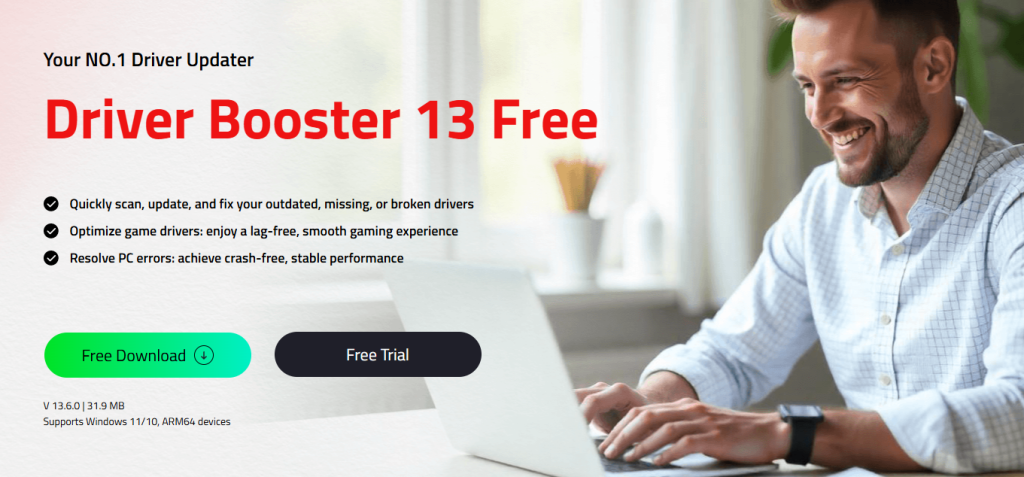
While comparing tools, I came across Driver Booster and decided to give it a try because it offered a straightforward way to scan my computer for outdated drivers. The installation was quick. The interface was clean and easy to understand even for someone who doesn’t regularly manage system settings.
The first scan only took a moment, but the results surprised me. It found outdated drivers that I hadn’t even considered checking, including ones related to my graphics card, network adapter and audio device. These weren’t causing failures yet but they explained many of the small issues I had been experiencing.
After searching for updates from multiple hardware manufacturers, I was able to review the scan results in one place and update the necessary drivers with just a few clicks. The process felt more convenient than doing everything manually and it gave me confidence that my PC was receiving the latest compatible driver versions. At that point, I realized that a few minutes of maintenance could save me hours of troubleshooting in the future.
How I Used Driver Booster
Here’s the simple process I followed:
Step 1: Download and install the software
I downloaded Driver Booster from its website and completed the installation in just a few minutes.
Step2: Run a system scan
After launching the program, I clicked the Scan button. It quickly checked my system. Listed all outdated, missing and potentially problematic drivers.
Step3: Review the scan results
Before updating anything, I looked through the list to see which hardware components required attention, including graphics, audio and Game drivers.
Step4: Update the drivers
I clicked the Update option to install the compatible versions. The process was automatic so I didn’t have to search different manufacturer websites or download files manually.
Step 5: Click on Tools
I was actually pretty surprised by how useful the repair tools ended up being. A recent Windows update broke my audio, leaving my speakers completely silent. I decided to try the ‘Fix No Sound’ tool, and Driver Booster automatically diagnosed the problem and refreshed the driver without me having to mess around in Device Manager. Not long after, my Ethernet adapter started acting up, and ‘Fix Network Failure’ stepped in to fix the driver glitch just as quickly.
The entire process was straightforward. Took far less time than I had anticipated. Better yet, I didn’t need any advanced technical knowledge to keep my system up to date.
Why Preventive Driver Updates Matter
Before this experience, I always focused on fixing problems after they appeared. If my computer became slow or a device stopped working, I would start searching for solutions. However, I learned that regular maintenance can prevent many of these issues before they interrupt activities.
Drivers play a role in maintaining communication between Windows and hardware components. When drivers become outdated devices may not perform optimally; small compatibility issues can gradually affect the overall system experience. By keeping them updated, I can reduce the chances of facing errors, performance drops or hardware-related frustrations.
For me, using Driver Booster became part of my PC maintenance routine. Instead of waiting for problems to appear, I now prefer taking a proactive approach and checking that my system components are running with updated drivers. A few minutes spent on maintenance can save much more time than would otherwise be wasted troubleshooting problems later.
Final Thoughts
Looking back, I realized that many of the problems I ignored were early signs that my computer needed attention. The issues were not caused by hardware but by outdated drivers that affected how smoothly different components worked together.
Using Driver Booster as a dedicated driver updater helped me identify and update those hidden issues before they became problems. It gave me a way to maintain my PC without spending hours searching for individual driver updates.
My biggest takeaway is that computer maintenance should not happen when something breaks. Taking steps can keep a system stable, reliable and ready for everyday tasks. Since updating my drivers, I have made it a habit to check my system regularly. It has helped me enjoy a smoother computing experience, with fewer unexpected interruptions.