Here we provide some tricks for How to Remove Unlocked Bootloader Warning on Moto G4 Plus. Moto G4 Plus release with locked bootloader to restrict the users to use the stock system. To unlock the device bootloader the company officially provide the guide.If once you unlock the bootloader, you get a warning message about the risks associated with it. Whenever you reboot the device it will showing the bootloader unlocked warning message on Moto G4 Plus. It would not affect the device functionality, but many users find it frustrating to see a warning message every time device restart. Remove Unlocked Bootloader Warning on Moto G4 Plus from below.
If you need to adb and fastboot driver and Motorola Logo to Remove Unlocked Bootloader message on Moto G4 Plus. Basically, after unlocking bootloader Moto M logo on your device is replaced by a custom new boot logo image that contains the unlocked bootloader warning. You have to flash the Moto M logo again to Remove Unlocked Bootloader Warning on Moto G4 Plus. Follow the below guide to Remove Unlocked Bootloader Warning message on Moto G4 Plus.
Note:
Follow the steps properly else you may crash your device. We are not liable for any damage to your device.
It will not remove any device data, we still advise you first to take a complete backup of your device and then proceed.
Make sure that your phone has at least 50-60% charged to avoid the unexpected shutdown in-between the process.
Files required to Remove Warning Bootloader Unlocked on Moto G4 Plus –
[mks_button size=”small” title=”Download ADB and fastboot driver for windows ” style=”rounded” url=”https://www.wikitechy.com/technology/install-adb-and-fastboot-on-windows/” target=”_blank” bg_color=”#1e73be” txt_color=”#FFFFFF” icon=”fa-arrow-down” icon_type=”fa” nofollow=”1″] OR [mks_button size=”small” title=”ADB and Fastboot for Mac ” style=”rounded” url=”https://www.wikitechy.com/technology/setup-adb-and-fastboot-on-mac/” target=”_blank” bg_color=”#1e73be” txt_color=”#FFFFFF” icon=”fa-arrow-down” icon_type=”fa” nofollow=”1″]
Install it on your PC. This will also install your device driver.
[mks_button size=”small” title=”Download and install Drivers for Moto G4 Plus” style=”rounded” url=”https://www.wikitechy.com/technology/download-android-usb-drivers-windows-mac/” target=”_blank” bg_color=”#1e73be” txt_color=”#FFFFFF” icon=”fa-arrow-down” icon_type=”fa” nofollow=”1″]
Moto G4 Plus Boot Logo without warning message
How to Remove Unlocked Bootloader Warning on Moto G4 Plus –
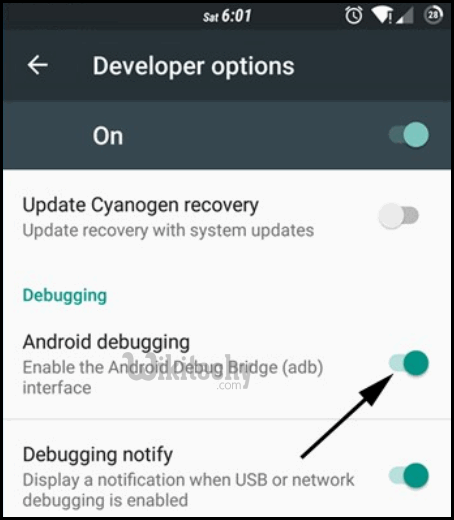
First enable USB debugging from setting->developer option->. To enable Developer Options, go to About phone and tap the Build Number 7 times.
Download the Moto M logo from above, unzip it and save it in adb and fastboot folder.
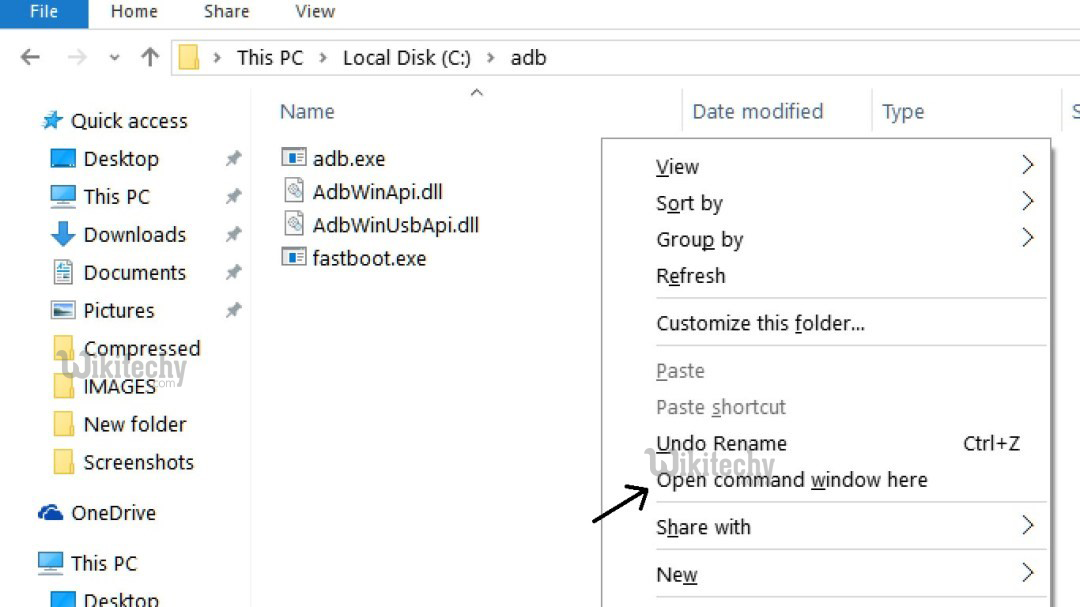
Now go to installation directory open ADB folder and open the command window thereby pressing and hold the ‘shift’ key and right-clicked anywhere in that folder.
[ad type=”banner”]
Now connect your phone to PC and reboot the device into fastboot mode by typing
adb reboot bootloader
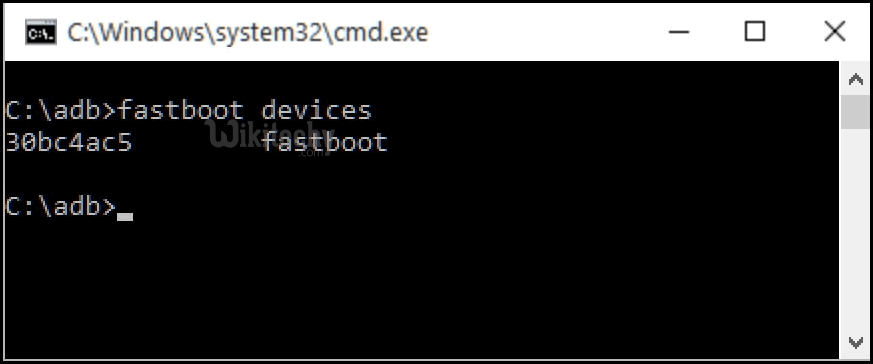
You are in Fastboot mode now to check your connection by entering below command in command prompt. It will return your device serial number means your device properly connected. Check your driver if the above command is not responding.
fastboot devices
[ad type=”banner”]
Type the below command to flash the Moto M boot logo on Moto G4 Plus.
fastboot flash logo logo.bin
Above step will replace the Warning message with Moto M logo. Now type the below command to reboot your device.
fastboot reboot
Done!
This is the easiest way to Remove Unlocked Bootloader Warning on Moto G4 Plus.
Wikitechy Founder, Author, International Speaker, and Job Consultant. My role as the CEO of Wikitechy, I help businesses build their next generation digital platforms and help with their product innovation and growth strategy. I'm a frequent speaker at tech conferences and events.




![Download Huawei Nova Lite Android Nougat Firmware [B123] [Asia] - Android - Download and install Huawei Nova Lite to Nougat by flashing B123 Nougat Firmware](https://www.wikitechy.com/technology/wp-content/uploads/2017/04/huawei-nova-lite-150x150.jpg "How to Remove Unlocked Bootloader Warning on Moto G4 Plus")

helped me a lot