
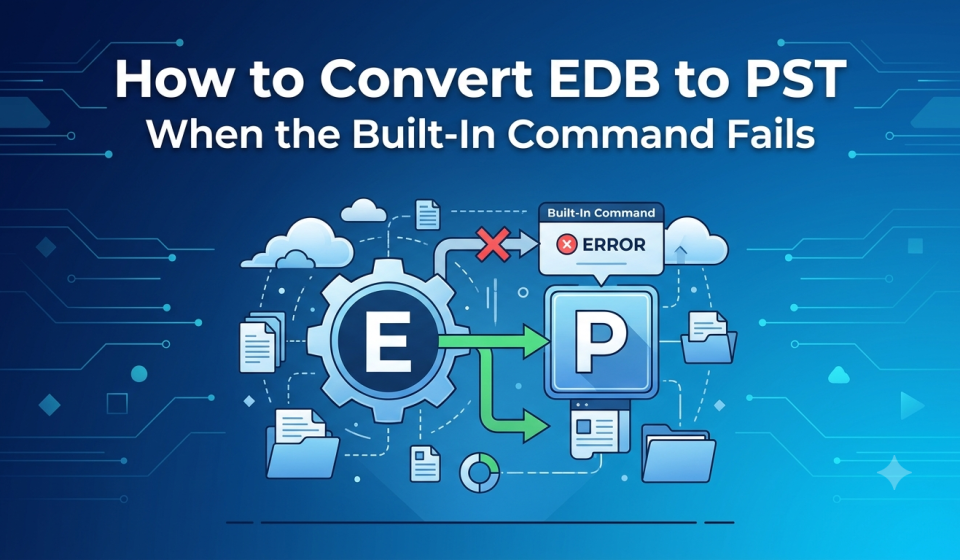

When New-MailboxExportRequest fails, you can usually fix it in minutes, but if the database can’t be mounted or the server is gone, you need a tool that reads the EDB file directly.
Table Of Content
Exchange administrators export mailboxes to PST for many reasons: archiving a departed employee’s mail, answering a legal hold request, moving data off a server being retired, or handing a user a copy of their old mailbox. Microsoft’s built-in route is the New-MailboxExportRequest cmdlet. It works well when everything is in place. When it isn’t, the errors are often vague and the request can sit in the queue for hours.
This guide covers how the built-in command works, the most common reasons it fails and how to fix each one, the situations where it can’t work at all, and how to convert EDB file to PST without Exchange Server when you hit those limits.
The built-in method: New-MailboxExportRequest
New-MailboxExportRequest exports a mailbox from a running, on-premises Exchange server to a PST file on a network share. It is available in Exchange 2010 SP1 and later, including Exchange 2013, 2016, 2019 and Exchange Server SE, and it is not available in Exchange Online.
Before you run it, three things must be in place:
- The Mailbox Import Export role. Microsoft does not assign this role to any role group by default, so even an Organization Management admin can’t run the cmdlet until the role is added.
- A UNC network share. The FilePath must be a share path such as \SERVER01\PSTExports\user.pst, not a local drive path like C:\PST.
- Share permissions for Exchange Trusted Subsystem. This group needs Read/Write permission on the share, because the Exchange server writes the PST, not your admin account.
The basic command looks like this:
# Grant the role to your admin account
New-ManagementRoleAssignment -Role “Mailbox Import Export” -User admin01
# Start the export and check its progress
New-MailboxExportRequest -Mailbox jsmith -FilePath “\\SERVER01\PSTExports\jsmith.pst”
Get-MailboxExportRequest | Get-MailboxExportRequestStatistics
Add -IsArchive to export a user’s archive mailbox instead of the primary one. After assigning the role, close and reopen the Exchange Management Shell so the new permission takes effect.
Why New-MailboxExportRequest fails, and how to fix it
Most failures come from missing permissions, a bad file path, or corrupt items, and each has a direct fix. Start by pulling the failure report, because the cmdlet itself reports very little:
Get-MailboxExportRequest -Status Failed | Get-MailboxExportRequestStatistics -IncludeReport | Format-List > \\SERVER01\PSTExports\report.txt
Then match what you see against this table.
| Symptom or error | Likely cause | Fix |
|---|---|---|
| “The term ‘New-MailboxExportRequest’ is not recognized” | The Mailbox Import Export role isn’t assigned, or you’re connected to Exchange Online | Assign the role and reopen the Exchange Management Shell. In Exchange Online, use a Microsoft Purview eDiscovery export instead |
| Exchange can’t connect to the PST file on the share | A local path was used, or Exchange Trusted Subsystem lacks share permissions | Use a UNC path and give Exchange Trusted Subsystem Read/Write on the share |
| “Couldn’t connect to the source mailbox” | The mailbox database is dismounted, or the Mailbox Replication service is unhealthy | Check with Get-MailboxDatabase -Status, mount the database, and restart MSExchangeMailboxReplication |
| Request stays in Queued for hours | The Mailbox Replication service is hung, or DAG replication is unhealthy | Restart MSExchangeMailboxReplication, run Test-ReplicationHealth, then remove and resubmit the request |
| Fails with a bad items error (TooManyBadItemsPermanentException) | Corrupt items in the mailbox; BadItemLimit defaults to 0, so one bad item fails the job | Add -BadItemLimit 10, or run New-MailboxRepairRequest first. On Exchange 2010, values of 51 or more also need -AcceptLargeDataLoss |
| Fails on oversized messages | Items exceed the message size limit; LargeItemLimit defaults to 0 (Exchange 2013 and later) | Add -LargeItemLimit 10. Values of 51 or more also need -AcceptLargeDataLoss |
| Date-filtered export fails or returns nothing | ContentFilter can’t export between two dates; it accepts a “from” or a “to” date, not both | Use a single date boundary and filter further in Outlook afterwards |
| New request is rejected for the same mailbox | Exchange auto-names only 10 requests per mailbox (MailboxExport0 to 9), and failed requests aren’t removed automatically | Clear old requests with Remove-MailboxExportRequest, or give the new one a unique -Name |
| Request times out calling the MailboxReplicationService | Load balancer or CAS array misconfiguration (Exchange 2010) | Point the request at a CAS outside the array with -MRSServer |
When the built-in command can’t work at all
New-MailboxExportRequest only exports mailboxes from a mounted database in a live Exchange organization. It cannot read an EDB file on its own, so no amount of troubleshooting helps in these cases:
- You only have the EDB file. It came from a backup, an old disk, or a server image, and there’s no Exchange organization to attach it to.
- The database won’t mount. A dirty shutdown or missing transaction logs keeps it offline. Running eseutil /p can force it to mount, but it discards damaged pages, which means permanent data loss.
- The server has been decommissioned. Exchange 2016 and 2019 reached end of support in October 2025, and many organizations kept the EDB files after retiring the servers.
- The data is from Exchange 2007 or earlier. The cmdlet arrived in Exchange 2010 SP1, so older databases have no native PST export path.
- You don’t have Exchange admin rights. Consultants, legal teams and auditors often receive an EDB file without access to the organization it came from.
The native workaround is a recovery database: mount the EDB as a recovery database on a working Exchange server of a compatible version, restore the mailbox into a live mailbox with New-MailboxRestoreRequest, then export it. That needs a running Exchange server, a healthy database, and several hours of admin time. For a single file or a handful of mailboxes, a converter that reads the EDB file directly is usually faster.
How to convert EDB to PST without Exchange Server
Online EDB to PST Converter by Stellar reads an offline EDB file directly in the browser, with no Exchange Server, Outlook or PowerShell needed. It supports databases from Exchange 5.5 through Exchange 2019 and SE, and it does not modify the original EDB file.
- Upload the EDB file. Open the converter, click Convert EDB File, sign in, and upload the database. The free plan accepts files up to 500 MB and the Premium plan accepts up to 5 GB.
- Let it analyze and convert. The file is processed automatically on Stellar’s servers without human access. Most files finish in under 15 minutes.
- Preview the mailboxes. Check the folder structure and item counts for each mailbox before you download anything.
- Download the PST files. The converted mailboxes arrive as individual PST files in a ZIP archive. Emails, attachments, contacts, calendars, tasks and notes keep their original folder hierarchy.
- Open or import the PSTs. Open them in Outlook, keep them as an archive, or import them into Exchange or Microsoft 365.
Converted files are deleted automatically after 24 hours on the free plan and 48 hours on Premium, so download them promptly.
Online converter or desktop software?
Use the online converter for one small-to-medium EDB file, and the desktop software for large databases, many mailboxes, or data that must not leave your network.
| Option | Max EDB size | Mailboxes | Where data is processed | Exports to | Price |
|---|---|---|---|---|---|
| Online, Free | 500 MB | One EDB per session | Deleted after 24 hours | PST | $0 |
| Online, Premium | 5 GB | 10 (5, 25 and 50 tiers available) | Deleted after 48 hours | PST | $99.99 for 10 mailboxes |
| Desktop, Technician Edition | No limit | 500, across multiple EDB files | Your own machine, offline | PST, live Exchange, Microsoft 365 | $399 per year |
Conclusion
Fix the command first when the server is healthy; switch to a converter when the server or database isn’t available. Most New-MailboxExportRequest failures trace back to the Mailbox Import Export role, a missing UNC share permission, or a BadItemLimit of 0, and the failure report will usually point you to the right one.
When the database won’t mount, the server is gone, or the EDB predates Exchange 2010, the cmdlet has nothing to work with. Try Stellar Online EDB to PST Converter free for files up to 500 MB, or use Stellar Converter for EDB for larger databases and bulk conversions.