To permanently turn on line numbers in IntelliJ IDEA (and other JetBrains IDEs):
Table Of Content
- Go to File > Settings…
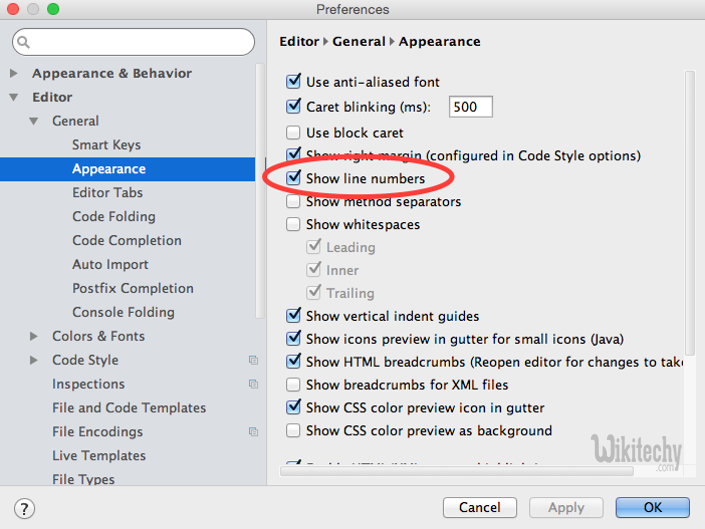
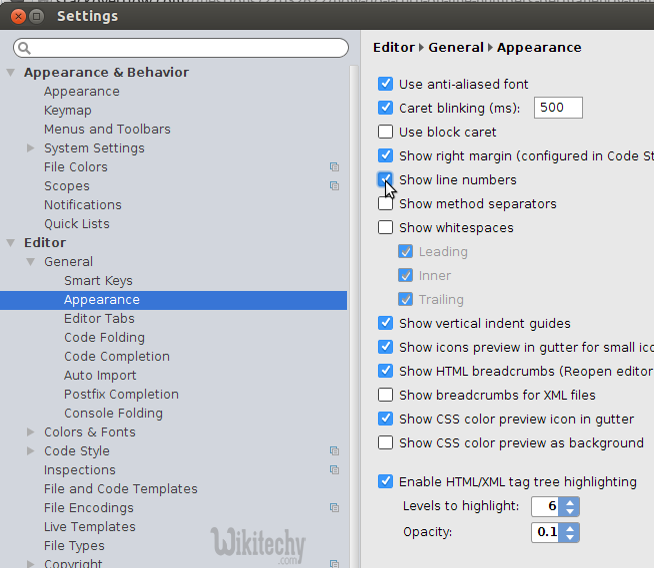
- Then go to Editor > General > Appearance.
- Check the Show line numbers box.
- Click Apply and OK.
- Line numbers are now permanently turned on.
IntelliJ 14.X Onwards
From version 14.0 onwards, the path to the setting dialog is slightly different, a General submenu has been added between Editor and Appearance as shown below
IntelliJ 8.1.2 – 13.X
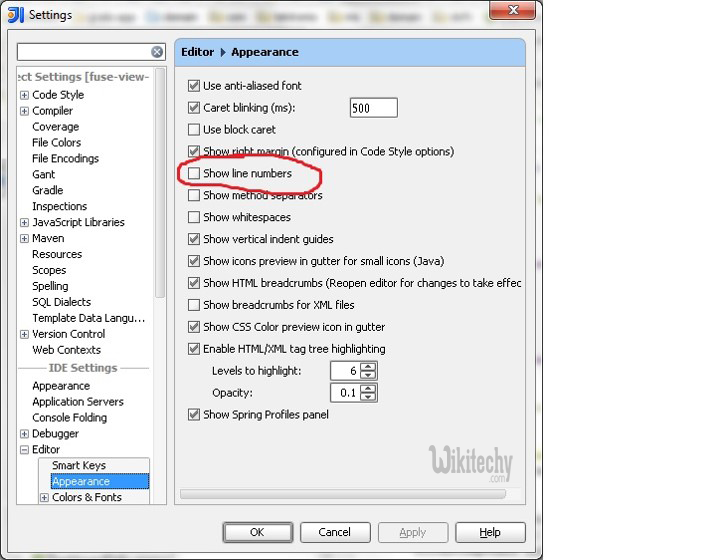
From IntelliJ 8.1.2 onwards, this option is in File | Settings1. Within the IDE Settings section of that dialog
- On a Mac, these are named IntelliJ IDEA | Preferences
In IJ 13
- Press shift+shift
- Type “line number”
- The option shows in the menu and press enter to enable/disable.

There’s another way,
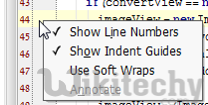
- Simply right click on the place where the line-numbers should be, and there you’ll see a small menu.
- then, mark the “Show Line Numbers” option.
- Note that this only works on a per-file basis
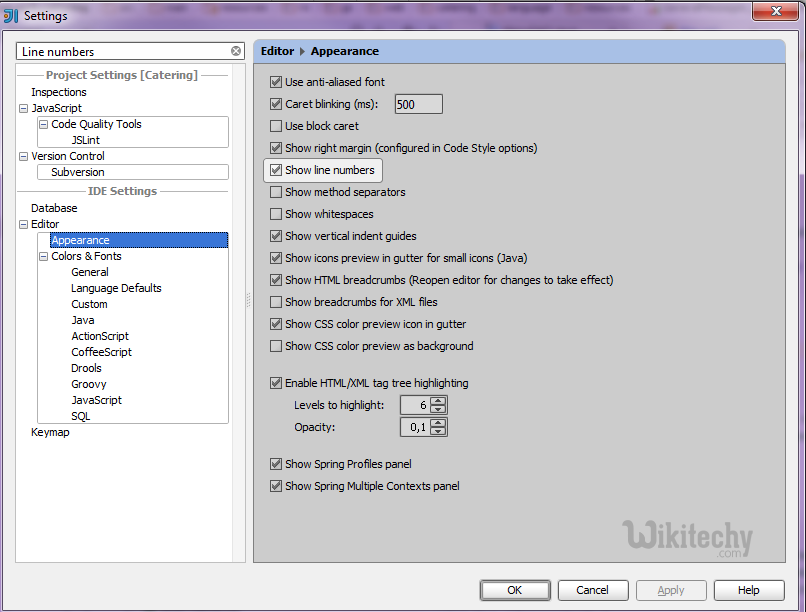
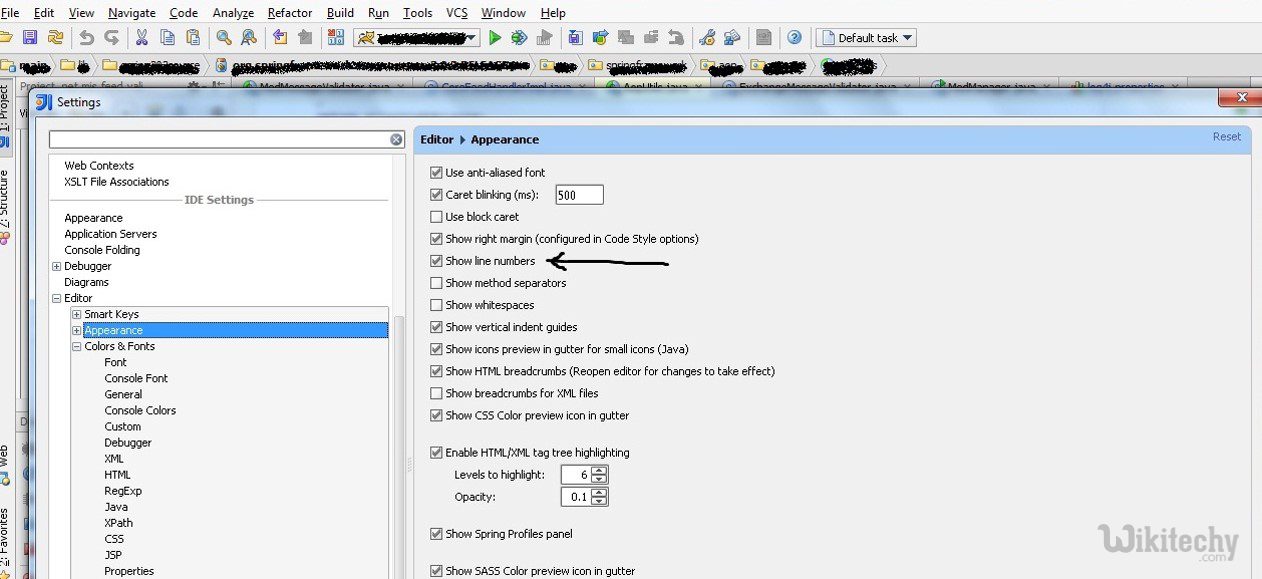
In Intellij 13 the layout has changed, the Settings button can only be found in File -> Settings and not in the toolbars, and from there you follow the same steps: Editor -> Appearance -> Show line numbers, or search for Line numbers in the Settings search input.
For InteliJ IDEA 11.0 and above
Goto File –> Settings in the Settings window Editor –> Appearance
and tick Show line numbers check box.
IntelliJ 14 (Ubuntu):
File > Settings > Editor > General > Appearance > show line numbers
For current Editor:
View > Active Editor > Show Line Numbers
In intelliJ 14 Ultimate using the Mac version this is it.
IntelliJ Idea > Preferences > Editor > General > Appearance > Show Line Numbers
[ad type=”banner”]